






 Hotel operations
User guide · Receptionist
Check room status and the calendar
Read room status and the calendar before handling a stay.
- Use your reception account and identify the floor, room or dates to review.
- Sign in with the correct role and check the account name in the menu.
Read Room Board
Receptionist
1Step 1 of 5
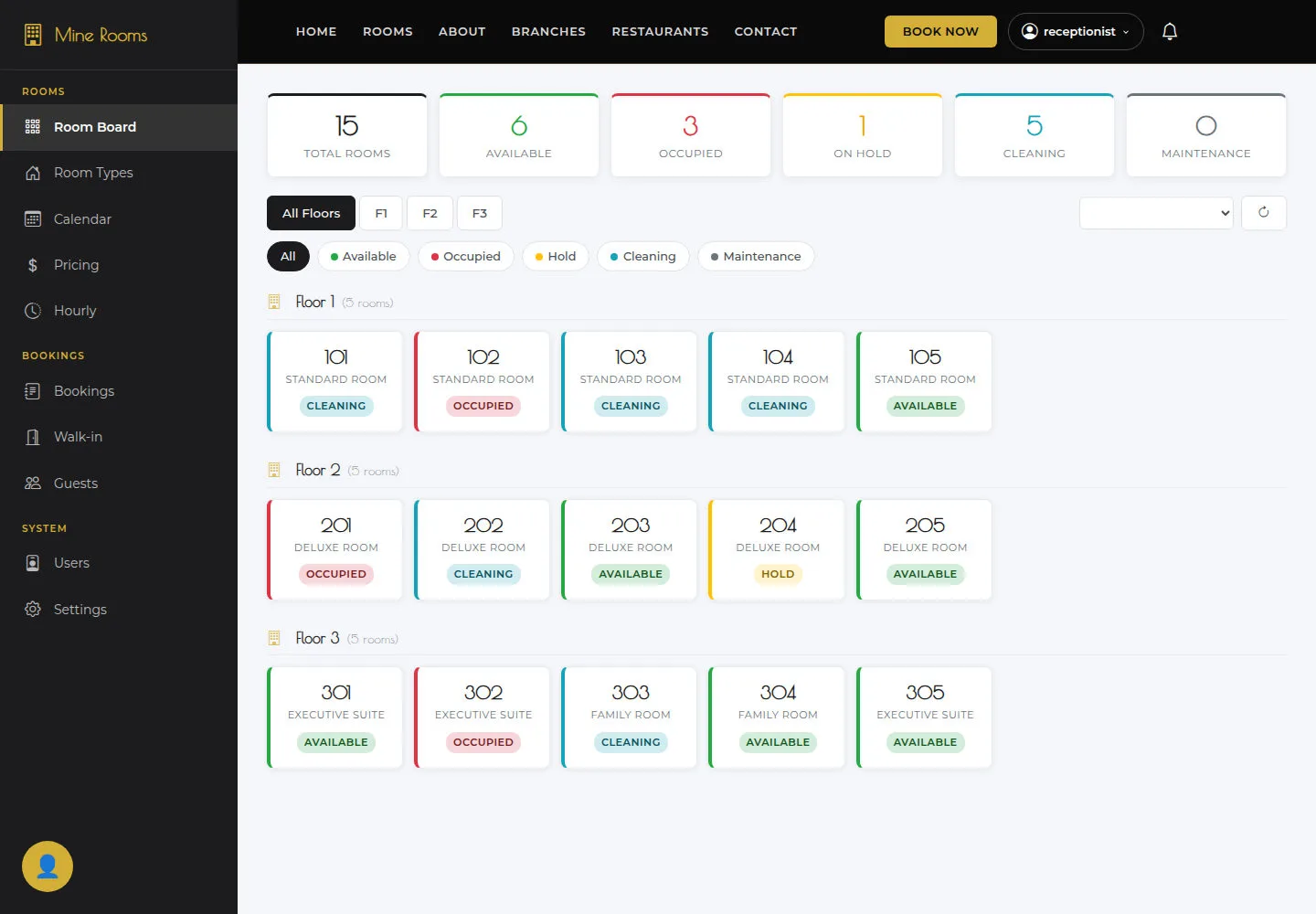
Wait for the board to load; check room number, floor and status before acting.
- Open Room Board, wait for room data and read counters, floors and status.
Open on site ↗sign-inFull-page screenshot ↗
Wait for the board to load; check room number, floor and status before acting.
Filter Cleaning rooms
Receptionist
2Step 2 of 5
Wait for the board to load; check room number, floor and status before acting.
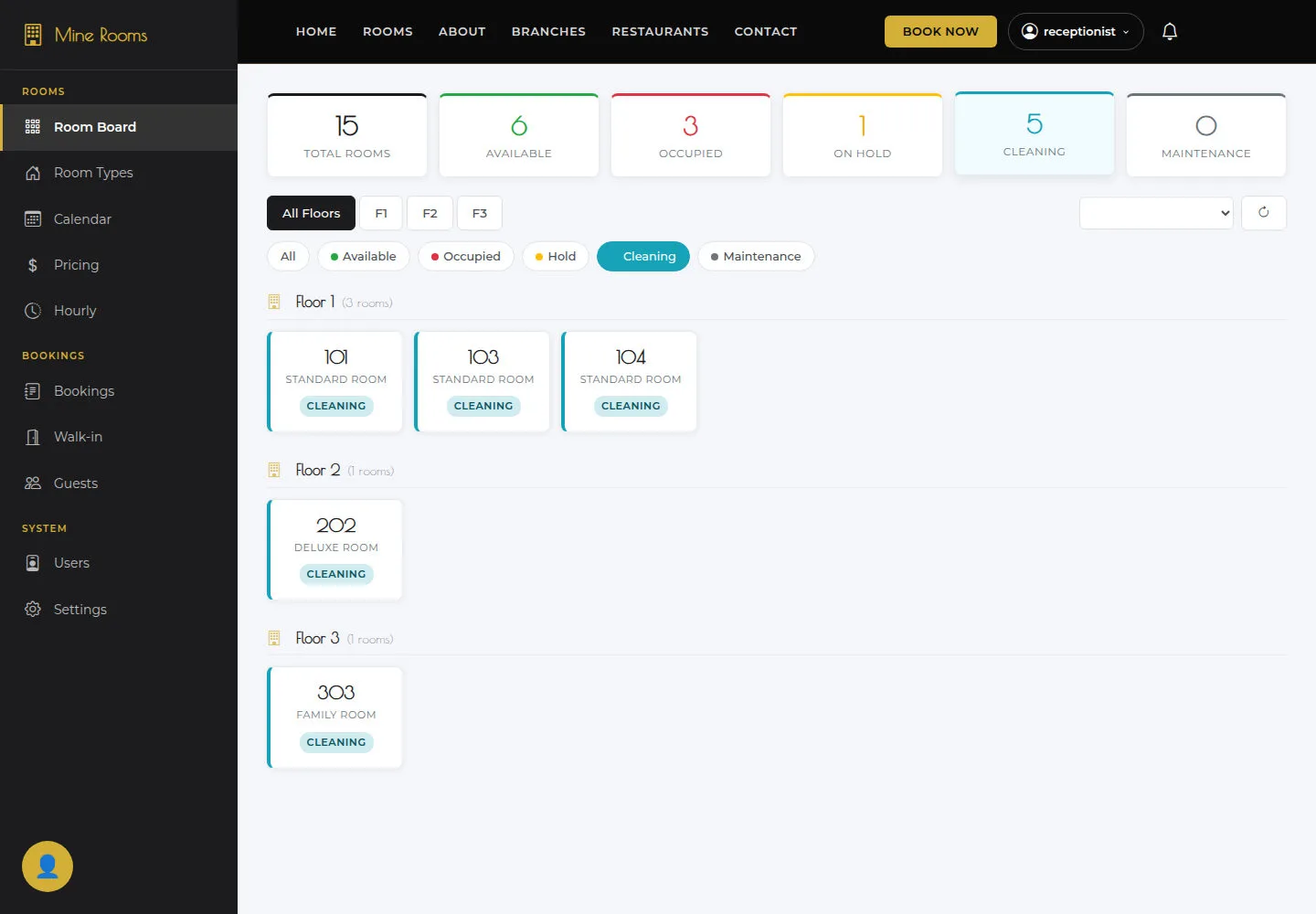
- Choose Cleaning and read the rooms awaiting cleaning.
Open on site ↗sign-inFull-page screenshot ↗
The board shows Cleaning rooms. Choose All again to see every room.
Open the room detail
Receptionist
3Step 3 of 5
Wait for the board to load; check room number, floor and status before acting.
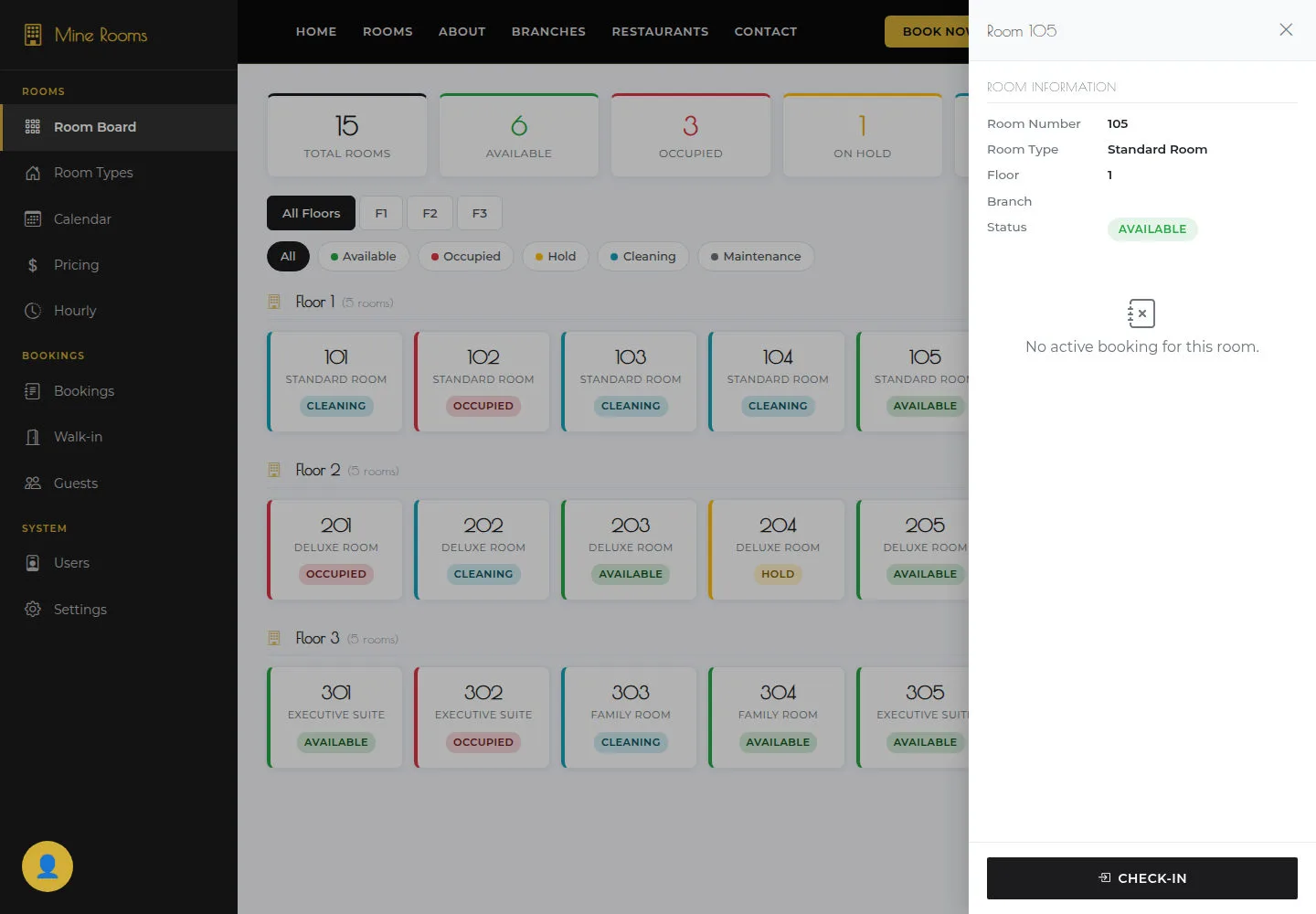
- Select a room to open its detail panel and compare room number and status.
Open on site ↗sign-inFull-page screenshot ↗
The detail panel belongs to the selected room; check its number and status.
Open the board Check-in dialog
Receptionist
4Step 4 of 5
Wait for the board to load; check room number, floor and status before acting.
- Open Check-in on an Available room. Choose the correct booking in Select Booking and add Notes if needed; use Confirm Check-in only when the booking and room match.
Open on site ↗sign-inFull-page screenshot ↗
The dialog identifies the chosen booking and appropriate notes. After confirmation, reopen the booking and Room Board to check their states.
Read Calendar
Receptionist
5Step 5 of 5
The calendar shows rooms and dates. A period without bookings may be empty.
- Open Calendar and compare the displayed dates and rooms.
Open on site ↗sign-inFull-page screenshot ↗
The calendar shows rooms and dates. A period without bookings may be empty.