






 Hotel operations
User guide · Administrator
Review accounts and shift records
Manage account access and check shift records.
- Check approved account access, the working date and handover information.
- Sign in with the correct role and check the account name in the menu.
Read User Management
Administrator
1Step 1 of 5
Check the information on this screen before continuing.
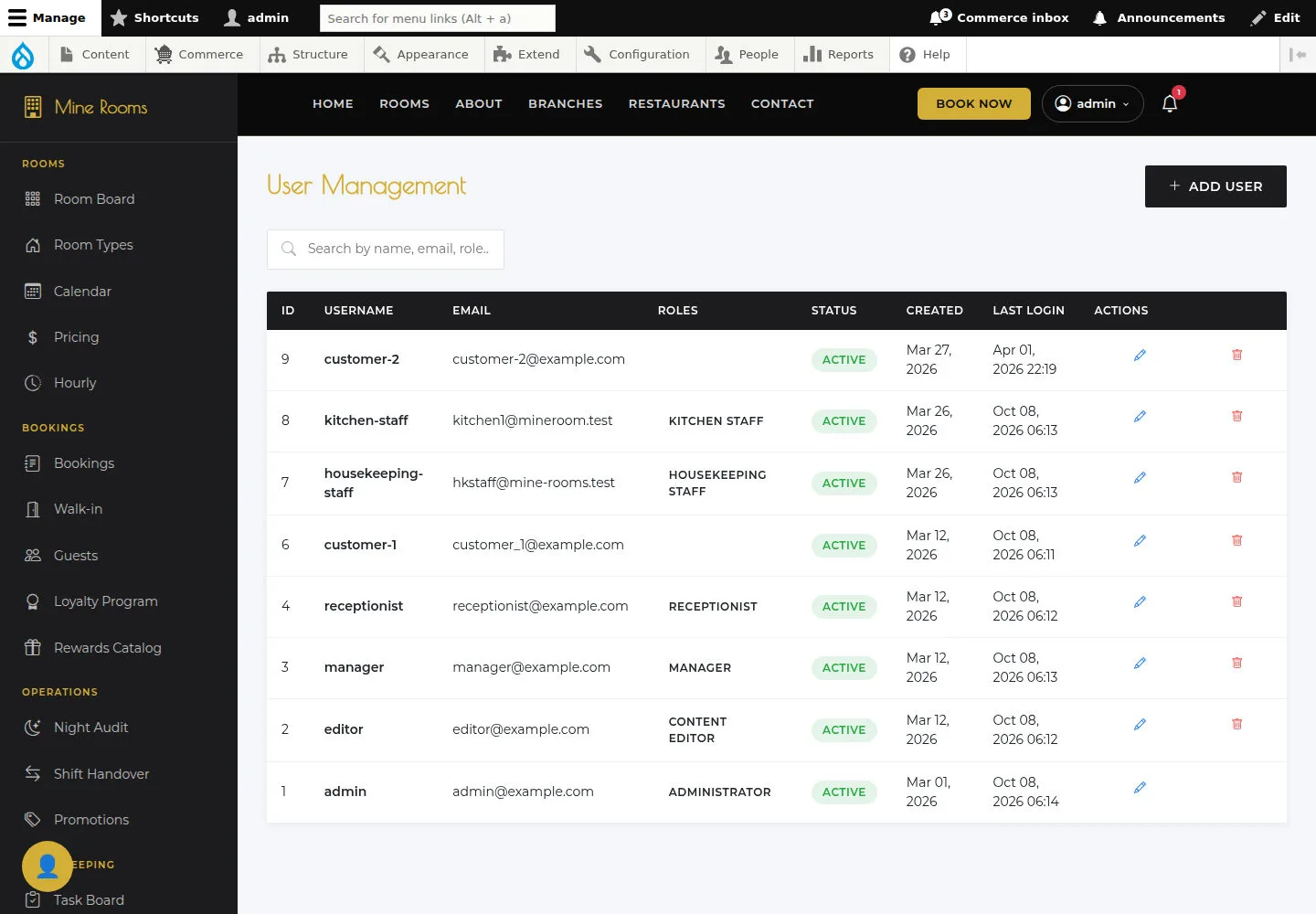
- Check username, role and user state.
Open on site ↗sign-inFull-page screenshot ↗
You know which account needs attention.
Open Add User
Administrator
2Step 2 of 5
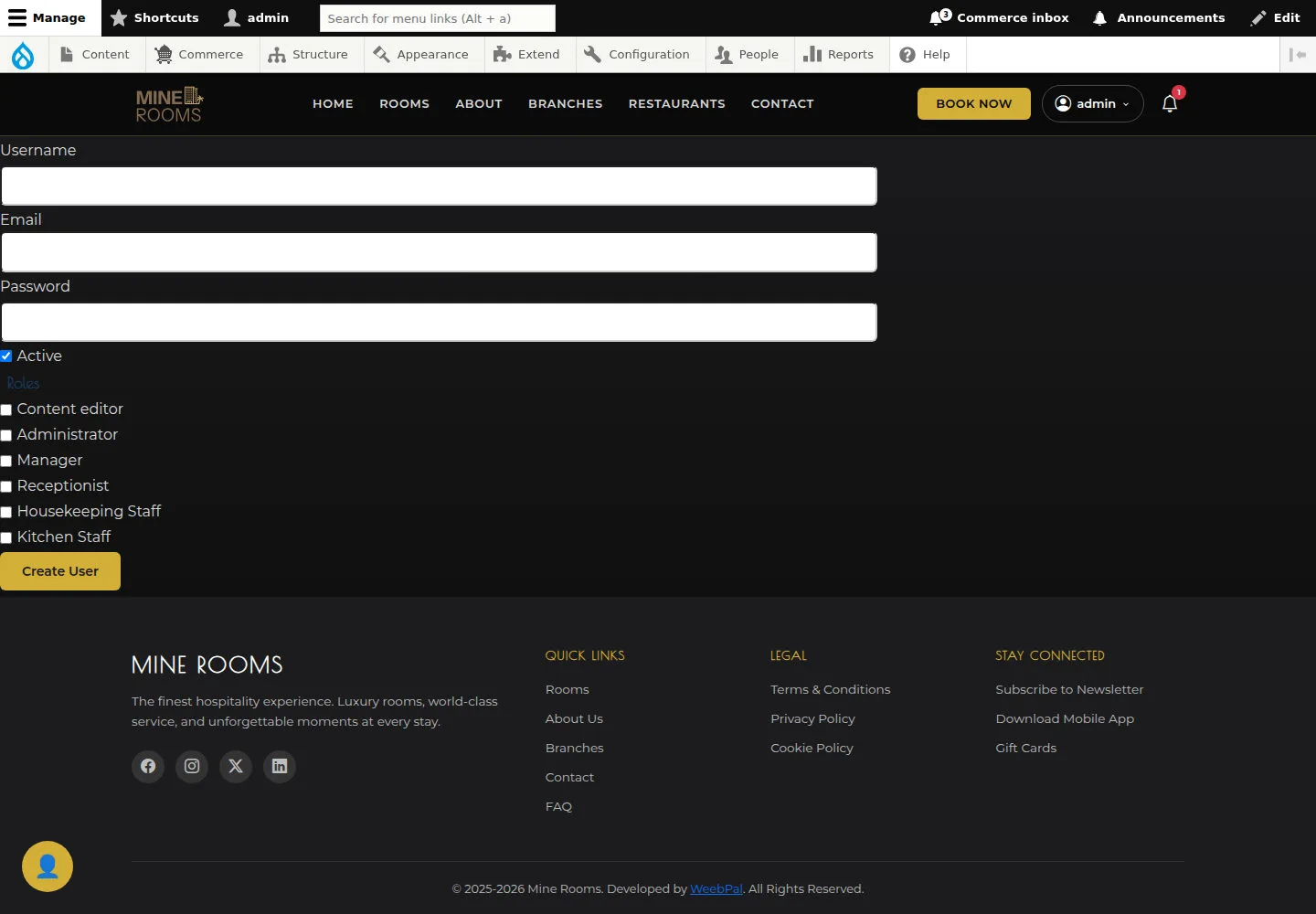
Add User prepares an account and role for a user.
- Complete the account form; grant only the role required for the job.
Open on site ↗sign-inFull-page screenshot ↗
After creation, check the account and its sign-in access.
Open Edit User
Administrator
3Step 3 of 5
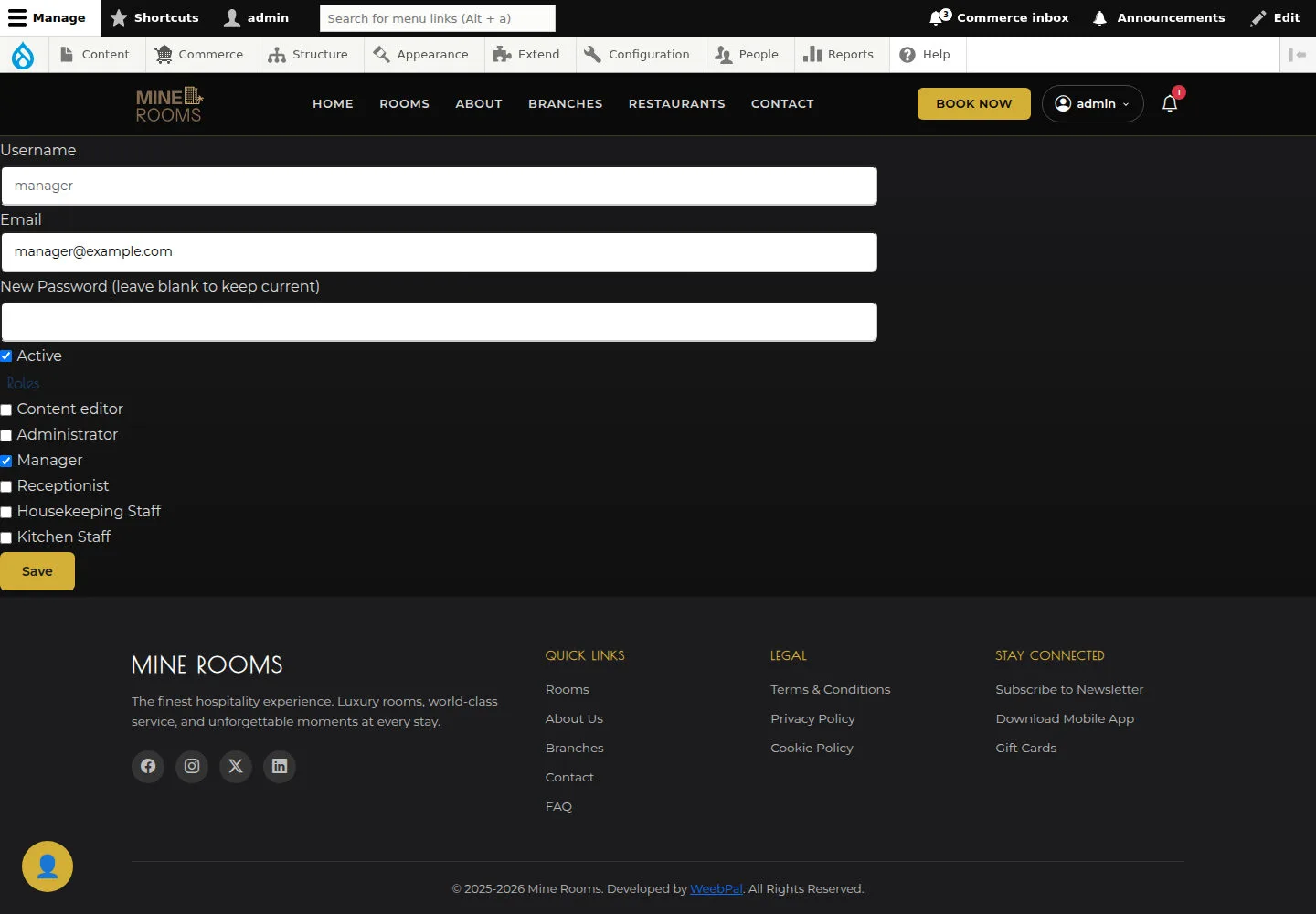
Edit User opens the selected account’s details and access.
- Check username and role before changing details.
Open on site ↗sign-inFull-page screenshot ↗
After Save, check the record and account access.
Read Shift Handover
Administrator
4Step 4 of 5
Shift Handover brings together handover information between shifts.
- Check Current Shift and Shift Summary. Reconcile Closing Balance, Notes for Next Shift and Pending Items; ask the responsible person to resolve an unavailable Submit Handover action.
Open on site ↗sign-inFull-page screenshot ↗
You have the shift information and work to hand over. Treat handover as complete only after an available action produces a confirming record.
Read Night Audit
Administrator
5Step 5 of 5
Night Audit is where operational records for the audit date are checked.
- Read Pending Actions and existing audit records; reconcile unposted charges with bookings and supporting records.
Open on site ↗sign-inFull-page screenshot ↗
The items needing attention are identified. Displayed totals and an open Night Audit page do not establish a completed reconciliation.