






 Hotel operations
User guide · Administrator
Review room types, calendars and rates
Check inventory against room type, dates and the price matrix.
- Have the room type, location, date range and approved rates ready.
- Sign in with the correct role and check the account name in the menu.

Read Room Types
Administrator
1Step 1 of 6
Room Types shows the room types currently in the system.
- Check the room type and its details before using it in a booking.
Open on site ↗sign-inFull-page screenshot ↗
The correct room type is identified.
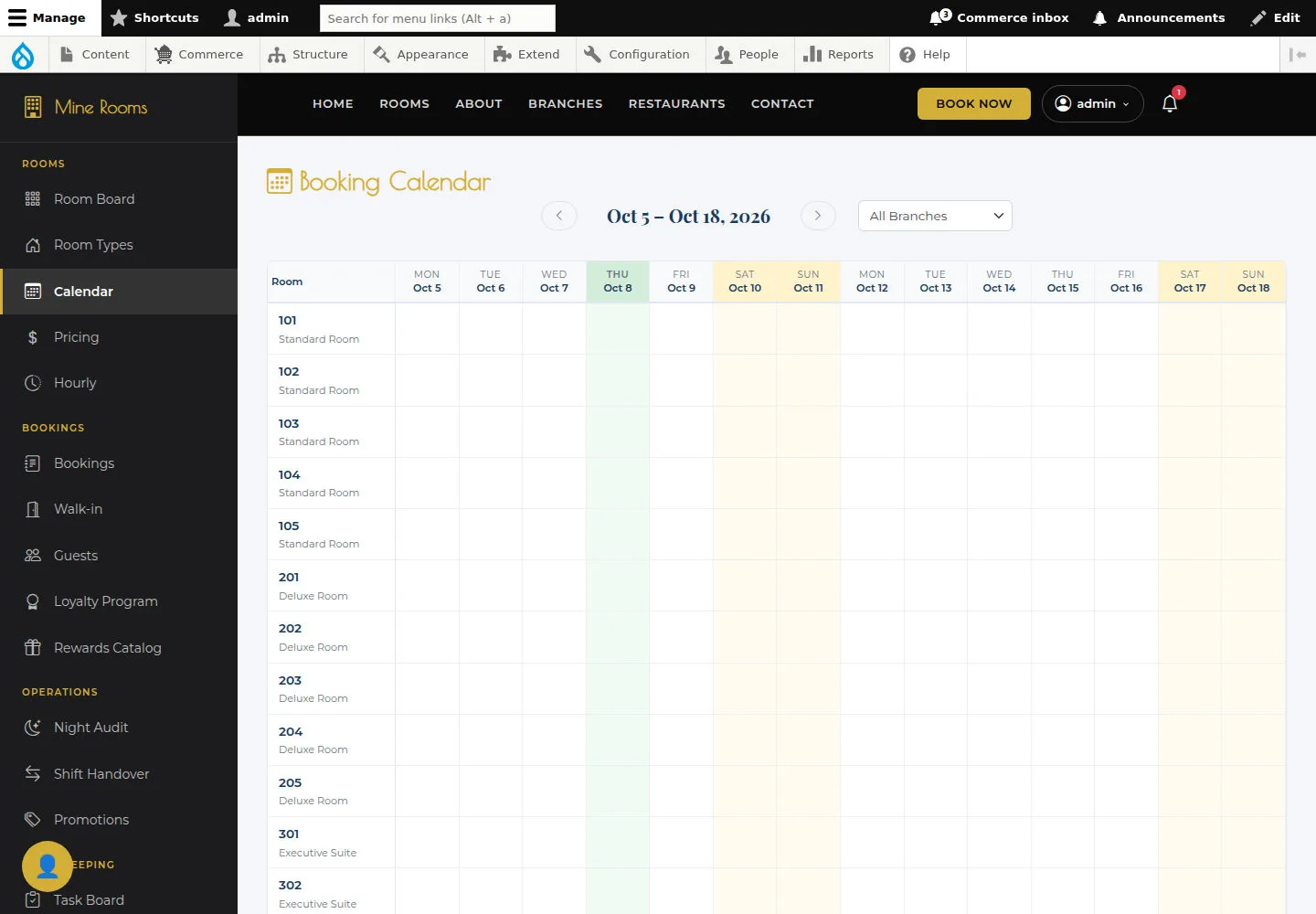
Read Calendar
Administrator
2Step 2 of 6
Check the information on this screen before continuing.
- Check date range, rooms and displayed bookings.
Open on site ↗sign-inFull-page screenshot ↗
You know which dates and rooms need attention.
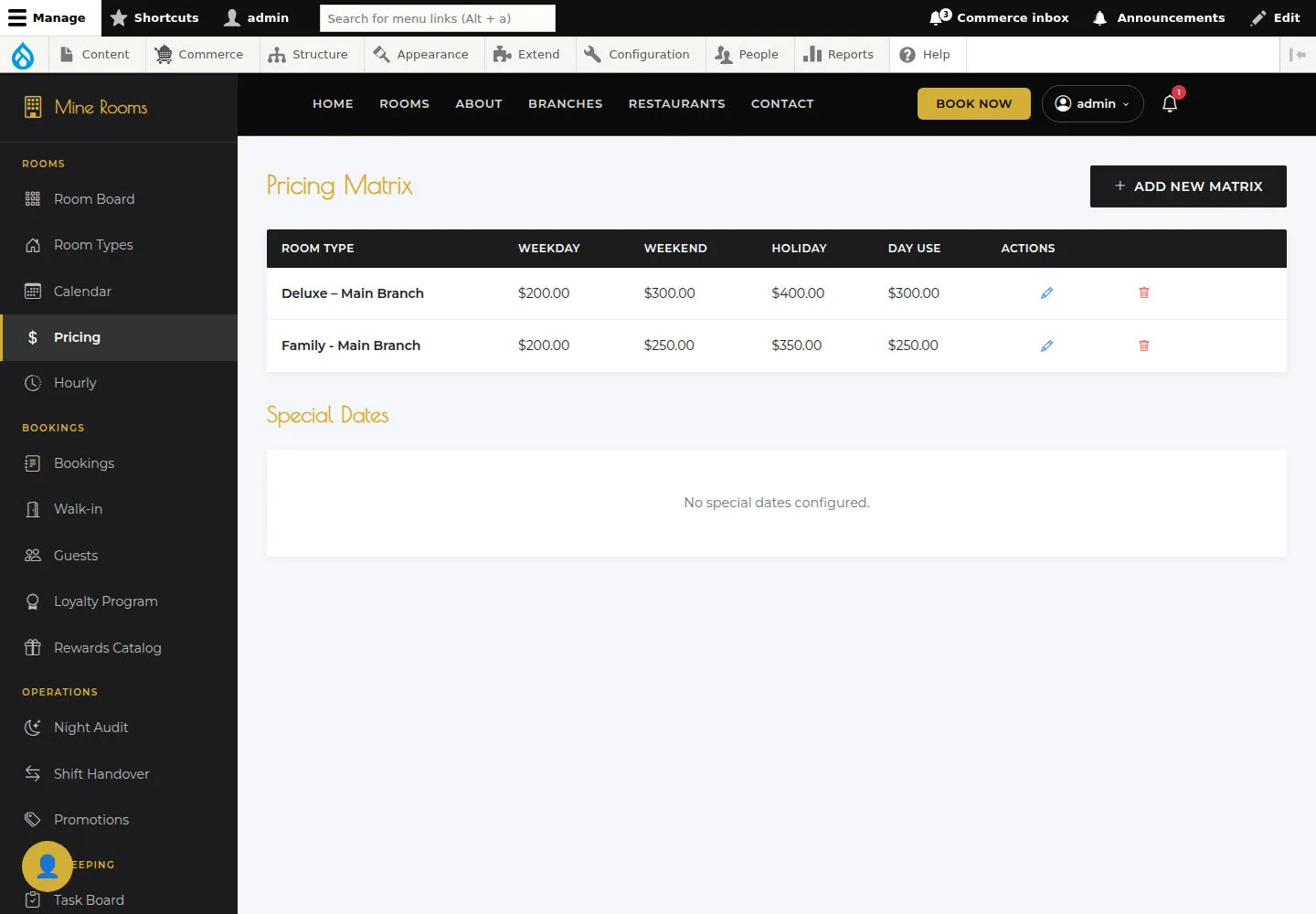
Read Pricing Matrix
Administrator
3Step 3 of 6
Check the information on this screen before continuing.
- Compare room type, branch and rates.
Open on site ↗sign-inFull-page screenshot ↗
The matrix belongs to the correct room type and branch.
Prepare a new matrix
Administrator
4Step 4 of 6
Add Pricing Matrix prepares rate configuration for a room type and branch.
- Choose room type and branch; enter the required rates.
Open on site ↗sign-inFull-page screenshot ↗
After Save, reopen the matrix and check saved rates.
Edit an existing matrix
Administrator
5Step 5 of 6
Edit Pricing Matrix opens an existing rate configuration.
- Check the record being edited before changing rates.
Open on site ↗sign-inFull-page screenshot ↗
After Save, compare the record and rates.
Read Hourly Bookings
Administrator
6Step 6 of 6
Hourly Bookings brings together hourly stays.
- Check room, duration and stay state.
Open on site ↗sign-inFull-page screenshot ↗
Hourly stays are distinguished from overnight bookings.