






 Hotel operations
User guide · Administrator
Maintain venues, menus and room QR codes
Check the venue and menu items before providing in-room menus to guests.
- Have the approved venue, menu item, price and room details ready.
- Sign in with the correct role and check the account name in the menu.
Read Restaurants & Venues
Administrator
1Step 1 of 8
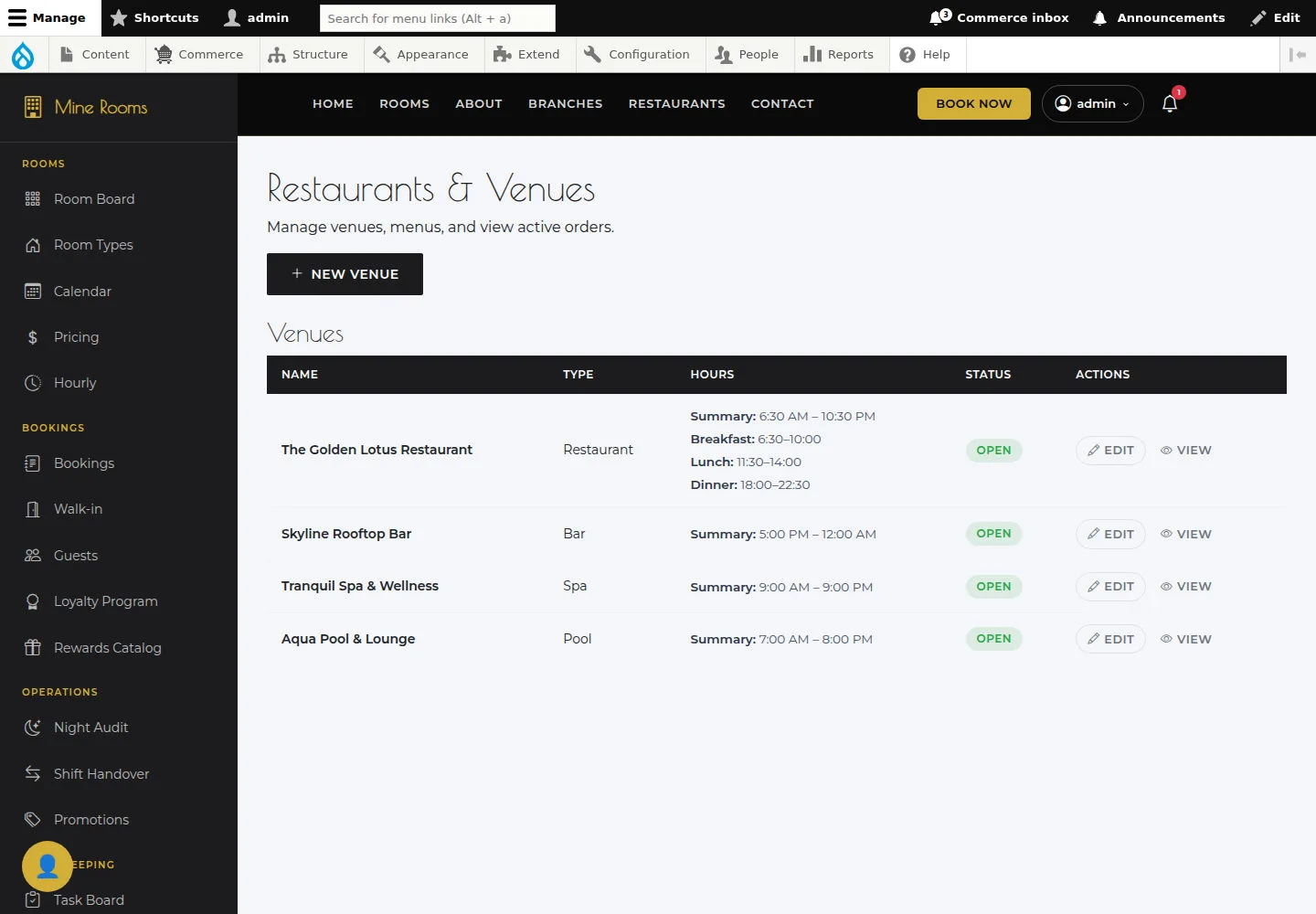
Restaurants & Venues lists the venues in the system.
- Choose the venue to manage and check its name.
Open on site ↗sign-inFull-page screenshot ↗
You are handling the correct venue.
Open Add venue
Administrator
2Step 2 of 8
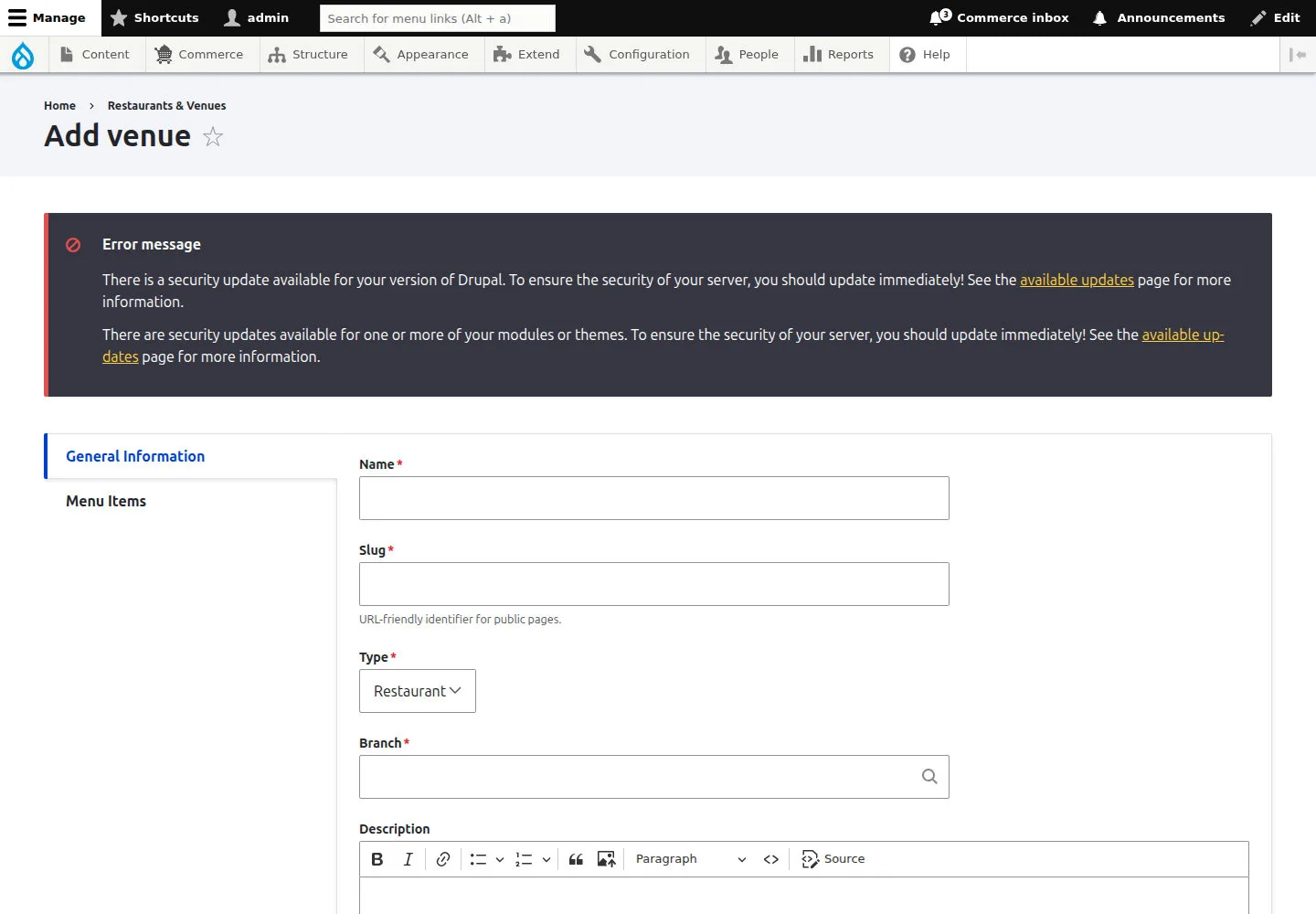
Add venue prepares a new location’s details.
- Complete the venue form and check the details before saving.
Open on site ↗sign-inFull-page screenshot ↗
After Save, find the new venue.
Open the venue edit form
Administrator
3Step 3 of 8
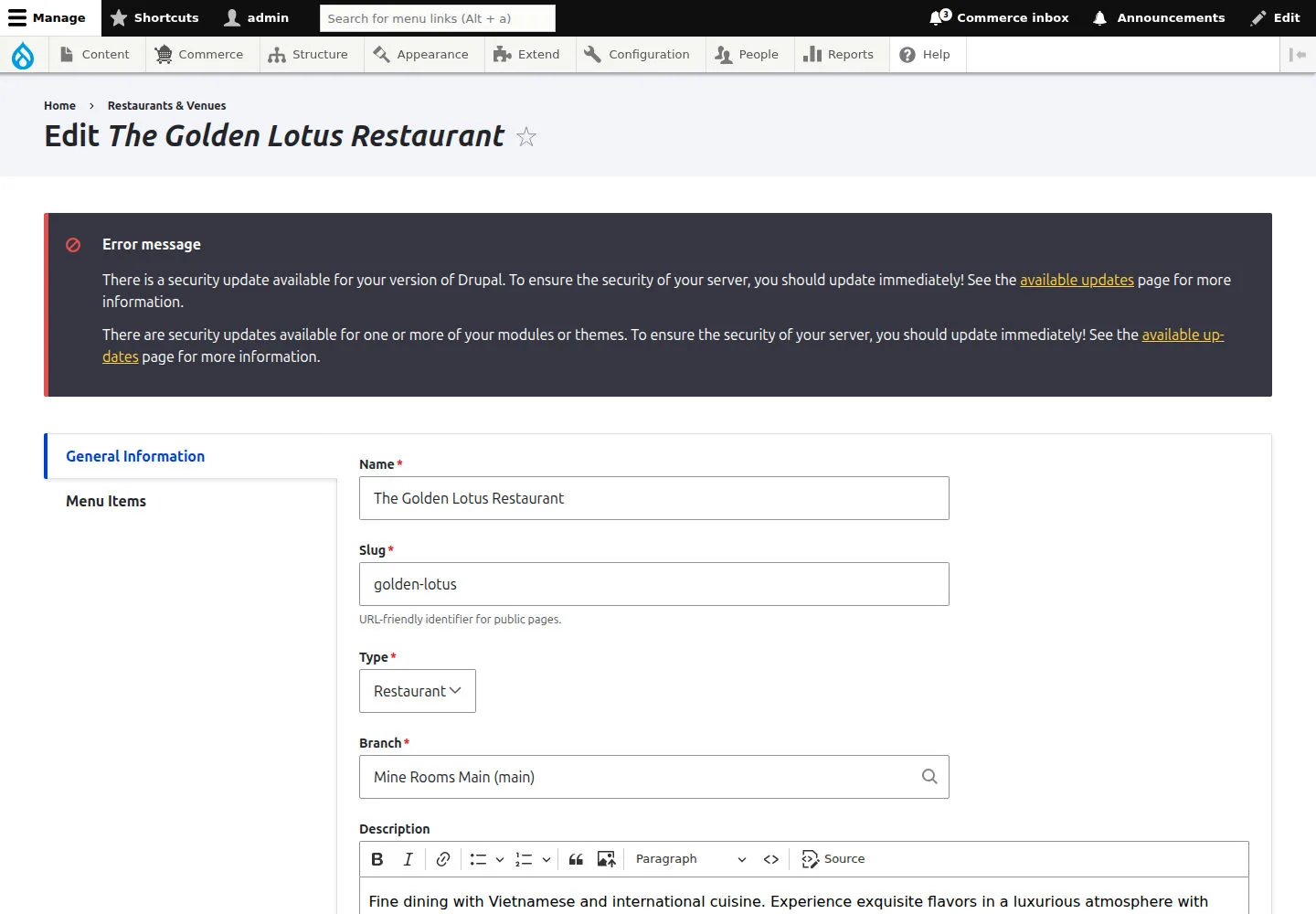
The venue edit form opens The Golden Lotus Restaurant’s details.
- Open the venue to edit and verify its name and details before making changes.
Open on site ↗sign-inFull-page screenshot ↗
After Save, reopen the venue to check changes.
Open Add menu item
Administrator
4Step 4 of 8
Add menu item prepares an item for the selected venue.
- Check the item’s venue, enter its details and review them before saving.
Open on site ↗sign-inFull-page screenshot ↗
After Save, find the item in the correct venue menu.
Open the menu item edit form
Administrator
5Step 5 of 8
The menu item edit form opens Spring Rolls’s details.
- Open the menu item to edit and verify the venue, item name and details before making changes.
Open on site ↗sign-inFull-page screenshot ↗
After Save, reopen the item to check its details.
Read Room QR Codes
Administrator
6Step 6 of 8
Room QR Codes is where you find codes by room.
- Check the room before choosing its QR code.
Open on site ↗sign-inFull-page screenshot ↗
The selected QR code is for the correct room.
Check the room QR
Administrator
7Step 7 of 8
The room QR page displays a code for opening the in-room menu.
- Open the room QR code and check room number before giving it to a guest.
Open on site ↗sign-inFull-page screenshot ↗
The QR is assigned to the correct room; check the menu with a trial scan.
Read Kitchen Display
Administrator
8Step 8 of 8
Check the information on this screen before continuing.
- Check New Orders, Preparing and Ready during the shift.
Open on site ↗sign-inFull-page screenshot ↗
Empty counters mean there are no open orders to handle.