






 Hotel operations
User guide · Administrator
Review rooms, bookings and reports
Go from the overview to the records you need to check, using the administrator account.
- Identify the date, room or booking to compare with operational records.
- Sign in with the correct role and check the account name in the menu.
AdministratorStep-by-step instructions
Check Room Board
Administrator
1Step 1 of 3
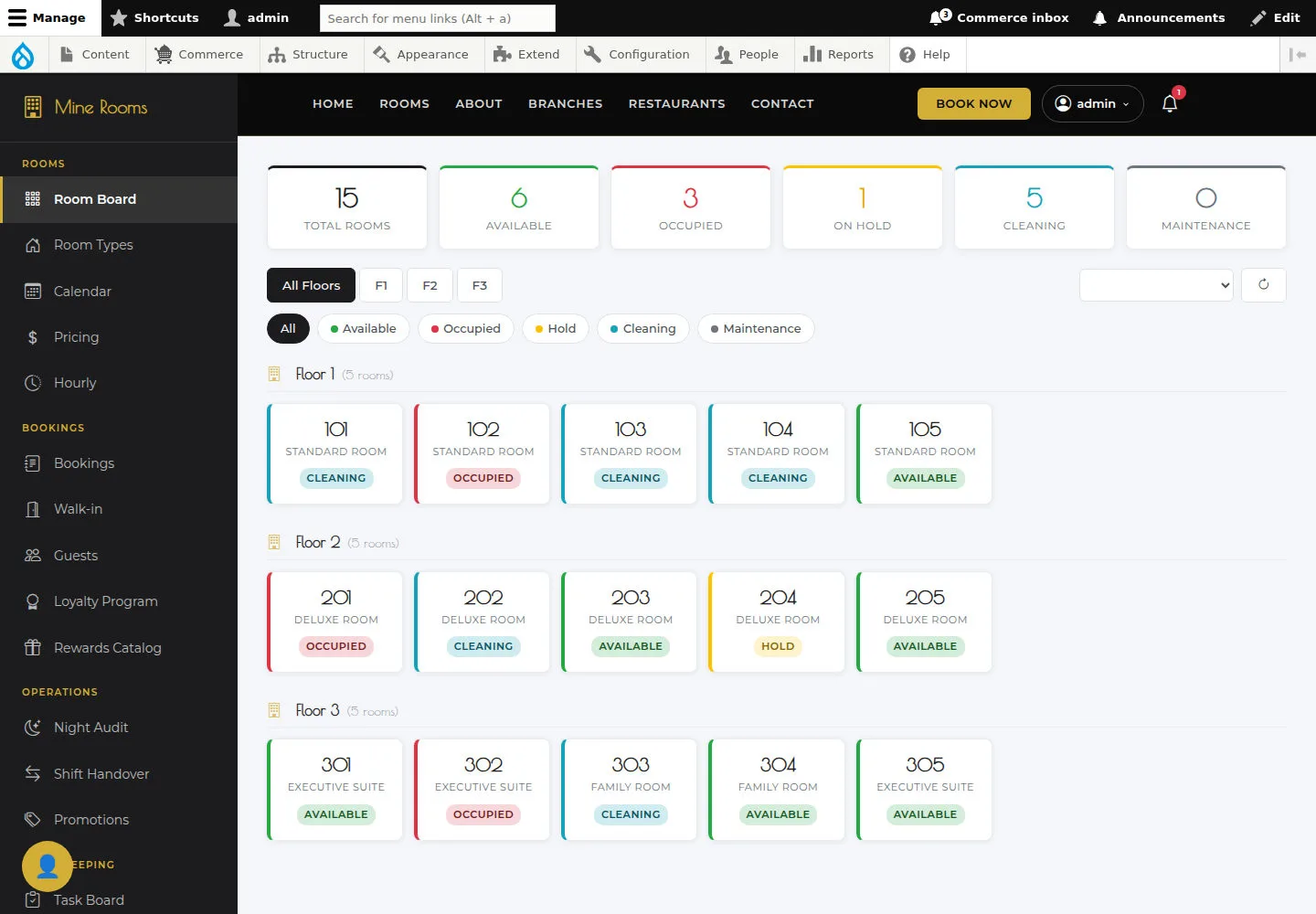
Wait for the board to load; check room number, floor and status before acting.
- Open Room Board and check that the widget actually loads data before using it.
Open on site ↗sign-inFull-page screenshot ↗
What you should see
Wait for the board to load; check room number, floor and status before acting.
Read the Bookings list
Administrator
2Step 2 of 3
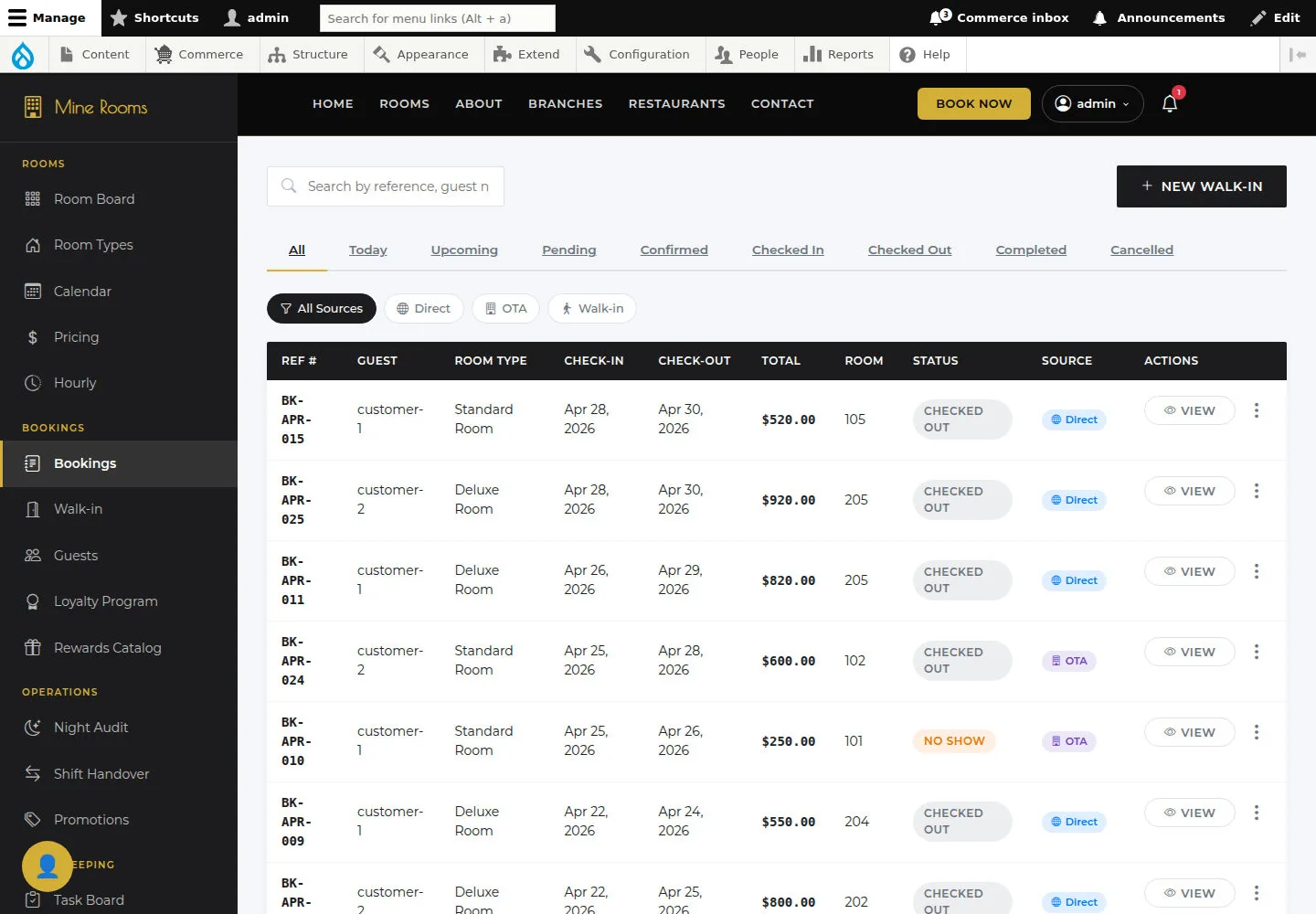
The list shows reference, guest, stay dates and status.
- Compare status tabs and source filters with actual records.
Open on site ↗sign-inFull-page screenshot ↗
What you should see
The list shows reference, guest, stay dates and status.
Read Reports
Administrator
3Step 3 of 3
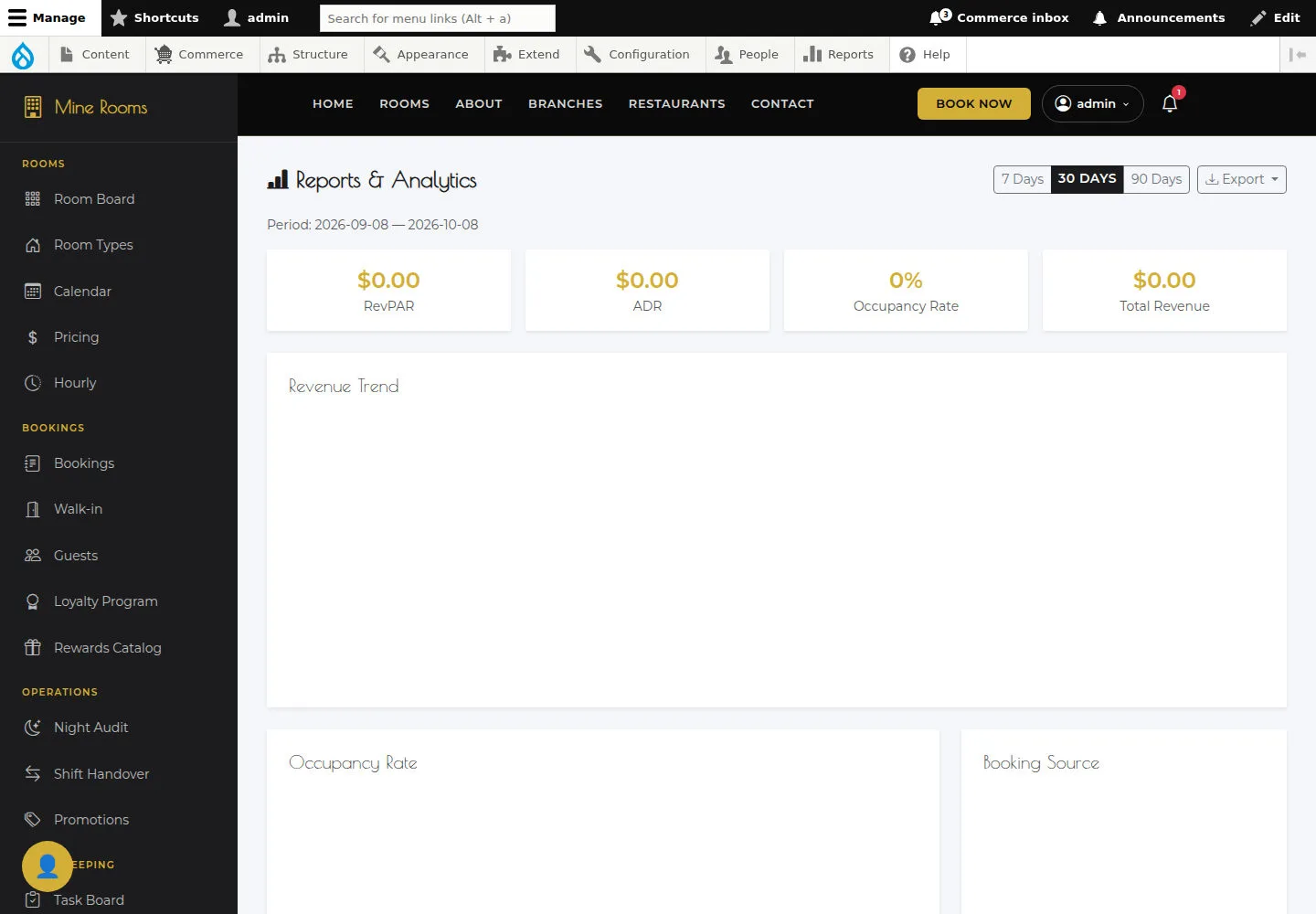
Check the reporting period and source records before using KPIs for a decision.
- Open Reports and check period and source data before relying on KPIs.
Open on site ↗sign-inFull-page screenshot ↗
What you should see
Check the reporting period and source records before using KPIs for a decision.
1 / 4