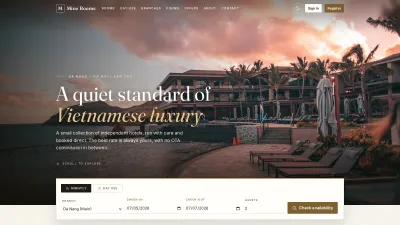




System Login
Who it’s for: Admin
Navigation: Go to the management portal login
- Enter your Username and Password, then click Log In
- Admin has access to all management features: all Receptionist functions plus admin-only tools
- The admin dashboard provides a full hotel overview on login
Admin Role Overview
As Admin, you have full access: reports, promotions, loyalty, operations, and restaurants.
Before proceeding, review Guide 03:
Receptionist Features (Admin has full access)
- Booking Management: Create, modify, cancel reservations
- Room Board: Visual room status & assignments
- Walk-in & Hourly: Quick check-in for walk-ins
- Guest Management: Guest profiles & preferences
- Calendar: Occupancy & availability views
- Room Types & Pricing: Rate management
- User Management: Staff accounts & permissions
- Settings: Property configuration
Admin-Exclusive Features (Covered in this guide)
Reports & Analytics Access performance reports, occupancy rates, and revenue analytics.
Revenue Management Connect booking channels, keep rates aligned, and manage commissions.
Promotions & Loyalty Create promotions, promo codes, coupons, and loyalty rewards.
Hotel Operations Run night audit, manage handovers, generate QR codes, and oversee restaurants.
Measure Hotel Performance
Access occupancy, revenue, and operational data.
Reports Dashboard
About this screen: A comprehensive overview of hotel performance, including occupancy, revenue, and booking statistics across all branches.
Navigation: Manage → Reports
- Occupancy Rate: % rooms occupied per day, week, or month.
- Total Revenue: Revenue by room type and branch.
- Booking Count: Bookings by status, including confirmed, cancelled, and completed.
Export Reports
About this screen: Export hotel performance data to a downloadable file for further analysis or record keeping.
Navigation: Manage → Reports → Export
- Select the date range and report type: Revenue · Occupancy · Bookings · Guests.
- Click Export to download the file immediately.
- Supported formats: CSV or Excel. You can also filter by branch.
Channels & Rate Parity
Connect your hotel to external booking channels and maintain consistent pricing across all platforms to maximise revenue.
Channel Management
About this screen: Connect Mine Rooms to external booking platforms (OTAs) and manage channel settings from one place.
Navigation: Manage → Channels
- View all connected channels (Booking.com, Agoda, Airbnb, etc.)
- Enable/Disable channels and set commission rates
- Monitor channel status: Connected, Pending, Error
Rate Parity
About this screen: Ensure consistent room pricing across all connected booking channels, and prevent rate discrepancies that violate OTA agreements.
Navigation: Manage → Rate Parity
- View current rates for each room type across all channels
- Highlight rate mismatches and sync from single master rate
- Set channel mark-up (%) while maintaining parity
Drive Bookings with Offers
Create seasonal promotions, generate unique promo codes, and issue discount coupons to attract guests and increase occupancy.
Promotions List
About this screen: All active, scheduled, and past promotions (special offers applied automatically when booking conditions are met).
Navigation: Manage → Promotions
- Each card: Name, Discount type, Validity, Status, Usage
- Status: Active · Scheduled · Expired · Disabled
- Click to view/edit or toggle to enable/disable
Add Promotion
About this screen: Create a new automatic discount promotion that applies when booking conditions are met.
Navigation: Manage → Promotions → + Add Promotion
- Name & Discount: Clear name, select type (%/fixed), set value
- Validity & Min Stay: Set dates and minimum nights required
- Room Types & Branches: Apply to all or limit to specific ones
Generate Promo Codes
About this screen: Generate a batch of unique promo codes linked to a promotion, which guests enter at checkout to redeem the discount.
Navigation: Manage → Promotions → select promotion → Generate Codes
- Select promotion to link codes to
- Set Quantity and Usage Limit per Code (use 1 for single-use)
- Click Generate: codes created instantly, downloadable as CSV
Add Coupon
About this screen: Create a specific discount coupon with a custom code, which guests enter during checkout to receive the discount.
Navigation: Manage → Coupons → + Add Coupon
- Coupon Code: Custom code guests enter (e.g.
WELCOME20) - Discount: Select type (%/fixed) and enter value
- Expiry & Usage Limit: When expires and max total redemptions
Reward Returning Guests
Configure the loyalty points system: define how guests earn points, set redeemable rewards, and encourage repeat bookings.
Loyalty Program Overview
About this screen: The loyalty program configuration (how points are earned per booking and the overall program settings).
Navigation: Manage → Loyalty
- Points Per Night: Points earned per room night booked
- Points Per Currency: Points per monetary unit spent
- Min Redemption & Expiry: Min balance to redeem and expiry days
Loyalty Rewards
About this screen: All redemption rewards available to loyalty members (what guests can exchange their points for).
Navigation: Manage → Loyalty → Rewards
- Each reward: Name, Points Required, Type, Status
- Types: Free Night · Upgrade · Dining Credit · Spa · Discount
- Toggle Active/Inactive to control visibility
Add Loyalty Reward
About this screen: Create a new redeemable reward for loyalty program members.
Navigation: Manage → Loyalty → Rewards → + Add Reward
- Name & Description: Clear label and brief description
- Points Required: Points guest must spend to redeem
- Type & Value: Select category and its monetary/room value
Night Audit, Shift Handover & Room QR Codes
Run daily financial reconciliation, manage shift transitions, and generate guest-facing QR codes for each room.
Night Audit
About this screen: Perform the end-of-day financial reconciliation, which closes the current business day and rolls over to a new date.
Navigation: Manage → Night Audit
- Review today's transaction summary: bookings, payments, adjustments
- Verify check-ins/outs and resolve unsettled folios
- Click Run Night Audit to close the day
Shift Handover
About this screen: Record the handover between front desk shifts, capturing cash drawer balance, key events, and notes for the incoming shift.
Navigation: Manage → Shift Handover
- Opening/Closing Balance: Cash in drawer at shift start/end
- Shift Notes: Log key events, issues, maintenance, VIP arrivals
- Pending Tasks: List unresolved items for the next shift
Room QR Codes
About this screen: Generate and manage QR codes for each room, which guests scan to access in-room services, menus, or their booking details.
Navigation: Manage → Room QR Codes
- Each room has a unique QR code: Download individually or in bulk
- Print and place in room (desk or door)
- Guests scan with any camera app, no app required
Manage On-Site Dining
Add, configure, and maintain hotel restaurants: set menus, operating hours, and branch assignments for all dining venues.
Restaurants List
About this screen: All hotel restaurants across all branches, with their status, branch assignment, and quick management actions.
Navigation: Manage → Restaurants
- Each card: Name, Branch, Cuisine, Status, Item count
- Click to view details or Edit to update
- Toggle Active/Inactive to hide without deleting
Add Restaurant
About this screen: Create a new restaurant listing and assign it to a branch, so guests will be able to order from it via in-room dining.
Navigation: Manage → Restaurants → + Add Restaurant
- Name & Branch: Restaurant name and hotel branch
- Cuisine & Description: Filter category and dining concept
- Hours & Cover Image: Set operating times and upload photo
Edit Restaurant
About this screen: Update an existing restaurant's information, operating hours, menu, or branch assignment.
Navigation: Manage → Restaurants → select restaurant → Edit
- Update any field: name, description, cuisine type, hours, or image
- Add or remove menu items and set Available / Unavailable
- Toggle Active / Inactive or change branch assignment
Restaurant Detail
About this screen: The public-facing restaurant detail page, exactly what guests see when browsing dining options before placing an order.
Navigation: Manage → Restaurants → select restaurant → View
- Displays: name, cuisine, description, hours, cover image
- Full menu listing organized by category tabs
- Each item shows name, description, photo, and price
Running MineRooms in your own organisation
Names, prices and plans on these screens are set up differently for each deployment. We deploy MineRooms on your domain and adapt it to how you work, and you receive the running system and its source code.