





 Hotel operations
User guide · Customer
Find your bookings, orders and notifications
Sign in with your guest account and read that account’s own records.
- Sign in with the account used for your bookings.
- Sign in with the correct role and check the account name in the menu.
Open My Dashboard
Customer
1Step 1 of 4
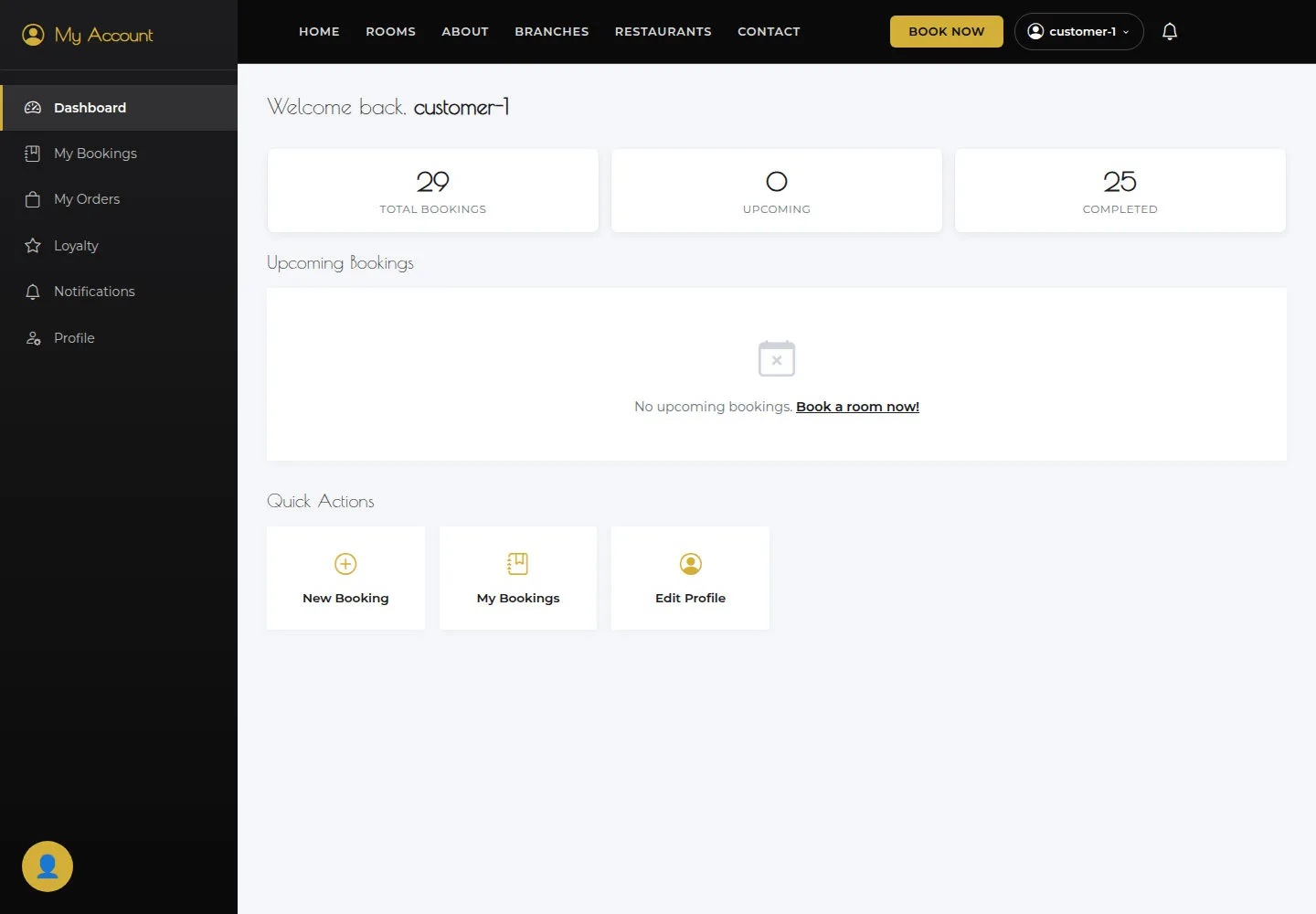
My Dashboard brings together bookings, notifications and pages for the signed-in account.
- Open My Account → Dashboard.
Open on site ↗sign-inFull-page screenshot ↗
My Dashboard brings together bookings, notifications and pages for the signed-in account.
Read My Bookings
Customer
2Step 2 of 4
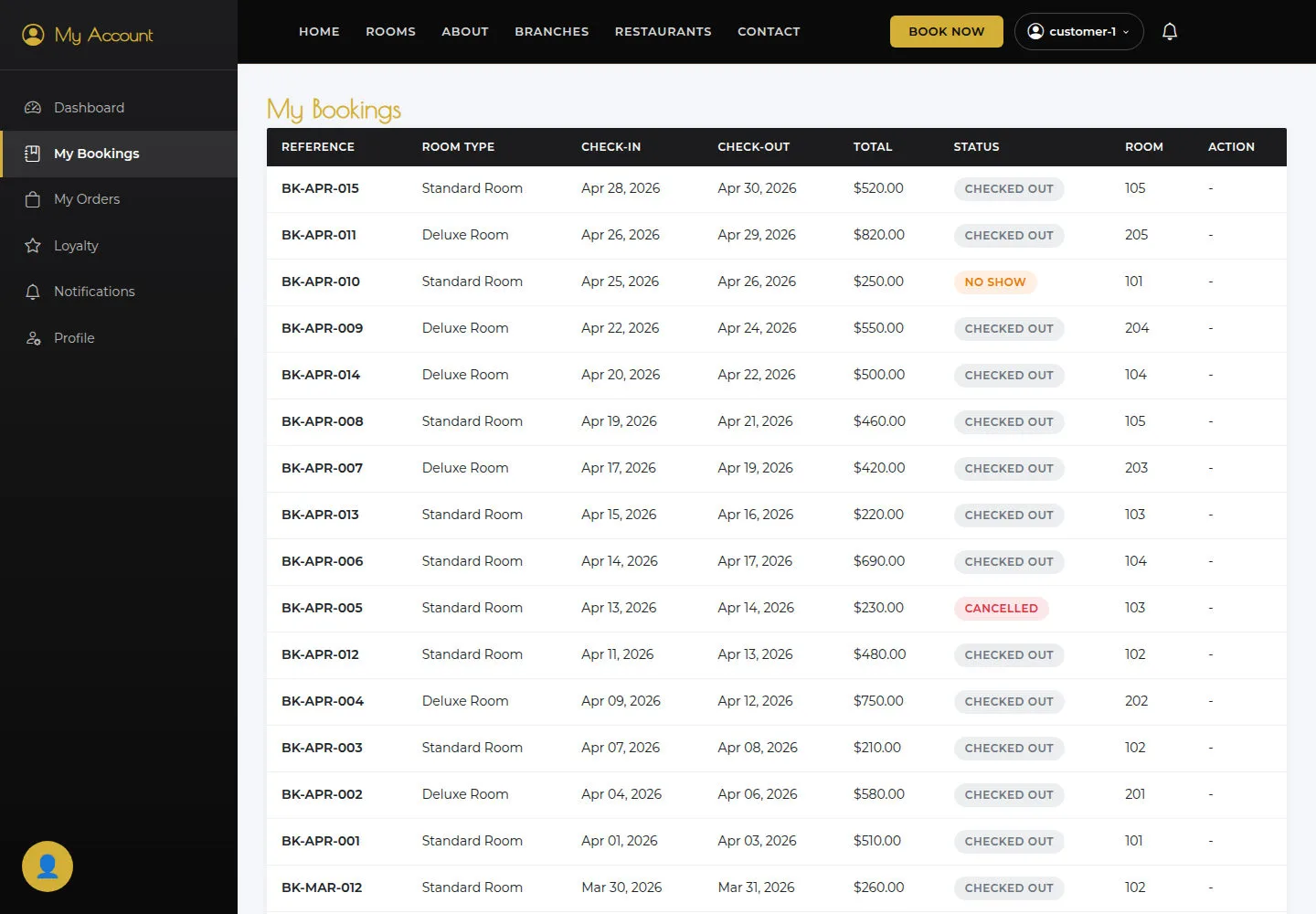
The table shows bookings for the current user, or an empty state.
- Open My Bookings and compare Reference, stay dates, total and Status.
Open on site ↗sign-inFull-page screenshot ↗
The table shows bookings for the current user, or an empty state.
Read My Orders
Customer
3Step 3 of 4
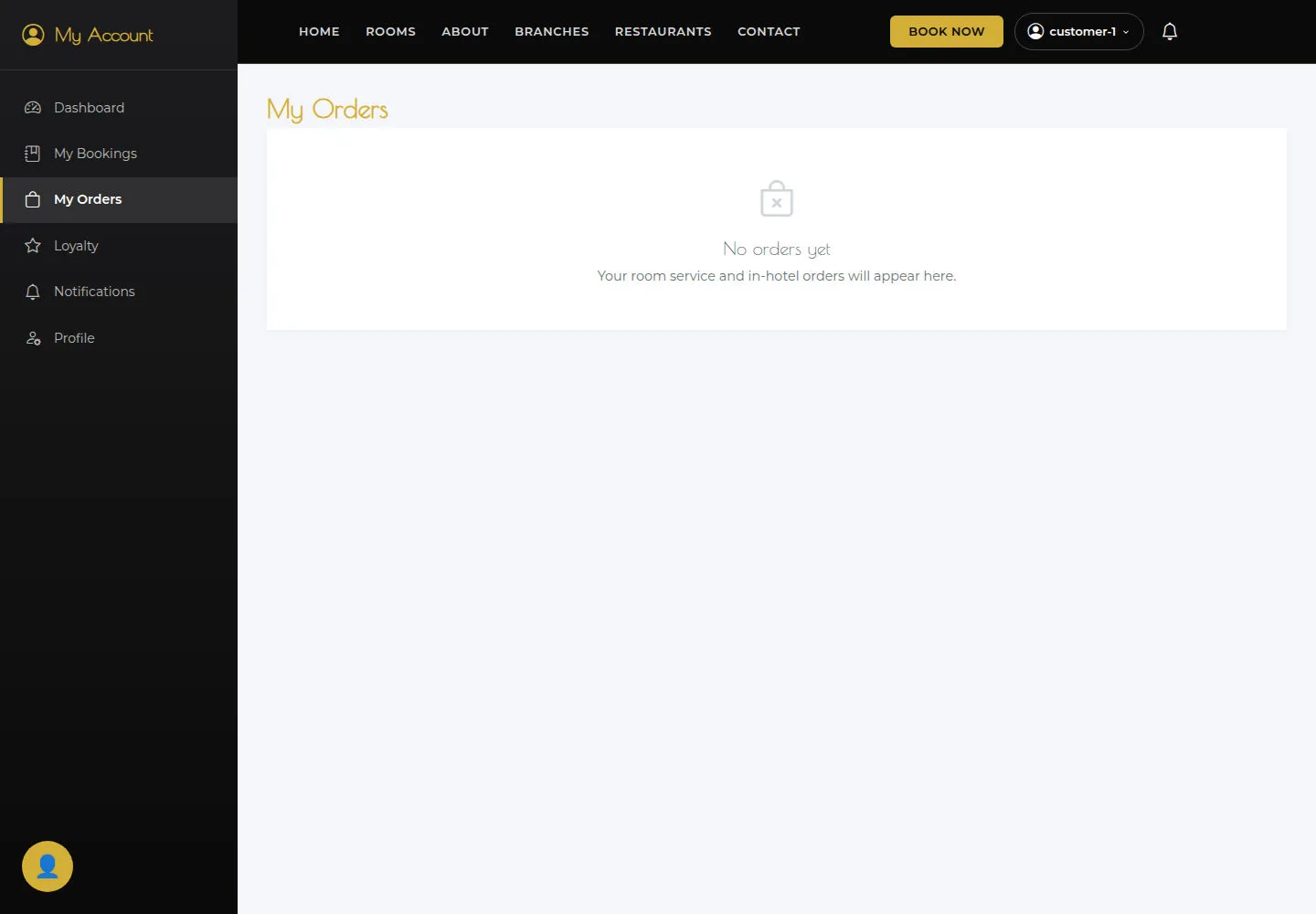
Read any displayed status; No orders yet is a valid empty state.
- Open My Orders to read F&B orders linked to your bookings.
Open on site ↗sign-inFull-page screenshot ↗
Read any displayed status; No orders yet is a valid empty state.
Read Notifications
Customer
4Step 4 of 4
Current notifications help you find related bookings and updates.
- Open Notifications and read the message and reference before following its booking link.
Open on site ↗sign-inFull-page screenshot ↗
Current notifications help you find related bookings and updates.