






 Hotel operations
User guide · Customer
Update your account
Use Account settings for changes and verify them after saving.
- Have the details to change and your current password ready if the form requests it.
- Sign in with the correct role and check the account name in the menu.
CustomerStep-by-step instructions
Open the account menu
Customer
1Step 1 of 3
Check the information on this screen before continuing.
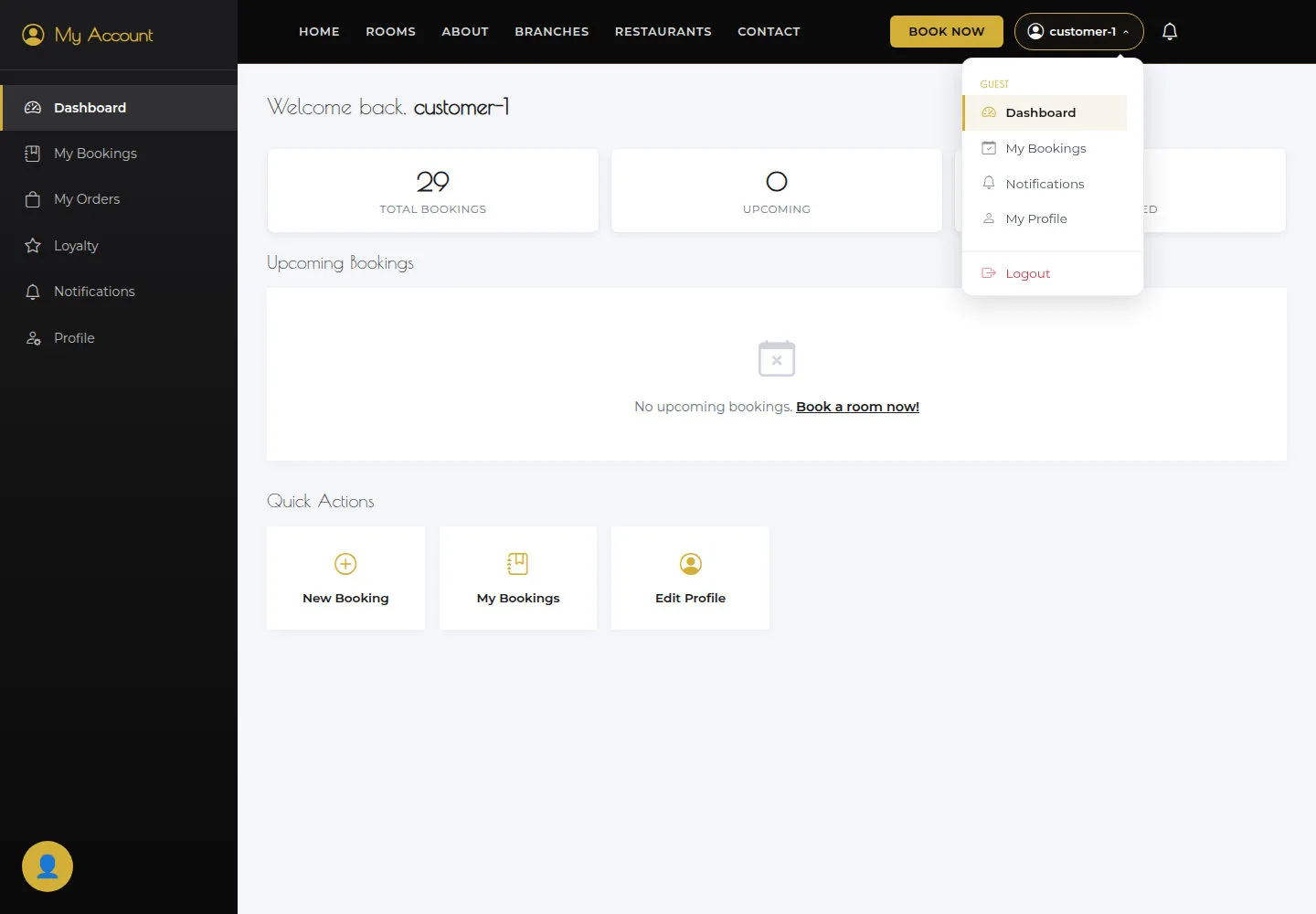
- Open the account menu and check the current account before choosing the profile page.
Open on site ↗sign-inFull-page screenshot ↗
What you should see
The menu belongs to the signed-in guest account.
Edit account information
Customer
2Step 2 of 3
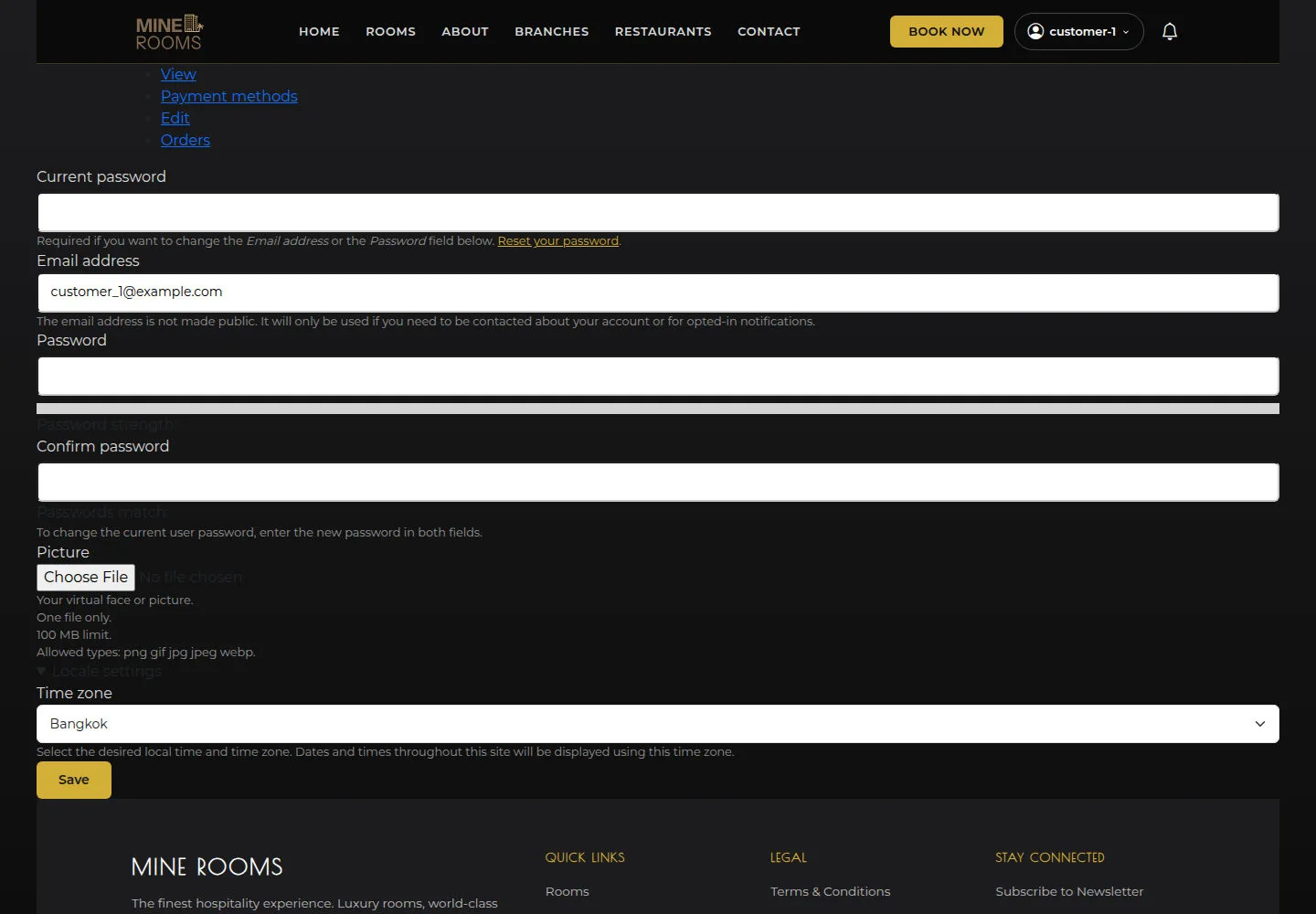
The account edit page contains personal details and the authentication fields needed for a password change.
- Read the form, change the necessary details and select Save. For a password change, follow the form’s authentication requirements.
Open on site ↗sign-inFull-page screenshot ↗
What you should see
After Save, read the response and reopen the account to check the changes.
Read account payment methods
Customer
3Step 3 of 3
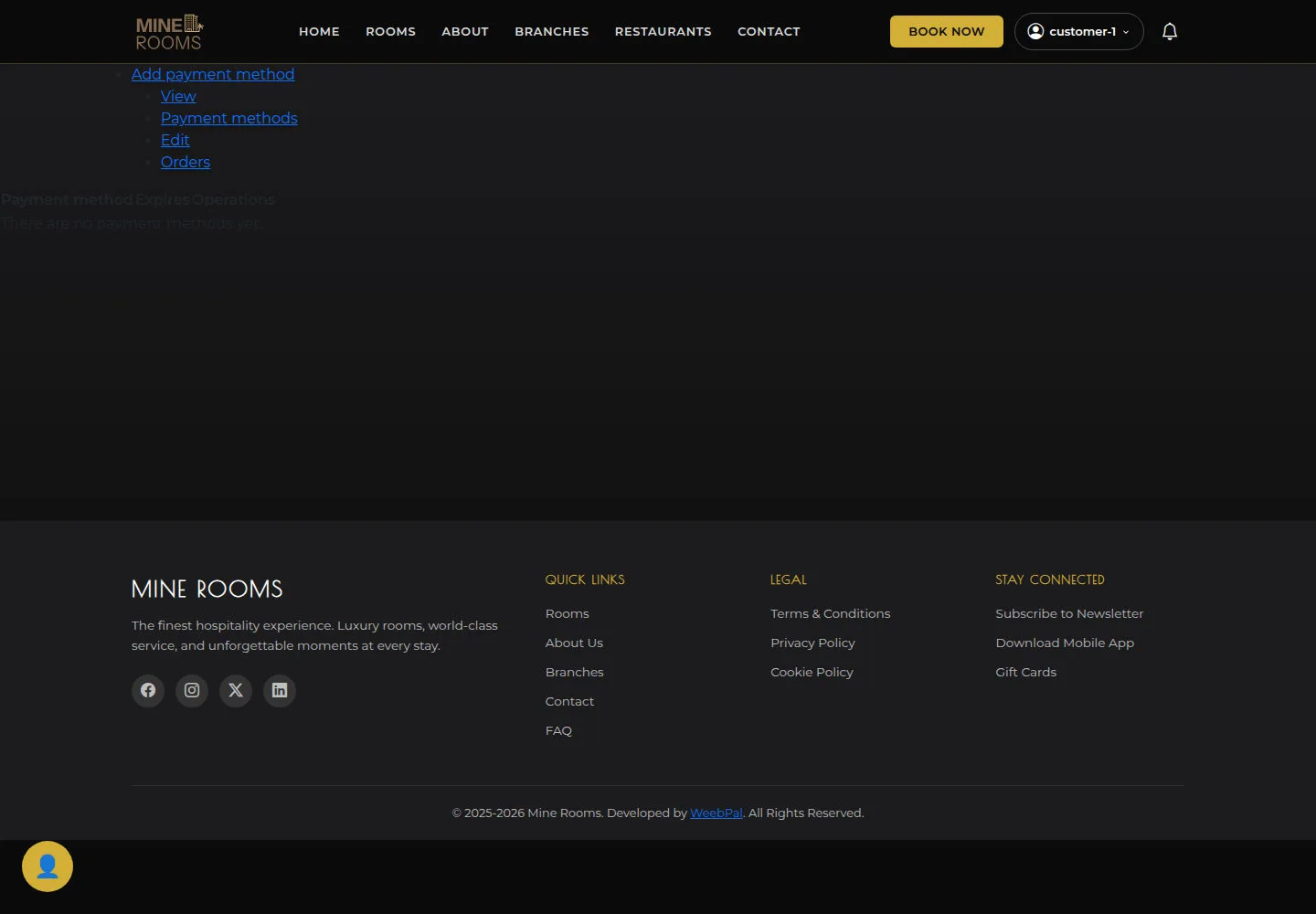
Payment methods lists saved methods for the current account.
- Open Payment methods and read any saved methods.
Open on site ↗sign-inFull-page screenshot ↗
What you should see
The list contains records or an empty state; a saved method does not establish a successful payment.
1 / 4