






 Hotel operations
User guide · Administrator
Prepare promotions, coupons and rewards
Prepare offers using the available records; check their conditions before use.
- Use the offer conditions, dates and values approved by the hotel.
- Sign in with the correct role and check the account name in the menu.
Read Promotions & Coupons
Administrator
1Step 1 of 8
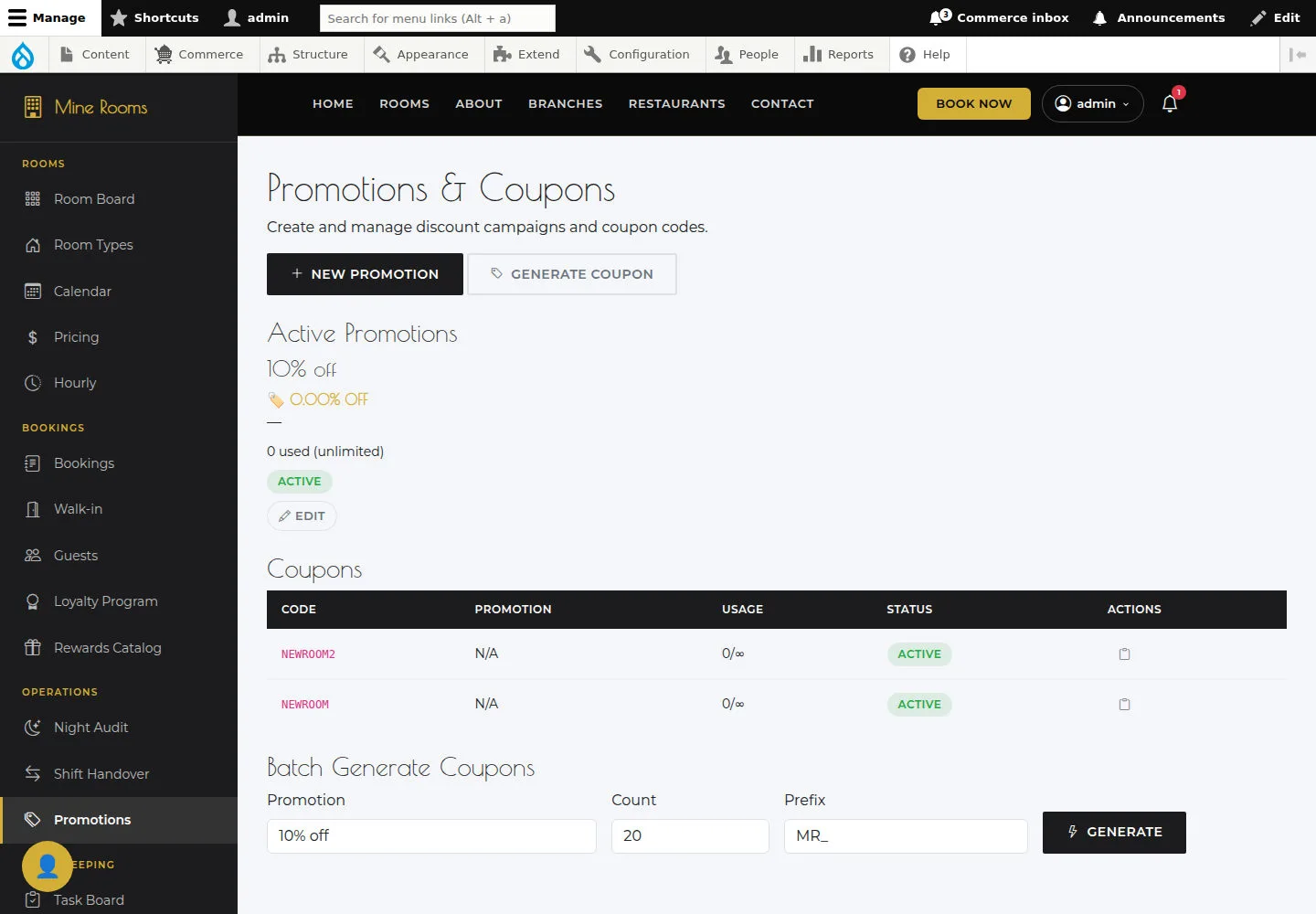
Promotions & Coupons brings together existing offers and codes.
- Read the list and choose a promotion to check.
Open on site ↗sign-inFull-page screenshot ↗
You know the current promotions and coupons.
Open Add promotion
Administrator
2Step 2 of 8
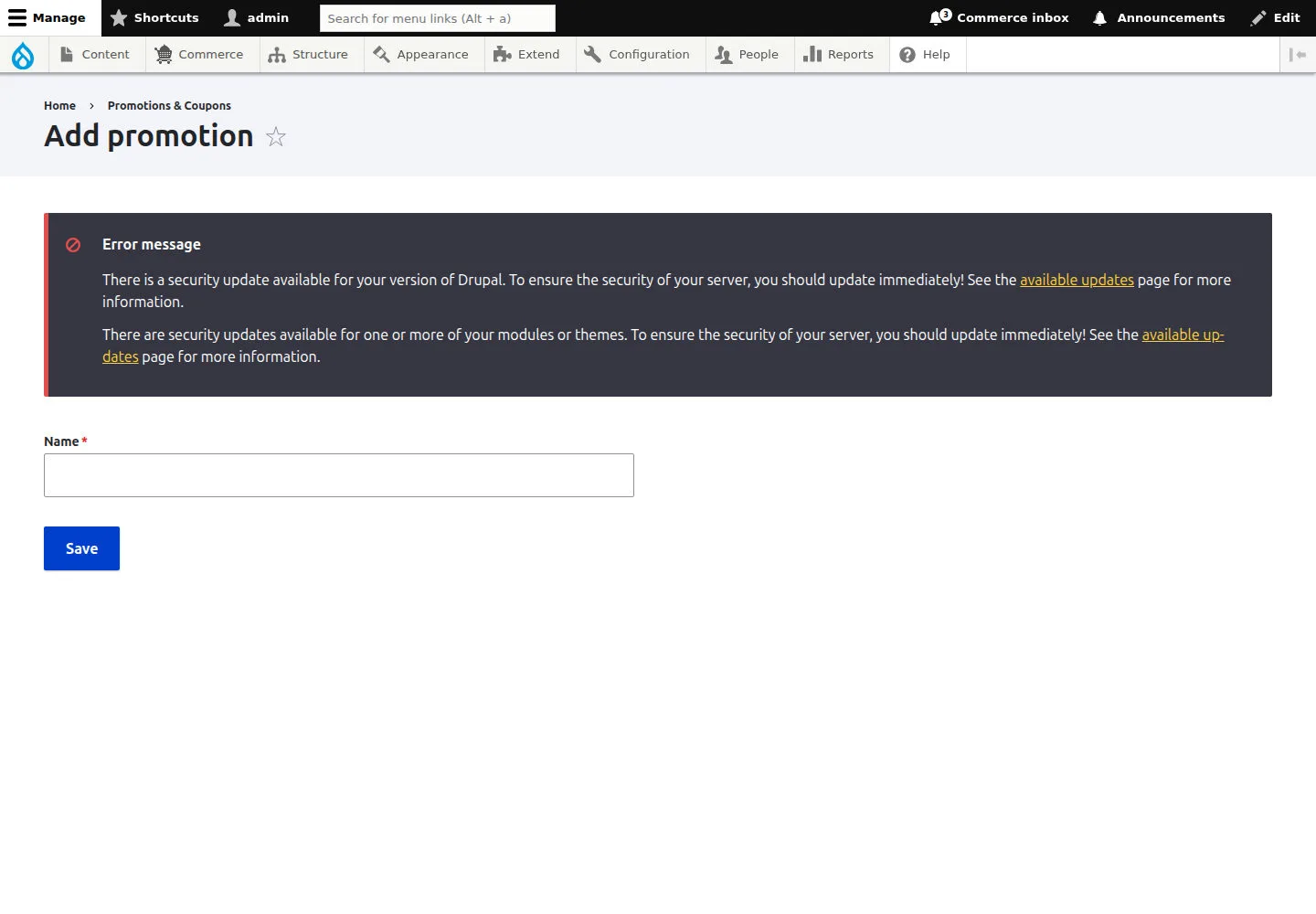
Add promotion prepares a new offer.
- Read the form fields and enter the assigned offer details.
Open on site ↗sign-inFull-page screenshot ↗
After Save, check the record and conditions entered.
Check an existing promotion
Administrator
3Step 3 of 8
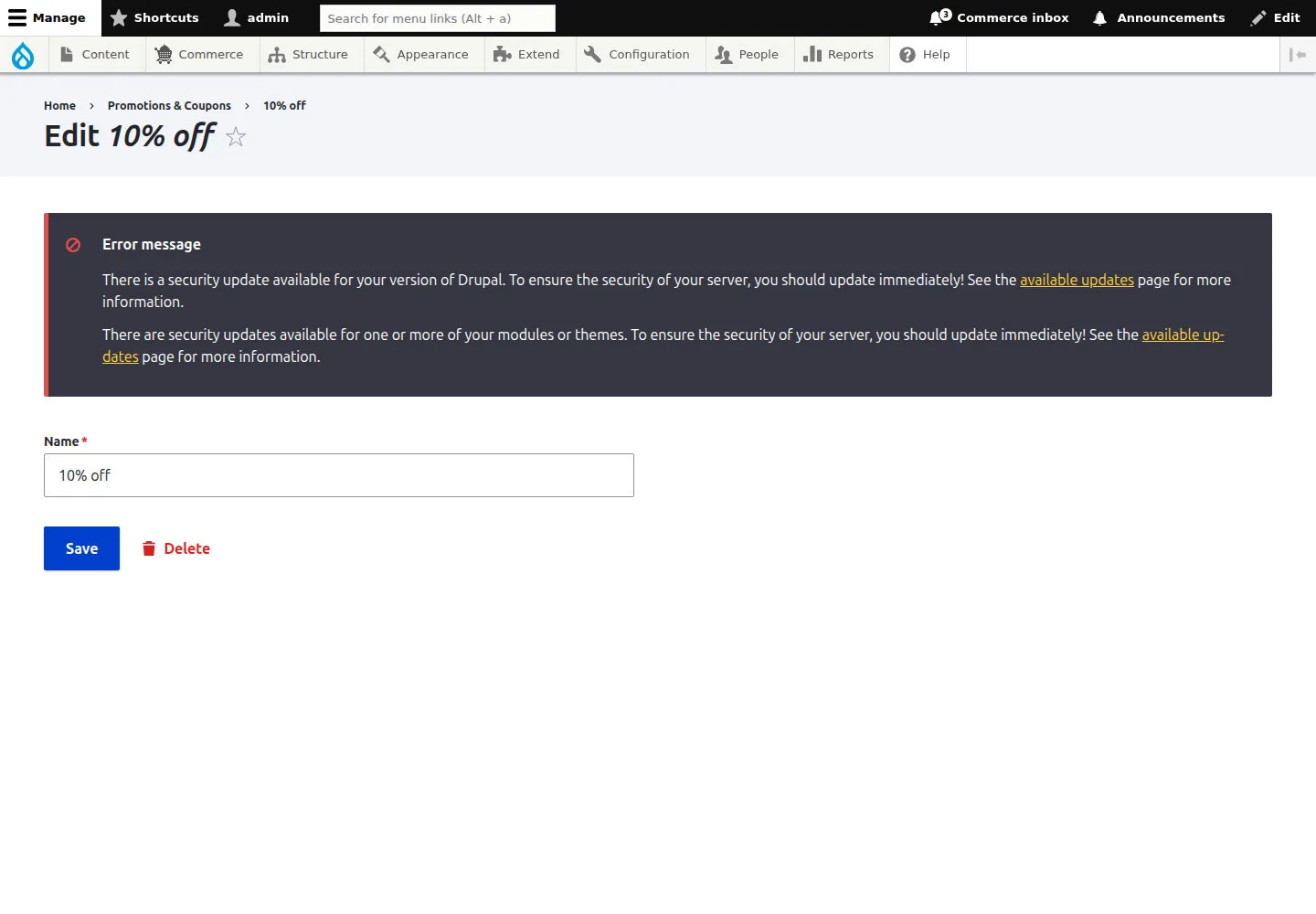
Edit promotion opens an existing offer’s details.
- Open the edit form and check conditions before changing them.
Open on site ↗sign-inFull-page screenshot ↗
After Save, reopen the record to check the details.
Open Add coupon
Administrator
4Step 4 of 8
Add coupon prepares an offer code through the form fields.
- Enter the code and coupon details requested by the form; check its use conditions.
Open on site ↗sign-inFull-page screenshot ↗
After Save, find the correct code and check the record.
Read an existing coupon
Administrator
5Step 5 of 8
The coupon detail page opens an existing code.
- Open the coupon you need to check and compare its code and conditions with the approved offer.
Open on site ↗sign-inFull-page screenshot ↗
You know which record is being referenced.
Read Loyalty Program
Administrator
6Step 6 of 8
Loyalty Program presents the programme and its displayed data.
- Read displayed tiers and points; compare the programme with the approved policy.
Open on site ↗sign-inFull-page screenshot ↗
Available information is distinguished from verified point-earning results.
Read Rewards Catalog
Administrator
7Step 7 of 8
Rewards Catalog brings together configured rewards.
- Read the rewards and their configured conditions.
Open on site ↗sign-inFull-page screenshot ↗
You know which rewards have records in the list.
Open Add reward
Administrator
8Step 8 of 8
Add reward prepares a new reward’s details.
- Complete the reward form; check value and conditions before saving.
Open on site ↗sign-inFull-page screenshot ↗
After Save, find the reward again; redemption needs separate verification.