






 Hotel operations
User guide · Receptionist
Review room rates and hourly stays
Check room type, branch and duration before applying a price.
- Identify the room type, location and rates you are authorised to maintain.
- Sign in with the correct role and check the account name in the menu.
Read Room Types
Receptionist
1Step 1 of 5
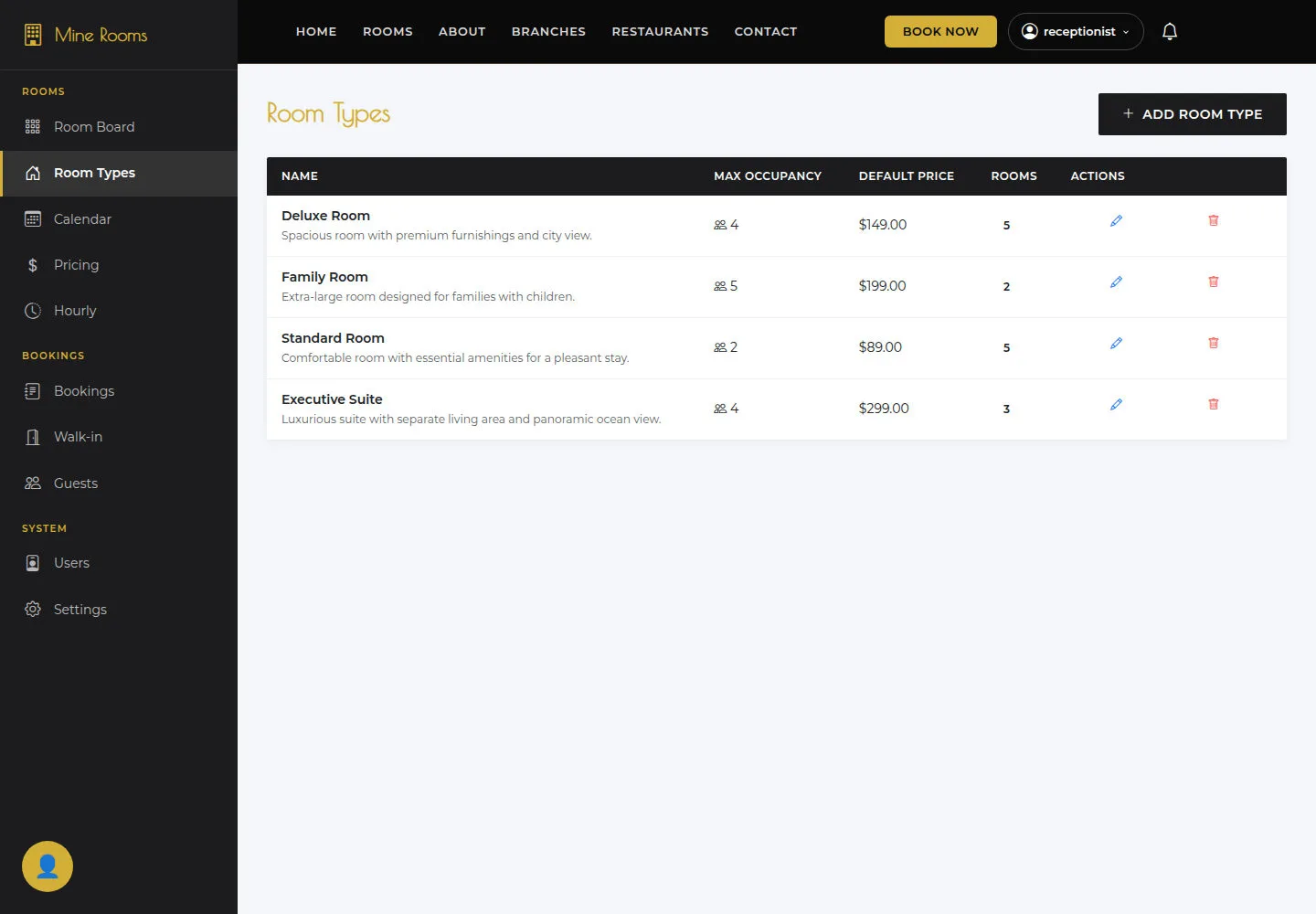
Room Types shows the room types currently in the system.
- Open Room Types and compare names, occupancy and amenities.
Open on site ↗sign-inFull-page screenshot ↗
You know which room type to use for the booking or matrix.
Read Pricing Matrix
Receptionist
2Step 2 of 5
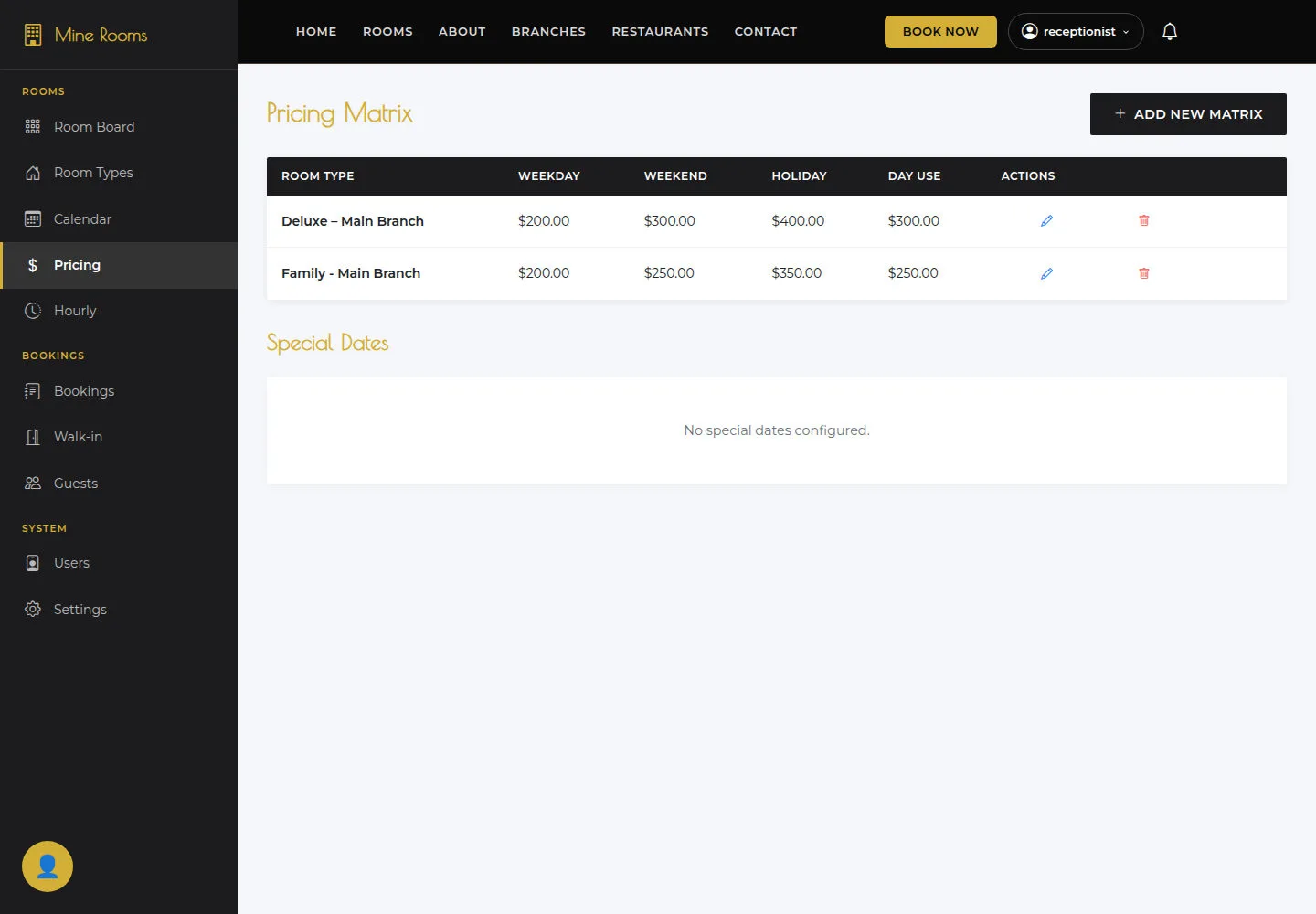
Check the information on this screen before continuing.
- Check Weekday, Weekend, Holiday and Day use by room type and branch.
Open on site ↗sign-inFull-page screenshot ↗
The matrix matches the room type and branch being handled.
Open Add Pricing Matrix
Receptionist
3Step 3 of 5
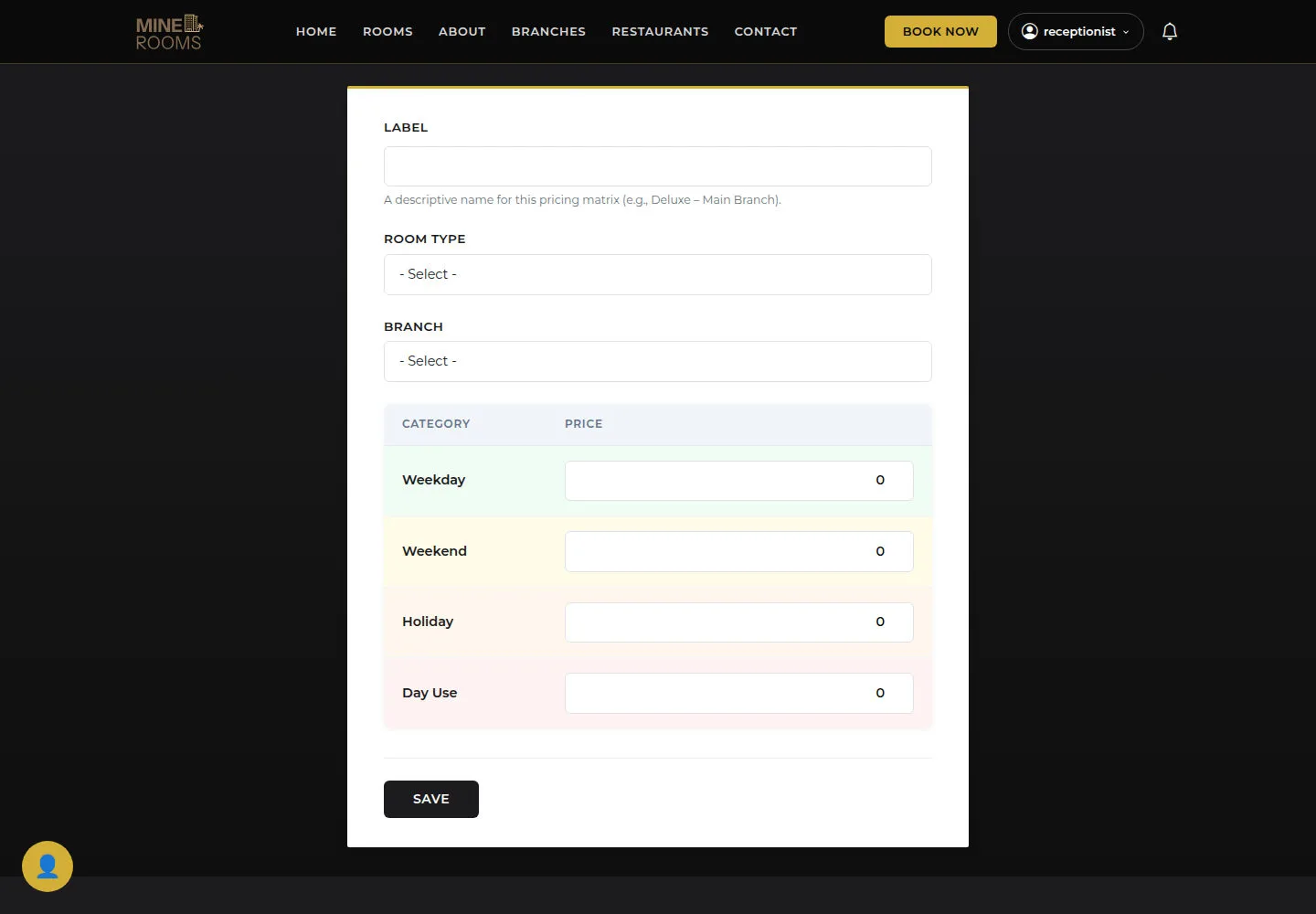
Add Pricing Matrix prepares rate configuration for a room type and branch.
- Read the form fields; choose the correct room type and branch before entering prices.
Open on site ↗sign-inFull-page screenshot ↗
After Save, find the new matrix and check its prices.
Open Edit Pricing Matrix
Receptionist
4Step 4 of 5
Edit Pricing Matrix opens an existing rate configuration.
- Check room type and branch; edit the assigned prices and read the response after Save.
Open on site ↗sign-inFull-page screenshot ↗
Reopen the matrix after Save to verify the saved prices.
Read Hourly Bookings
Receptionist
5Step 5 of 5
Hourly Bookings brings together hourly stays.
- Check start time, duration and state of hourly stays.
Open on site ↗sign-inFull-page screenshot ↗
You correctly distinguish hourly bookings from overnight stays.