






 Hotel operations
User guide · Receptionist
Find a booking and prepare check-in
Compare booking, room and dates before confirming.
- Have the booking reference or guest details, arrival date and a suitable room ready.
- Sign in with the correct role and check the account name in the menu.
Filter Bookings
Receptionist
1Step 1 of 3
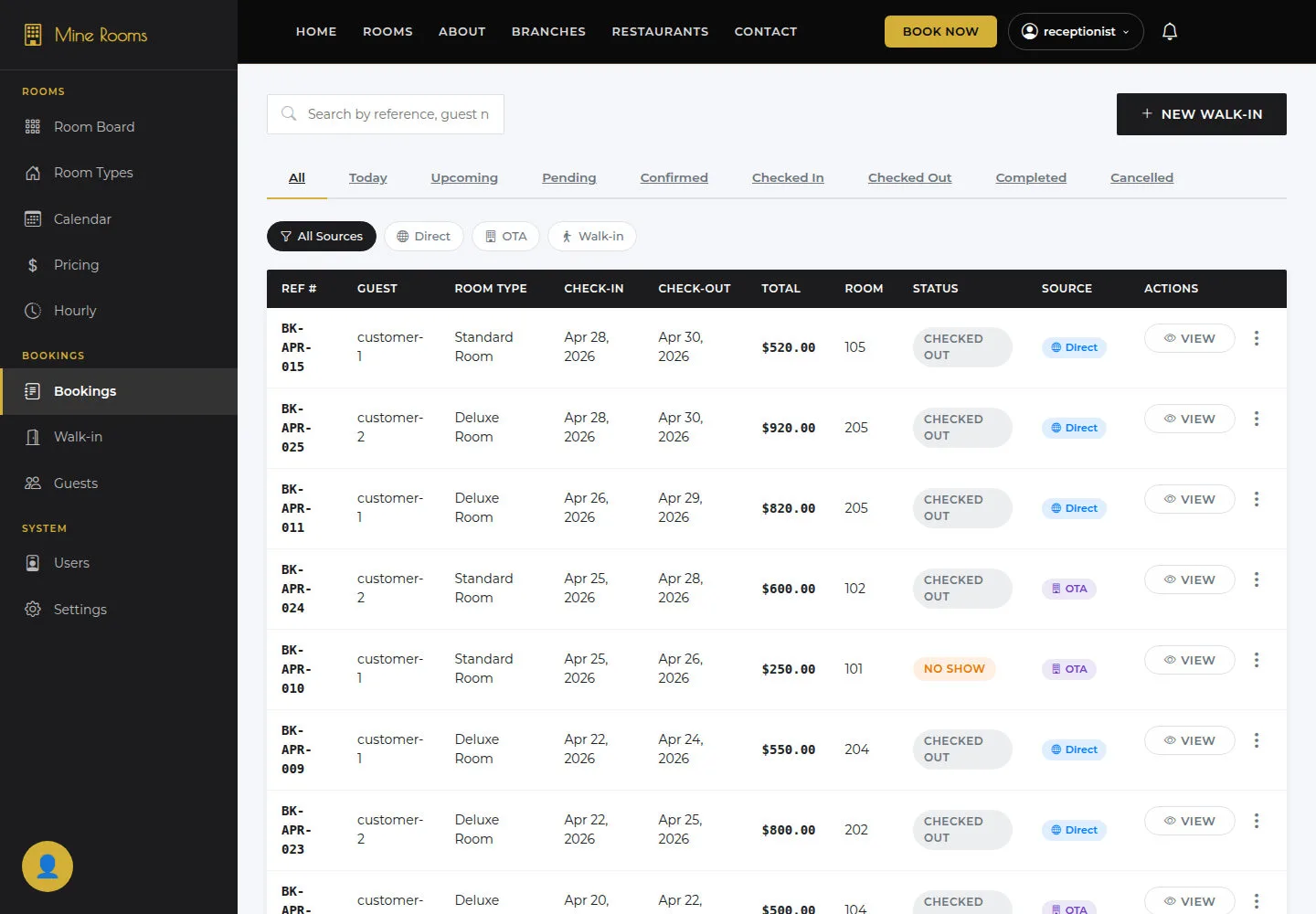
The list shows reference, guest, stay dates and status.
- Open Bookings and use the status tabs and source filter.
Open on site ↗sign-inFull-page screenshot ↗
The list shows reference, guest, stay dates and status.
Open the booking detail
Receptionist
2Step 2 of 3
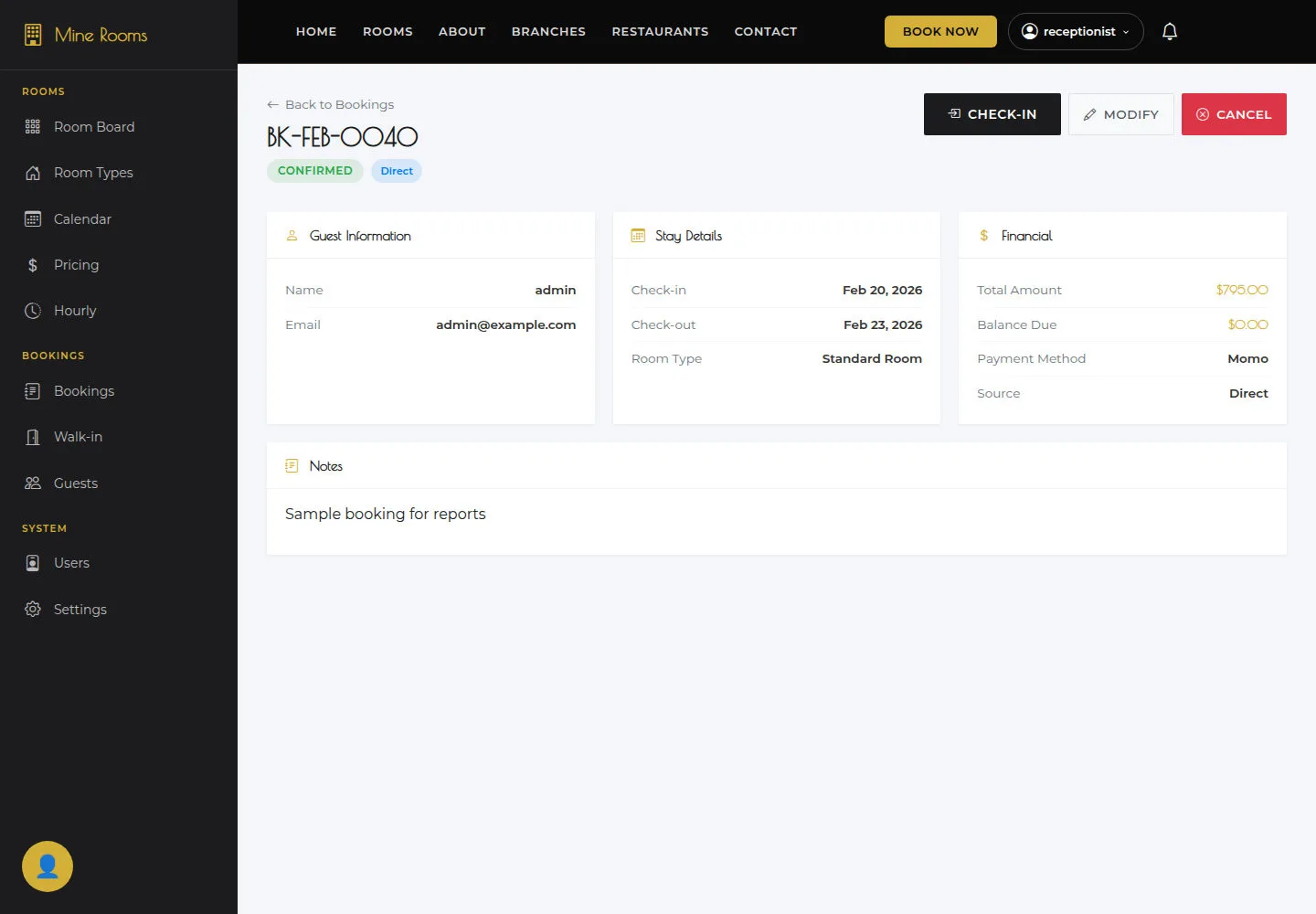
Booking detail brings together Guest, Stay and Financial for the selected stay.
- Open View Detail for a booking and read Guest, Stay and Financial.
Open on site ↗sign-inFull-page screenshot ↗
Booking detail brings together Guest, Stay and Financial for the selected stay.
Open the Check-in form
Receptionist
3Step 3 of 3
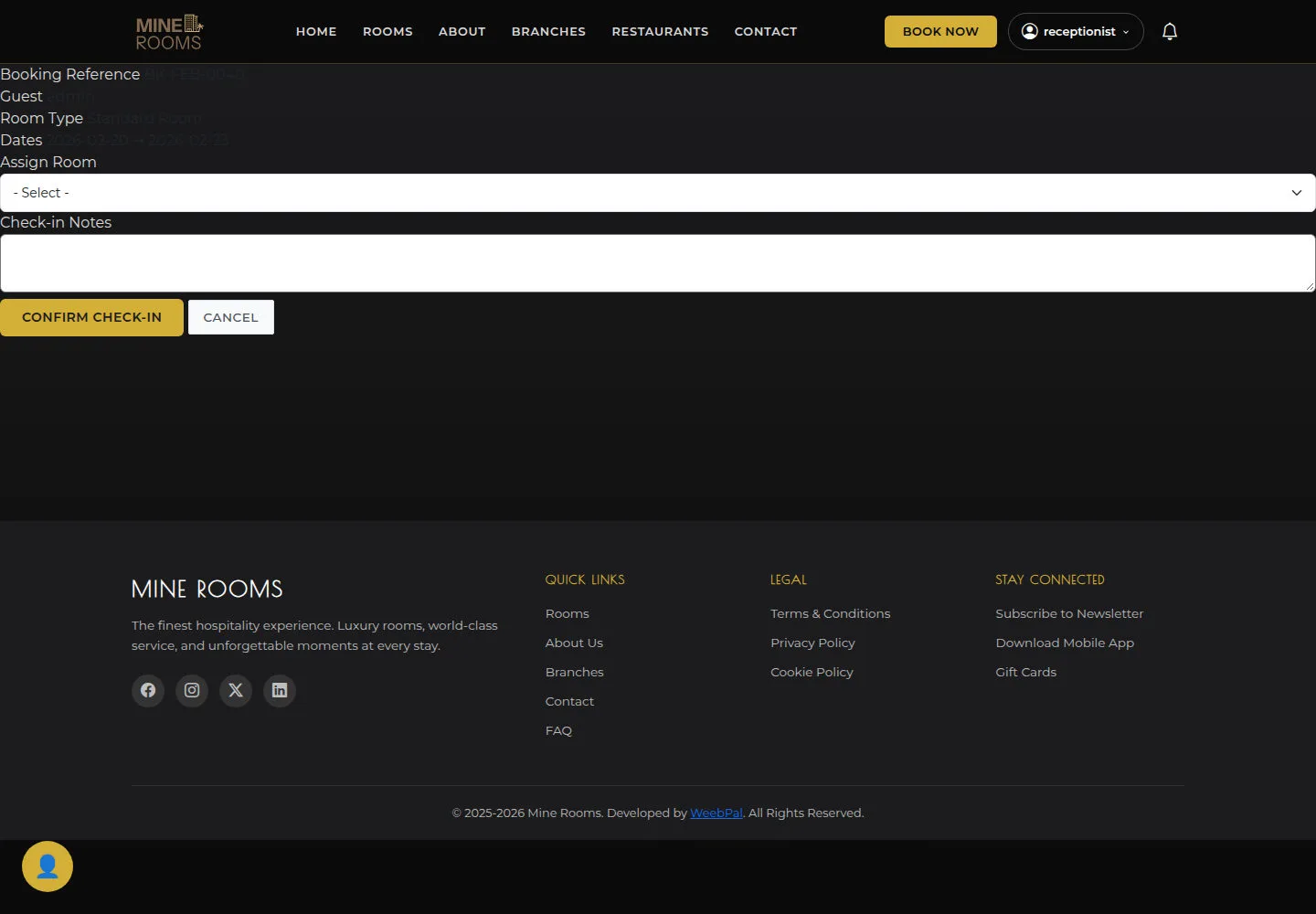
Assign Room and Notes belong to the booking being handled; check both before confirming.
- Check Booking Reference, Guest, Room Type and Dates. Choose Assign Room and enter Check-in Notes; review them before Confirm Check-in.
Open on site ↗sign-inFull-page screenshot ↗
The form belongs to the correct booking and a suitable room. After confirmation, check the booking and room state; resolve a missing room selection before continuing.