






 Hotel operations
User guide · Administrator
Prepare bookings, arrivals and departures
Find the stay, check the records and open the correct action form.
- Identify the guest, booking, room and action appropriate to the stay’s current state.
- Sign in with the correct role and check the account name in the menu.
Find a booking
Administrator
1Step 1 of 6
Check the information on this screen before continuing.
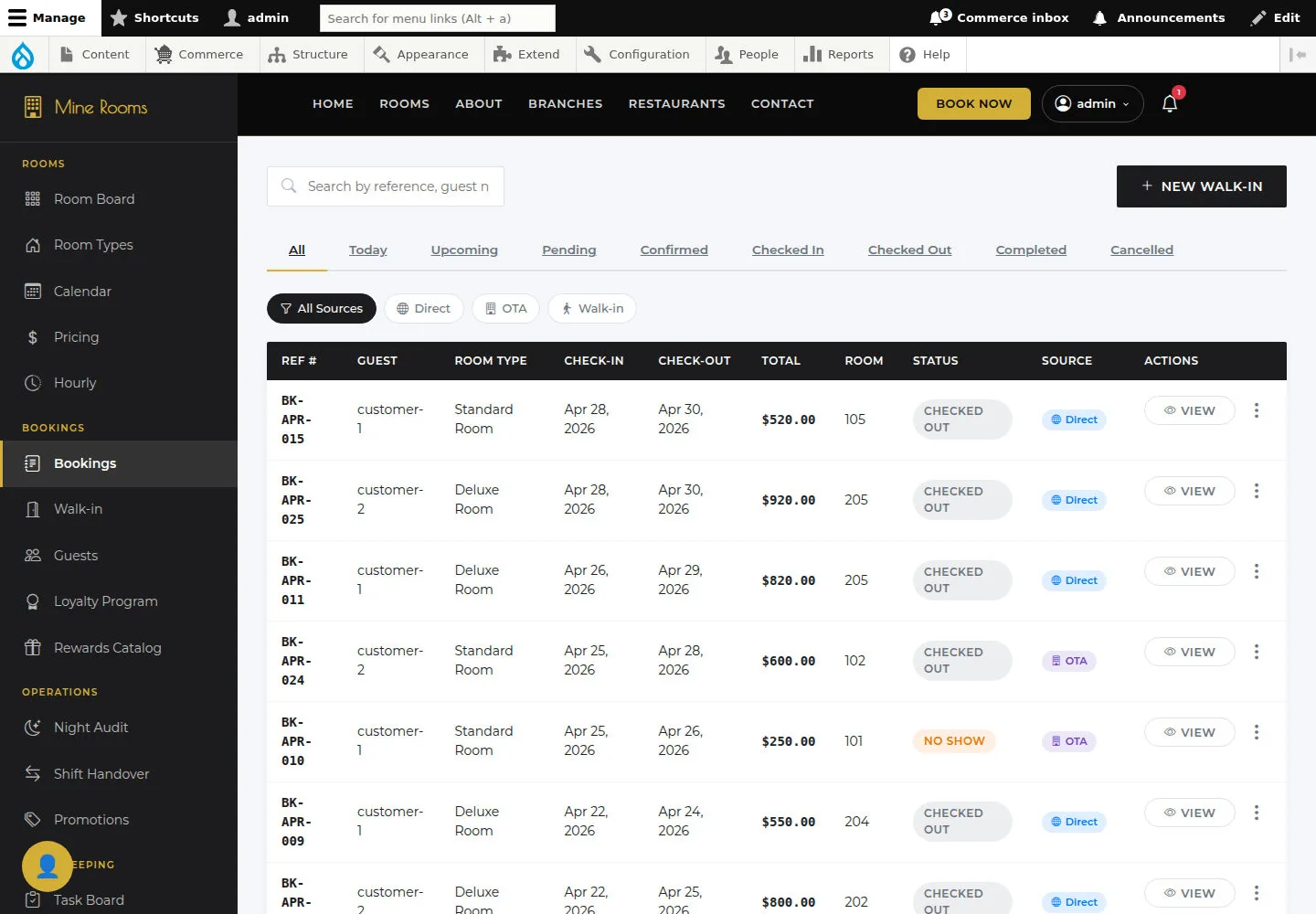
- Use state tabs and source filters to find the stay to handle.
Open on site ↗sign-inFull-page screenshot ↗
The table shows the correct reference, guest, stay dates and state.
Read booking detail
Administrator
2Step 2 of 6
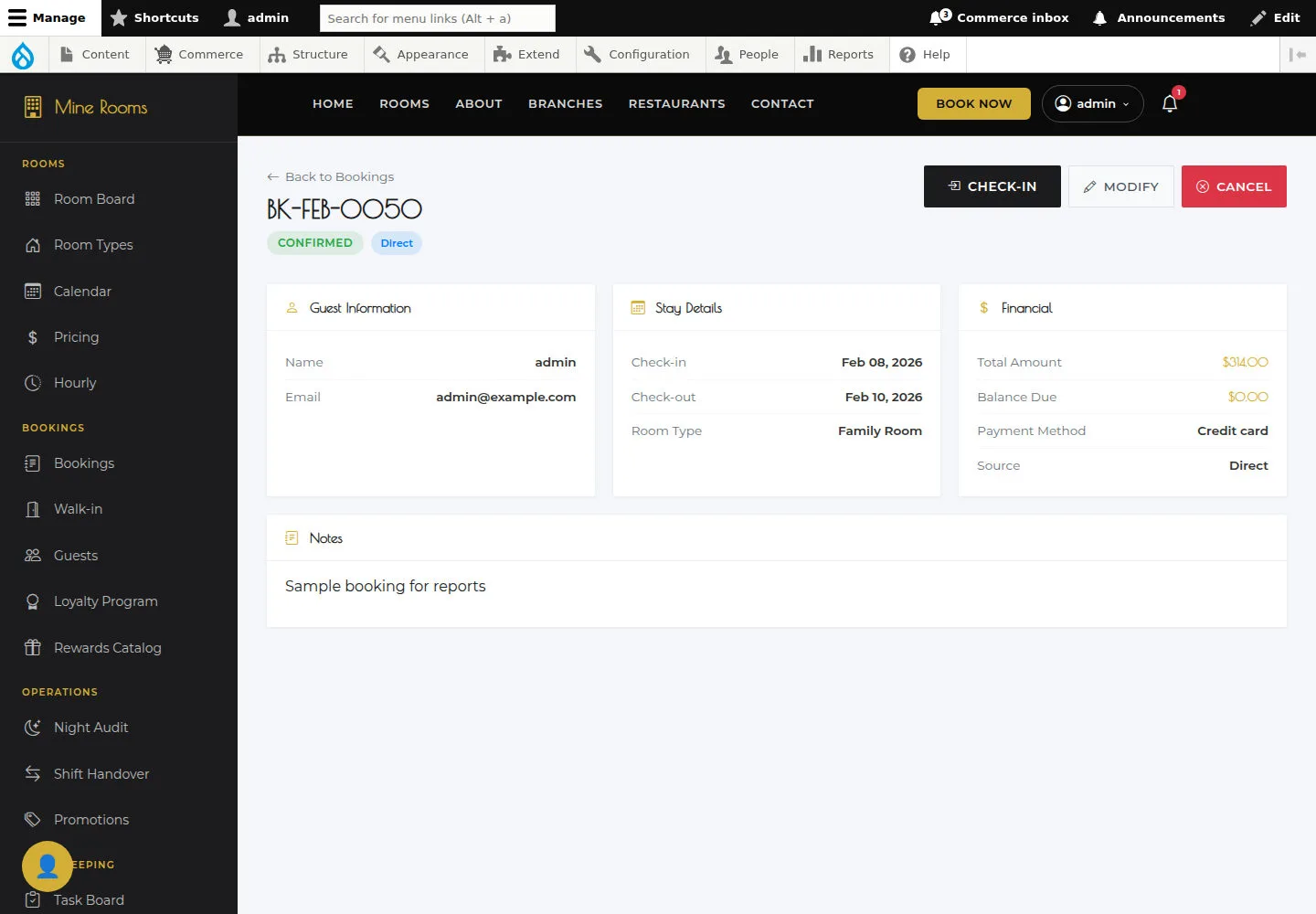
Booking detail brings together guest, stay and financial information in one record.
- Open the booking and read Guest, Stay and Financial.
Open on site ↗sign-inFull-page screenshot ↗
All sections belong to the booking being handled.
Open Check-in
Administrator
3Step 3 of 6
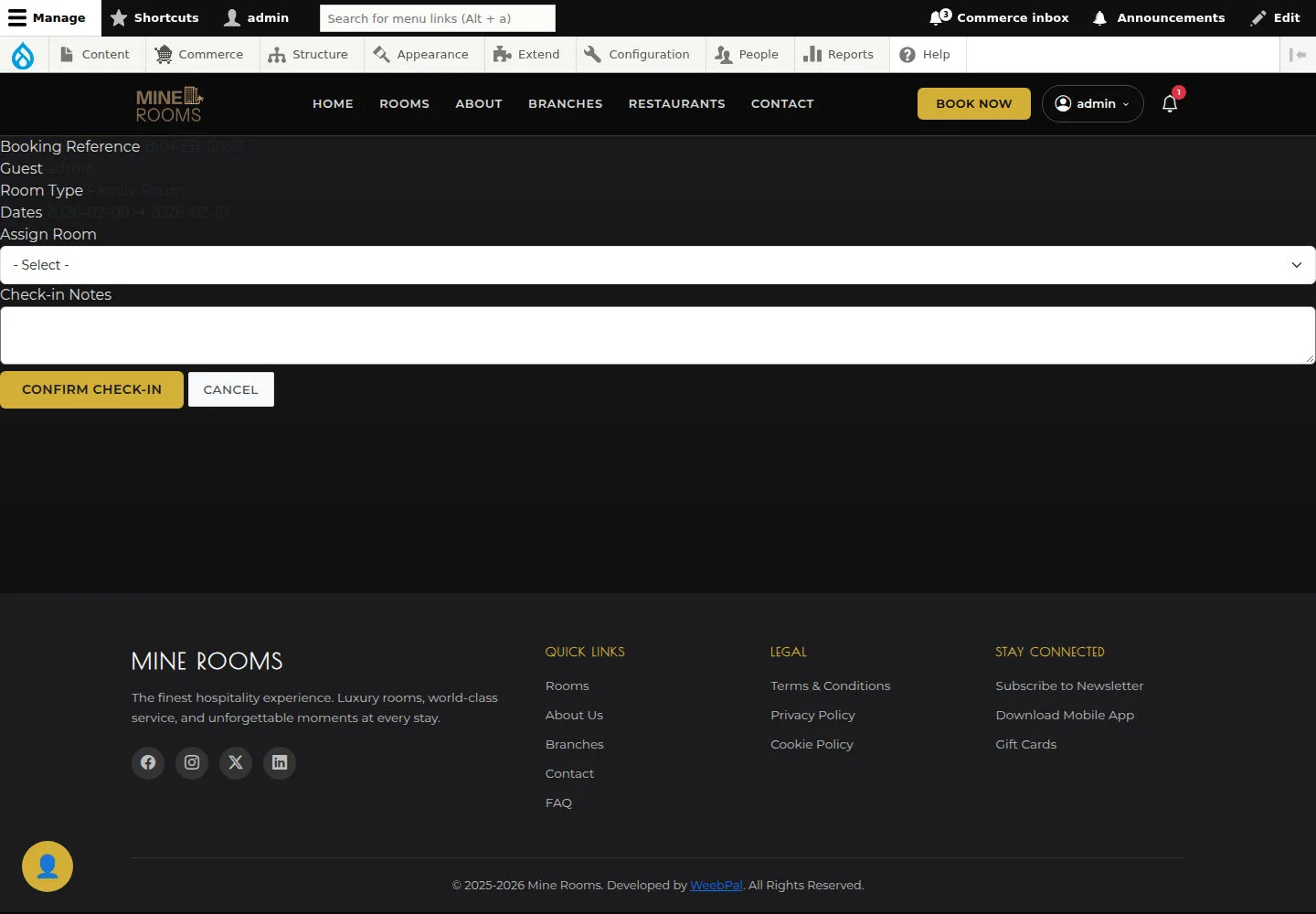
Check-in assigns the room and notes for an arrival.
- Check Assign Room and Notes before confirmation.
Open on site ↗sign-inFull-page screenshot ↗
After confirmation, reopen the booking and Room Board to verify state.
Open Check-out
Administrator
4Step 4 of 6
Check the information on this screen before continuing.
- Open Check-out and check Folio Summary and the guest/room details. If you see No folio found, reconcile the records with the responsible person before Confirm Check-out.
Open on site ↗sign-inFull-page screenshot ↗
The folio and amounts to reconcile are clear before confirmation. After confirmation, reopen the booking and verify its departure state.
Open booking cancellation
Administrator
5Step 5 of 6
Cancel requests confirmation for the selected booking.
- Check the booking and cancellation conditions before selecting Cancel.
Open on site ↗sign-inFull-page screenshot ↗
After confirmation, check booking state; handle a refund separately if required.
Prepare a Walk-in Booking
Administrator
6Step 6 of 6
Check the information on this screen before continuing.
- Enter guest, dates and an appropriate room; check the total before Create Booking.
Open on site ↗sign-inFull-page screenshot ↗
After confirming, verify the new reference and room calendar.