






 Hotel operations
User guide · Anonymous
Use the room QR menu and order pages
Use the correct room QR code to view the menu, cart and order status.
- Use the hotel-provided QR code for the room you are staying in.
AnonymousStep-by-step instructions
Open the room QR menu
Anonymous
1Step 1 of 3
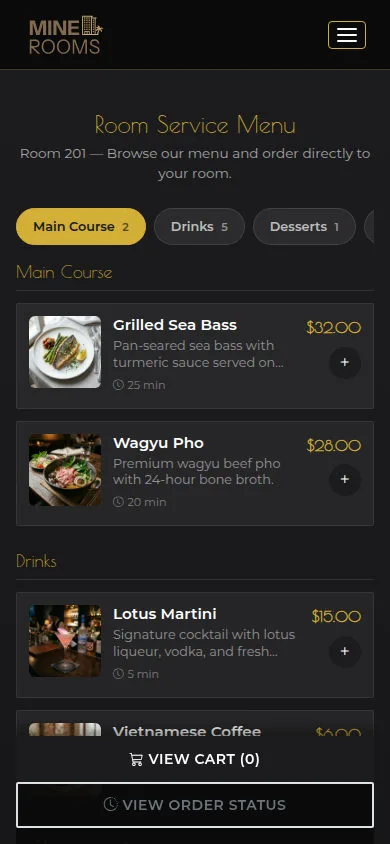
The QR menu retains the guest’s room context.
- Scan the QR code supplied by the hotel; check the room and menu before choosing an item.
Open on site ↗Full-page screenshot ↗
What you should see
The menu opens in the context of the room supplied with the QR code.
Check the cart
Anonymous
2Step 2 of 3
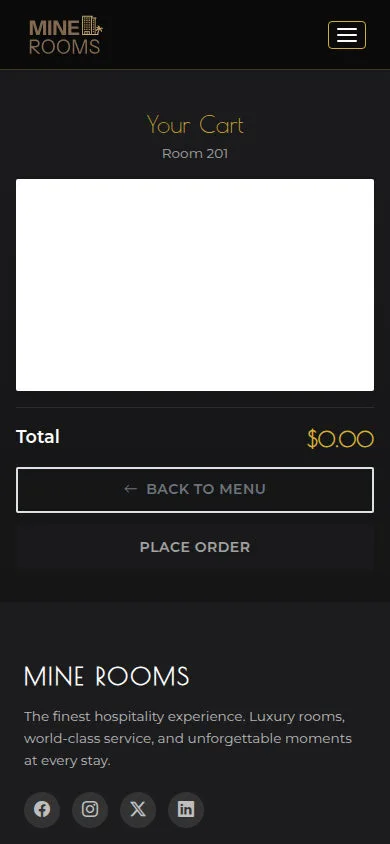
Cart is where you review items before sending an order.
- Open Cart and check the room, items, quantities and Total. If it is empty, use Back to Menu to choose items.
Open on site ↗Full-page screenshot ↗
What you should see
Cart shows selected items or an empty state. Opening Cart does not create an order; read the response after Place Order when it is available.
Read order status
Anonymous
3Step 3 of 3
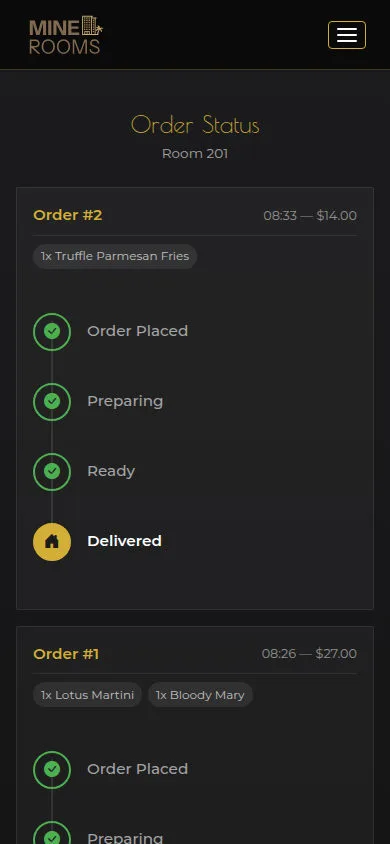
Order Status tracks submitted orders for the room.
- Open Order Status and match the room, items and your order. Read Order Placed, Preparing, Ready and Delivered to follow its progress.
Open on site ↗Full-page screenshot ↗
What you should see
Each order shows its displayed progress. Contact hotel staff if your order is missing or its details do not match.
1 / 4