





User guide · Waiter · 1 of 7
Staff dashboard, My account menu and Home icon
After Log in the waiter lands on the Staff dashboard. The My account menu opens every page the role may use; the Home icon goes to the public site without signing out.
- Sign in with a Waiter account.
Read the Staff dashboard
Waiter
1Step 1 of 5
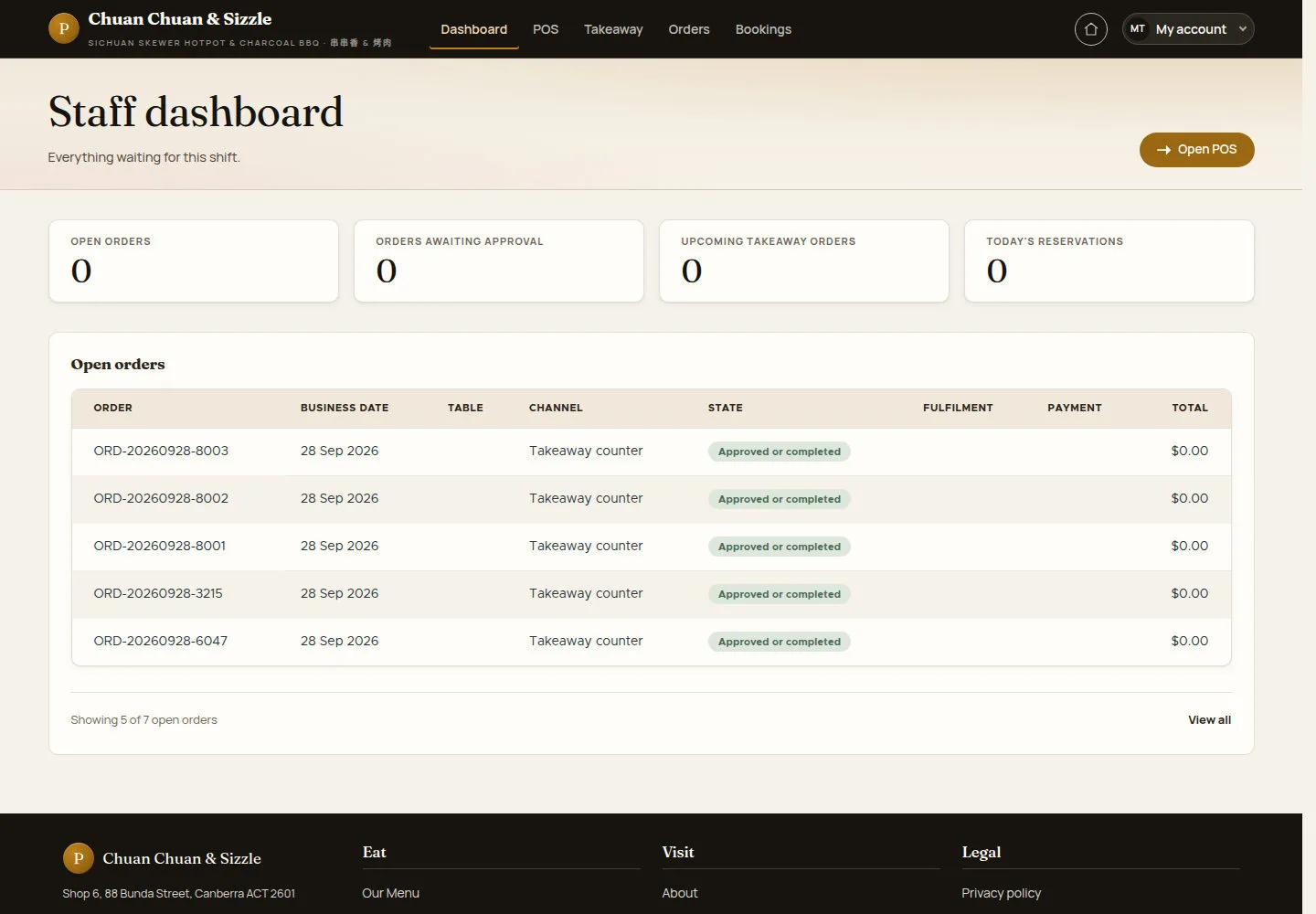
Staff dashboard shows what is waiting for the shift: four counters and the Open orders list.
- Read OPEN ORDERS, ORDERS AWAITING APPROVAL, UPCOMING TAKEAWAY ORDERS and TODAY'S RESERVATIONS.
- Click Open POS for the floor map, or View all under the list.
Use Open orders and the filters to check individual orders; counters and lists may cover different date scopes.
Open on site ↗sign-inFull-page screenshot ↗
The header shows the waiter's sections: Dashboard, POS, Takeaway, Orders and Bookings.
Open the My account menu
Waiter
2Step 2 of 5
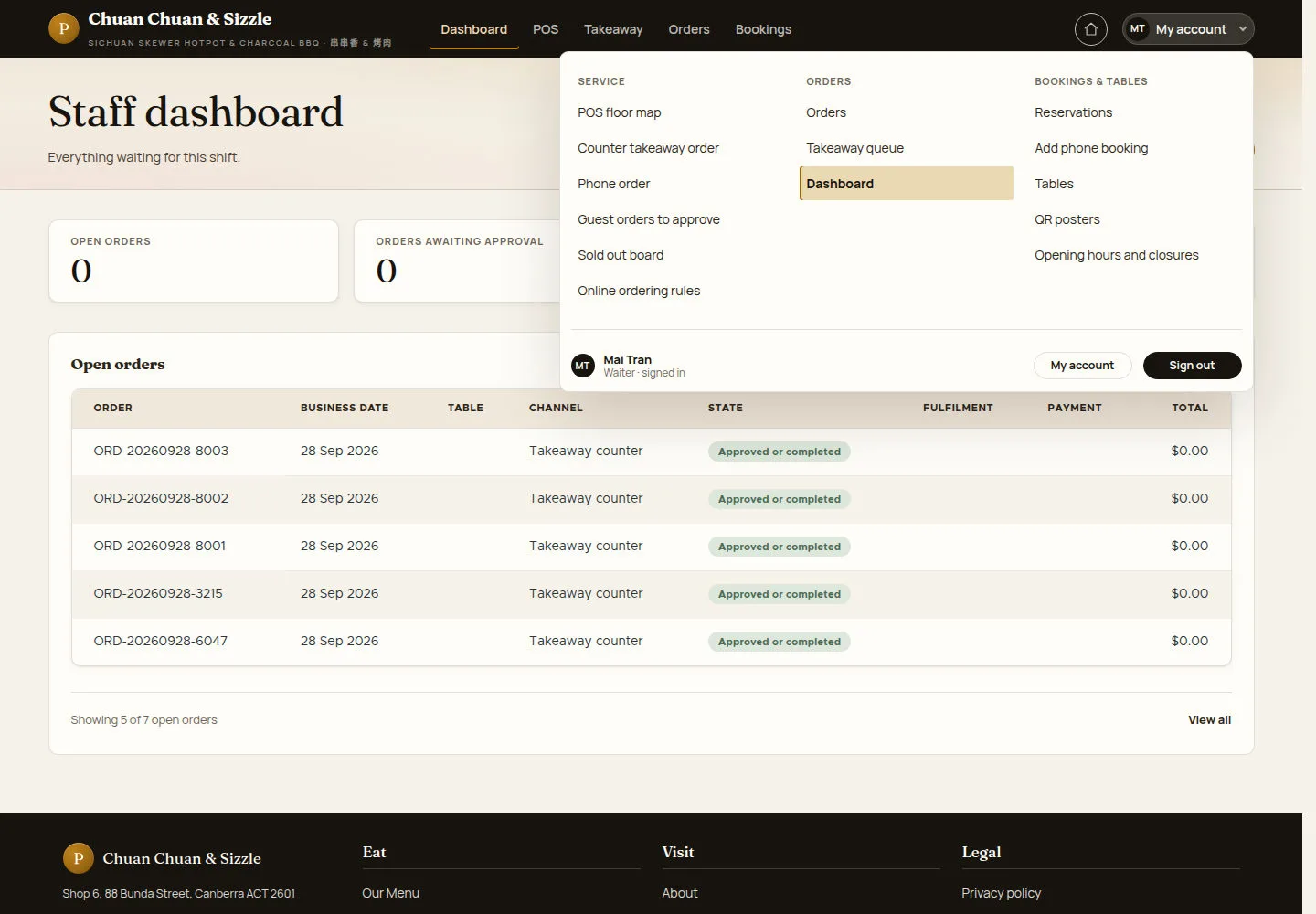
Hovering over or clicking My account opens the menu of everything this role can open.
- Pick a page under SERVICE, ORDERS or BOOKINGS & TABLES.
- Use My account for your own details, or Sign out to end the session.
The waiter's menu has no Menu, Gift cards, Booking rules, Reports or Staff accounts pages; Opening hours and Online ordering rules open read-only.
Open on site ↗sign-inFull-page screenshot ↗
Your name and signed-in role appear at the bottom of the account menu.
Go to the public site and back
Waiter
3Step 3 of 5
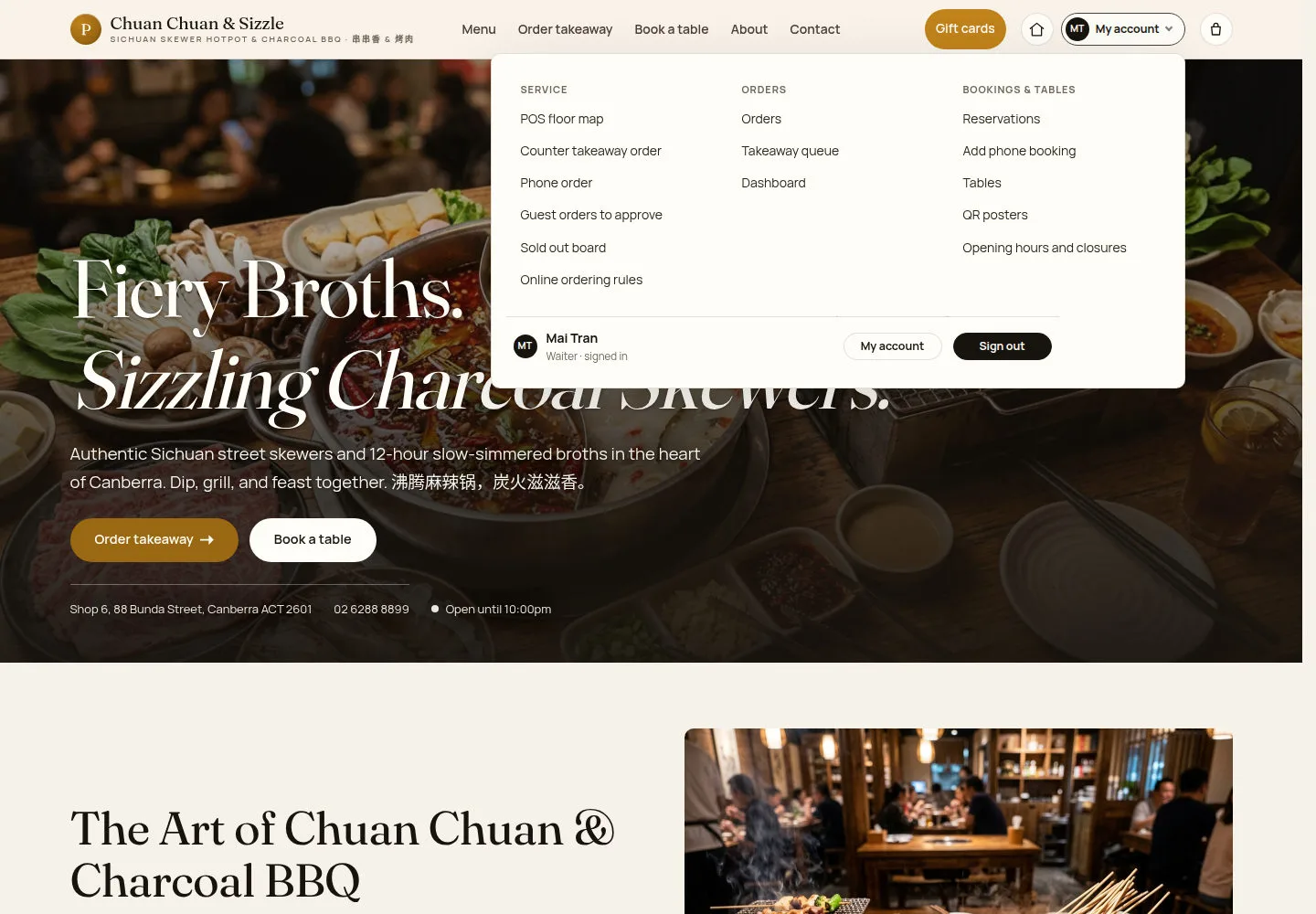
The Home icon left of My account opens the public home page without signing out.
- Click the Home icon.
- On the public site open My account to come back to any back-office page.
Open on site ↗sign-inFull-page screenshot ↗
The public header shows Gift cards, the Home icon, My account and the cart icon.
Use the dashboard on a phone
Waiter
4Step 4 of 5
On a phone, the back-office header uses a row of section tabs.
- Swipe the tabs to reach POS, Takeaway, Orders or Bookings.
Use a tablet or computer to reach the full account menu if it is unavailable on your phone.
Open on site ↗sign-inFull-page screenshot ↗
The counters stack in two columns under Open POS.
Keep your account up to date
Waiter
5Step 5 of 5
My account holds My details, Change password, Security, Trusted devices and Two-factor authentication.
- Change the picture, the Email address or the Phone number and click Save.
- To change the password fill Current password, Password and Confirm password, then Save.
Changing the email address or the password needs the current password; a new password needs at least 12 characters with a number and a symbol.
The Two-factor authentication card says two-factor authentication is unavailable on this site right now.
Open on site ↗sign-inFull-page screenshot ↗
Security shows the role (Waiter), the two-factor status (Off) and the last sign-in time.