





User guide · Manager · 6 of 12
Tables and QR posters
Add and edit tables, show a table's QR poster, rotate a QR code that was copied or damaged, and print every poster.
Open Tables
Manager
1Step 1 of 5
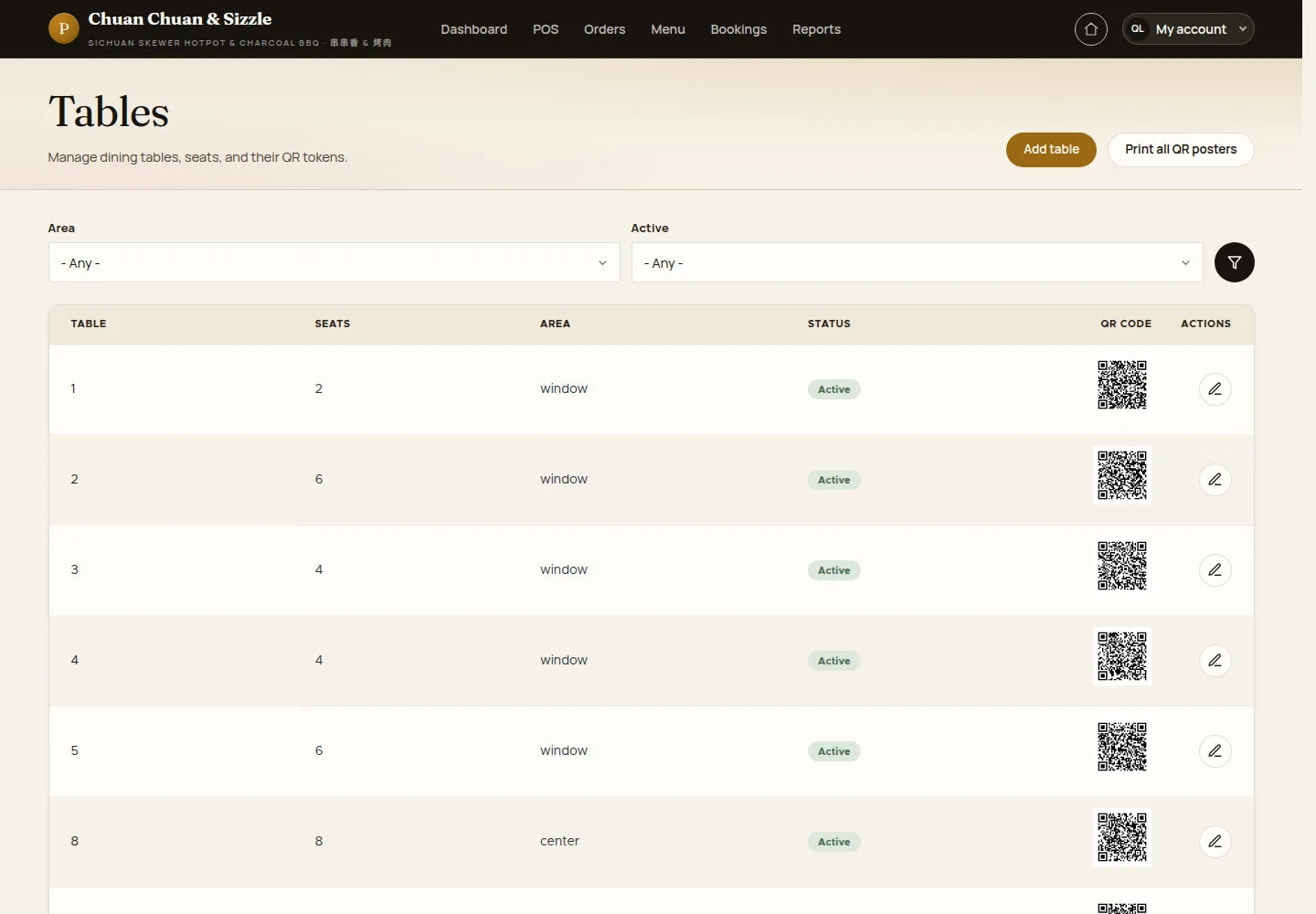
Tables lists every table with its seats, area, status and QR code; the manager also gets Add table and the pencil.
- Filter by Area or Active.
- Click Add table, or the pencil to edit a table.
Open on site ↗sign-inFull-page screenshot ↗
Review each table's number, seats, area and active status.
Add a table
Manager
2Step 2 of 5
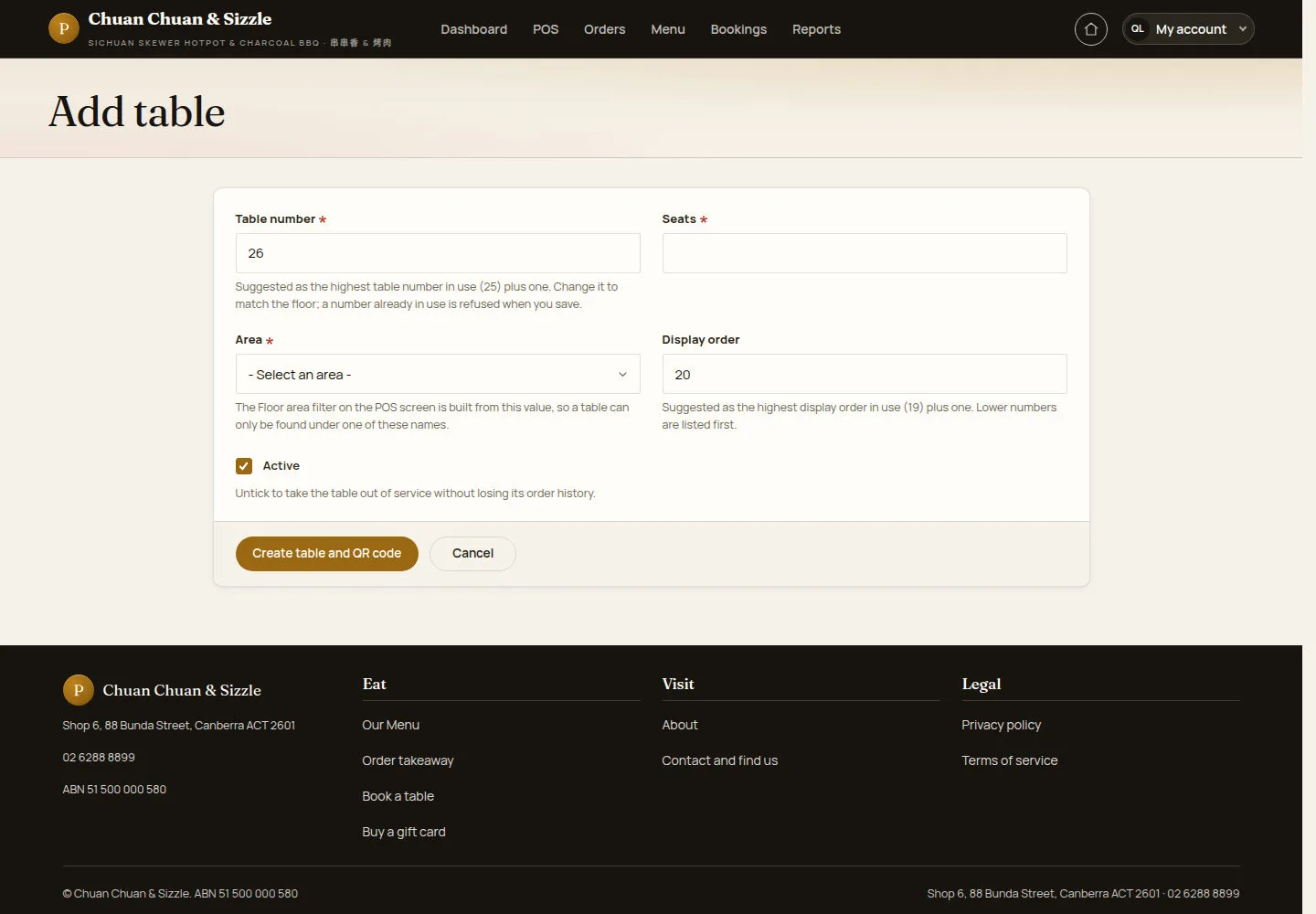
Add table suggests the next free table number and display order.
- Enter Table number, Seats, Area and Display order.
- Keep Active ticked and click Create table and QR code.
A number already in use is refused when you save. The POS Floor area filter is built from the area names.
Open on site ↗sign-inFull-page screenshot ↗
The table gets its own QR code and shows on the POS floor map.
Edit a table
Manager
3Step 3 of 5
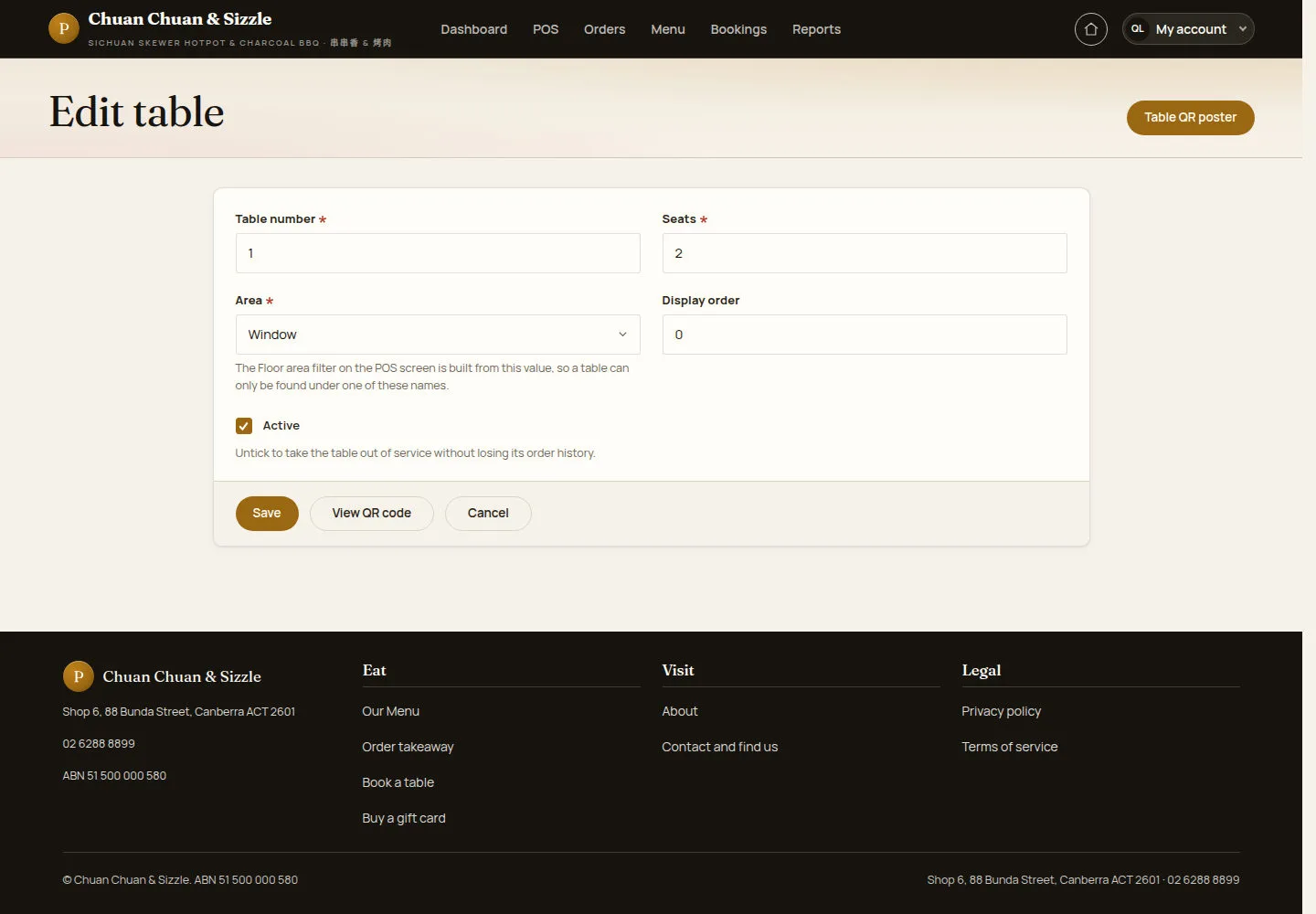
Edit table changes the seats, the area or the order, or takes the table out of service.
- Change the values, or untick Active.
- Click Save; View QR code or Table QR poster opens the poster.
Open on site ↗sign-inFull-page screenshot ↗
An inactive table keeps its order history but cannot get a new order on the POS.
Show, print or rotate a table's QR code
Manager
4Step 4 of 5
Table QR poster shows the selected table and its current guest-ordering code.
- Click Print poster, or Open the guest ordering page to see the table's menu as a new guest.
- If the poster was copied or damaged, enter the Reason for rotation and click Rotate QR code.
The old code then opens This table code is no longer valid; every rotation is written to the audit log.
Open on site ↗sign-inFull-page screenshot ↗
After a rotation the old poster stops working immediately; print the replacement and stick it on the table.
Print every poster
Manager
5Step 5 of 5
QR posters holds the takeaway poster and one poster per table.
- Click Print all, Print takeaway QR, or Preview on a table.
Print the current poster for each real table. The illustrated QR codes are not customer ordering links.
Open on site ↗sign-inFull-page screenshot ↗
The sheet prints the current codes of every table.