





User guide · Manager · 11 of 12
Staff accounts
Add waiters, edit their details and block an account when someone leaves. A manager manages waiter accounts only.
Open Staff accounts
Manager
1Step 1 of 4
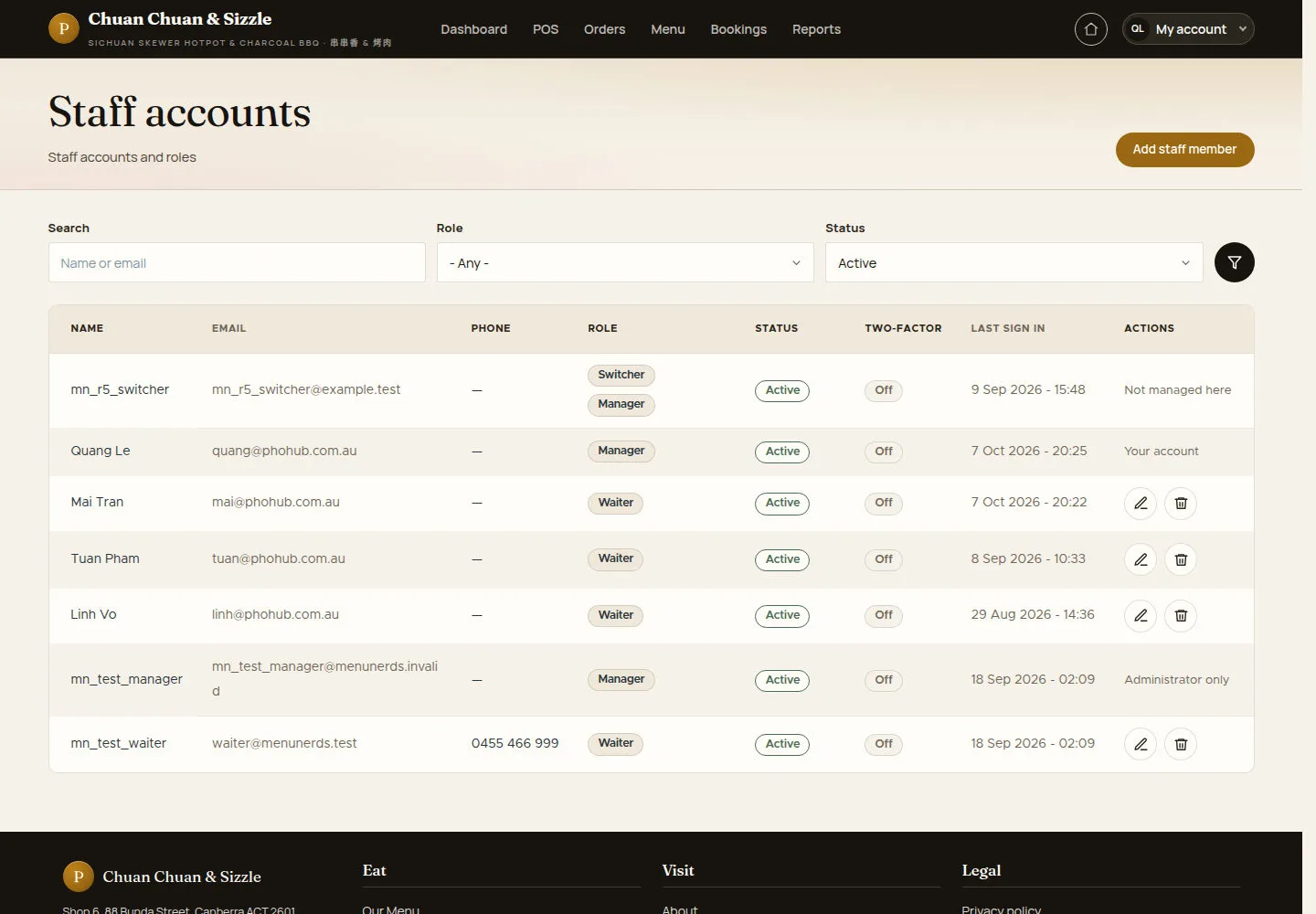
Staff accounts lists the staff with their email, phone, role, status, two-factor status and last sign-in.
- Search by name or email, or filter by Role and Status.
- Click the pencil to edit, the bin to block, or Add staff member for a new account.
Check each person's current email and role before changing access.
Open on site ↗sign-inFull-page screenshot ↗
Rows the manager cannot manage say Your account, Not managed here or Administrator only.
Add a staff account
Manager
2Step 2 of 4
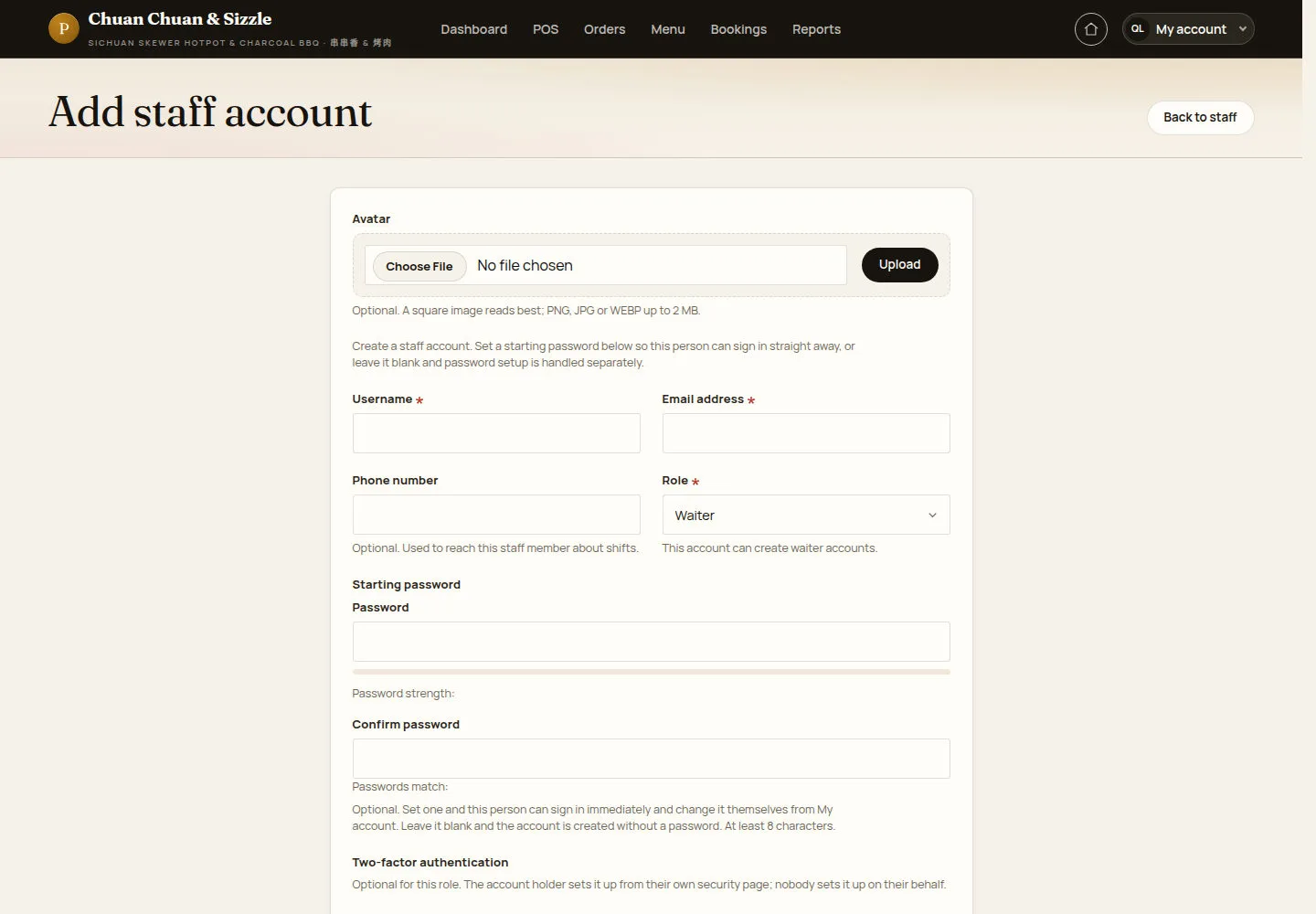
Add staff account creates the account with its role.
- Enter Username, Email address and an optional Phone number, choose the Role and add an Avatar if you like.
- Set a Starting password (Password and Confirm password) or leave it blank.
- Click Create account.
Leaving the starting password blank relies on a setup email. Email delivery is unavailable in the current local demonstration; arrange access with an administrator.
Open on site ↗sign-inFull-page screenshot ↗
The role field says This account can create waiter accounts.
Edit a staff account
Manager
3Step 3 of 4
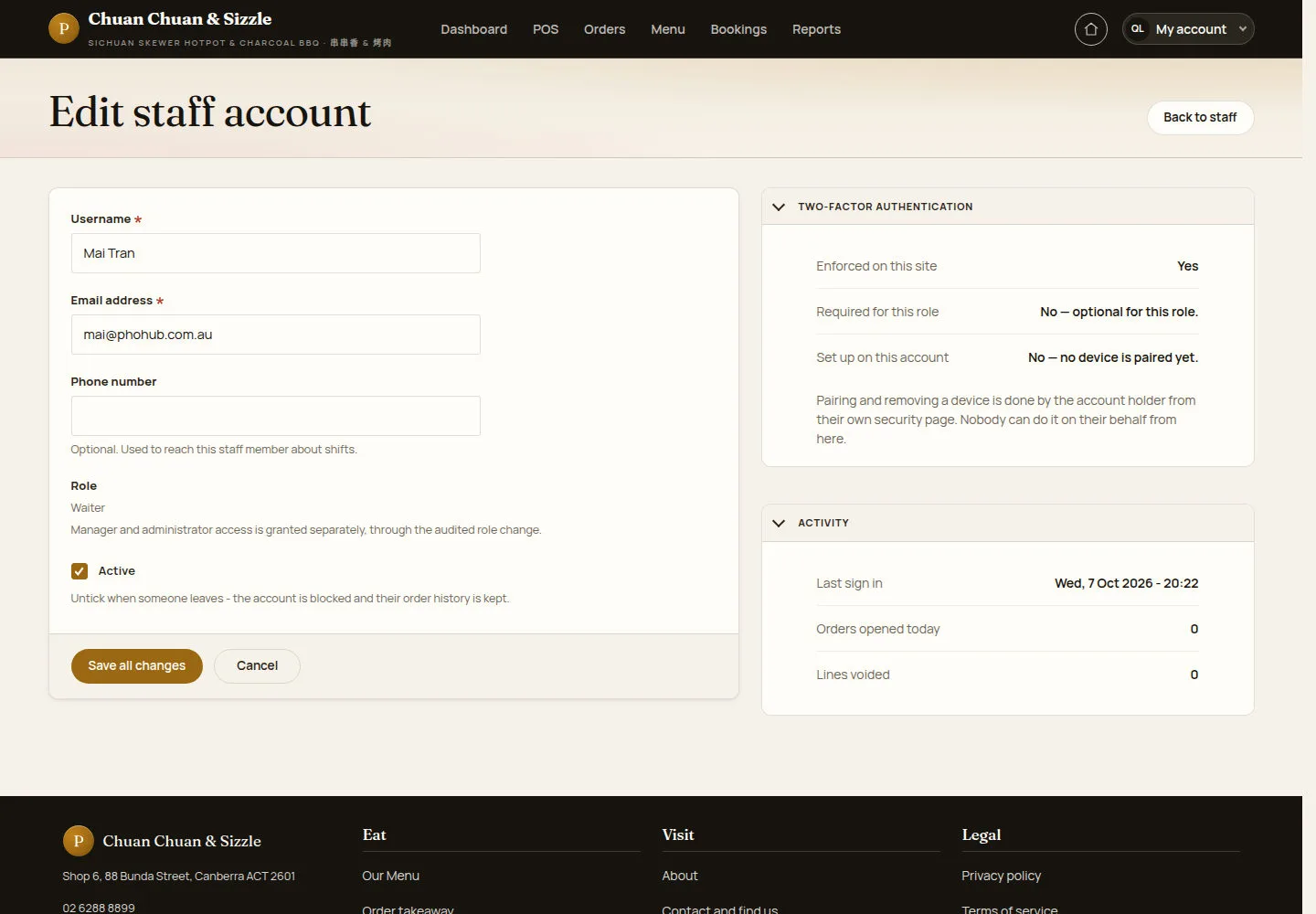
Edit staff account changes the details of an account and shows its two-factor status and activity.
- Change Username, Email address or Phone number.
- Untick Active when someone leaves, then click Save all changes.
The role stays Waiter: manager and administrator access is granted separately, through the audited role change.
Open on site ↗sign-inFull-page screenshot ↗
The panels on the right show TWO-FACTOR AUTHENTICATION and ACTIVITY (last sign-in, orders opened today, lines voided).
Block an account
Manager
4Step 4 of 4
Block …? explains what blocking keeps and removes.
- Click Block account, or Cancel.
An administrator puts a blocked person back from the account's edit page; the previous role comes back from the audit trail.
Open on site ↗sign-inFull-page screenshot ↗
The account is blocked and loses its role; their orders, voided lines and audit trail keep their name.