





User guide · Guest · 5 of 7
Buy a gift card and check its balance
Choose an available amount, review its bonus and card value, then enter the delivery email and pay by card. Use a gift-card code to check its balance.
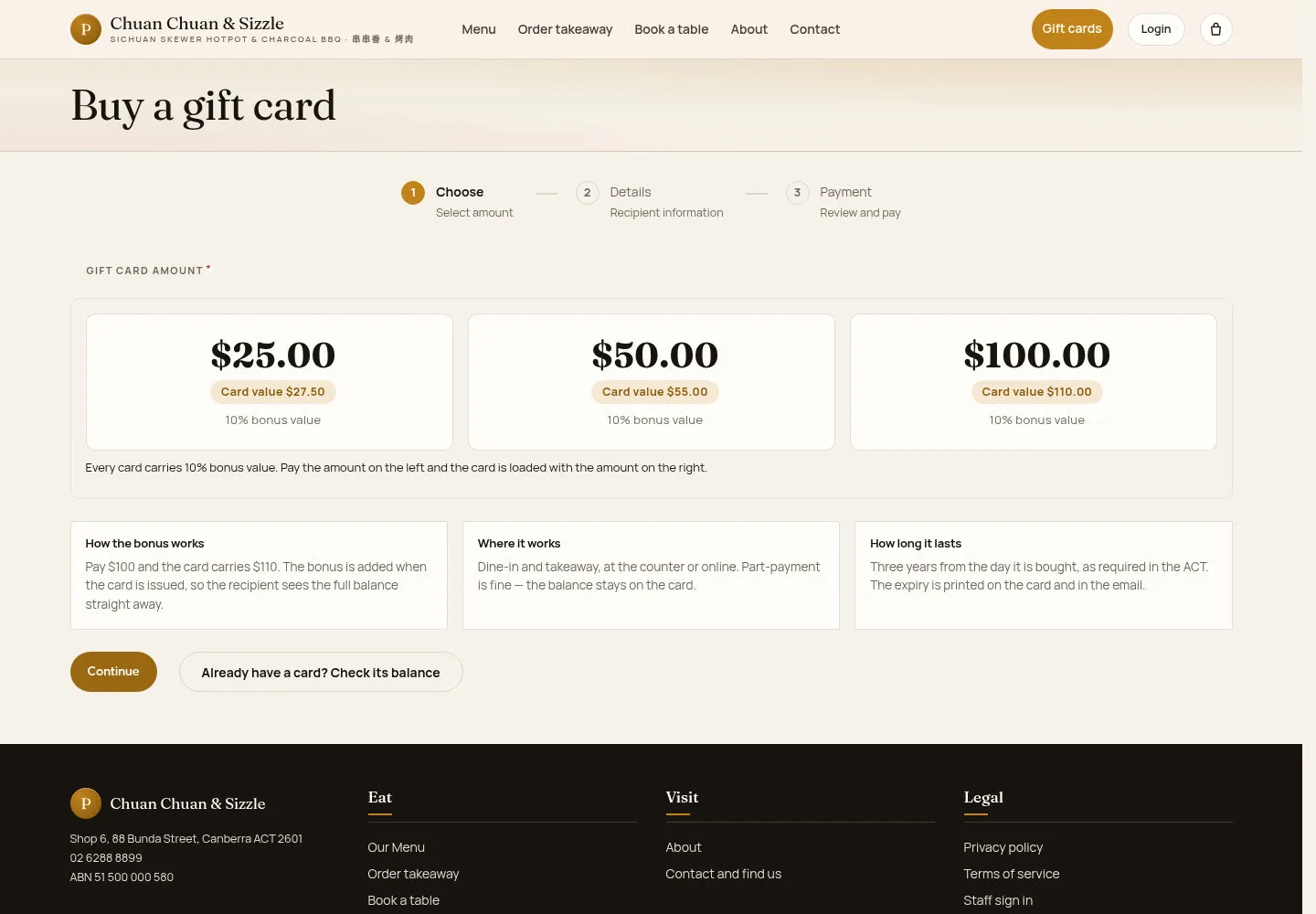
Choose an amount
Guest
1Step 1 of 3
Buy a gift card starts at Choose and shows the purchase price, bonus and issued value.
- Choose an amount and check its displayed card value.
- Click Continue.
The amounts on sale are set by the manager in Gift card amounts.
Open on site ↗Full-page screenshot ↗
Review How the bonus works, Where it works and How long it lasts before continuing.
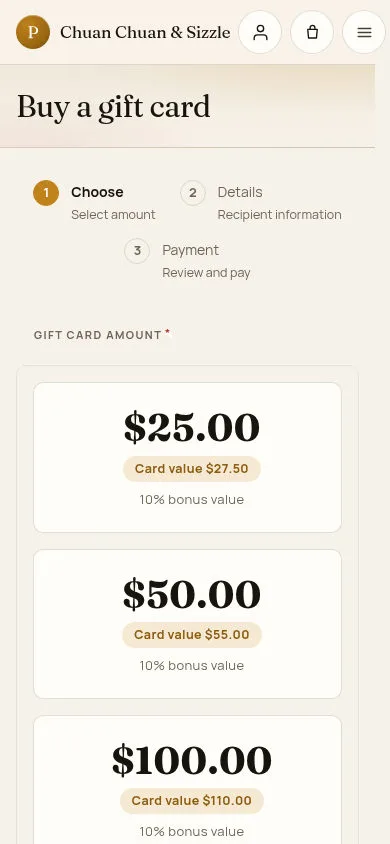
Buy on a phone
Guest
2Step 2 of 3
On a phone the amounts and the explanations stack in one column.
- Tap an amount, then Continue.
Open on site ↗Full-page screenshot ↗
The steps Choose, Details and Payment stay at the top.
Check a gift card's balance
Guest
3Step 3 of 3
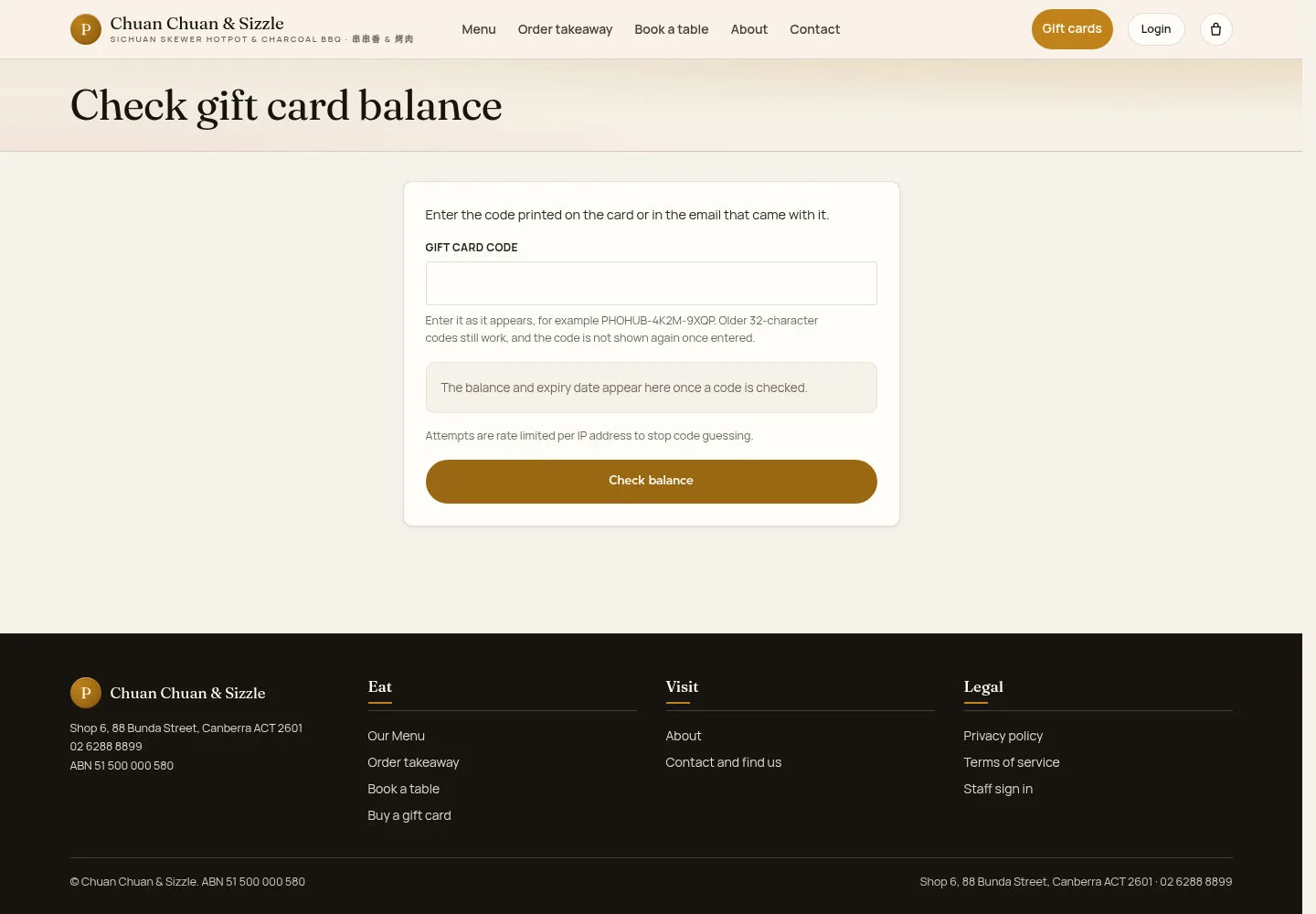
Check gift card balance reads the code printed on the card or in its email.
- Type the code in GIFT CARD CODE.
- Click Check balance.
Repeated balance checks may be temporarily limited. Wait before trying again if prompted.
Enter the code from your purchased card or its email.
Open on site ↗Full-page screenshot ↗
The balance and the expiry date appear in the box above the button.
Gift-card purchase requires working card payments and email delivery; these are unavailable in the current local demonstration. When enabled, enter Email to send the card to, review the summary and pay on Pay for your gift card. After the payment is confirmed, check Gift card purchased and keep the emailed code and expiry date. Staff redeem the card at the counter when closing an eligible order.