





User guide · Guest · 1 of 7
Browse the menu:categories and dish details
Start on the home page, open the menu, narrow it to one category and open a dish to see its price, options and a note for the kitchen.
Open the home page
Guest
1Step 1 of 7
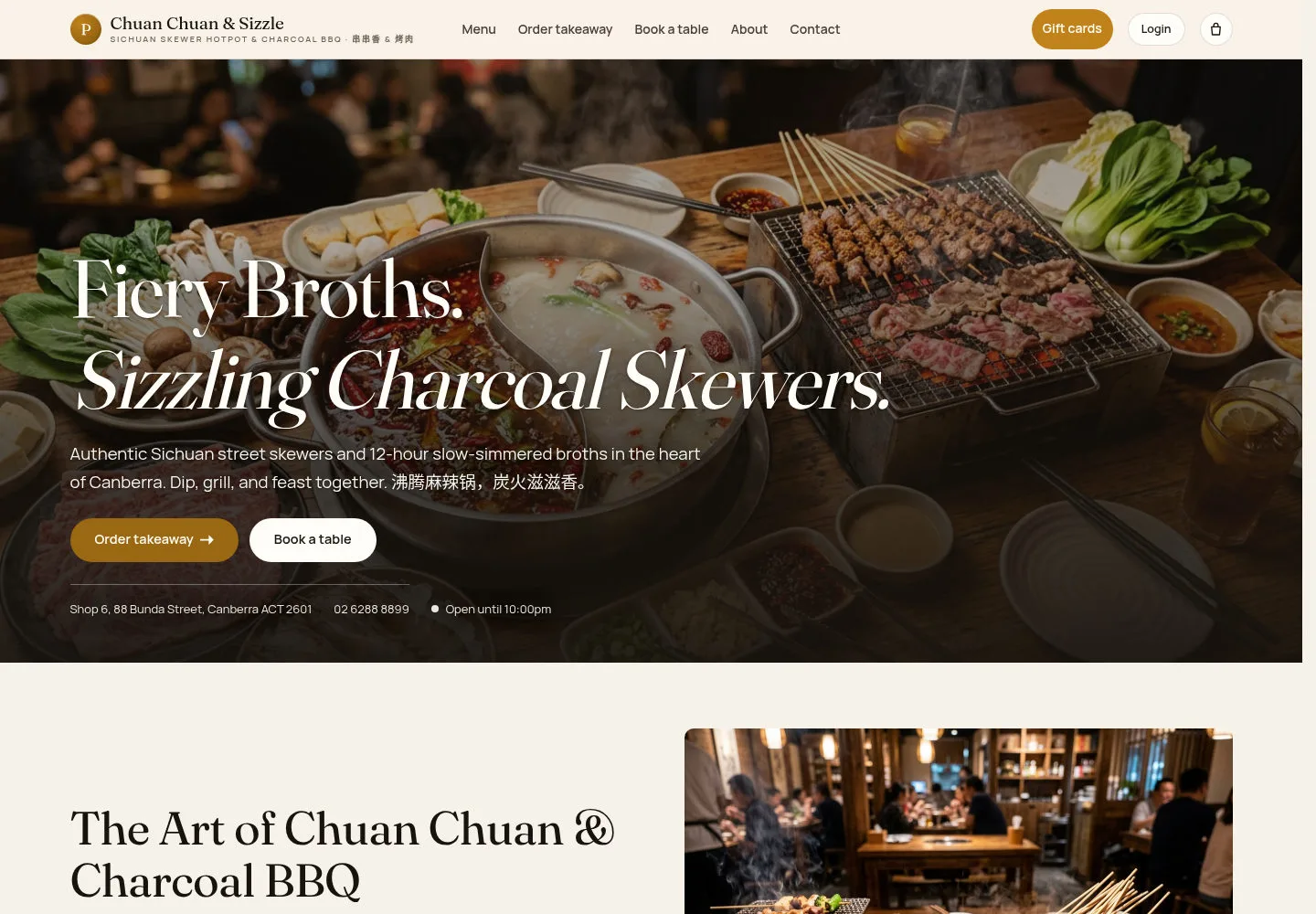
The home page is the front door: the main menu, the Gift cards button, Login for staff and the cart icon sit in the header.
- Use Menu, Order takeaway, Book a table, About or Contact in the main menu.
- Or use the hero buttons Order takeaway and Book a table.
The opening-hours badge uses the venue time zone. Check its current status before ordering.
Open on site ↗Full-page screenshot ↗
Under the buttons the hero shows the address, the phone number and today's trading-hours badge, here Open until 10:00pm.
Open the menu on a phone
Guest
2Step 2 of 7
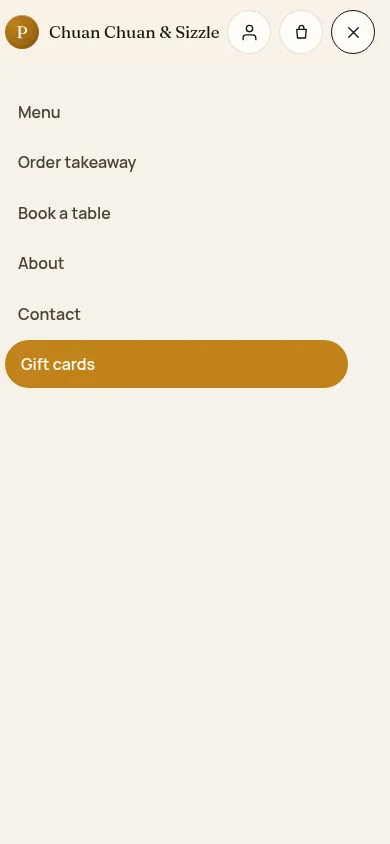
On a phone the main menu folds into the menu button, next to the person icon and the cart icon.
- Tap the menu button at the top right.
- Choose a page; Gift cards is the full-width button at the end of the list.
Open on site ↗Full-page screenshot ↗
The list shows Menu, Order takeaway, Book a table, About, Contact and Gift cards.
Read the whole menu
Guest
3Step 3 of 7
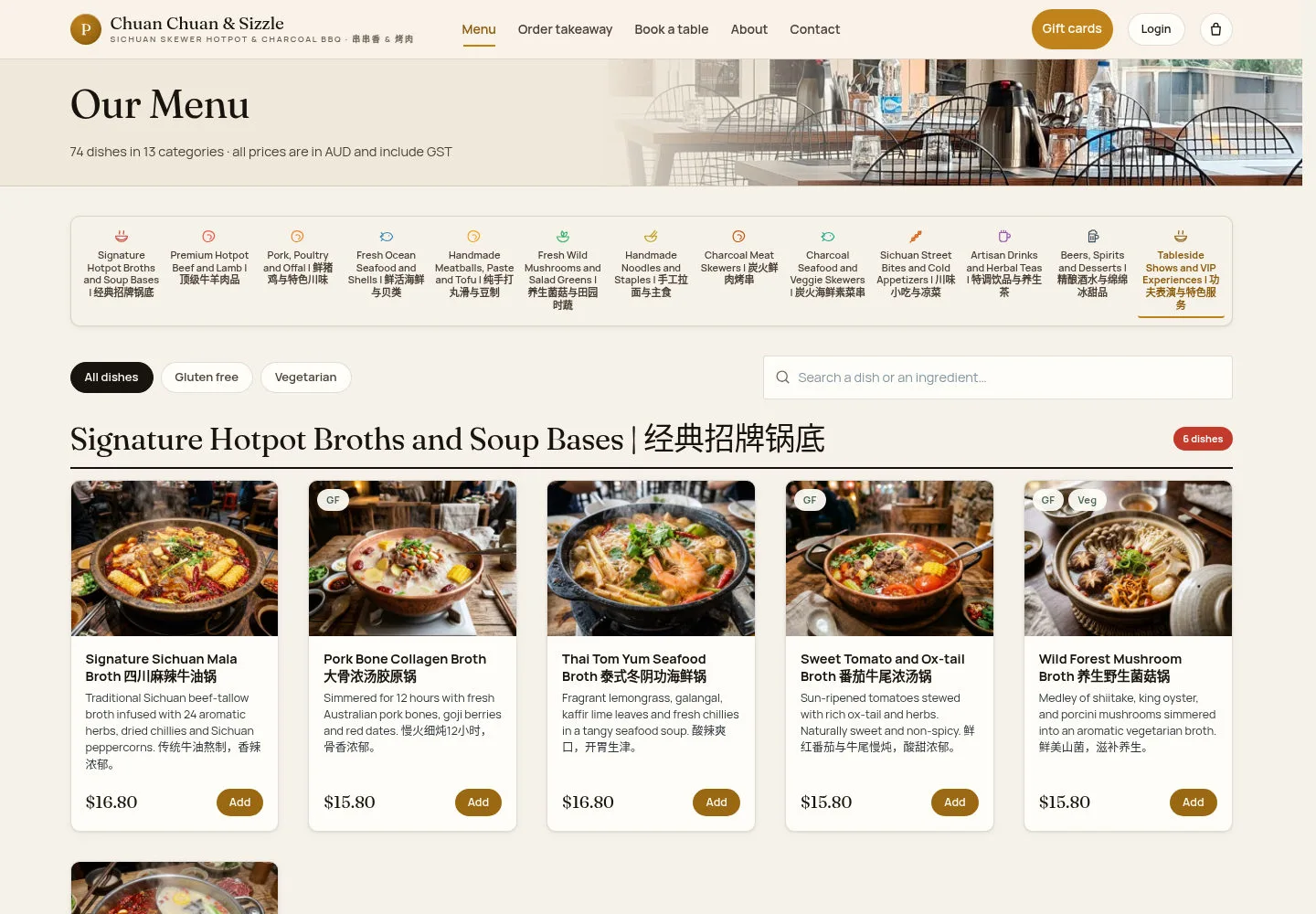
Our Menu groups dishes by category and displays prices in AUD, including GST.
- Scroll the category strip and pick a category.
- Use All dishes, Gluten free or Vegetarian, or type in Search a dish or an ingredient….
Use the dietary tags and dish description to review the available choices. Ask staff about specific dietary needs.
Open on site ↗Full-page screenshot ↗
Each card shows the English and Chinese name, a short description, the price and an Add button; GF and Veg tags mark dietary dishes.
Show one category
Guest
4Step 4 of 7
Choosing a category in the strip filters the menu to that category.
- Click a category, for example Signature Hotpot Broths and Soup Bases | 经典招牌锅底.
Open on site ↗Full-page screenshot ↗
The selected category is underlined and the list shows only its dishes.
Open a category page
Guest
5Step 5 of 7
Each category also has a page of its own with a short line about the category.
- Open the category from a category link.
- Use View the full menu to go back, or the Search the whole menu box.
Open on site ↗Full-page screenshot ↗
The page title is the category name and only its dishes are listed.
Open a dish
Guest
6Step 6 of 7
Dish detail shows the photo, the description and the price (GST included) with the dish's options.
- Choose the required options, such as Spice Level | 辣度选择 and Pot Type | 锅底类型.
- Set Quantity, add a Note for the kitchen if needed, then click Add to cart with the displayed total.
Add to cart fills the takeaway cart; the next guide follows that cart to checkout.
Every dish page has the same generic title Dish detail; the dish name is in the card below it.
Open on site ↗Full-page screenshot ↗
Priced options show their extra charge and the button total updates with your choices.
Read a dish on a phone
Guest
7Step 7 of 7
On a phone, the dish information, options and order controls stack vertically.
- Scroll down to the options and the Add to cart button.
Open on site ↗Full-page screenshot ↗
Photo, price, options and the button stack in one column.