





User guide · Guest · 7 of 7
Staff sign in and password reset
Staff sign in with a username and password from Login in the header or Staff sign in in the footer; a forgotten password is reset by email. Guests never need an account.
Open Staff sign in
Guest
1Step 1 of 4
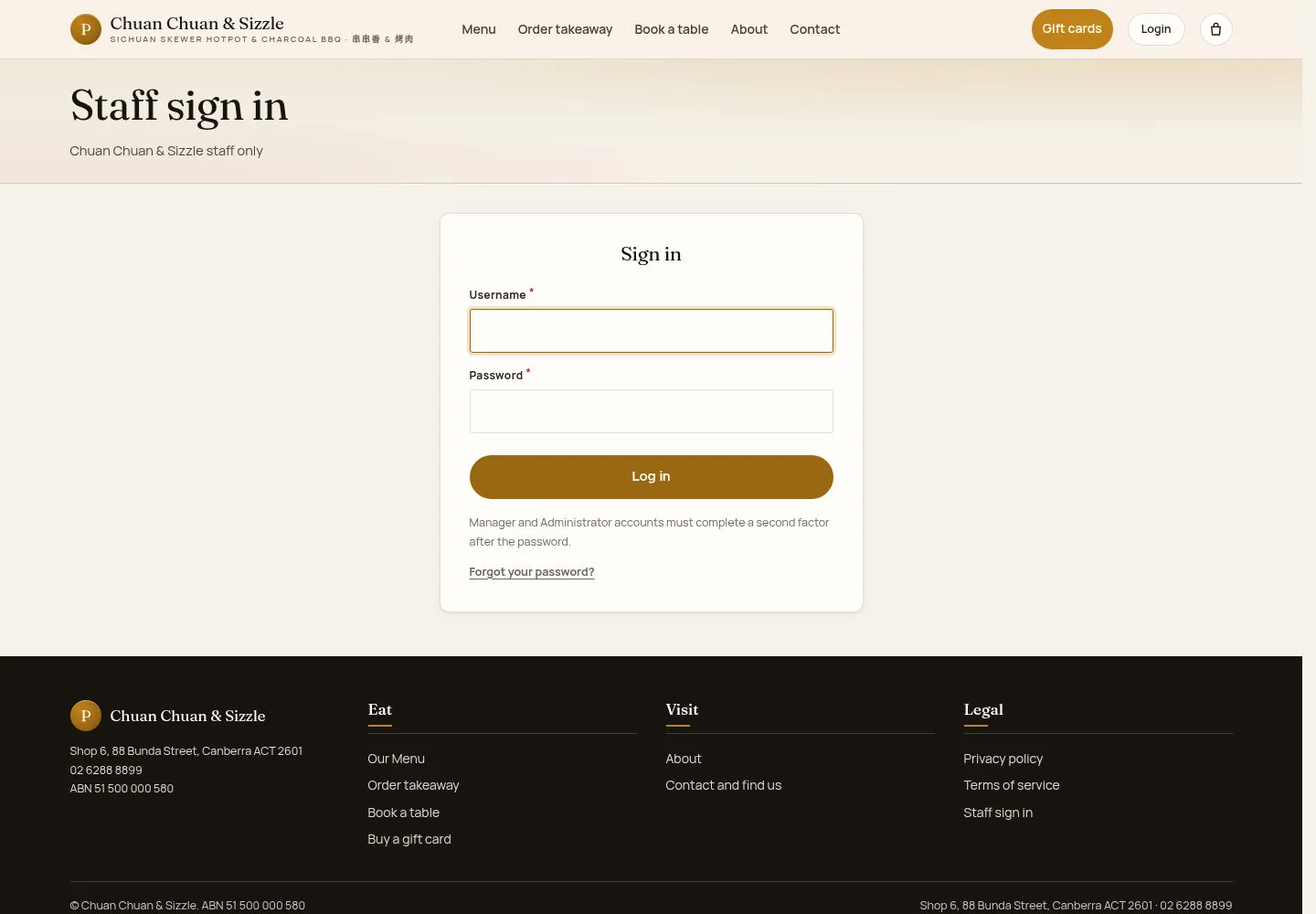
Login in the header and Staff sign in in the footer both open Staff sign in.
- Enter Username and Password.
- Click Log in.
Follow the security options shown for your account. Two-factor authentication is currently unavailable in this deployment.
Repeated unsuccessful sign-ins may temporarily block further attempts.
Open on site ↗Full-page screenshot ↗
Waiters, managers and administrators all land on the Staff dashboard.
Sign in on a phone
Guest
2Step 2 of 4
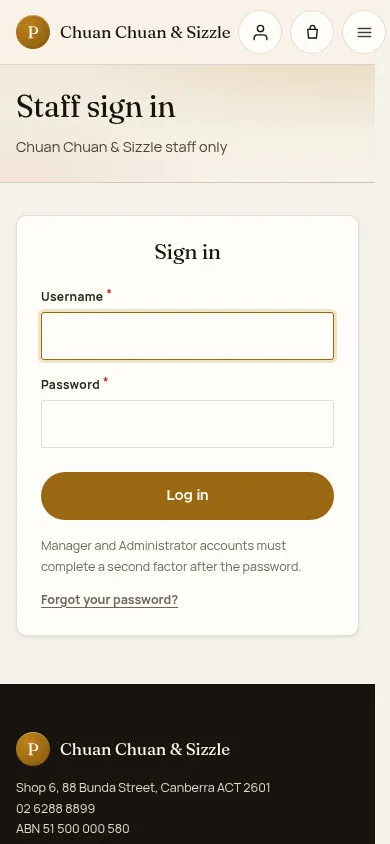
On a phone the person icon next to the cart icon opens the same form.
- Tap the person icon, or Staff sign in in the footer.
Open on site ↗Full-page screenshot ↗
The form fits the phone screen.
Reset a forgotten password
Guest
3Step 3 of 4
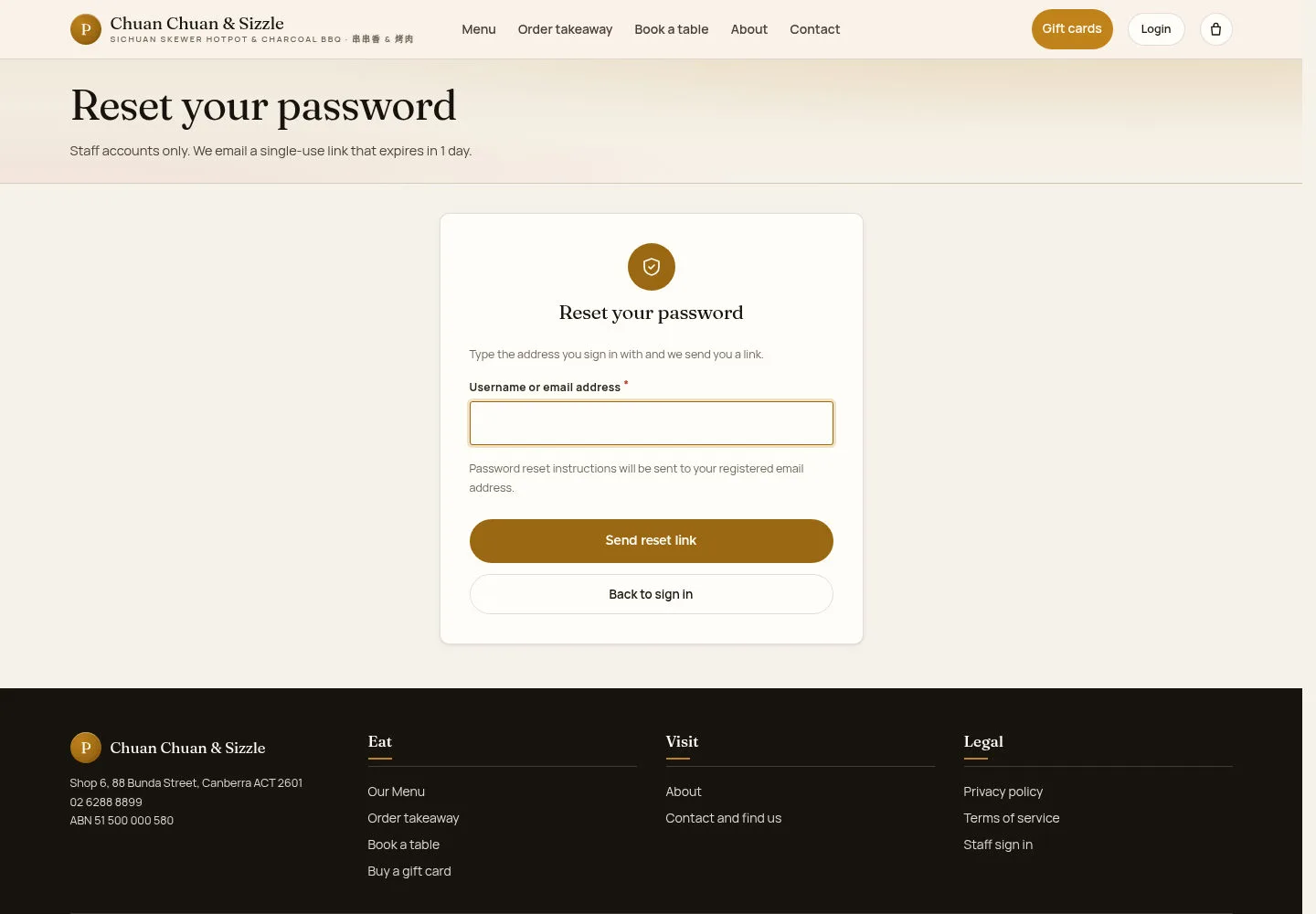
Forgot your password? opens Reset your password, for staff accounts only.
- Enter Username or email address.
- Click Send reset link; Back to sign in returns to the form.
Email delivery is unavailable in the current demonstration. Contact an administrator if the reset link does not arrive.
Open on site ↗Full-page screenshot ↗
When outgoing email is enabled, a single-use reset link is sent to the account address; the link expires after one day.
Use the alternative staff sign-in page
Guest
4Step 4 of 4
The alternative sign-in page accepts the same staff username and password.
- Enter Username and Password and click Log in; Forgot your password? leads to the reset form.
Open on site ↗Full-page screenshot ↗
The same staff accounts sign in here.
After Log in every staff role lands on the Staff dashboard; the Waiter, Manager and Administrator guides start there. Opening Staff sign in while signed in goes straight to the dashboard.