





User guide · Manager · 7 of 12
Opening hours, online ordering rules and booking rules
Set the weekly opening hours and the special closures, the online ordering rules and pause, and the booking rules. They drive the website, the takeaway slots, table ordering and bookings.
Set the weekly opening hours
Manager
1Step 1 of 5
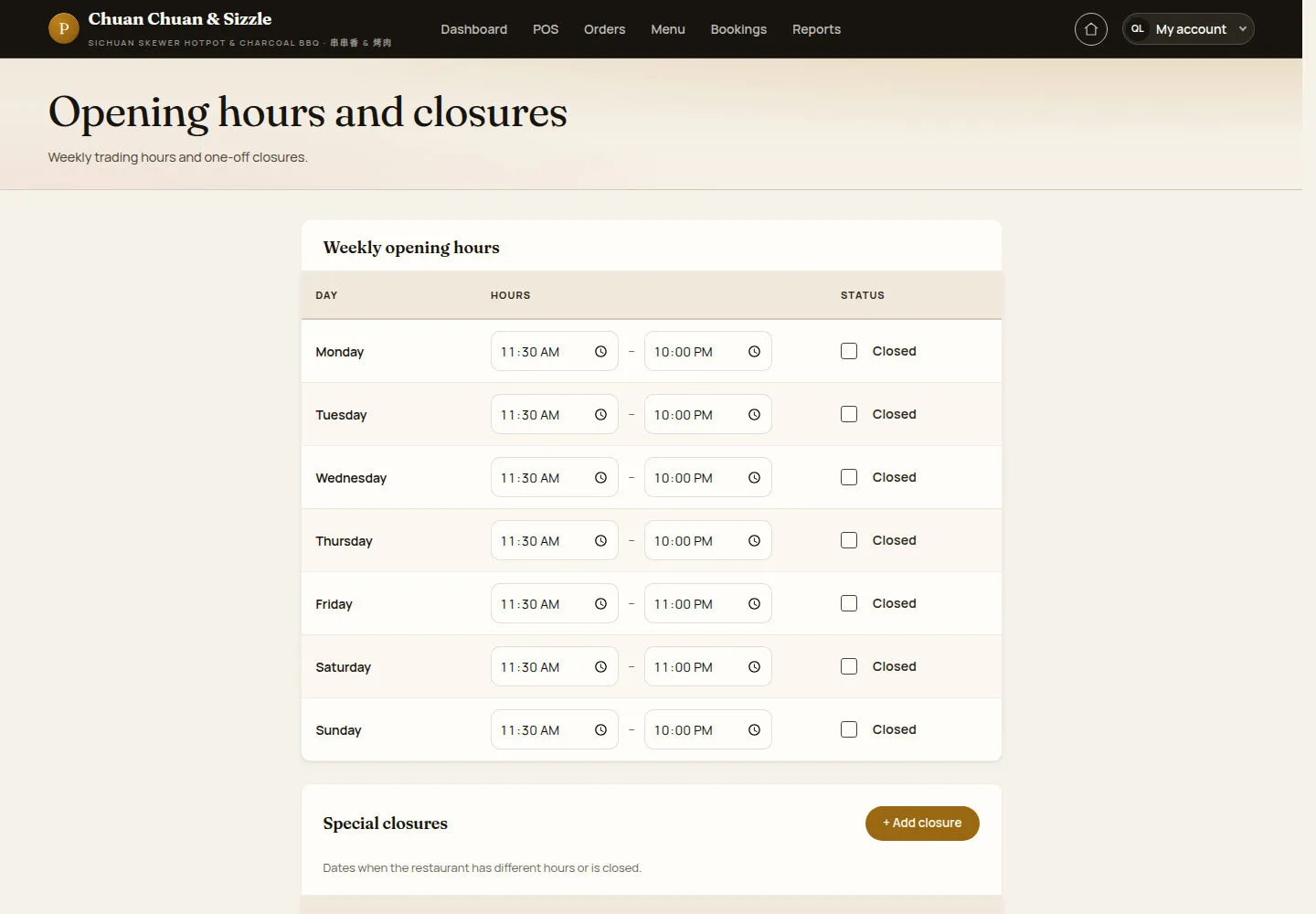
For the manager, Opening hours and closures is a form: an opening and a closing time per day, and a Closed box.
- Change the times, or tick Closed for a day.
- Click Save configuration; + Add closure adds a special closure.
Open on site ↗sign-inFull-page screenshot ↗
Check each day's saved opening and closing times, and review any special closures.
Add a special closure
Manager
2Step 2 of 5
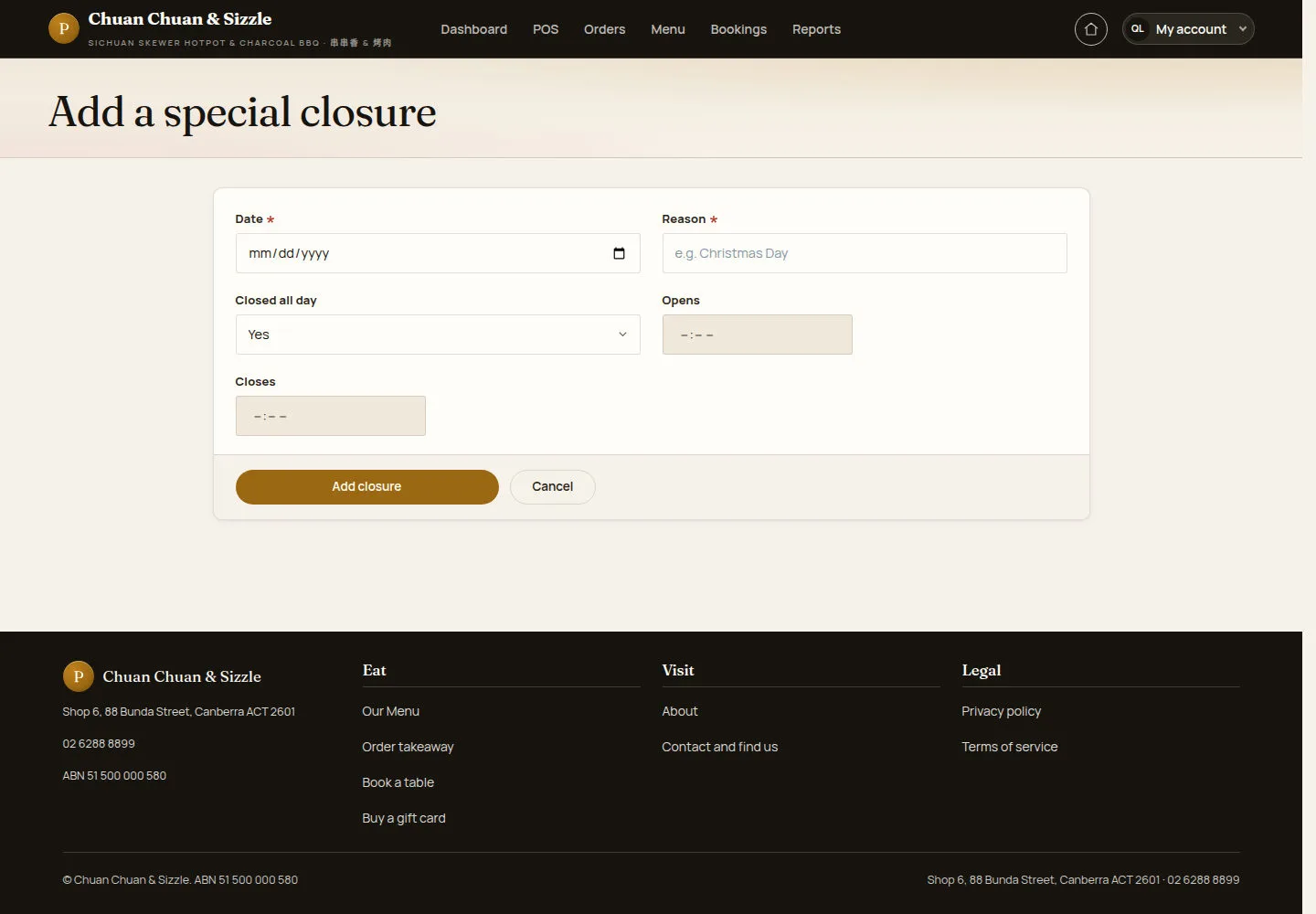
Add a special closure closes the restaurant, or shortens its hours, on one date.
- Pick the Date and type the Reason, for example Christmas Day.
- Keep Closed all day on Yes, or set Opens and Closes for shorter hours, then click Add closure.
Open on site ↗sign-inFull-page screenshot ↗
On that date the website, takeaway, table ordering and bookings follow the closure.
Change the online ordering rules
Manager
3Step 3 of 5
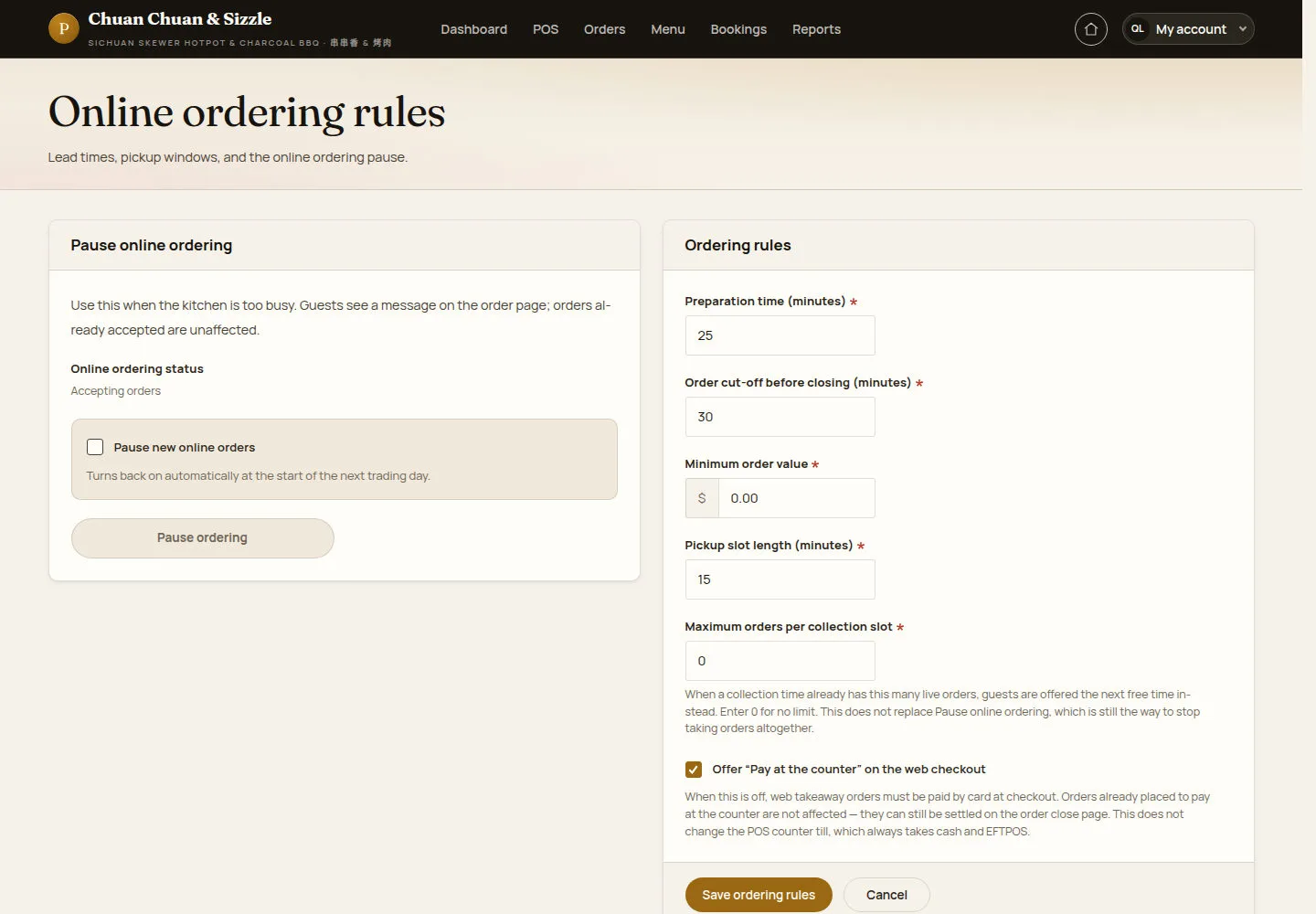
Ordering rules on the right sets the takeaway lead time, cut-off, minimum order and pickup slots.
- Set Preparation time (minutes), Order cut-off before closing (minutes), Minimum order value, Pickup slot length (minutes) and Maximum orders per collection slot (0 = no limit).
- Tick or untick Offer “Pay at the counter” on the web checkout, then click Save ordering rules.
Pause new online orders on the left stops web takeaway until the next trading day.
Open on site ↗sign-inFull-page screenshot ↗
Saved rules determine the preparation time, cut-off, minimum order and collection slots offered to guests.
Pause online ordering for today
Manager
4Step 4 of 5
The pause page confirms before web takeaway stops.
- Click Pause online ordering for today, or Cancel.
Open on site ↗sign-inFull-page screenshot ↗
Guests see a message on the order page; table orders carry on.
Change the booking rules
Manager
5Step 5 of 5
Booking rules holds one set of rules for every day, two switches and the capacity taken from the table list.
- Set Time slot length (minutes), Maximum guests per slot, Maximum party size, Earliest a guest may book (minutes ahead), Accept bookings up to (days ahead), Hold the table for (minutes) and Guests can cancel until (minutes before).
- Tick Confirm bookings automatically, without waiting for a manager and Accept bookings outside opening hours (demonstration mode) as needed.
- Click Save rules.
Automatic confirmation and over-limit requests currently do not send the emails described on this form. Review bookings in Reservations.
Outside-hours demonstration mode is deployment-specific. Check this setting after a configuration transfer.
Open on site ↗sign-inFull-page screenshot ↗
Capacity reflects active tables and seats; requests over the configured limits need review.