





User guide · Guest · 3 of 7
Order at your table with the QR code
Scan the QR code on the table to open that table's menu, add dishes and send the round to your waiter. The table pays at the counter after the meal.
Scan the table's QR code
Guest
1Step 1 of 5
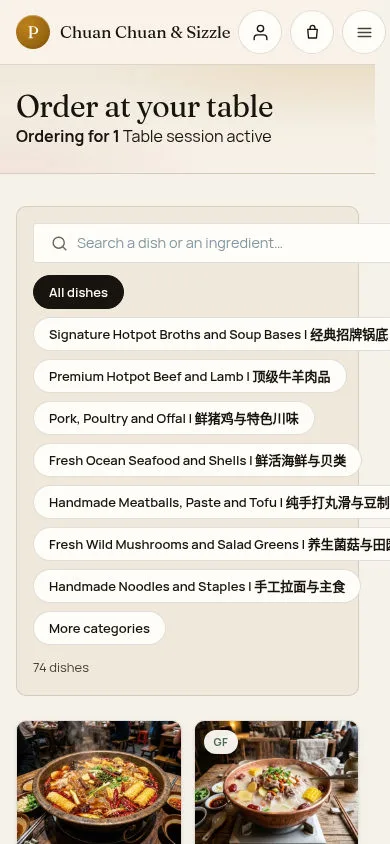
The table QR poster opens Order at your table. Check the table identifier and that the table session is active.
- Scan the code with the phone camera and open the link.
- Pick a category or More categories, or search a dish, then tap Add.
Outside opening hours or on a special closure day the table page does not take orders; pausing online ordering does not stop table orders.
If a control is difficult to reach on your phone, ask the waiter to help with the table order.
The live address carries the table's private QR code, so it is not repeated here.Full-page screenshot ↗
Available dishes and the Order summary panel are shown.
Add a dish to the table order
Guest
2Step 2 of 5
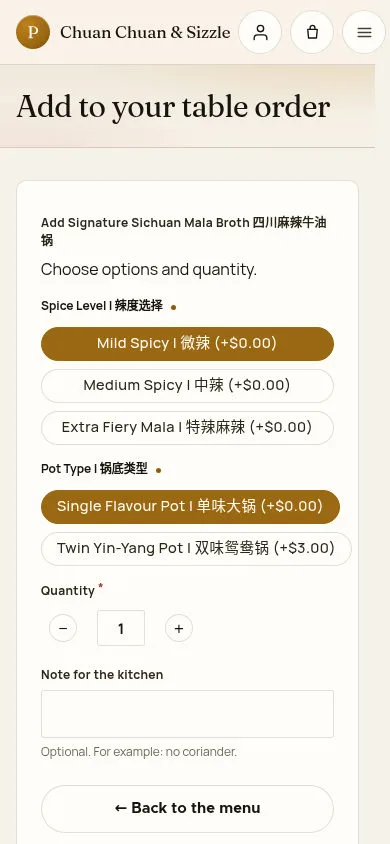
Add to your table order asks for the options, the quantity and an optional kitchen note.
- Choose the options, for example Spice Level | 辣度选择 and Pot Type | 锅底类型.
- Tap Add to table order, or ← Back to the menu.
The live address carries the table's private QR code, so it is not repeated here.Full-page screenshot ↗
The dish goes into this table's cart on your phone and the cart icon counts the items.
Review the round and send it
Guest
3Step 3 of 5
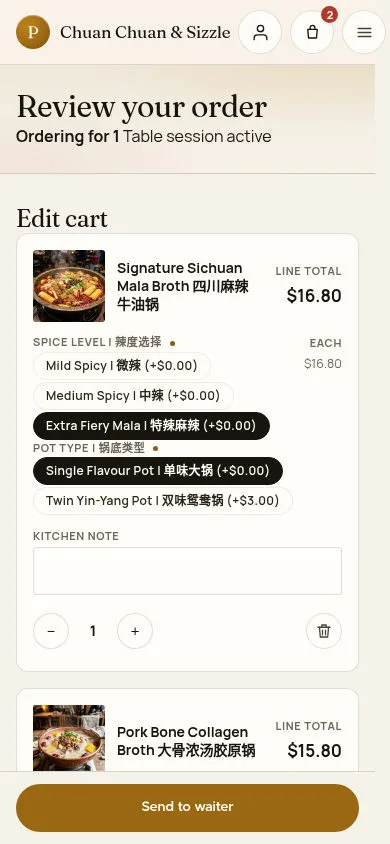
Review your order shows each dish with its options, kitchen note and line total.
- Change an option, the kitchen note or the quantity with − and +; the bin removes a dish (Undo is offered for five minutes).
- Tap Send to waiter when the round is ready, or Back to the menu to add more.
The live address carries the table's private QR code, so it is not repeated here.Full-page screenshot ↗
Check Total (GST inclusive) and GST included against the round you are sending.
The same cart on a large screen
Guest
4Step 4 of 5
On a tablet or computer the cart is a table: ITEM, OPTIONS, QUANTITY, KITCHEN NOTE, UNIT PRICE, LINE TOTAL and REMOVE.
- Check every line, then click Send to waiter.
If an option selector covers a quantity control, use the phone layout or ask staff to help before sending the round.
The live address carries the table's private QR code, so it is not repeated here.Full-page screenshot ↗
The totals and the Send to waiter button sit under the table.
If the code is no longer valid
Guest
5Step 5 of 5
A QR code that was rotated, or a mistyped table link, opens This table code is no longer valid.
- Ask the staff for help, or use View our menu or Order takeaway.
Staff rotate a table's QR code when its poster is damaged or copied; the old poster stops working at once.
Open on site ↗Full-page screenshot ↗
The page says the code is not valid and opens no table.
After Send to waiter succeeds, check Sent to your waiter and Your table order. Each new round waits for approval. Table orders are paid at the counter after the meal.