





User guide · Administrator · 10 of 13
Reports and day close
Read the sales, GST and payment reports for a business date or a range, export them as CSV, and close the trading day with the counted cash.
Daily sales
Administrator
1Step 1 of 8
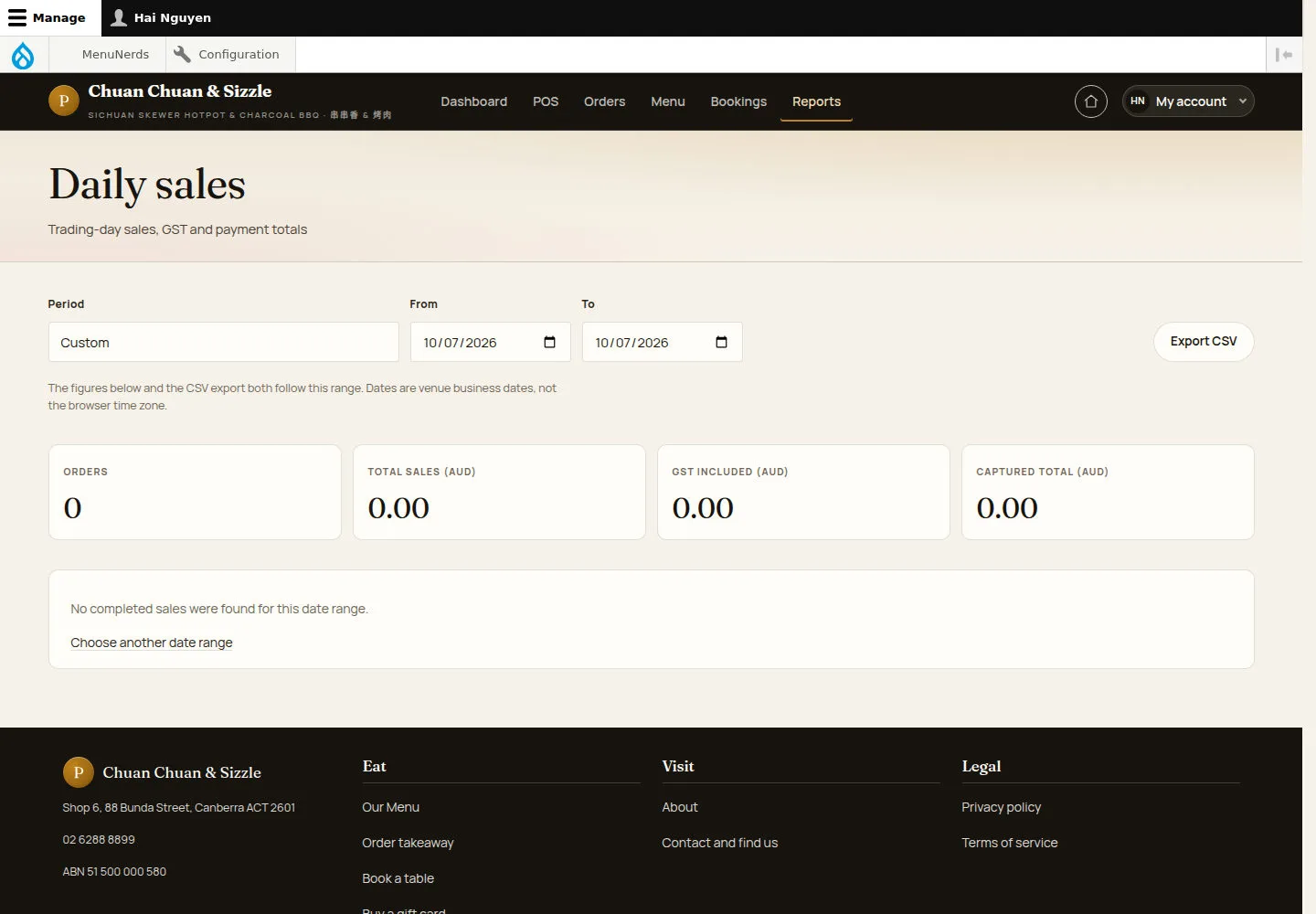
Reports in the header opens Daily sales: the trading-day sales, GST and payment totals.
- Choose the Period, or the From and To dates.
- Click Export CSV to download the same figures.
Dates are the venue's business dates in Sydney time, not the browser's time zone.
Open on site ↗sign-inFull-page screenshot ↗
Read ORDERS, TOTAL SALES (AUD), GST INCLUDED (AUD) and CAPTURED TOTAL (AUD) for the chosen date range.
Sales by period
Administrator
2Step 2 of 8
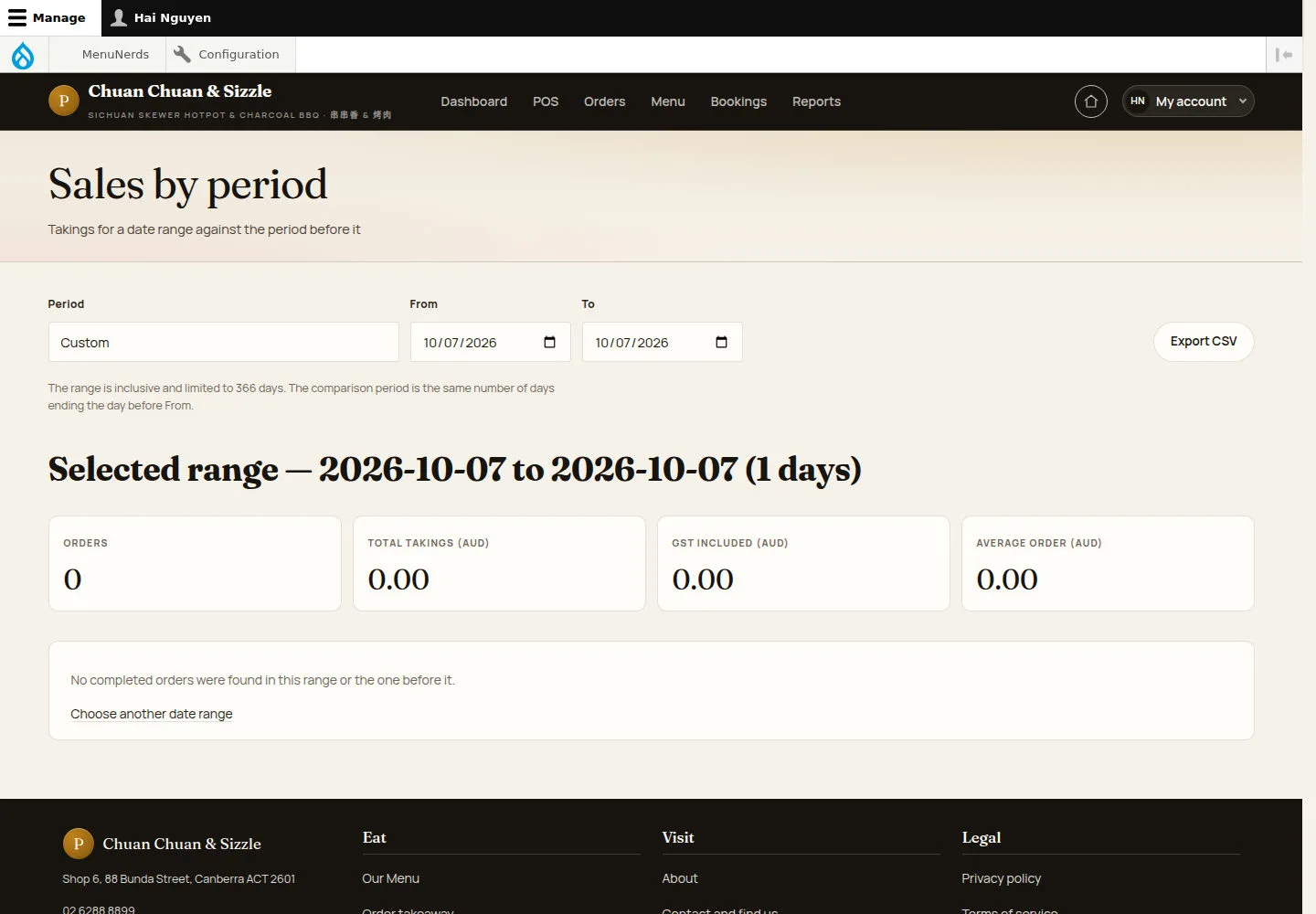
Sales by period compares a date range with the period before it.
- Pick a range of up to 366 days.
Open on site ↗sign-inFull-page screenshot ↗
Orders, total takings, GST included and the average order for the selected range.
Item sales
Administrator
3Step 3 of 8
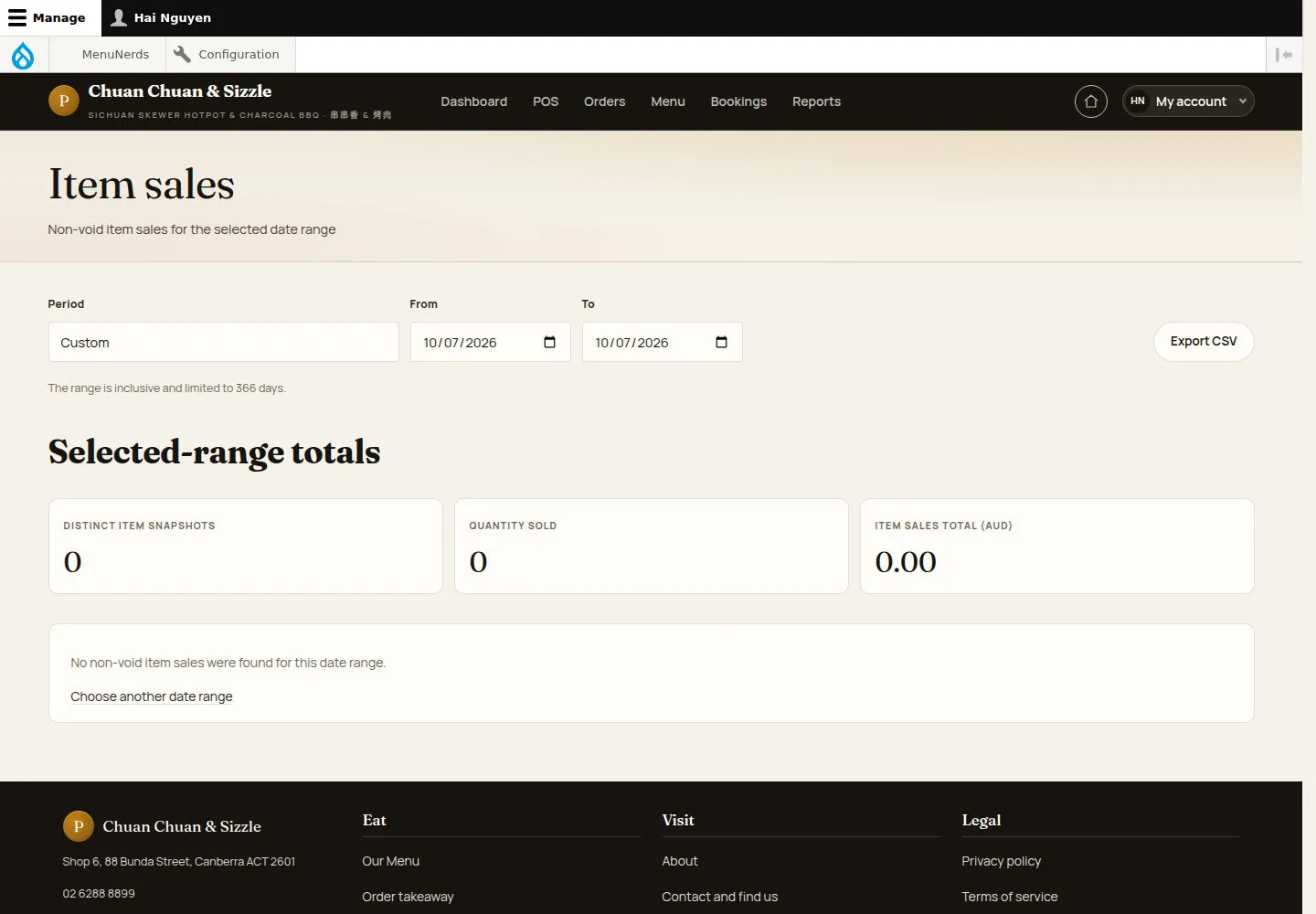
Item sales shows the dishes sold in the range, without voided lines.
- Choose the range and click Export CSV if needed.
Open on site ↗sign-inFull-page screenshot ↗
Distinct item snapshots, quantity sold and the item sales total.
Category sales
Administrator
4Step 4 of 8
Category sales shows which parts of the menu earn, and what never sold.
- Choose the range.
Open on site ↗sign-inFull-page screenshot ↗
Review categories sold, quantity, item sales and MENU ITEMS THAT NEVER SOLD for the selected period.
Trading hours
Administrator
5Step 5 of 8
Trading hours shows orders and takings by hour of day and day of week.
- Choose the range.
Open on site ↗sign-inFull-page screenshot ↗
Orders, total takings, the busiest hour and the busiest weekday.
GST and payment methods
Administrator
6Step 6 of 8
GST and payment methods reconciles one business date against the till and the terminal settlement.
- Choose the Business date.
Open on site ↗sign-inFull-page screenshot ↗
Captured payments, the captured total and the order GST; refunds are money paid back, not takings.
GST and BAS summary
Administrator
7Step 7 of 8
GST and BAS summary gives the quarterly BAS figures and the GST integrity check.
- Choose the BAS quarter that matches the reporting period.
Open on site ↗sign-inFull-page screenshot ↗
Orders counted, G1 total sales, 1A GST on sales and GST-free sales, with Where each figure comes from.
Close the day
Administrator
8Step 8 of 8
Close the day reviews the open orders, reconciles the counted cash and locks the trading day.
- Check Open orders (Open orders list).
- Under Cash reconciliation enter the Business date, the Counted cash and a Variance note, then click Save day-close draft.
Resolve all open orders for the business date before closing it.
After saving the draft, use Close the day and Confirm the counted cash; a non-zero variance needs a note. The closed day is locked overnight; after locking, only the permitted Reopen action can change one of its orders.
Open on site ↗sign-inFull-page screenshot ↗
The draft is only saved: This saves a structural draft only. It does not close or archive the business day.