





User guide · Manager · 12 of 12
Website content
Edit the text and photos of the Home, About, Privacy and Terms pages from the back office.
Open Website content
Manager
1Step 1 of 3
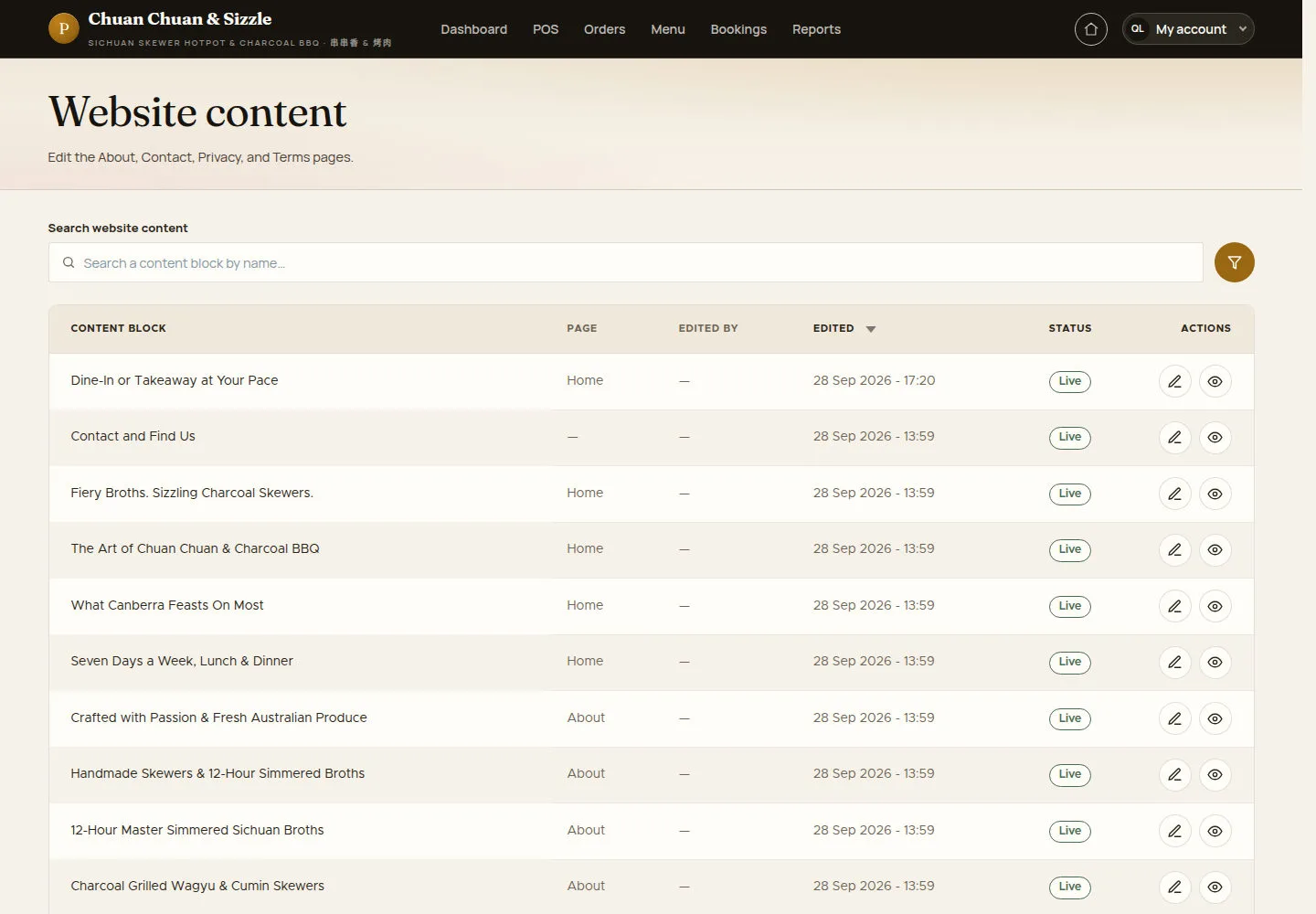
Website content lists the content blocks of the public pages.
- Search a content block by name.
- Click the pencil to edit a block or the eye to view it.
Open on site ↗sign-inFull-page screenshot ↗
Every block shows its page (Home, About, Privacy, Terms), who edited it, when, and Live.
Edit a page
Manager
2Step 2 of 3
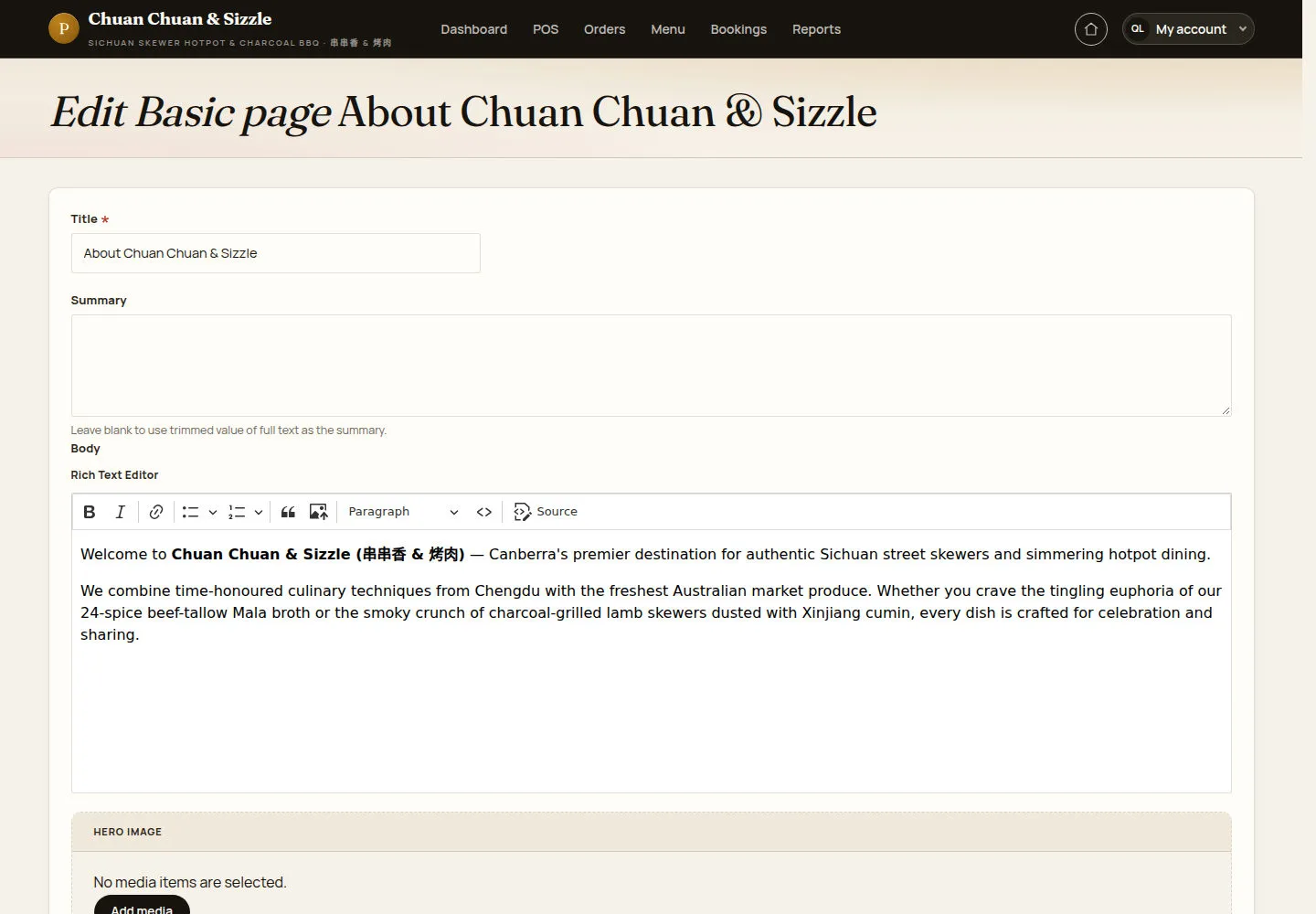
The page edit form opens in the back office for the selected content block.
- Change the Title, the Summary and the Body in the rich text editor.
- Add a HERO IMAGE with Add media, then click Save.
Open on site ↗sign-inFull-page screenshot ↗
The new text is live as soon as it is saved.
Check the result as a guest
Guest
3Step 3 of 3
↪ The work moves from Manager to Guest.
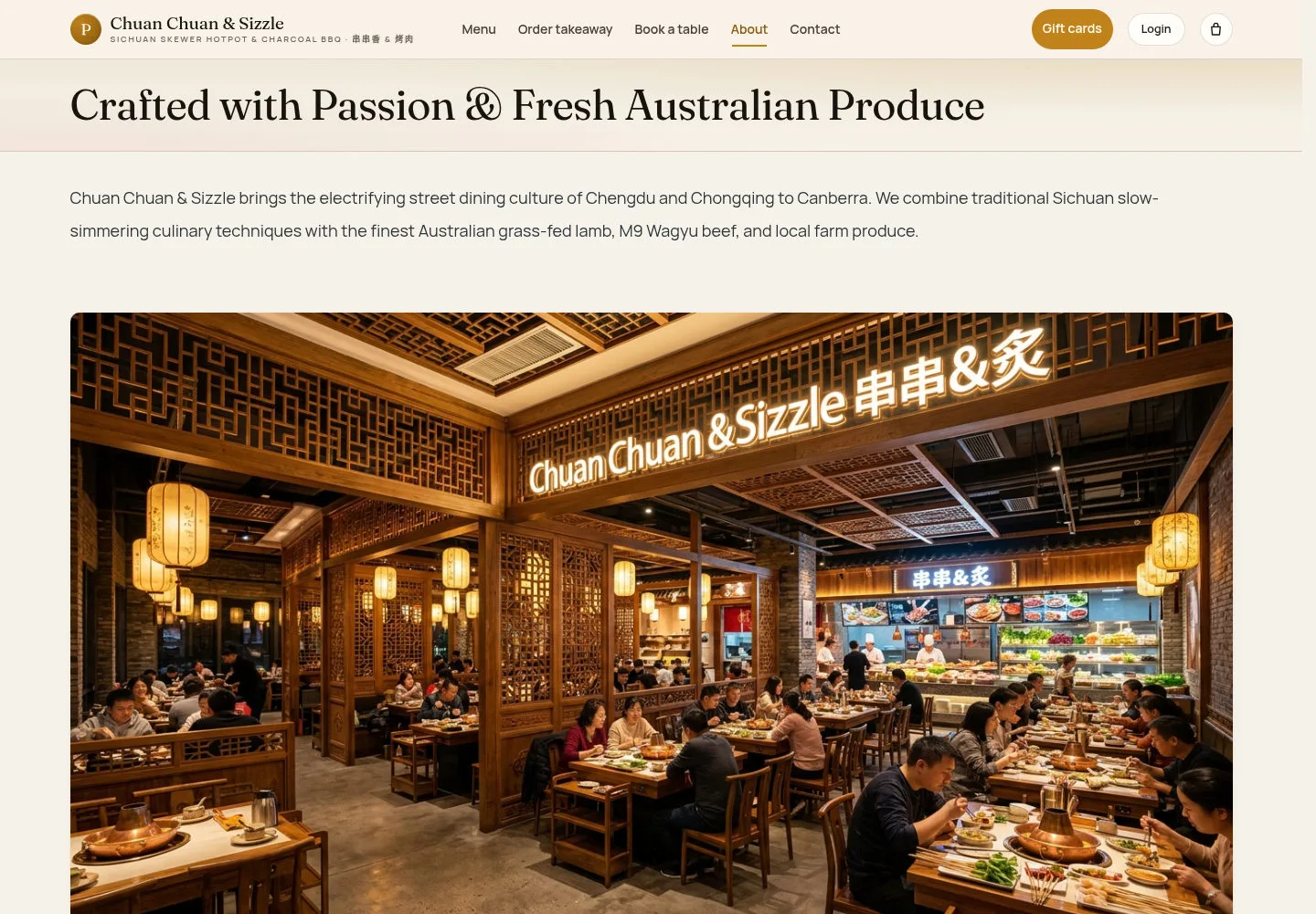
The About page is built from the blocks marked About in the list.
- Open About on the public site.
Open on site ↗Full-page screenshot ↗
Check that the guest page shows your saved text and images in the intended sections.