





User guide · Manager · 8 of 12
Reservations:review, phone bookings and outcomes
Review the booking list, record phone bookings and decide on the bookings that need review; the outcomes report shows what happened.
Open Reservations
Manager
1Step 1 of 3
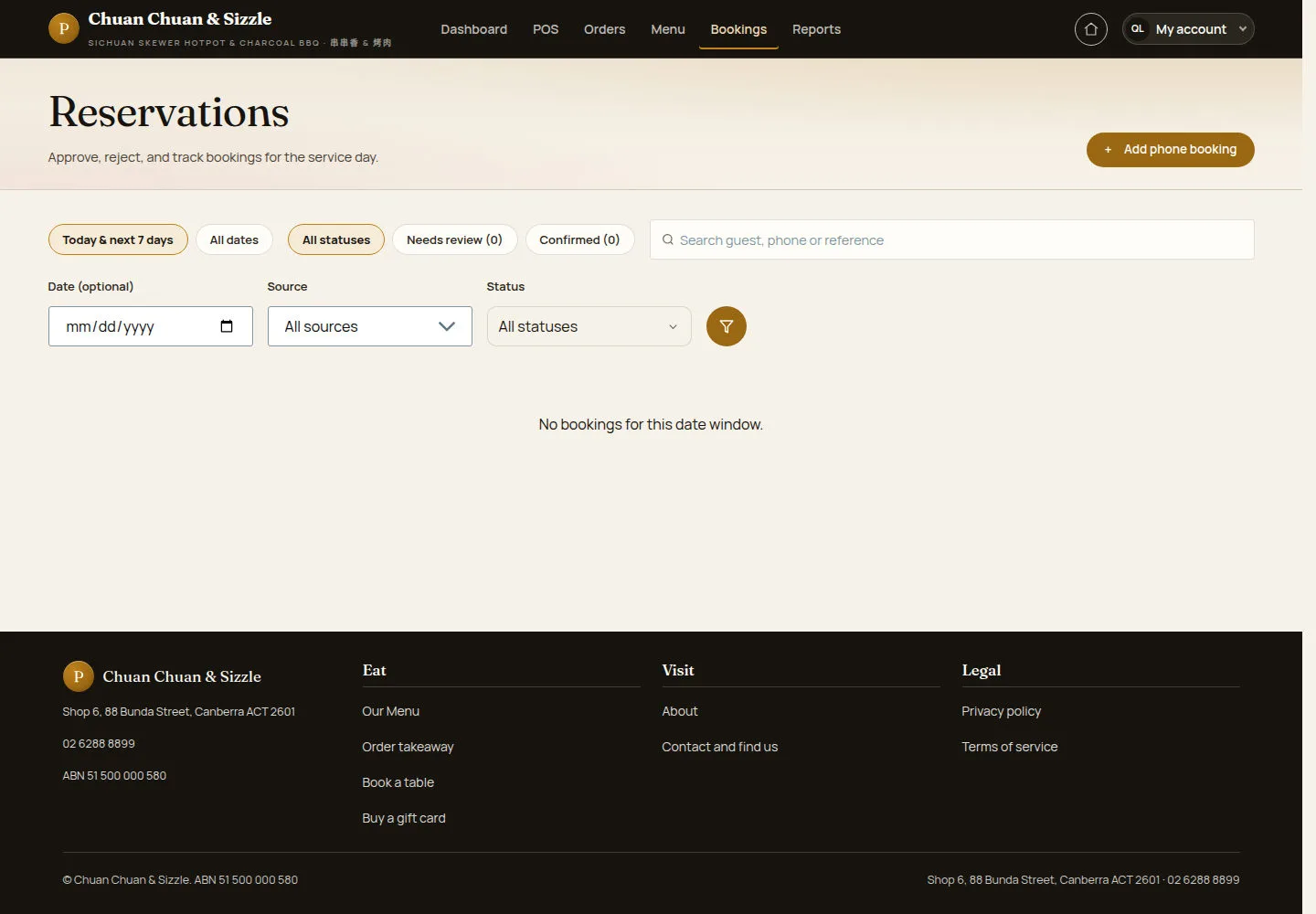
Reservations lists the bookings of today and the next seven days.
- Use Needs review to see what waits for a decision, or All dates.
- Search a guest, a phone or a reference, and open a booking.
Open on site ↗sign-inFull-page screenshot ↗
Here the list says No bookings for this date window.
Record a phone booking
Manager
2Step 2 of 3
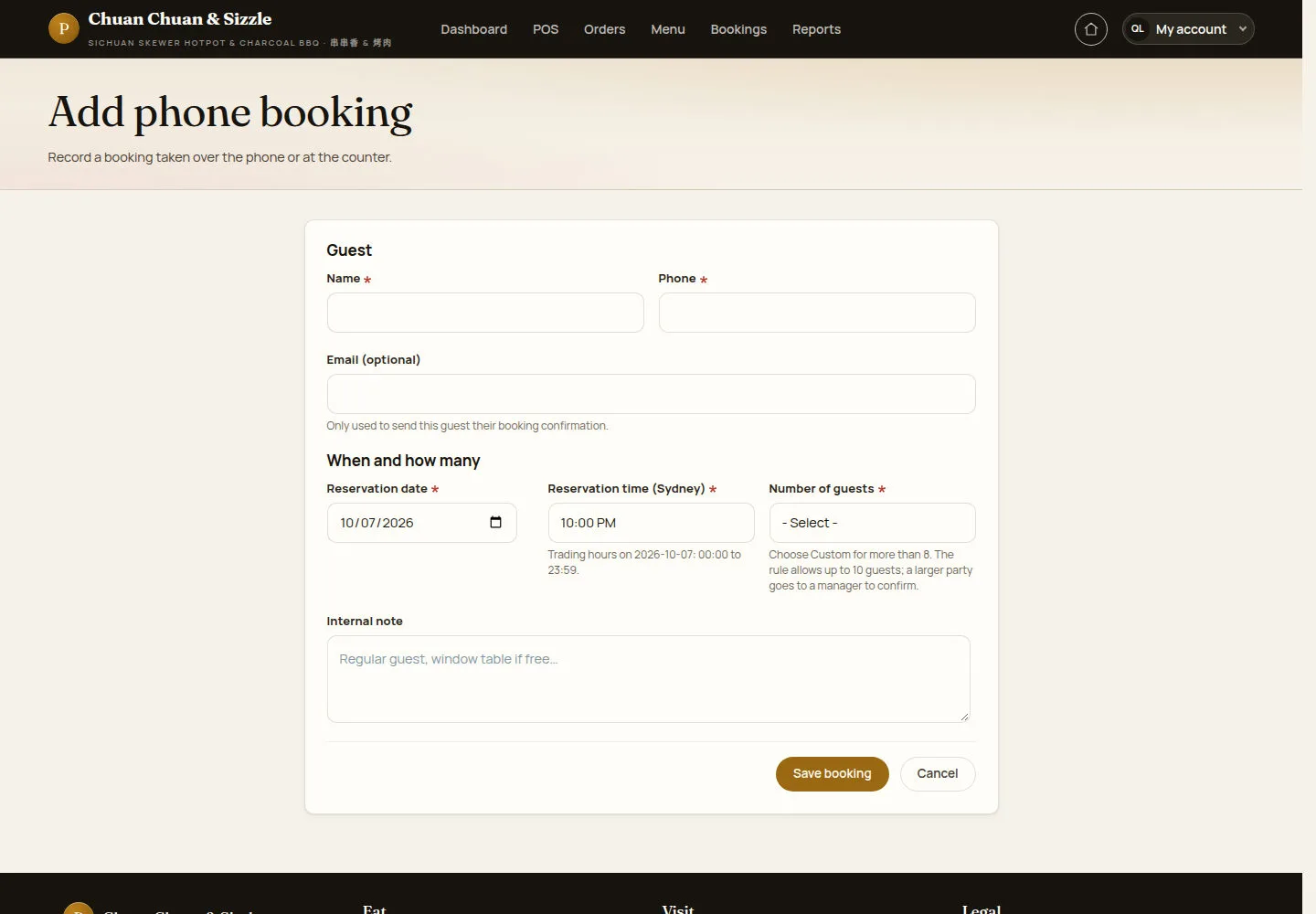
Add phone booking records a booking taken over the phone or at the counter.
- Enter Name, Phone and Email (optional); choose Reservation date, Reservation time (Sydney) and Number of guests.
- Add an Internal note and click Save booking.
Open on site ↗sign-inFull-page screenshot ↗
A booking entered by a manager goes through the booking rules and is confirmed when it fits.
Read Booking outcomes
Manager
3Step 3 of 3
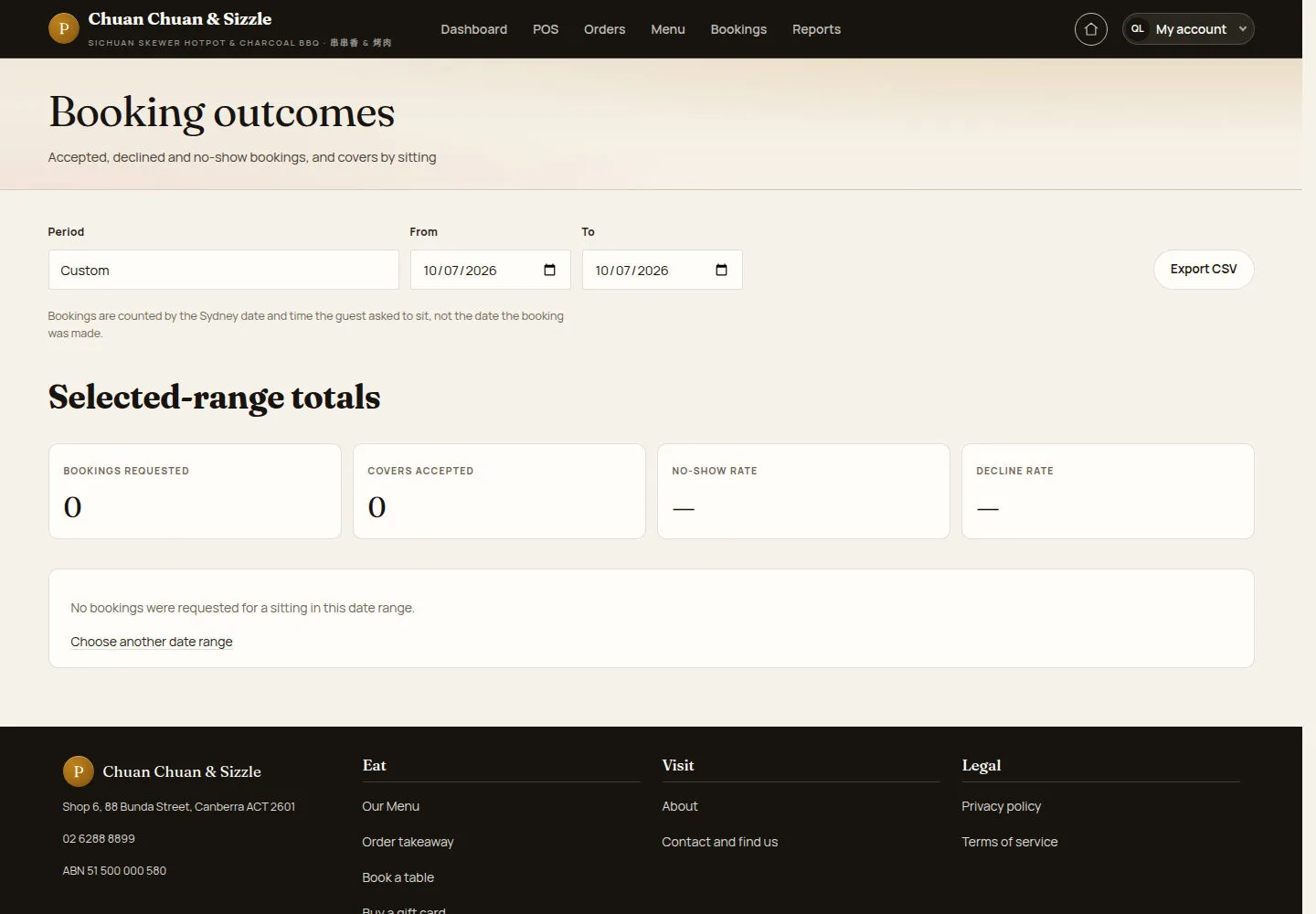
Booking outcomes reports accepted, declined and no-show bookings and the covers by sitting.
- Choose the Period, or the From and To dates; Export CSV downloads the figures.
Open on site ↗sign-inFull-page screenshot ↗
Review booking requests and accepted covers for your selected period.
For an existing booking, use the action allowed by its status: Approve reservation with a confirmation message, Reject reservation with a reason and suggested alternative, or Cancel booking with a reason. These decisions attempt to email the guest when an email address exists; delivery requires working outgoing mail, currently unavailable in the local demonstration. After the booking time, use Mark as no-show or Archive reservation as appropriate.