





User guide · Waiter · 2 of 7
POS floor map:seat a table and start its order
Open the POS floor map, pick a free table, enter the number of guests and open the order; dishes are then added on the POS order screen and sent to the kitchen.
Open the POS floor map
Waiter
1Step 1 of 3
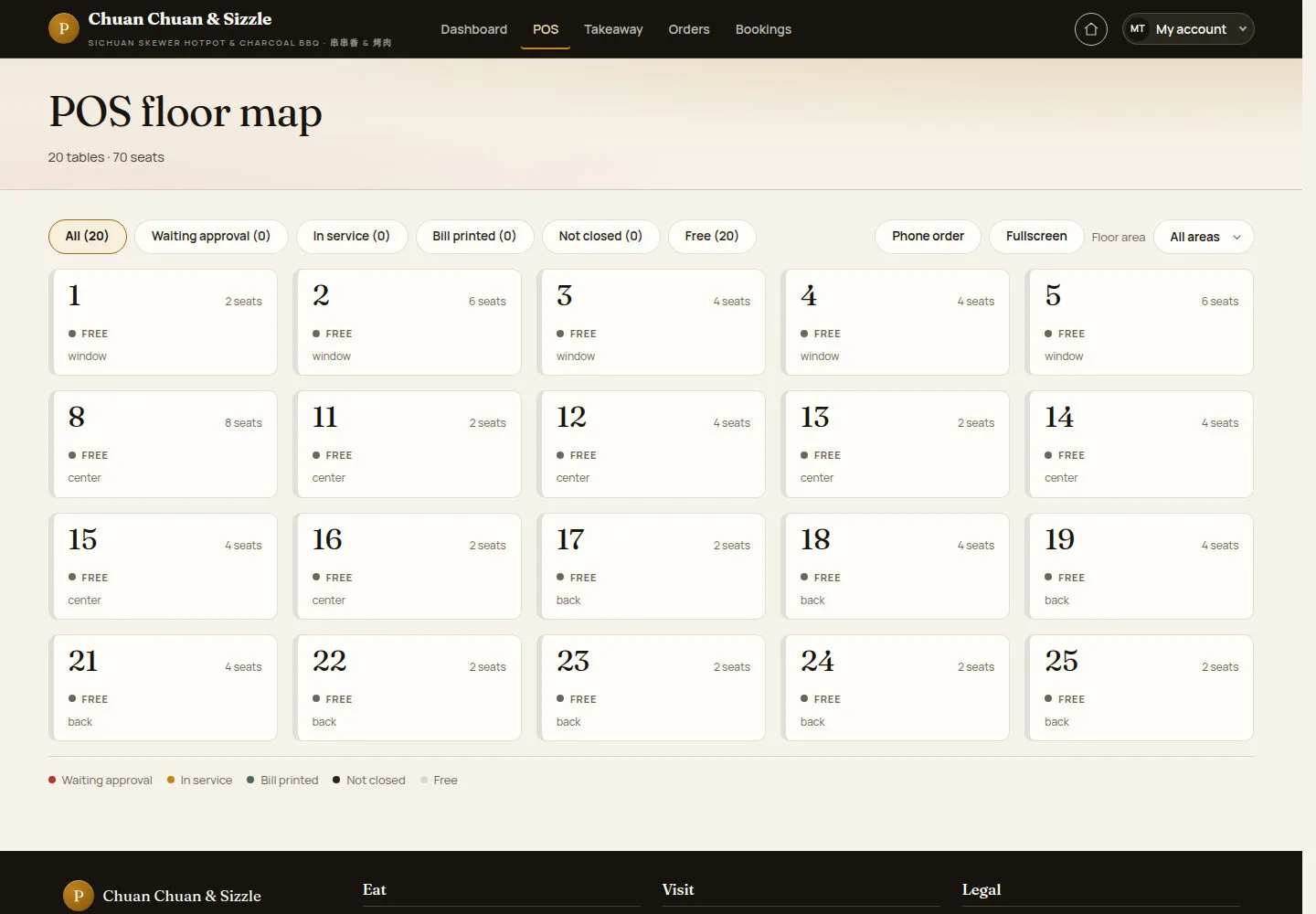
POS floor map shows each table with its seats, area and current status.
- Filter with All, Waiting approval, In service, Bill printed, Not closed or Free, or choose a Floor area.
- Click a free table, for example table 1.
Phone order starts a phone takeaway order and Fullscreen shows the floor map full screen.
Open on site ↗sign-inFull-page screenshot ↗
Each card shows the table number, the seats, the status (FREE) and the area; the legend under the tables explains the colours.
Use the floor map on a tablet
Waiter
2Step 2 of 3
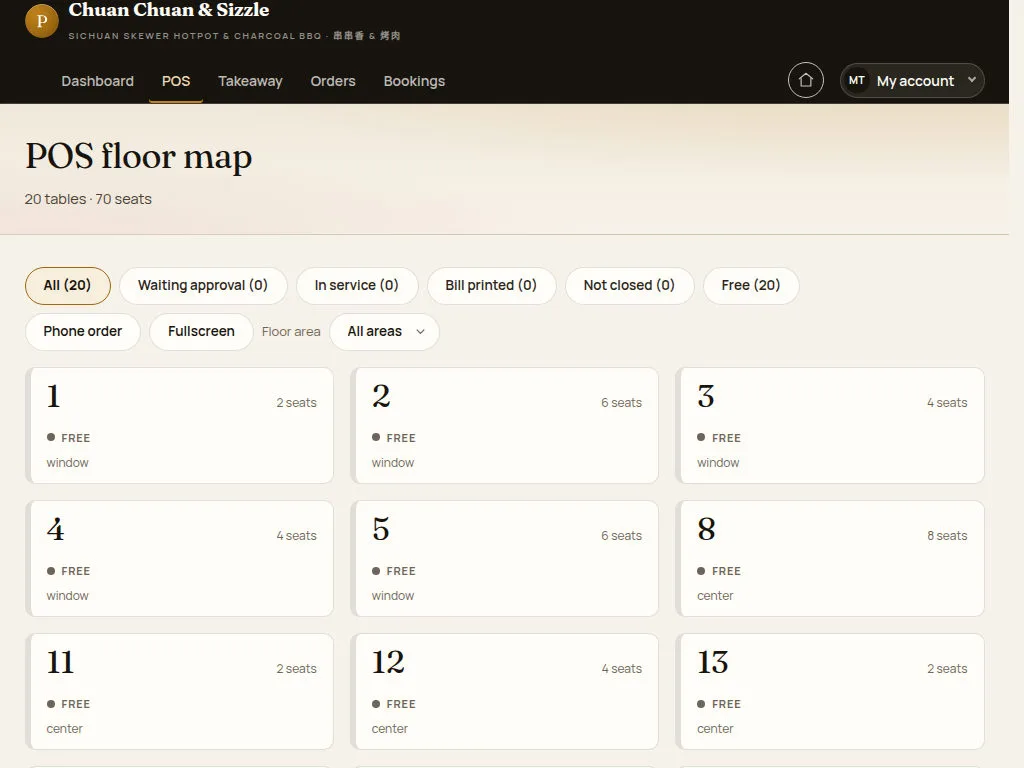
On a tablet, filters wrap above the table cards.
- Tap a table card to open it.
Open on site ↗sign-inFull-page screenshot ↗
The header keeps Dashboard, POS, Takeaway, Orders and Bookings with the Home icon and My account.
Start the table order
Waiter
3Step 3 of 3
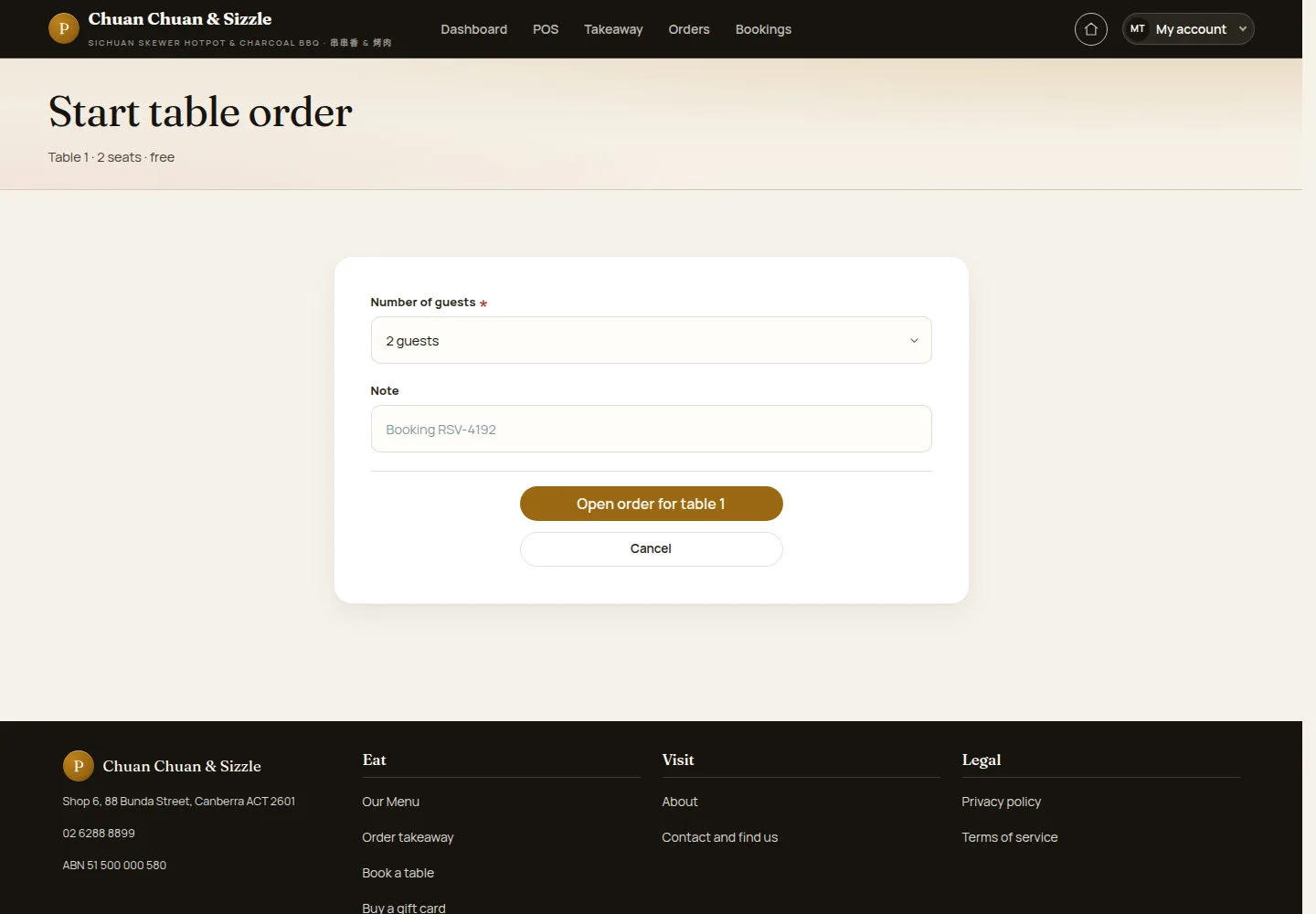
Start table order confirms the table (Table 1 · 2 seats · free) before an order is opened.
- Choose Number of guests, from 1 to 8 or Custom… for more.
- Add a Note if needed, for example a booking reference, then click Open order for table 1.
A table that already has an open order is opened from the floor map instead; it never gets a second order.
Open on site ↗sign-inFull-page screenshot ↗
The POS order screen opens for table 1 with an empty ticket.
On the POS order screen the waiter picks a category tab and a dish, its options, quantity and kitchen note, then clicks Send to kitchen: round 1 goes to the kitchen, the table turns In service and the kitchen docket opens to print. Dishes ordered later go out with Send new round to kitchen (the docket says NEW ITEMS — ROUND n). Bill shows the bill and Print bill prints it; a manager or an administrator takes the payment and closes a table order. Lines not sent yet can still be changed; a sent line needs a void with a reason.