





User guide · Administrator · 13 of 13
Switch user:work as another account
The administrator can work as another staff account for support and testing, then switch back. Every switch is logged.
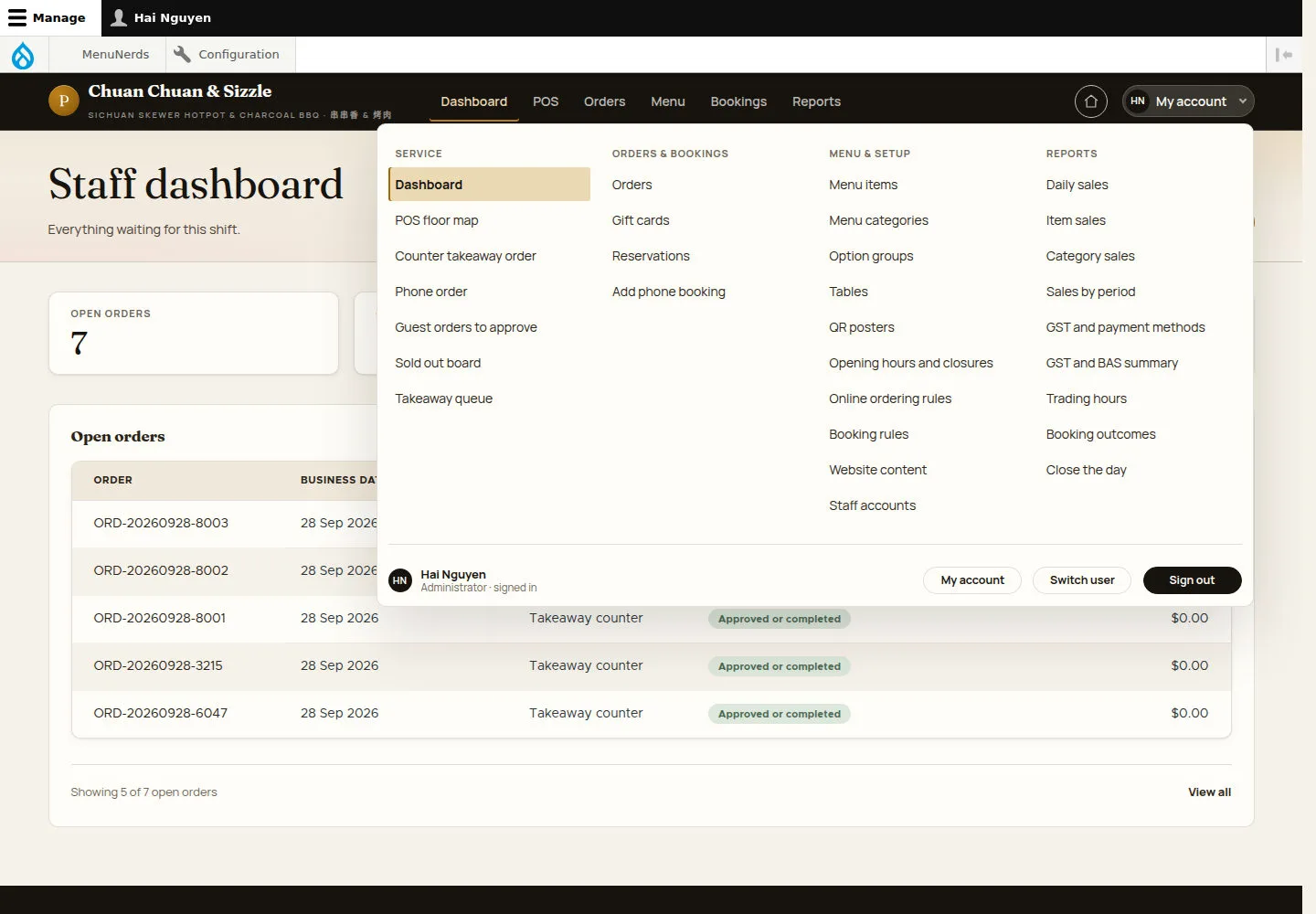
Open Switch user
Administrator
1Step 1 of 2
Switch user sits at the bottom of the administrator's My account menu, between My account and Sign out.
- Open My account and click Switch user.
Open on site ↗sign-inFull-page screenshot ↗
The Switch user page opens.
Choose the account
Administrator
2Step 2 of 2
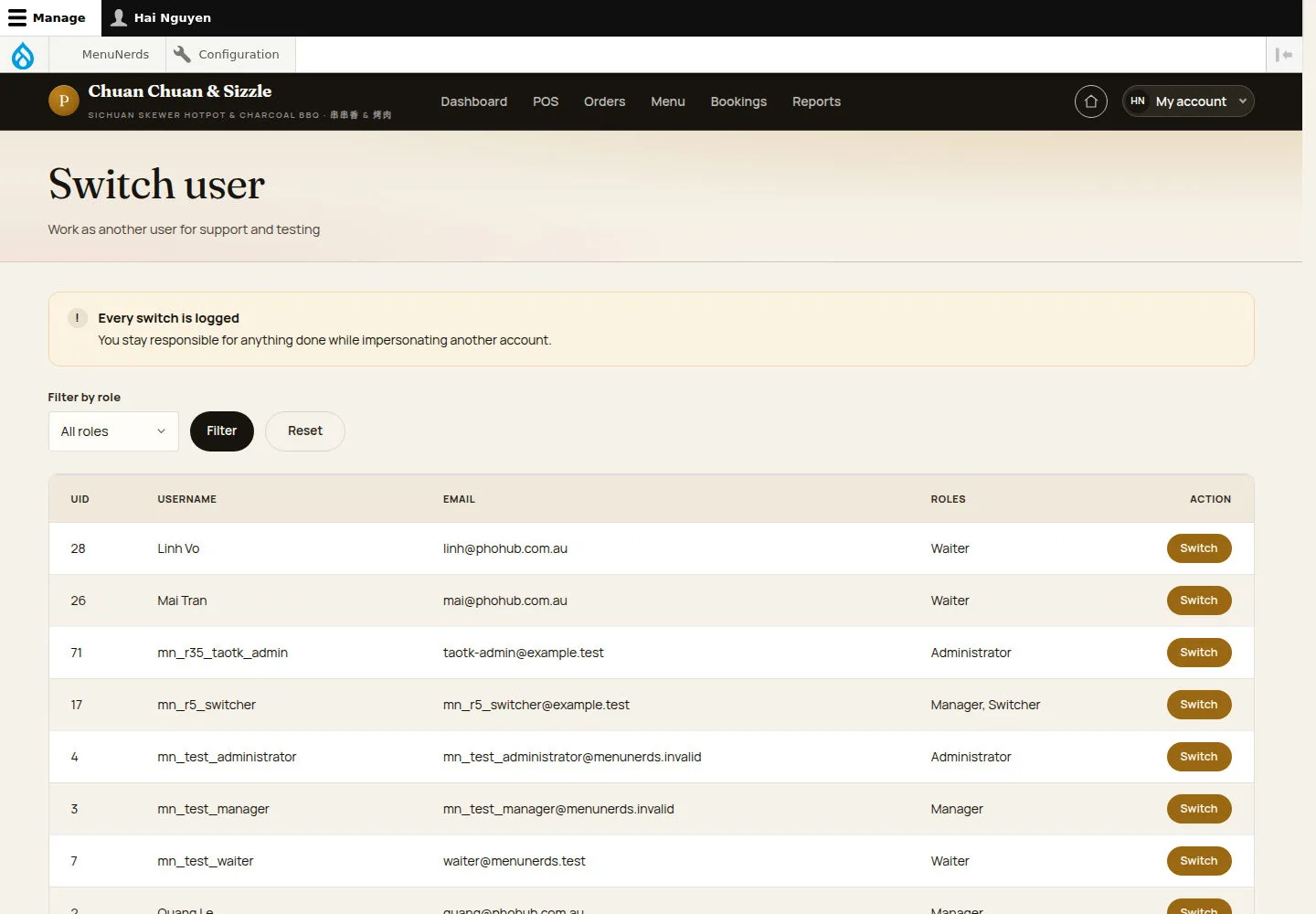
Switch user lists staff account identities and roles.
- Read Every switch is logged: you stay responsible for anything done while impersonating another account.
- Narrow the list with Filter by role and Filter, then click Switch on the account.
Blocked accounts are not offered, and you cannot switch again while impersonating.
Open on site ↗sign-inFull-page screenshot ↗
The list holds waiters, managers, administrators and test accounts, but not the super-user or your own account.
After Switch the Staff dashboard opens with that account's header and My account menu and an Impersonating banner. Switch back in the menu, or Switch back to your name on the banner, returns to the Switch user page; Sign out ends the session.