





User guide · Waiter · 6 of 7
Sold out board and pausing online orders
Mark a dish sold out for the rest of the day, and pause online takeaway ordering when the kitchen is too busy.
Open the Sold out board
Waiter
1Step 1 of 4
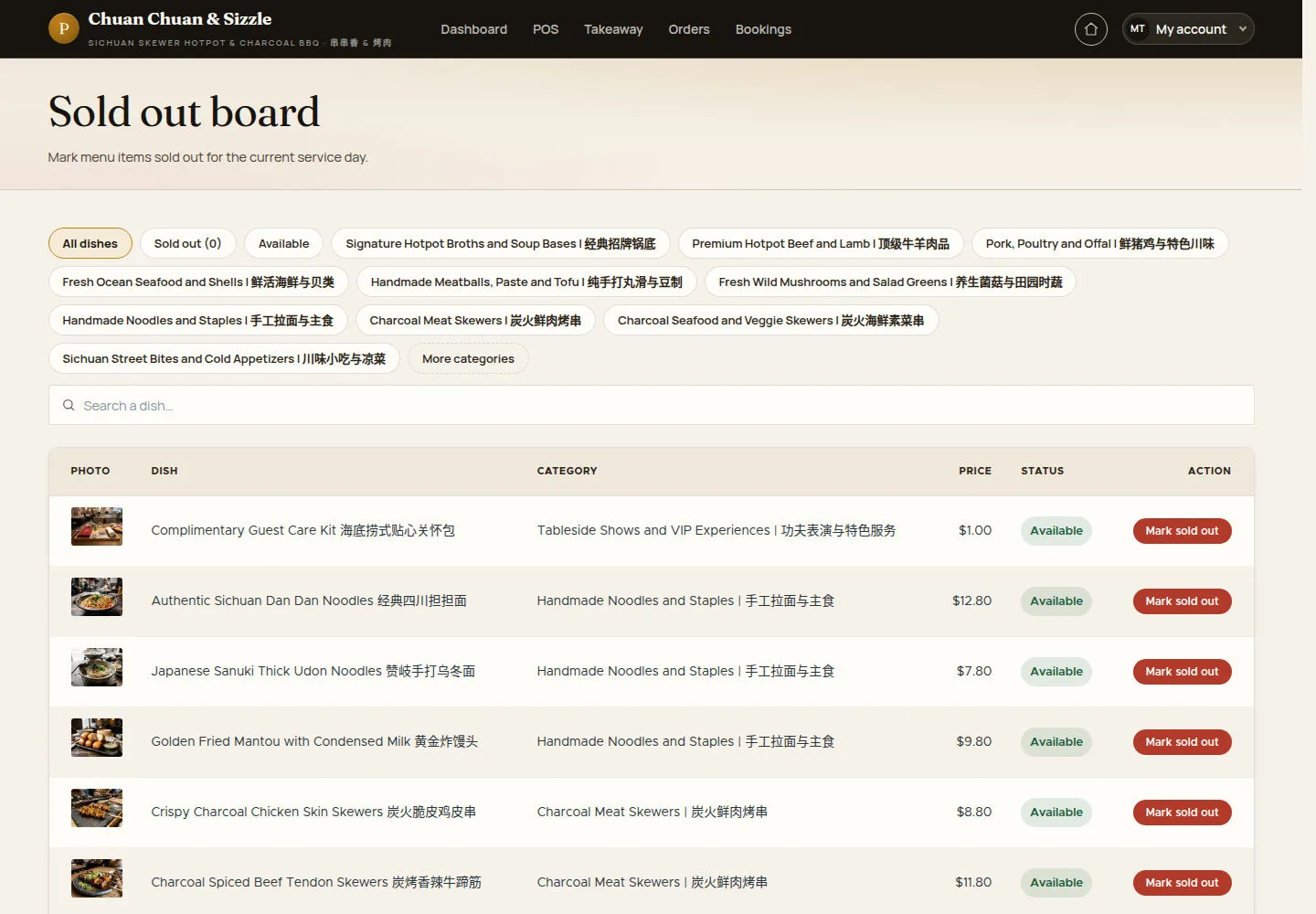
Sold out board lists every dish with its category, price and status.
- Filter with All dishes, Sold out, Available or a category, or search a dish.
- Click Mark sold out on the dish that has run out.
Open on site ↗sign-inFull-page screenshot ↗
The status and filters identify dishes that are Available or Sold out.
Confirm Mark dish sold out
Waiter
2Step 2 of 4
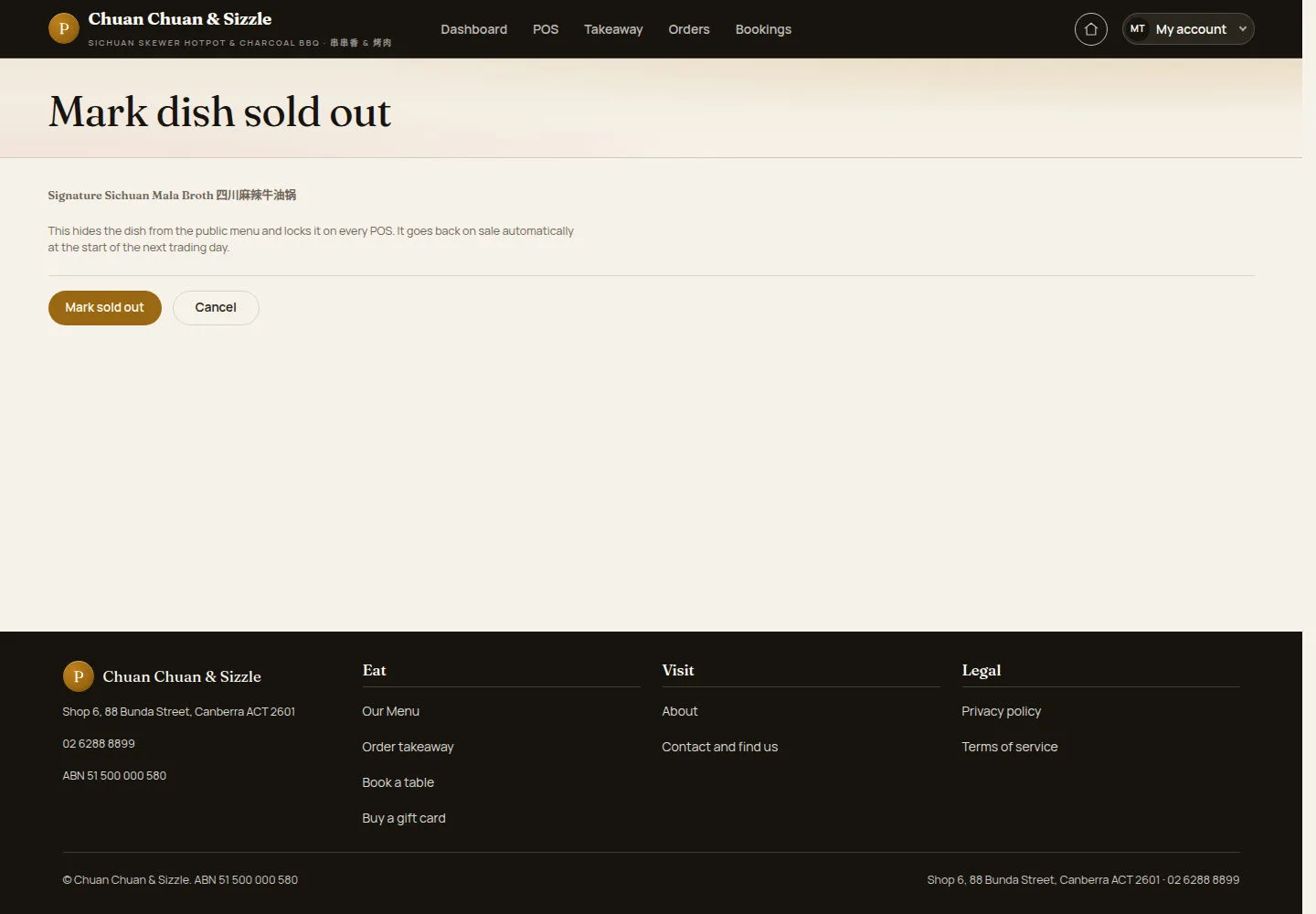
Mark dish sold out names the dish and explains the effect before anything changes.
- Check the dish name, here Signature Sichuan Mala Broth 四川麻辣牛油锅.
- Click Mark sold out, or Cancel.
To sell it again the same day, use Restore availability on the board.
Open on site ↗sign-inFull-page screenshot ↗
The dish is hidden from the public menu and locked on every POS; it goes back on sale at the start of the next trading day.
Open Online ordering rules
Waiter
3Step 3 of 4
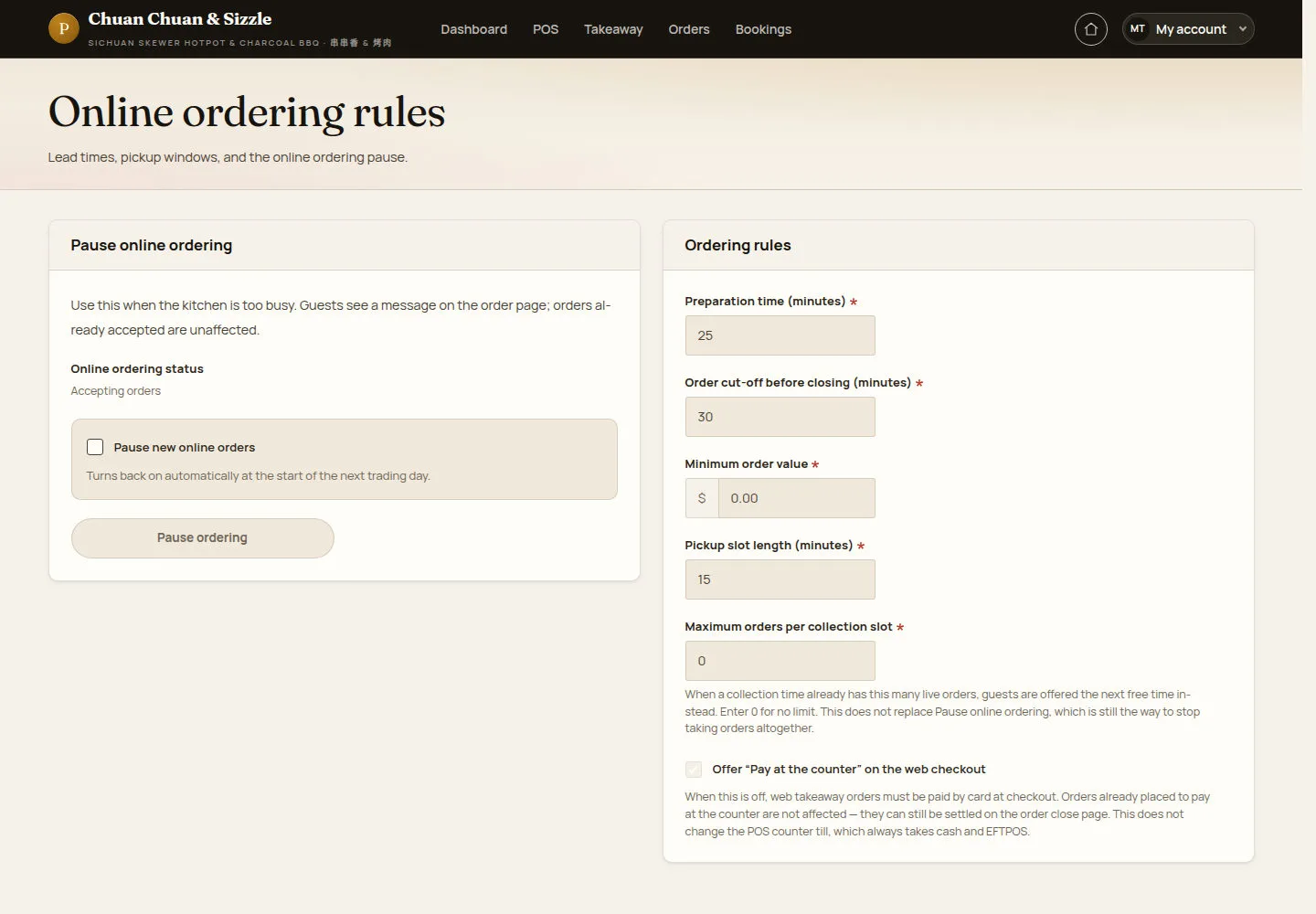
Online ordering rules has the Pause online ordering panel; the rules on the right are read-only for a waiter.
- Check Online ordering status (Accepting orders).
- Tick Pause new online orders and click Pause ordering.
Preparation time, cut-off, minimum order value, slot length and orders per slot are changed by a manager or an administrator.
Open on site ↗sign-inFull-page screenshot ↗
The pause Turns back on automatically at the start of the next trading day.
Confirm Pause online ordering
Waiter
4Step 4 of 4
The Pause online ordering page confirms the pause for today.
- Click Pause online ordering for today, or Cancel.
Resume online ordering turns ordering back on before the end of the day.
Open on site ↗sign-inFull-page screenshot ↗
Guests see a message on the order page; orders already accepted and table orders are not affected.