





User guide · Guest · 2 of 7
Order takeaway online:cart → checkout
Choose dishes on Order takeaway, check the cart and fill in the checkout to pay by card or at the counter. No account is needed.
Open Order takeaway
Guest
1Step 1 of 5
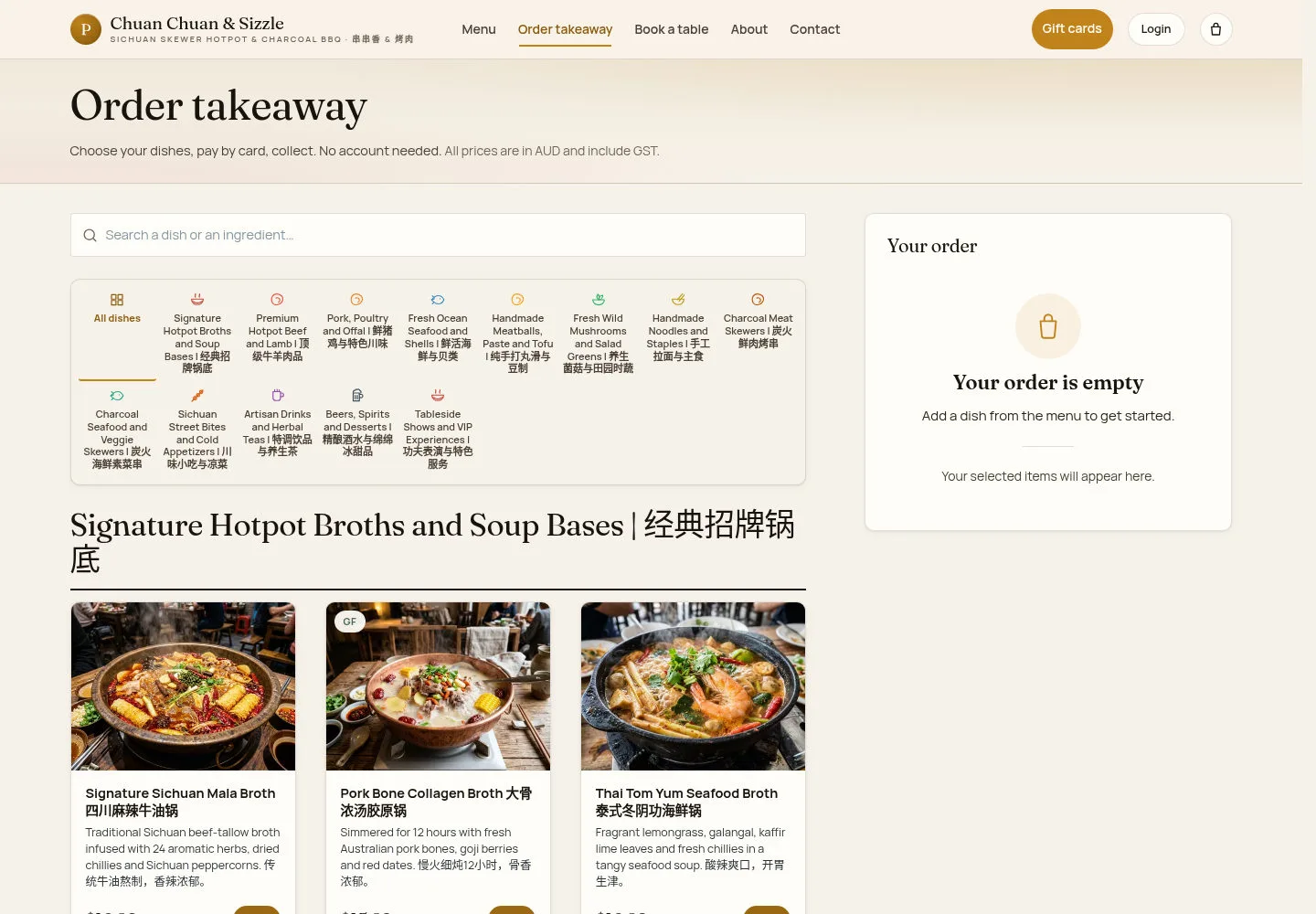
Order takeaway is the ordering menu: search, category tabs and the Your order panel.
- Click Order takeaway in the main menu or on the home page.
- Pick a category tab or search, then click Add on a dish.
When staff pause online ordering the page says it is not taking orders. Outside trading hours guests can still pre-order for the first day with free collection slots, up to 14 days ahead.
Open on site ↗Full-page screenshot ↗
Your order stays on the right; while it is empty it says Your order is empty.
Choose the options and add the dish
Guest
2Step 2 of 5
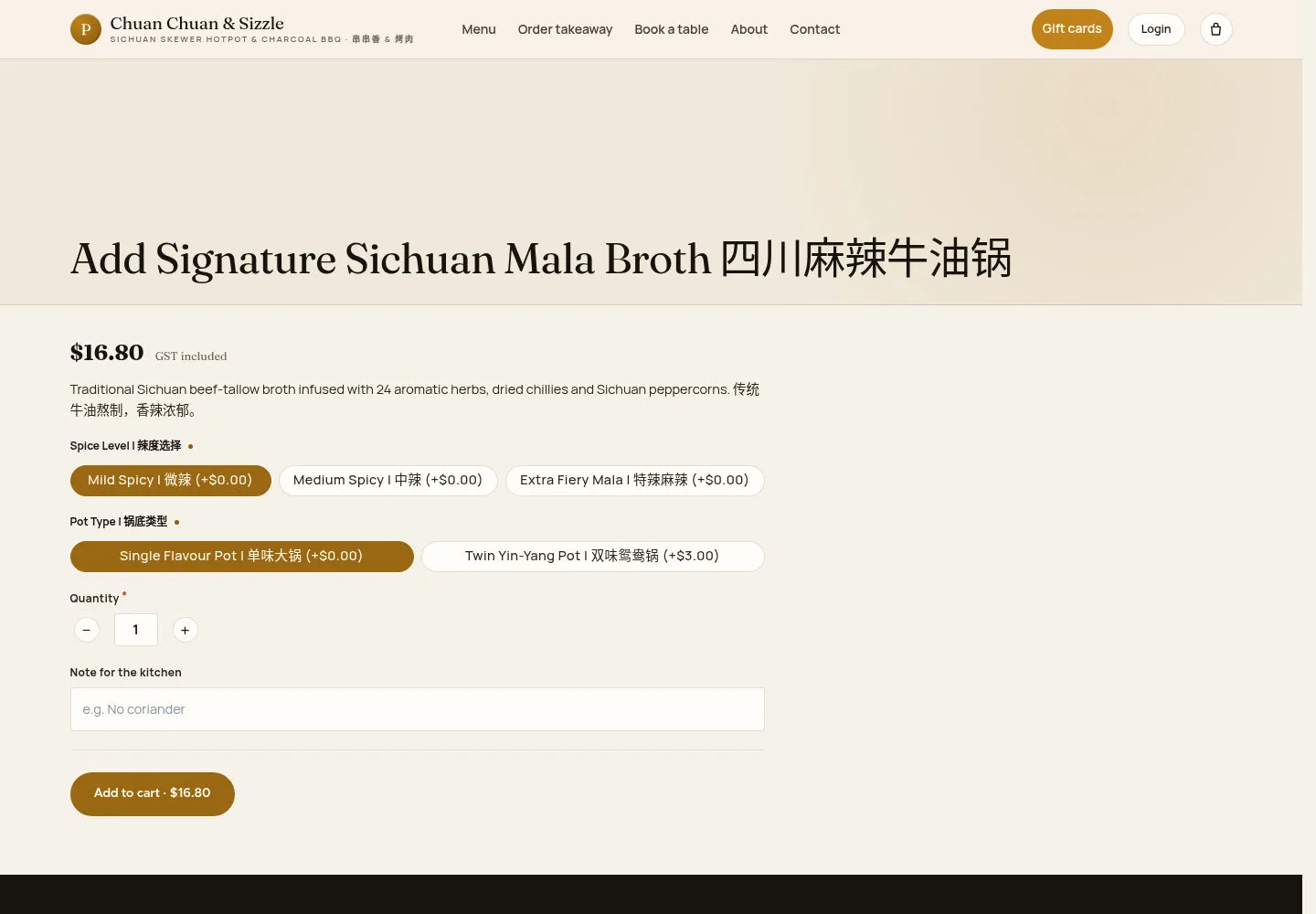
Add opens the dish form with its option groups, the quantity and the kitchen note.
- Choose one option in each required group.
- Set the quantity and an optional Note for the kitchen, then click Add to cart with the displayed total.
Sold-out dishes are hidden from the public menu and cannot be added.
Open on site ↗Full-page screenshot ↗
The dish goes into the cart and the cart icon in the header counts the items.
Check the cart
Guest
3Step 3 of 5
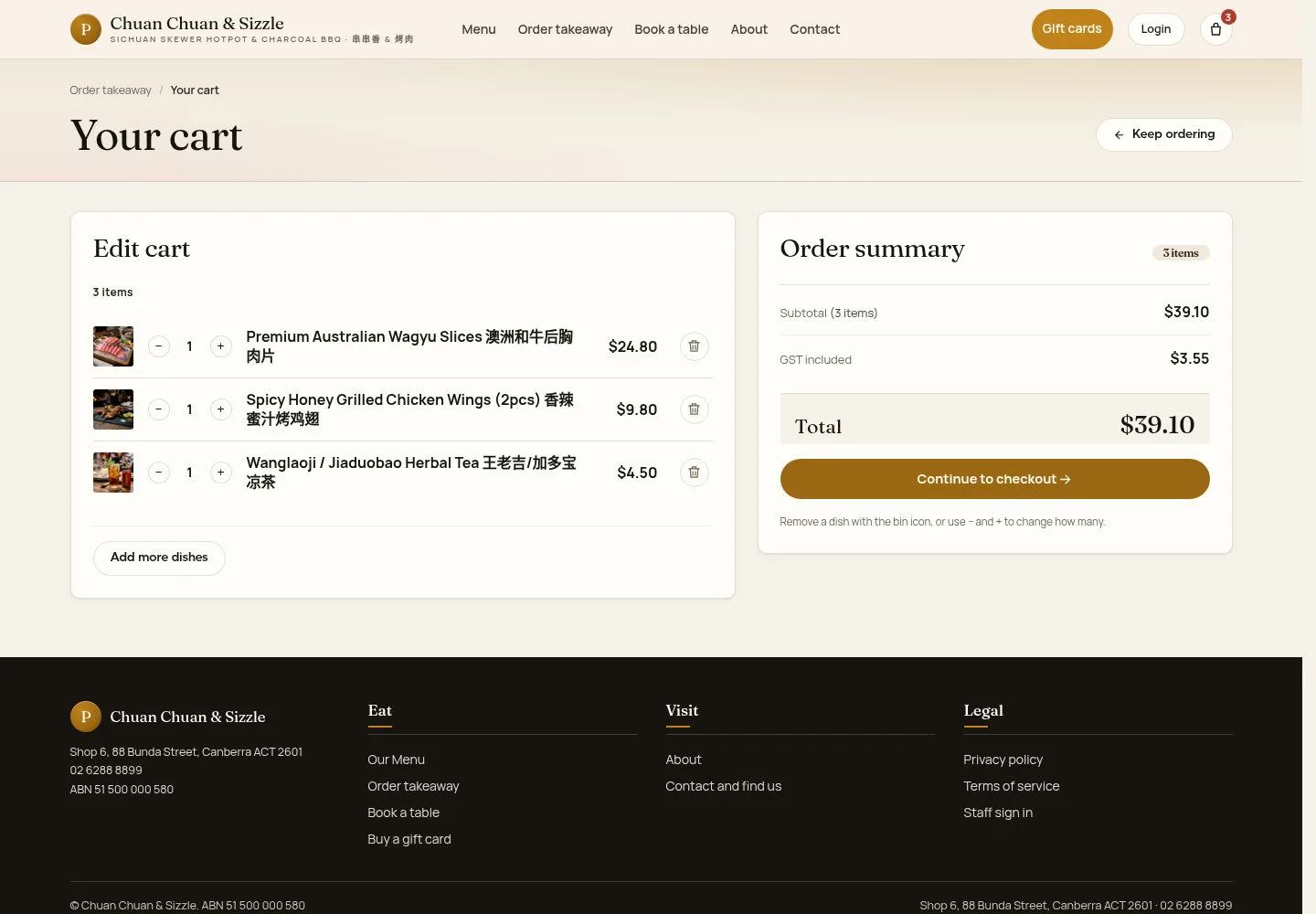
Your cart lists the dishes with their quantity and price beside the Order summary.
- Use − and + to change a quantity, or the bin icon to remove a dish.
- Click Add more dishes to keep ordering, or Continue to checkout →.
The cart lives in the browser session for up to seven days. An empty cart says Your cart is empty. with a Keep ordering button.
Open on site ↗Full-page screenshot ↗
Check the item count, subtotal, GST included and total against the dishes in your cart.
Fill in the checkout
Guest
4Step 4 of 5
Checkout asks for what the restaurant needs: Name, Phone, Collection day, Collection time and optional Notes.
- Enter the name and the phone number; the restaurant calls this number if there is a question about the order.
- Pick the collection day and time from the slots offered.
- Click Pay by card → or Pay at the counter.
Collection slots are 15 minutes apart, start 25 minutes from now and stop 30 minutes before closing (current ordering rules).
This checkout has no email field, and no confirmation email is sent for a takeaway order.
Open on site ↗Full-page screenshot ↗
The steps above the form read CART ✓, DETAILS, PAY, and Your order repeats the dishes and the total.
Check out on a phone
Guest
5Step 5 of 5
The same checkout on a phone screen: the details first, then the order and the payment buttons.
- Scroll past the form to Your order and the two payment buttons.
Open on site ↗Full-page screenshot ↗
The details, order summary and available payment buttons appear in one column.
If card payments are configured, Pay by card opens Stripe-hosted card fields. A payment link lasts 30 minutes; Payment not completed allows a retry. If offered, Pay at the counter places the order for payment on collection. After a successful submission, check Order confirmed and the status link for Order received, Sent to kitchen, Ready for pickup and Collected. The status link lasts 48 hours. Card payments are unavailable in the current local demonstration.