





User guide · Manager · 4 of 12
Menu items:add, edit prices, publish and archive
Keep the dishes and prices up to date: add a dish, change its price or options, and take it off or put it back on the menu.
Open Menu items
Manager
1Step 1 of 6
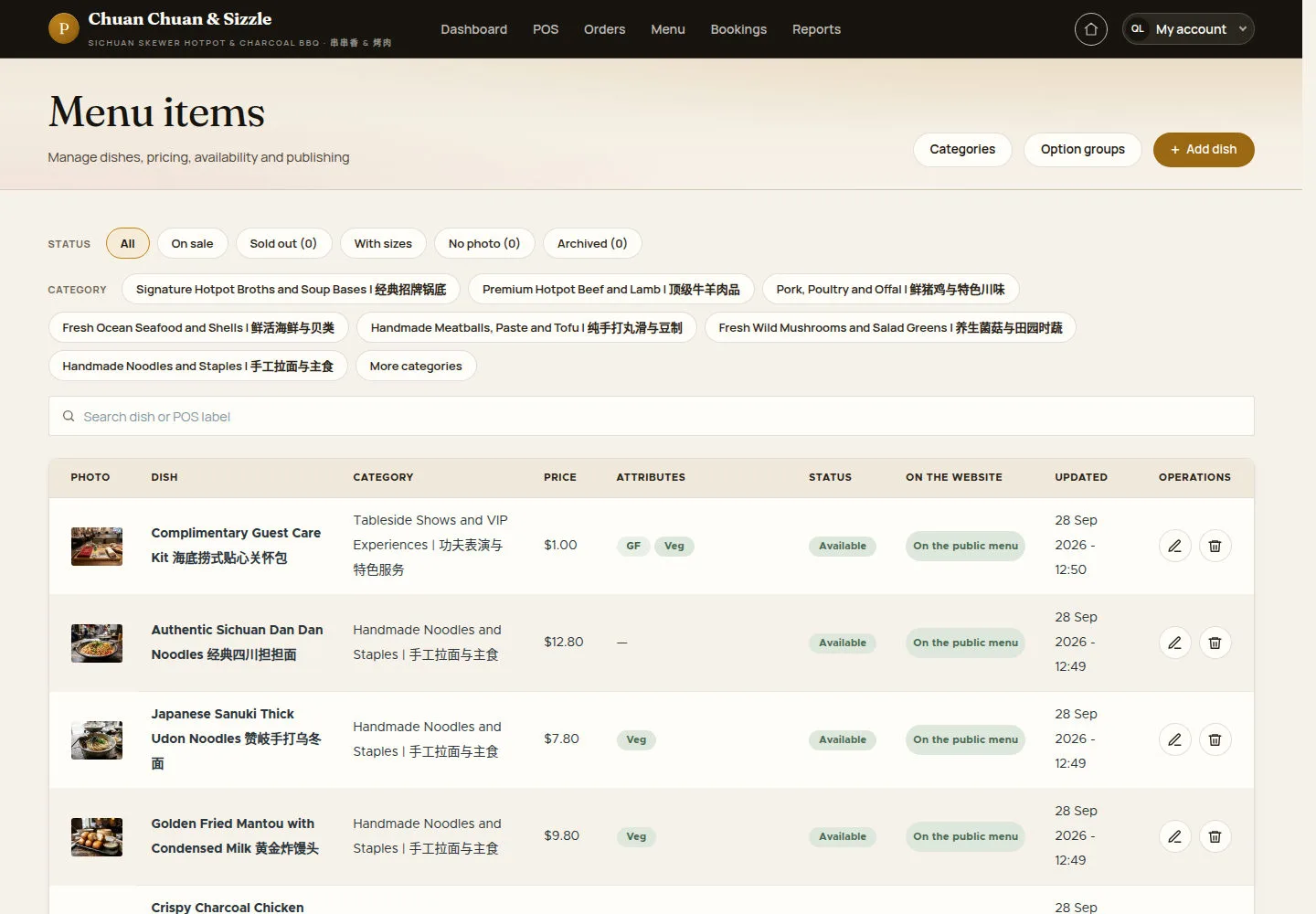
Menu in the header opens Menu items: every dish with its photo, category, price, attributes, status and whether it is on the website.
- Filter by STATUS (All, On sale, Sold out, With sizes, No photo, Archived) or by CATEGORY, or search a dish or a POS label.
- Click the pencil to edit a dish or the bin to archive it; Categories and Option groups open the other menu pages.
Use a tablet or computer if the menu list is difficult to navigate on a small phone.
Open on site ↗sign-inFull-page screenshot ↗
Each dish shows Available and On the public menu with the time it was last updated.
Add a dish
Manager
2Step 2 of 6
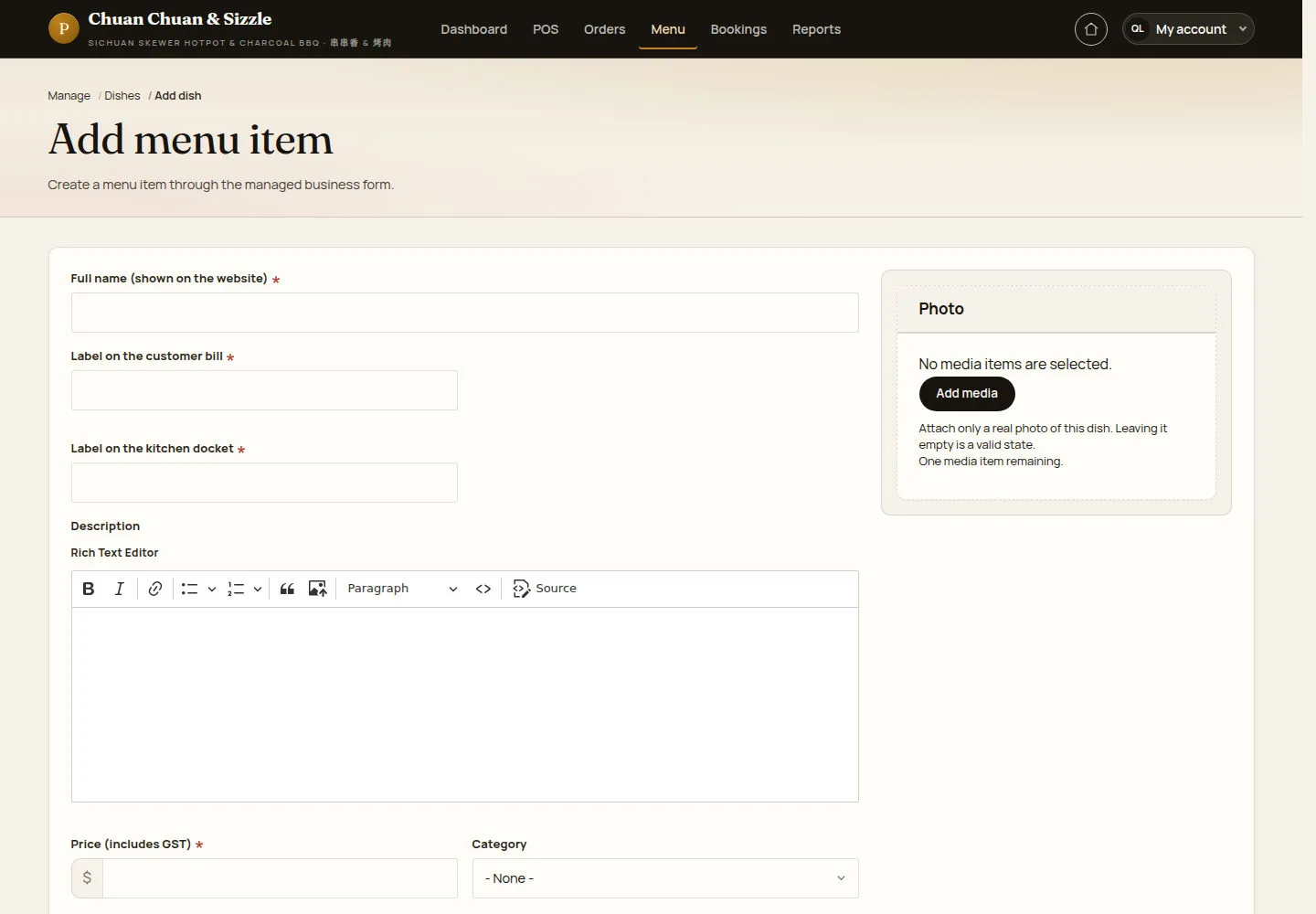
+ Add dish opens Add menu item.
- Fill Full name (shown on the website), Label on the customer bill, Label on the kitchen docket and the Description.
- Enter Price (includes GST), choose the Category, tick Gluten free or Vegetarian and the OPTION GROUPS that apply.
- Attach a photo with Add media, then click Save dish.
Prices include GST; the GST is one eleventh of the price.
Attach only a real photo of the dish; leaving the photo empty is valid.
Open on site ↗sign-inFull-page screenshot ↗
The new dish is saved as a draft until it is published.
Change a dish or its price
Manager
3Step 3 of 6
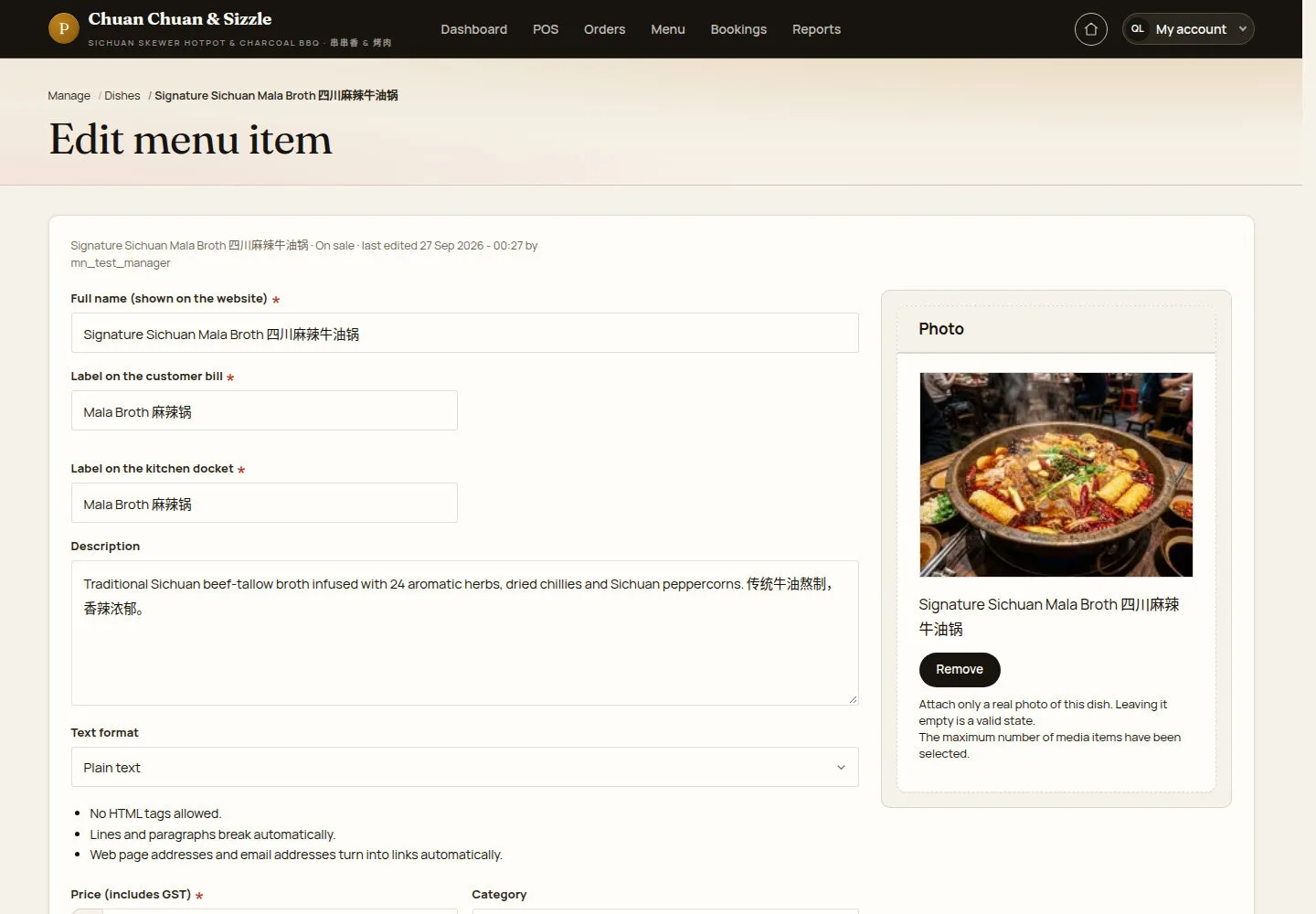
Edit menu item shows the dish's state and who edited it last.
- Change the price, the labels, the description, the category or the option groups.
- Click Save dish; Archive menu item takes the dish off sale.
A price change is written to the audit log with the old and the new price.
Open on site ↗sign-inFull-page screenshot ↗
The new price shows on the public menu and on the POS; orders already placed keep the price they were placed with.
Archive a dish
Manager
4Step 4 of 6
Archive …? asks before the dish comes off the menu.
- Click Confirm, or Cancel.
Open on site ↗sign-inFull-page screenshot ↗
The dish comes off the public menu and the POS straight away; existing orders keep it.
Publish a draft dish
Manager
5Step 5 of 6
Publish …? puts a draft dish on sale.
- Click Confirm.
Choose Publish or Reactivate only when the dish's current status requires that action.
Open on site ↗sign-inFull-page screenshot ↗
The dish goes on the public menu and the POS straight away; Archive takes it off again.
Reactivate an archived dish
Manager
6Step 6 of 6
Reactivate …? puts an archived dish back on sale.
- Click Confirm.
Open on site ↗sign-inFull-page screenshot ↗
The dish is back on the public menu and the POS straight away.