





User guide · Administrator · 9 of 13
Gift cards:look up, amounts and redeem
Look up gift cards, set the amounts on sale and redeem a card when an eligible order is paid. Promotion management requires the Manager role in this deployment.
Look up a gift card
Administrator
1Step 1 of 3
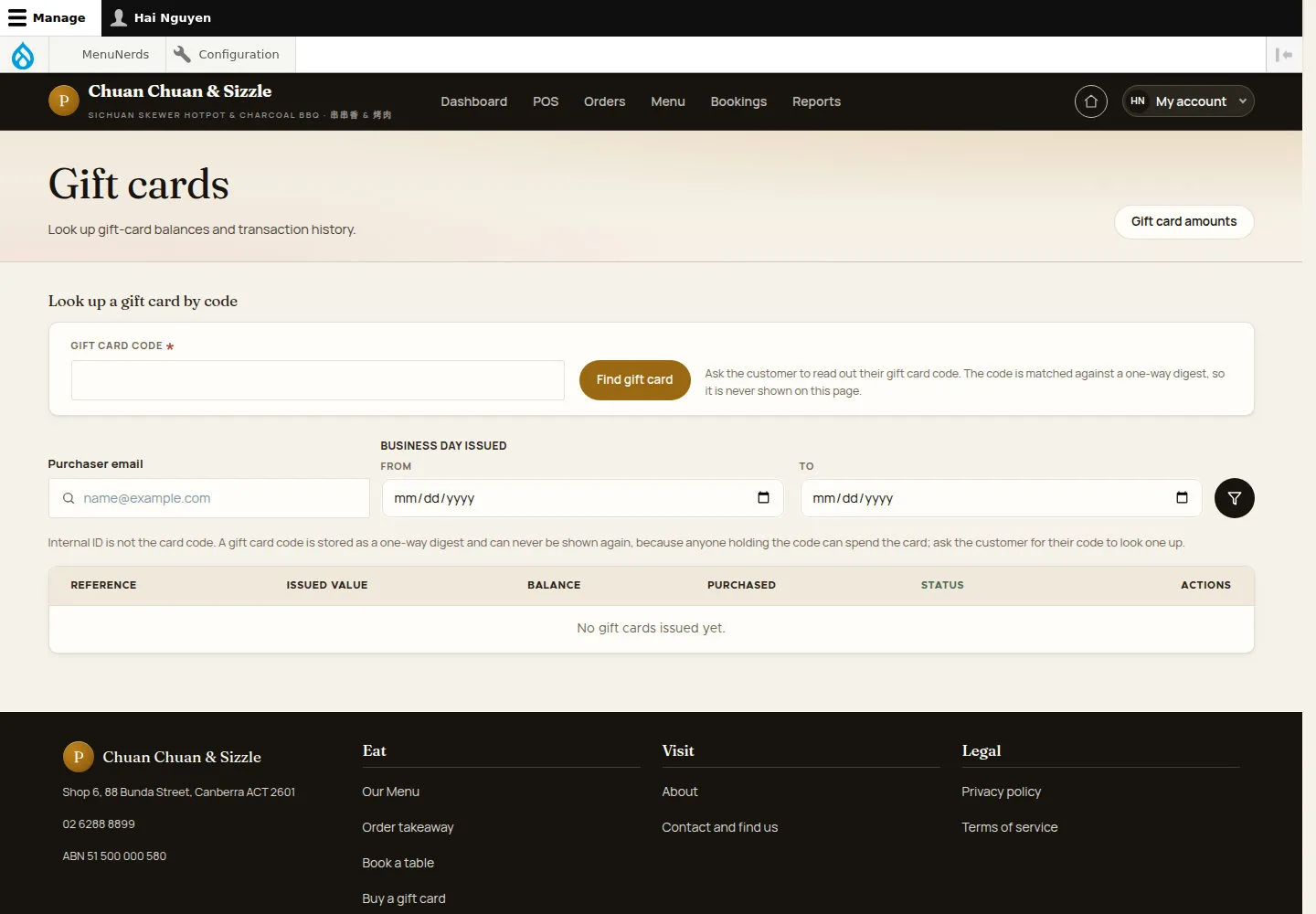
Gift cards finds a card by its code, or lists cards by purchaser and business day.
- Ask the customer to read out the code, type it in GIFT CARD CODE and click Find gift card.
- Or filter by Purchaser email and BUSINESS DAY ISSUED.
Use the original card code supplied by the purchaser. A displayed card reference cannot be used as its redemption code.
Open on site ↗sign-inFull-page screenshot ↗
The list shows REFERENCE, ISSUED VALUE, BALANCE, PURCHASED and STATUS; here No gift cards issued yet.
Set the amounts on sale
Administrator
2Step 2 of 3
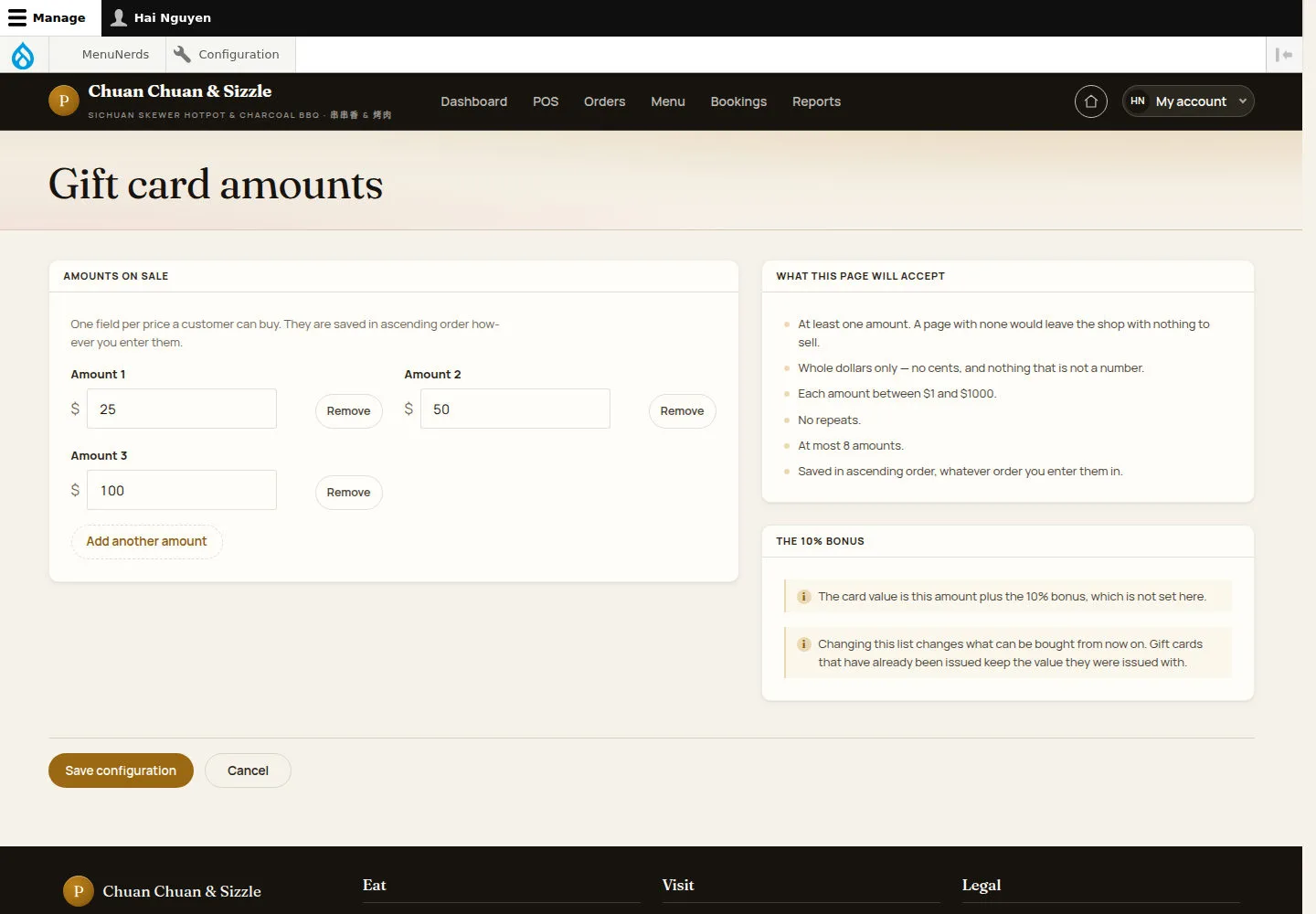
Gift card amounts lists the prices a customer can buy.
- Change Amount 1, Amount 2 and Amount 3, use Remove or Add another amount.
- Click Save configuration.
Cards already issued keep the value they were issued with.
Open on site ↗sign-inFull-page screenshot ↗
Save distinct whole-dollar amounts within the form limits. Check the displayed bonus and resulting issued value. Existing cards retain their issued value.
Redeem a gift card when closing an order
Administrator
3Step 3 of 3
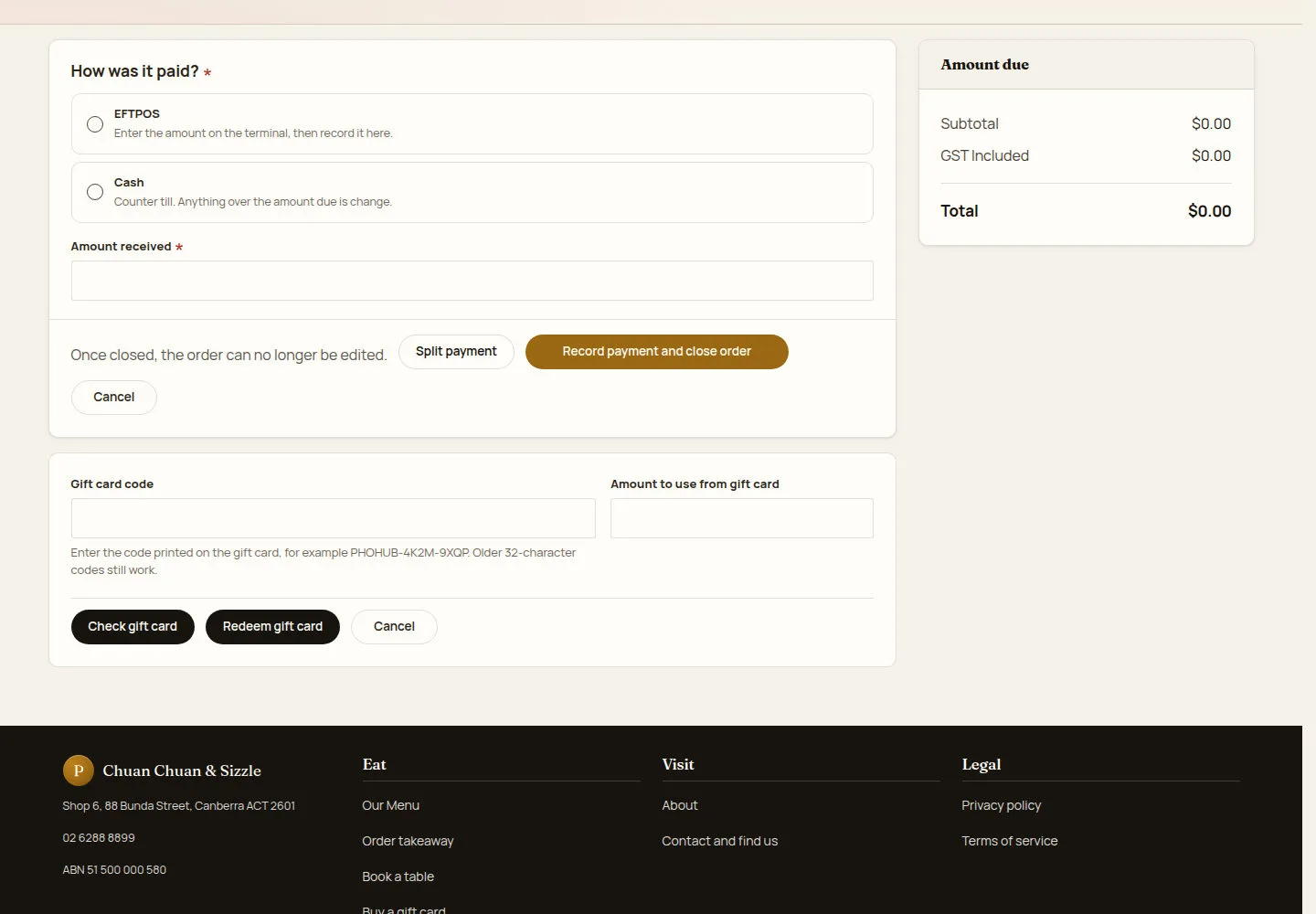
The gift card box sits under the payment form on Close order and take payment.
- Type the Gift card code and the Amount to use from gift card.
- Click Check gift card, then Redeem gift card.
Waiters cannot redeem gift cards.
Open on site ↗sign-inFull-page screenshot ↗
The amount comes off the amount due; any balance left stays on the card and the purchaser's email is told the card was used.