





User guide · Administrator · 5 of 13
Menu categories and option groups
Order the menu into categories, and give dishes priced choices such as the spice level or the pot type.
Open Menu categories
Administrator
1Step 1 of 8
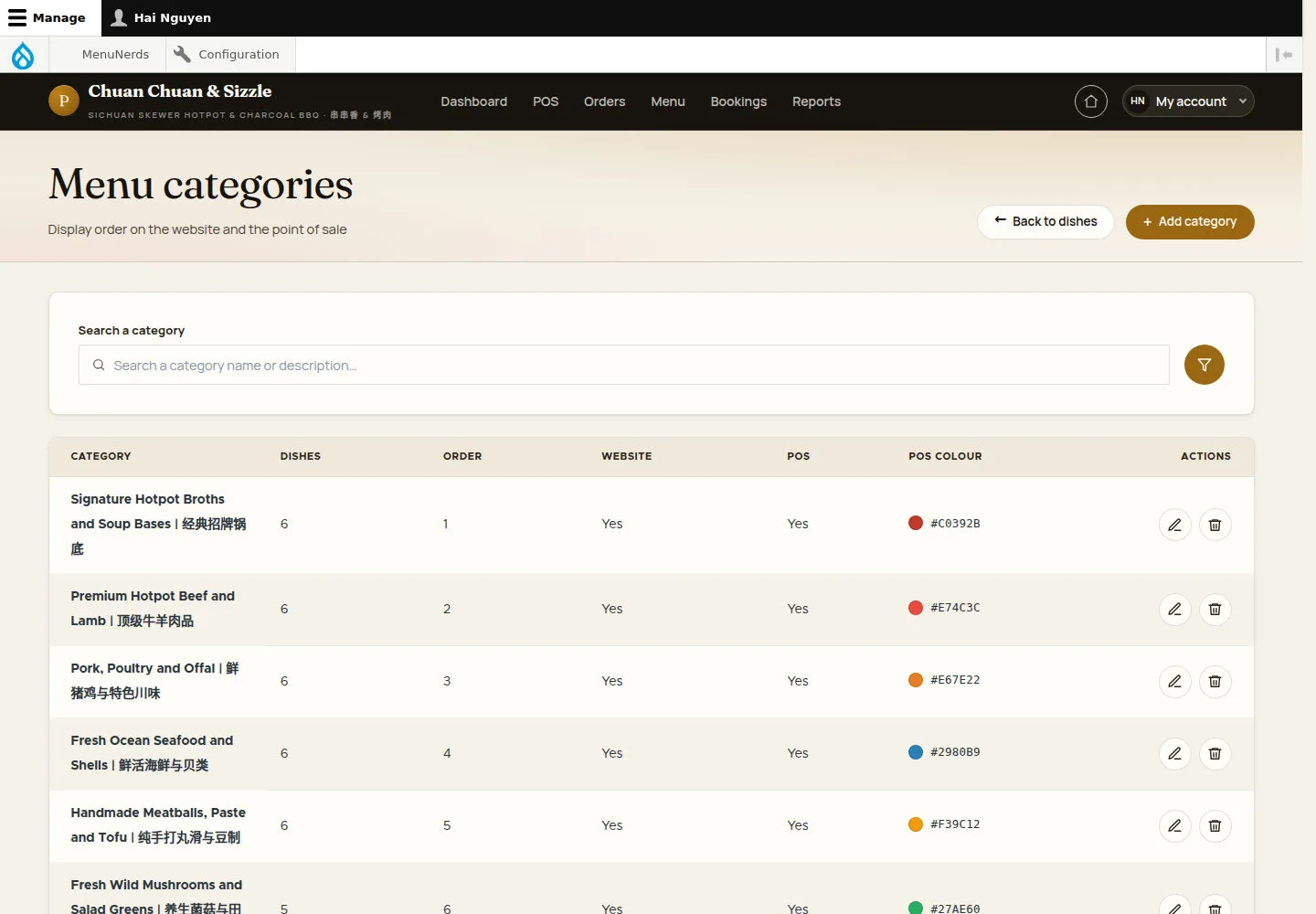
Menu categories sets the display order on the website and on the point of sale.
- Search a category, or click the pencil to edit and the bin to delete.
- Click + Add category for a new one; ← Back to dishes returns to Menu items.
Open on site ↗sign-inFull-page screenshot ↗
Each row shows the number of dishes, the order, whether the category shows on the website and on the POS, and its POS colour.
Add a category
Administrator
2Step 2 of 8
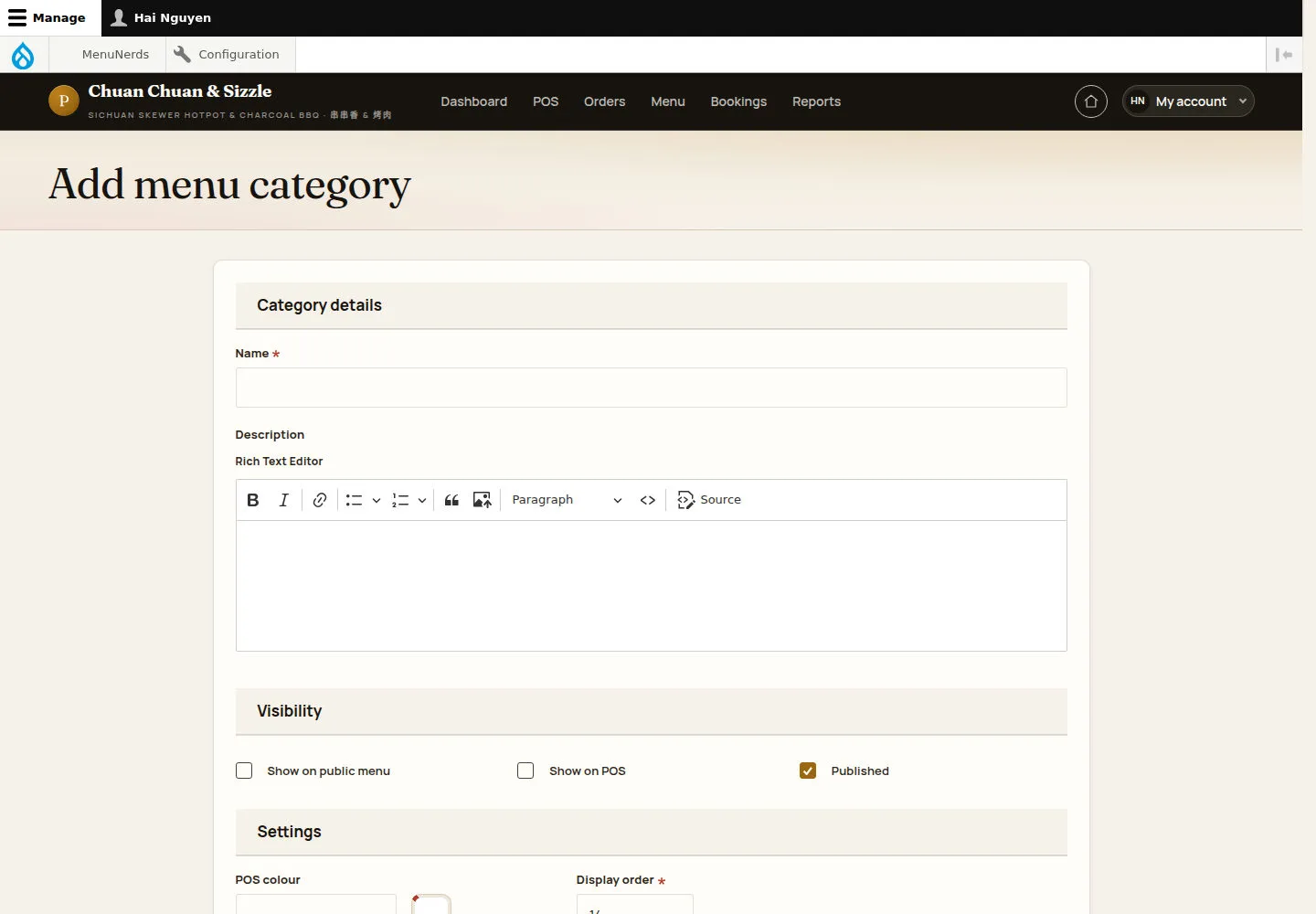
Add menu category has Category details, Visibility and Settings.
- Enter the Name and the Description.
- Tick Show on public menu, Show on POS and Published, pick a POS colour and set the Display order.
- Click Create category.
Open on site ↗sign-inFull-page screenshot ↗
Lower display numbers come first, on the public menu and on the POS.
Edit a category
Administrator
3Step 3 of 8
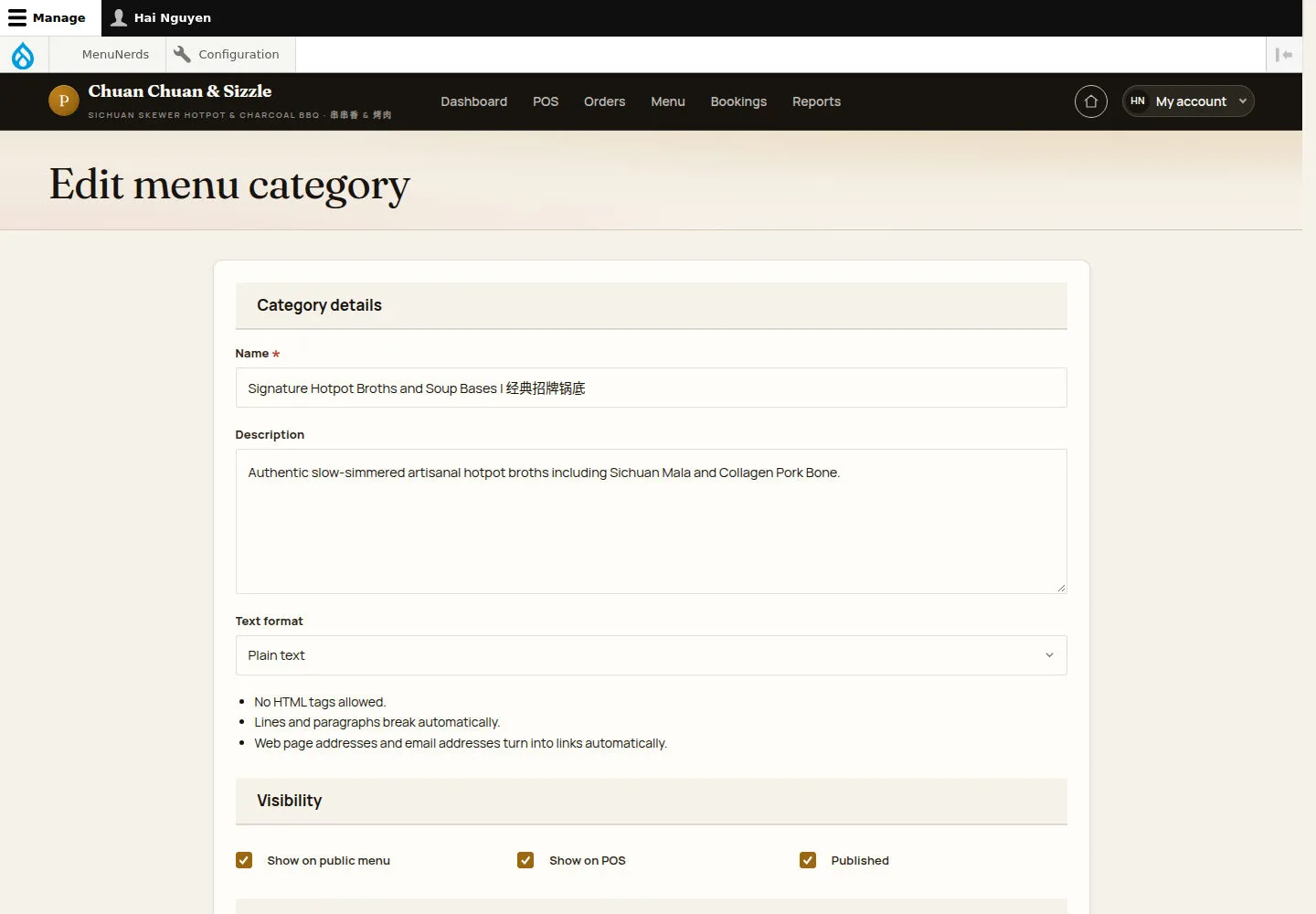
Edit menu category uses the same fields with the current values.
- Change the name, the description, the visibility, the colour or the order.
- Click Save.
Open on site ↗sign-inFull-page screenshot ↗
The category's place and colour change on the menu and on the POS.
Delete an empty category
Administrator
4Step 4 of 8
Deleting asks first and refuses while dishes are still in the category.
- Move or remove the dishes first, then come back and confirm.
This action cannot be undone.
Open on site ↗sign-inFull-page screenshot ↗
For Signature Hotpot Broths and Soup Bases | 经典招牌锅底 the page says This category still holds 6 dishes. Move or remove them before deleting the category. and offers only Cancel.
Open Option groups
Administrator
5Step 5 of 8
Option groups are priced options and the dishes they apply to.
- Click the pencil to edit or the bin to delete a group.
- Click + Add option group.
Open on site ↗sign-inFull-page screenshot ↗
Each option group shows its choices, selection type and whether selection is required.
Add an option group
Administrator
6Step 6 of 8
Add option group takes a name, the selection, the options with their prices and the dishes.
- Enter the Option group name, choose the Selection and tick Required if guests must choose.
- Click Add option for each choice, then pick the dishes in Applies to dishes.
- Click Save.
Open on site ↗sign-inFull-page screenshot ↗
The group shows on every dish it applies to, on the website and on the POS.
Edit the options and their prices
Administrator
7Step 7 of 8
Edit option group lists each option with its Price change, Default and Available.
- Change an Option name or its Price change, tick Default or Available, or remove an option with the bin.
- Click Save.
Open on site ↗sign-inFull-page screenshot ↗
Extra charges are in Australian dollars; zero records a no-cost choice.
Delete an unused option group
Administrator
8Step 8 of 8
Deleting an option group asks first and refuses while dishes still use it.
- Take the group off its dishes first, then confirm.
Open on site ↗sign-inFull-page screenshot ↗
For Spice Level | 辣度选择 the page says the group is still on 3 dishes and offers only Cancel.