





User guide · Manager · 2 of 12
Service:POS, guest approvals, phone orders, sold out and takeaway
The manager has every service page a waiter has. This guide shows where each one is; the Waiter guides walk through them in detail.
Open the POS floor map
Manager
1Step 1 of 6
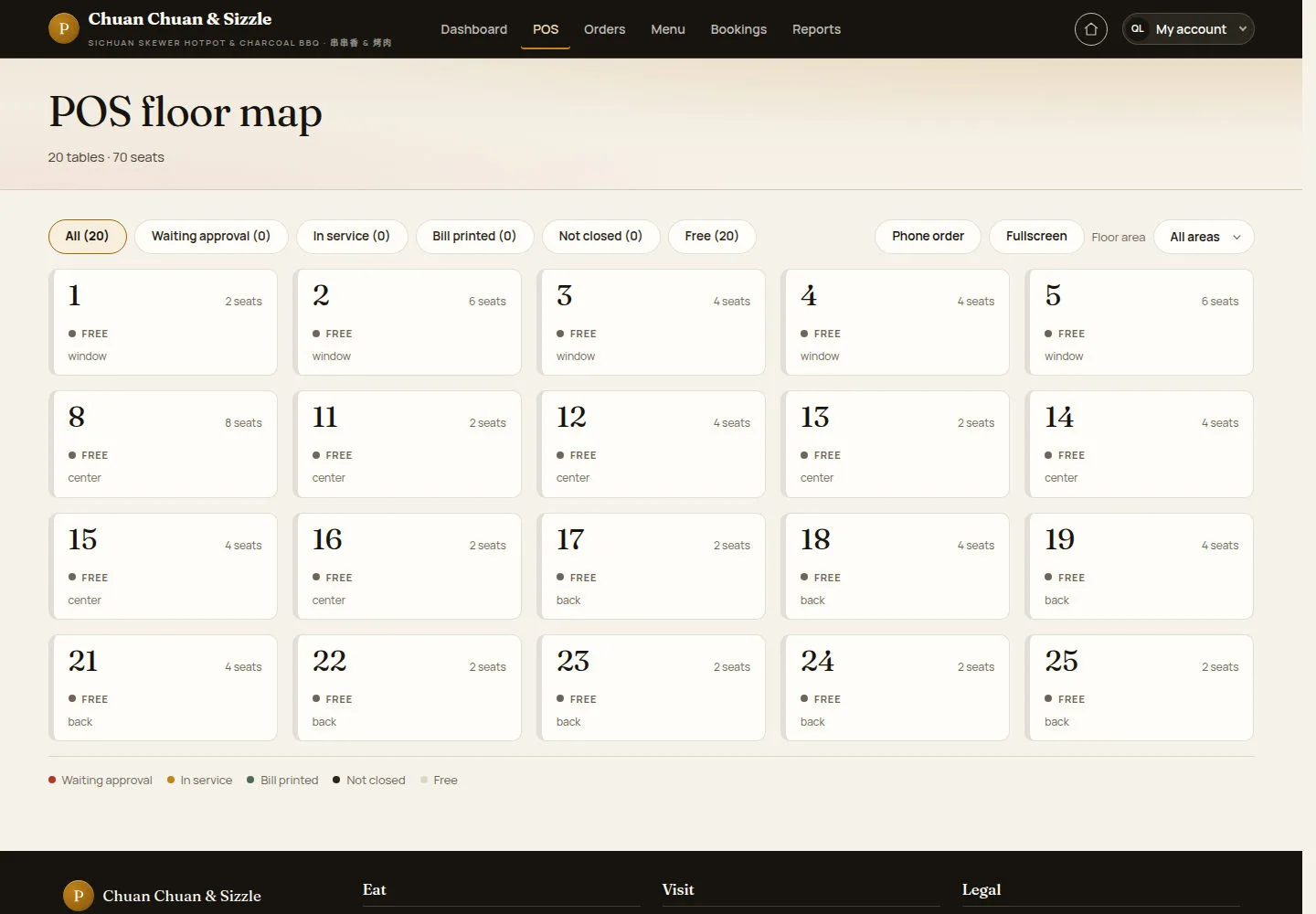
POS in the header opens POS floor map, showing each table and its current status.
- Filter by status or Floor area, and click a free table.
Open on site ↗sign-inFull-page screenshot ↗
Each card shows the table number, the seats, the status and the area.
Start a table order
Manager
2Step 2 of 6
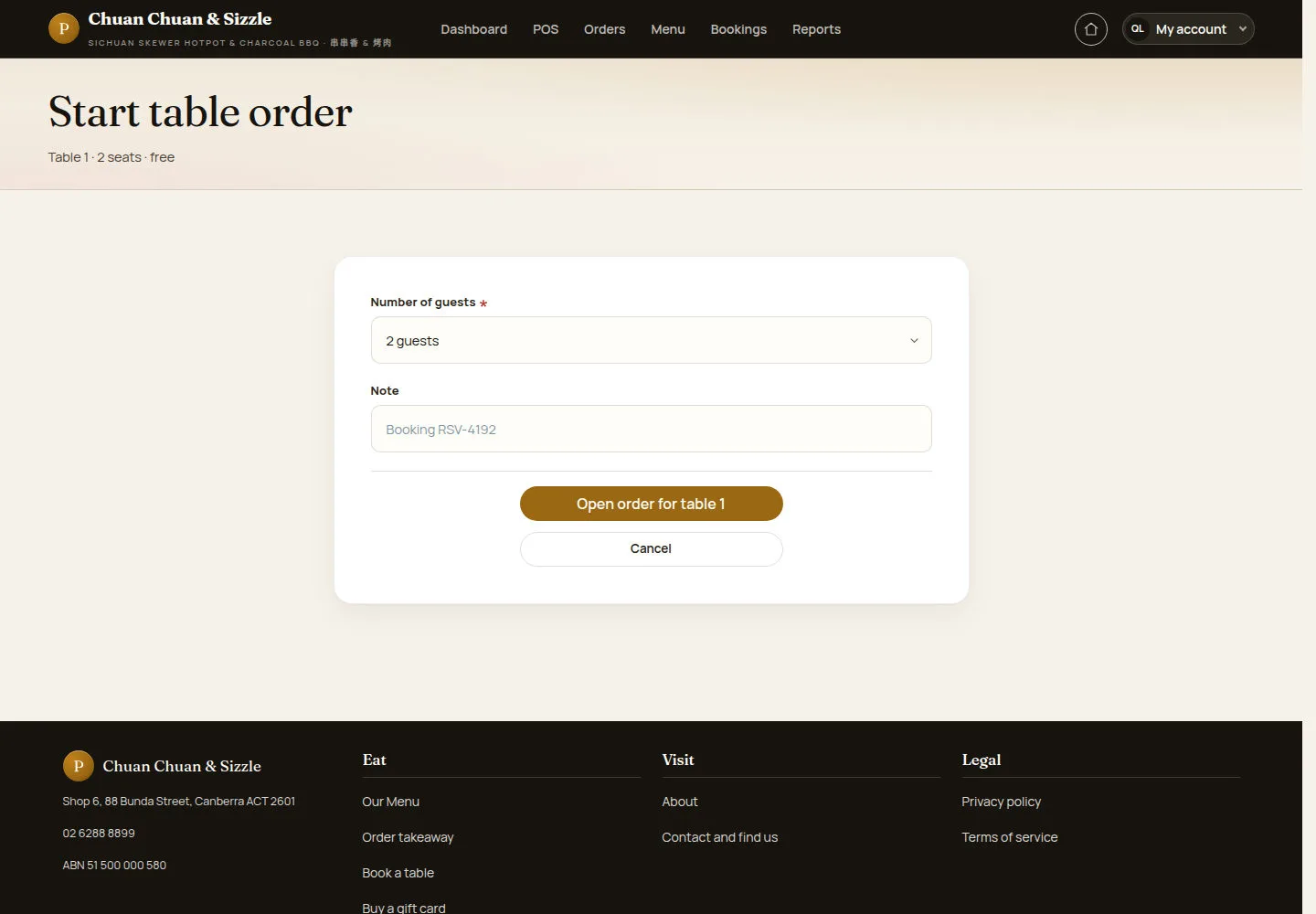
Start table order asks for the Number of guests and an optional Note.
- Click Open order for table 1.
Open on site ↗sign-inFull-page screenshot ↗
The POS order screen opens with an empty ticket.
Approve guest rounds
Manager
3Step 3 of 6
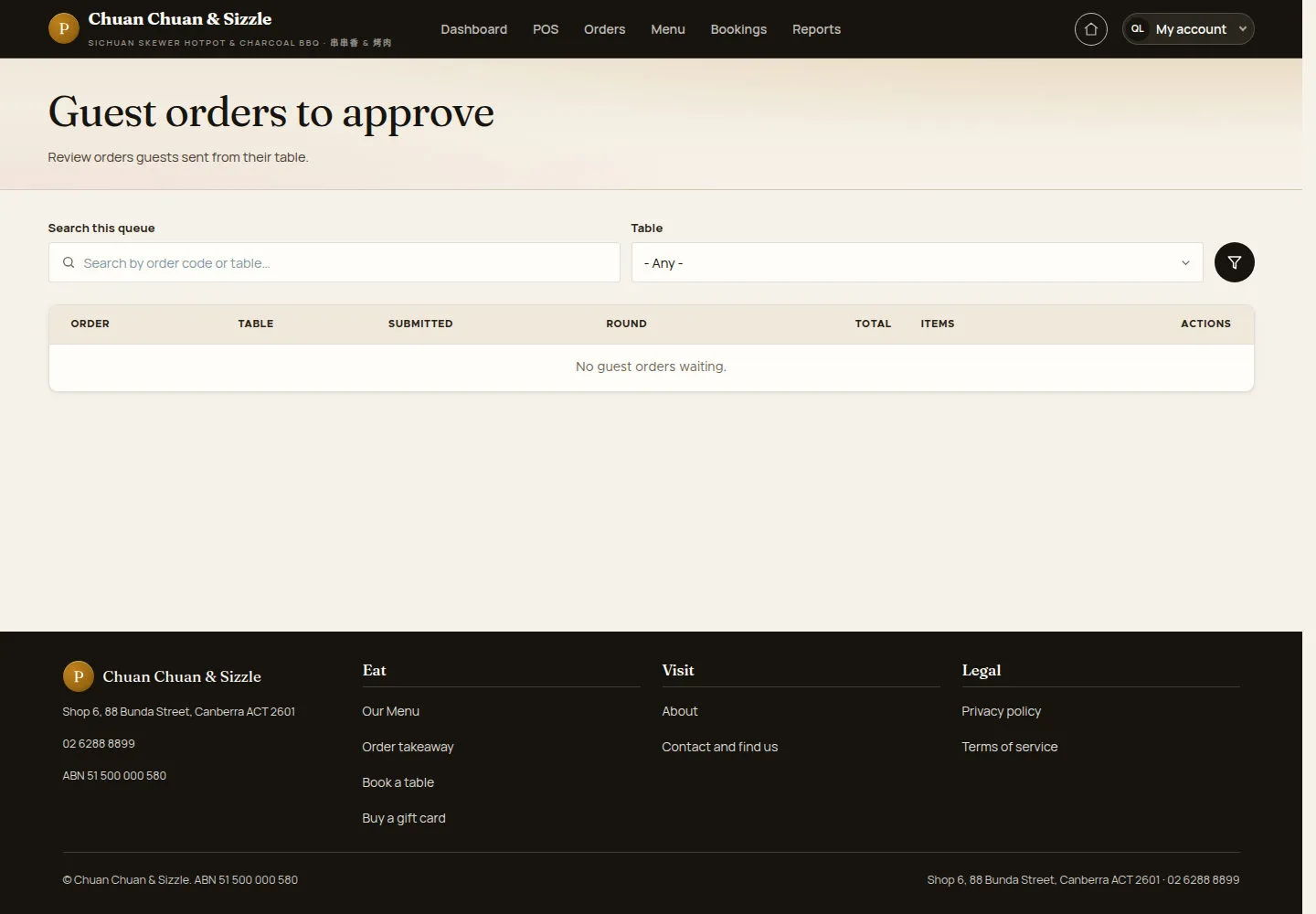
Guest orders to approve lists the rounds guests sent from their table.
- Open a round and click Approve guest order or Reject guest order (with a Rejection reason).
Open on site ↗sign-inFull-page screenshot ↗
Here it says No guest orders waiting.
Start a phone takeaway order
Manager
4Step 4 of 6
Phone order opens Start counter takeaway.
- Tick This order was placed by phone, enter the customer's details and click Start takeaway order.
Open on site ↗sign-inFull-page screenshot ↗
The POS order screen opens for the new takeaway order.
Mark a dish sold out
Manager
5Step 5 of 6
Sold out board lists every dish with its status.
- Click Mark sold out on a dish and confirm on Mark dish sold out.
Open on site ↗sign-inFull-page screenshot ↗
The dish is hidden from the public menu and locked on every POS until the next trading day.
Run the takeaway queue
Manager
6Step 6 of 6
Takeaway queue is in the My account menu under SERVICE (the manager's header has no Takeaway tab).
- Move each paid order with Send to kitchen, Mark ready and Confirm collected.
Open on site ↗sign-inFull-page screenshot ↗
Here No takeaway orders in the queue.