





User guide · Guest · 4 of 7
Book a table
Send a booking request with the date, time, number of guests and your contact details. The restaurant holds a time, not a specific table.
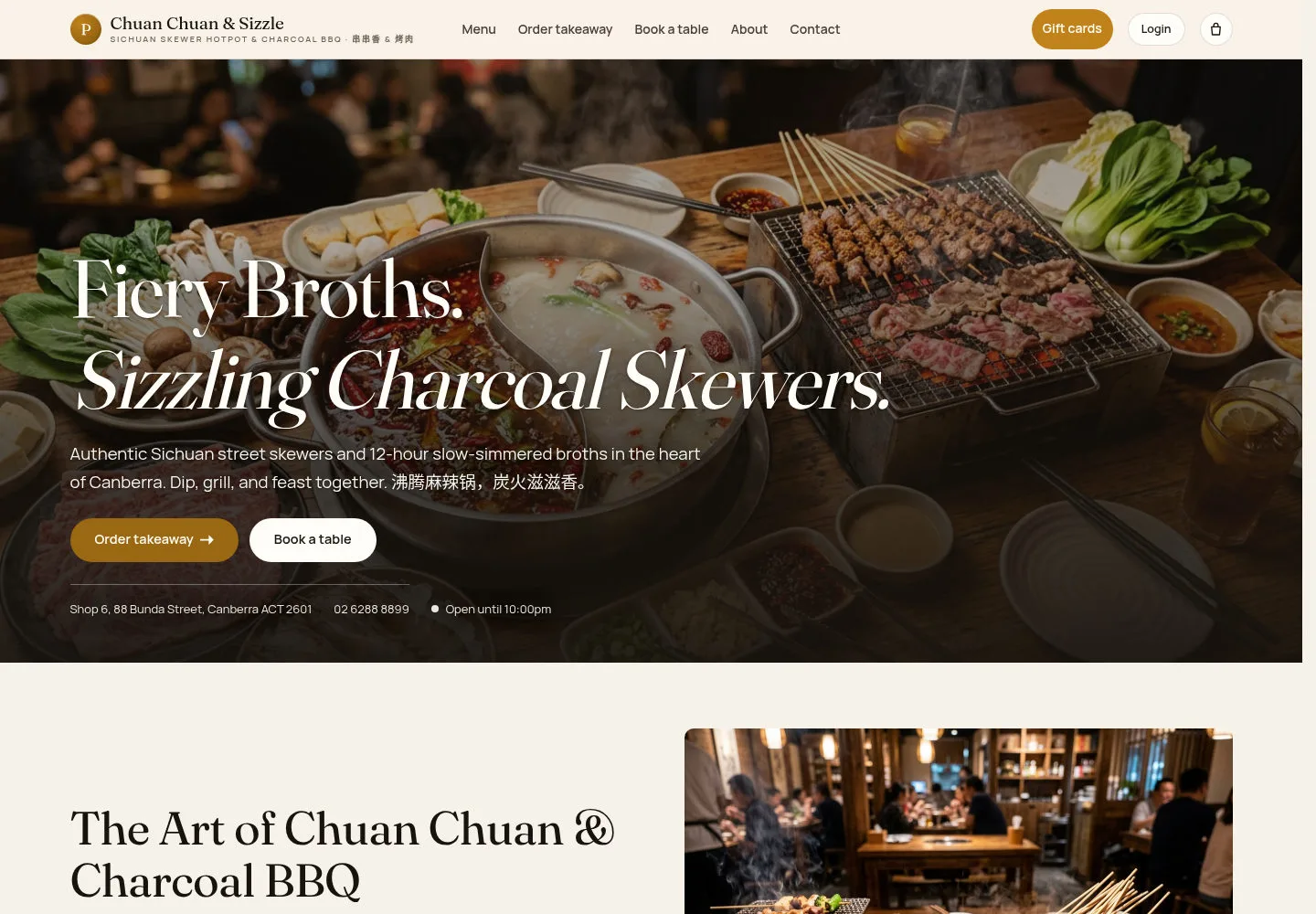
Start from Book a table
Guest
1Step 1 of 3
Book a table is in the main menu, in the home page hero and on the contact page.
- Click Book a table.
Open on site ↗Full-page screenshot ↗
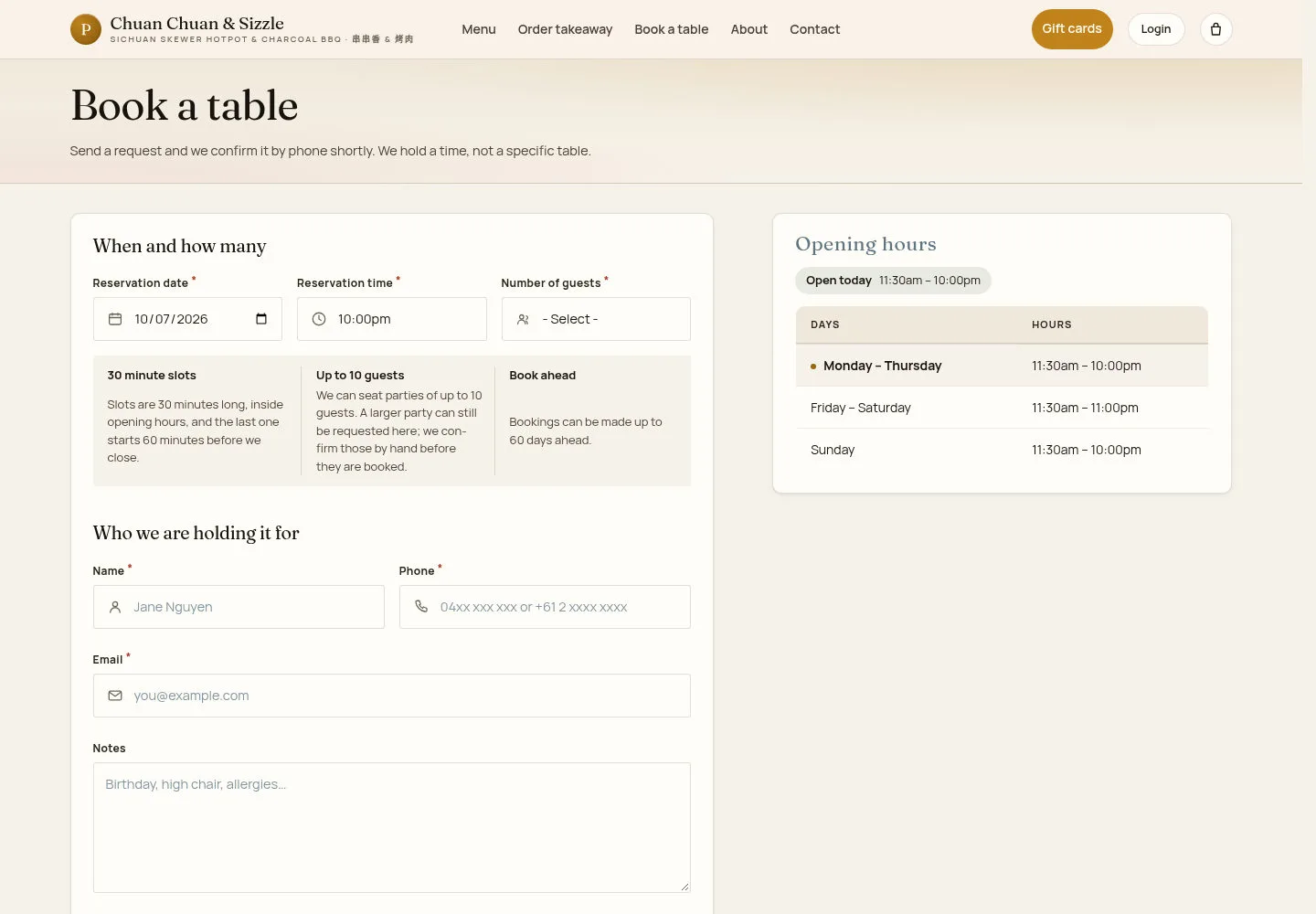
The booking form opens next to the opening hours.
Fill in the booking request
Guest
2Step 2 of 3
The form has two parts: When and how many and Who we are holding it for.
- Choose Reservation date, Reservation time and Number of guests.
- Enter Name, Phone and Email, and add Notes such as a birthday or a high chair.
- Click Request a table.
Choose from the available times; booking rules and opening hours determine the offered slots.
Demonstration mode may offer times outside opening hours. Confirm your intended time with the restaurant.
Open on site ↗Full-page screenshot ↗
Check the slot interval, party limit and booking window displayed below the date.
Book on a phone
Guest
3Step 3 of 3
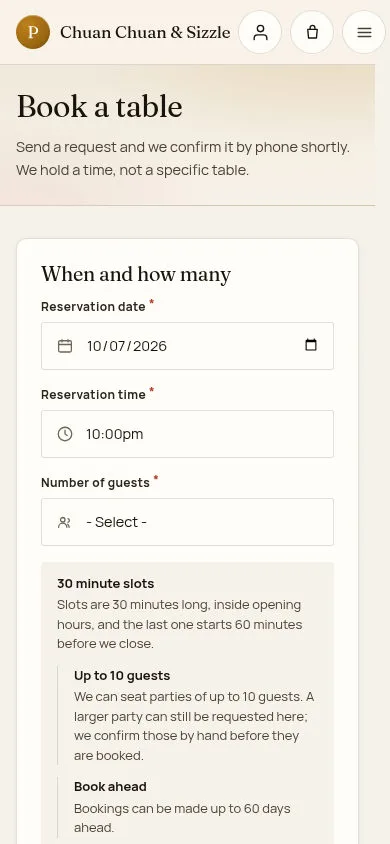
On a phone the form and the opening hours stack in one column.
- Scroll to Request a table at the end of the form.
Open on site ↗Full-page screenshot ↗
Every field fits the phone screen.
With automatic confirmation enabled, a request within the booking rules is confirmed; requests over the party or capacity limit need review. Check Booking received and retain the cancellation link. Cancellation follows the deadline set by the restaurant. Automatic confirmation currently does not send a confirmation email; use the on-screen result.