






Guide › Switcher › Review your Switcher account and security
Switcher
Review your Switcher account and security
Maintain your contact details and review the security options offered to your Switcher account.
Before you start: Sign in as the Switcher.
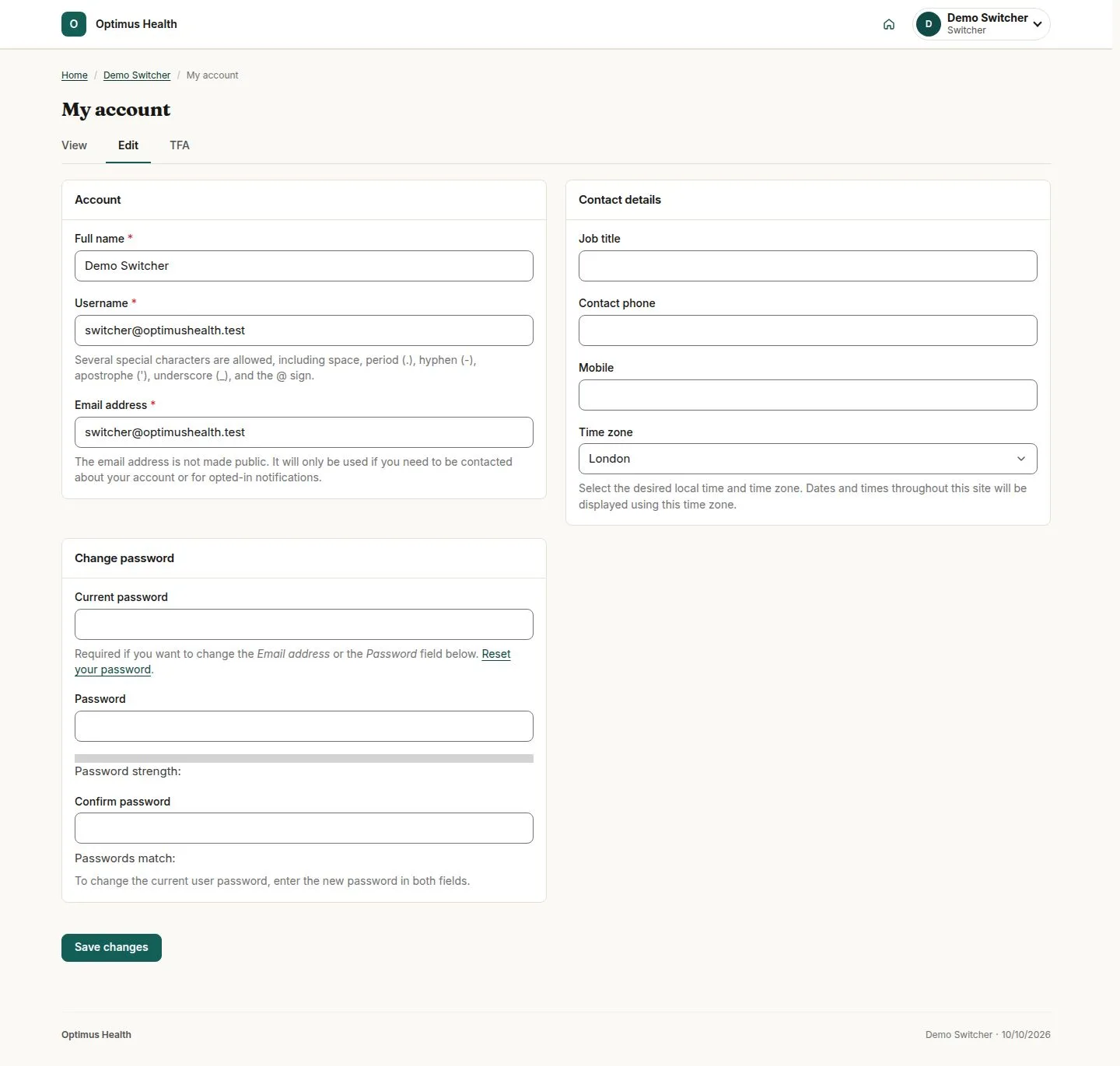
Review My account
Switcher
Swipe across the preview to see more. Tap to enlarge.
1Step 1 of 3
What to doOpen My account and review the Account and Contact details sections offered for your own account.
The profile identifies the current Switcher account and its own editable fields.
Save an intended account change
Switcher
Swipe across the preview to see more. Tap to enlarge.
2Step 2 of 3
What to doEdit only the details you intend to change, complete any required password fields if applicable, and choose Save changes after reviewing the form.
If validation succeeds, your own permitted account changes are saved.
Check My security
Switcher
Swipe across the preview to see more. Tap to enlarge.
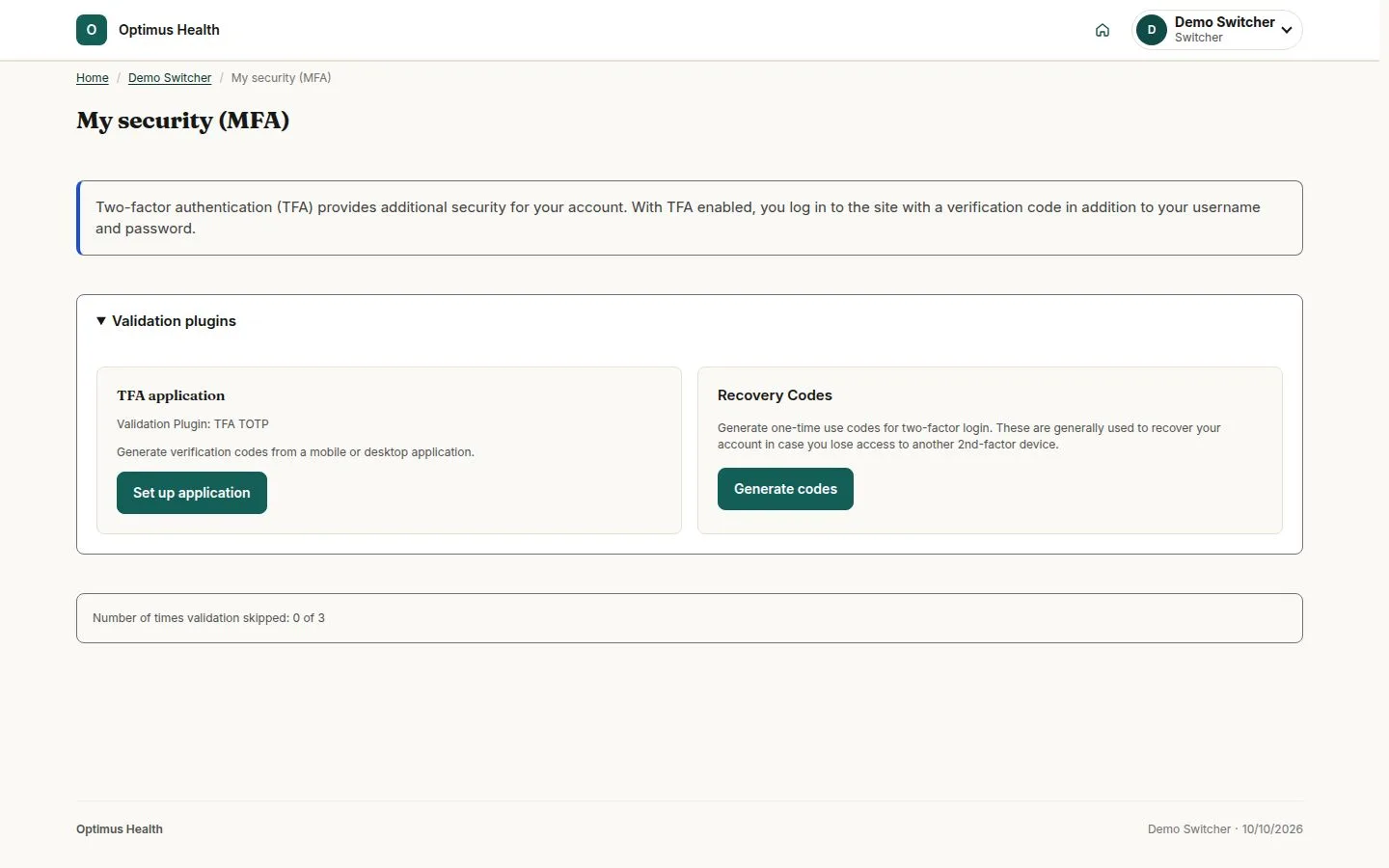
3Step 3 of 3
What to doOpen My security and read your own MFA enrolment status and the setup or management options offered.
The page reports your account security state and offers the setup or management options available to you.