






Guide › Headquarters › Open an office and invite its owner
Headquarters
Open an office and invite its owner
Create the office with its network and territory, give it an owner and review activation prerequisites.
Before you start: Sign in as Headquarters. Have the approved office details, network, territory and owner contact details.
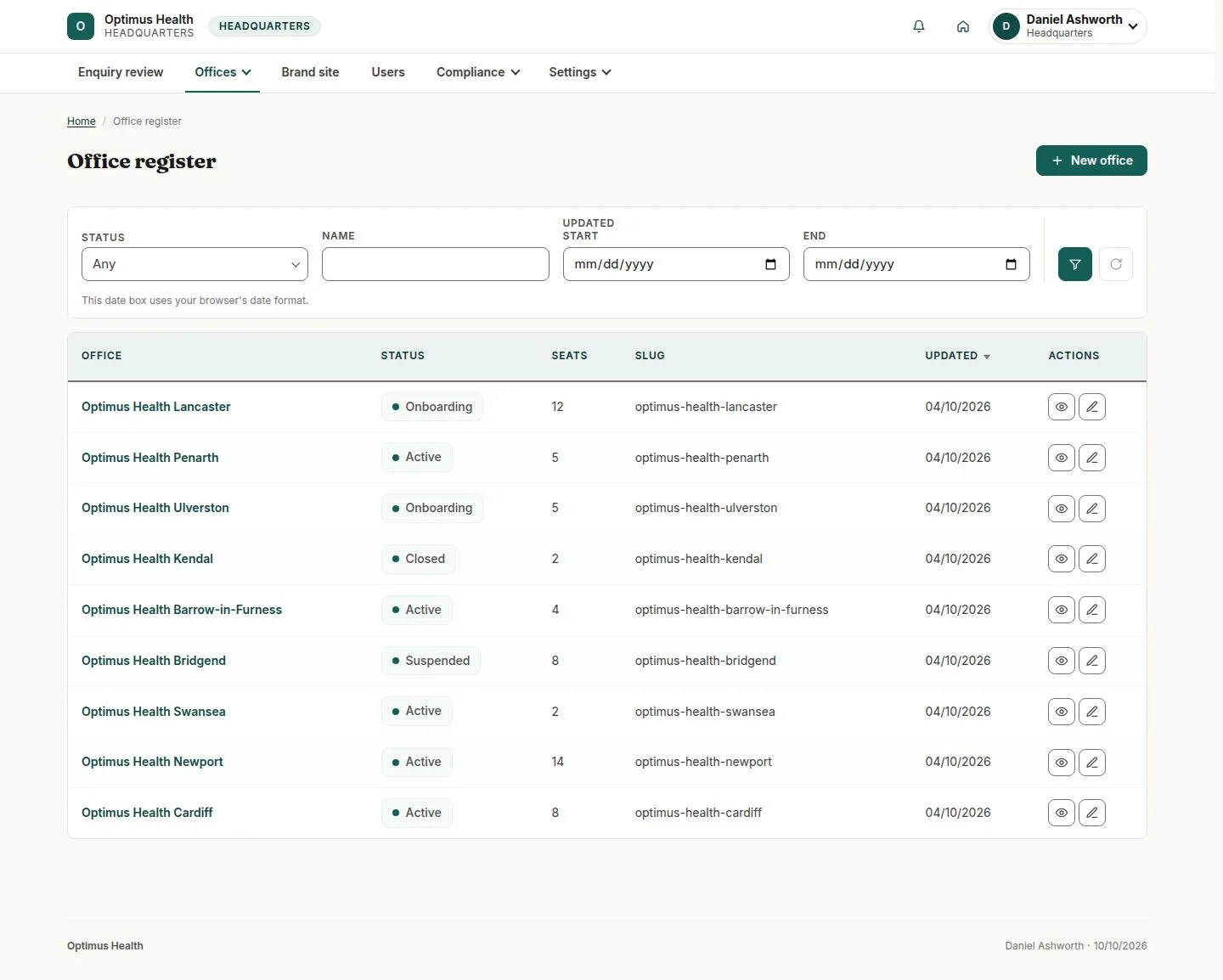
Review the Office register
Headquarters
Swipe across the preview to see more. Tap to enlarge.
1Step 1 of 6
What to doOpen Offices → Office register. Check existing offices before choosing New office.
The register shows office status, seats and address slug so you can avoid creating the wrong or duplicate office.
Prepare the new office
Headquarters
Swipe across the preview to see more. Tap to enlarge.
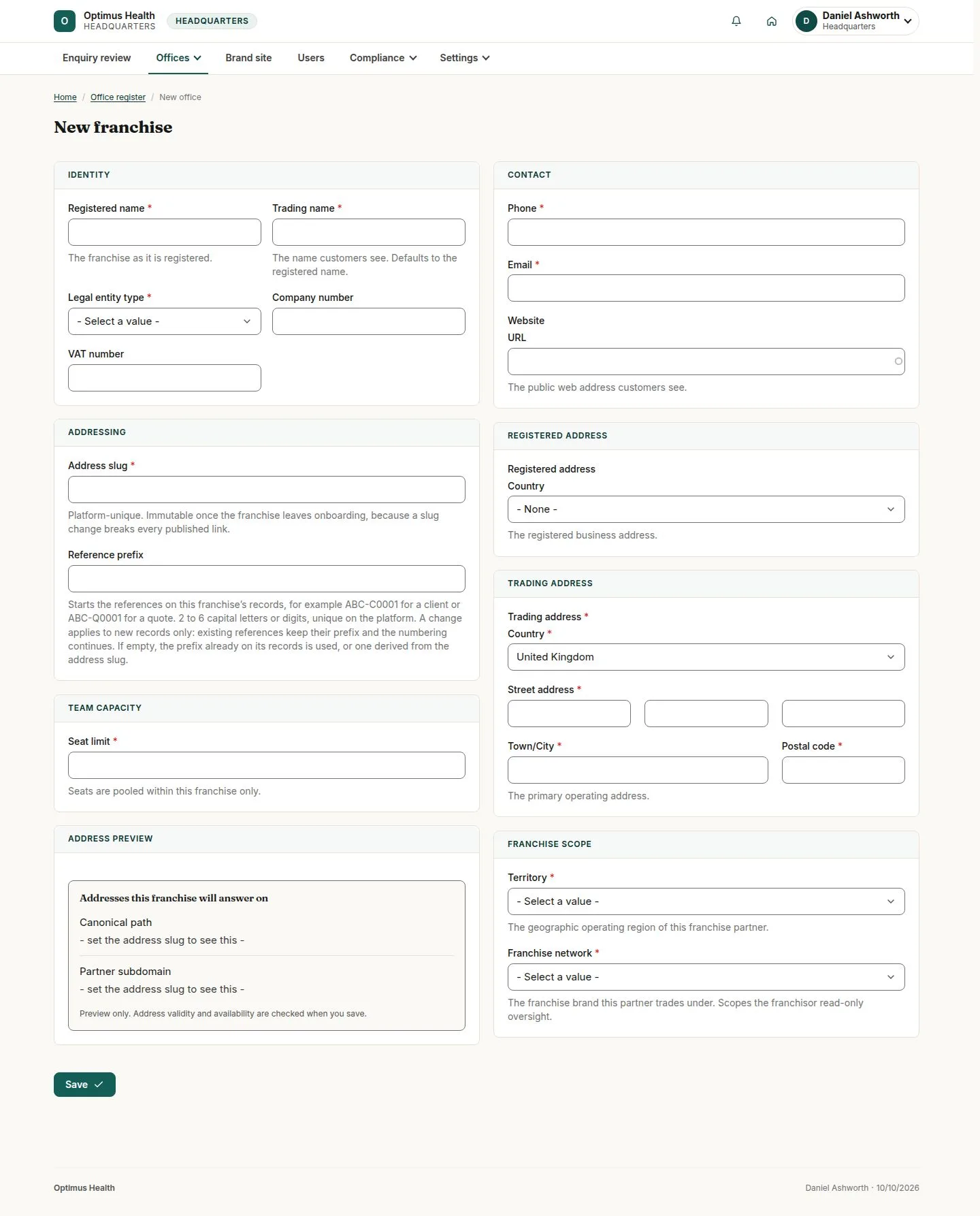
2Step 2 of 6
What to doChoose New office and complete the offered details, including its required territory and network. Check the address slug before saving.
If validation succeeds, the office is created in its initial lifecycle state. The slug becomes fixed after it leaves Onboarding.
Read the lifecycle prerequisites
Headquarters
Swipe across the preview to see more. Tap to enlarge.
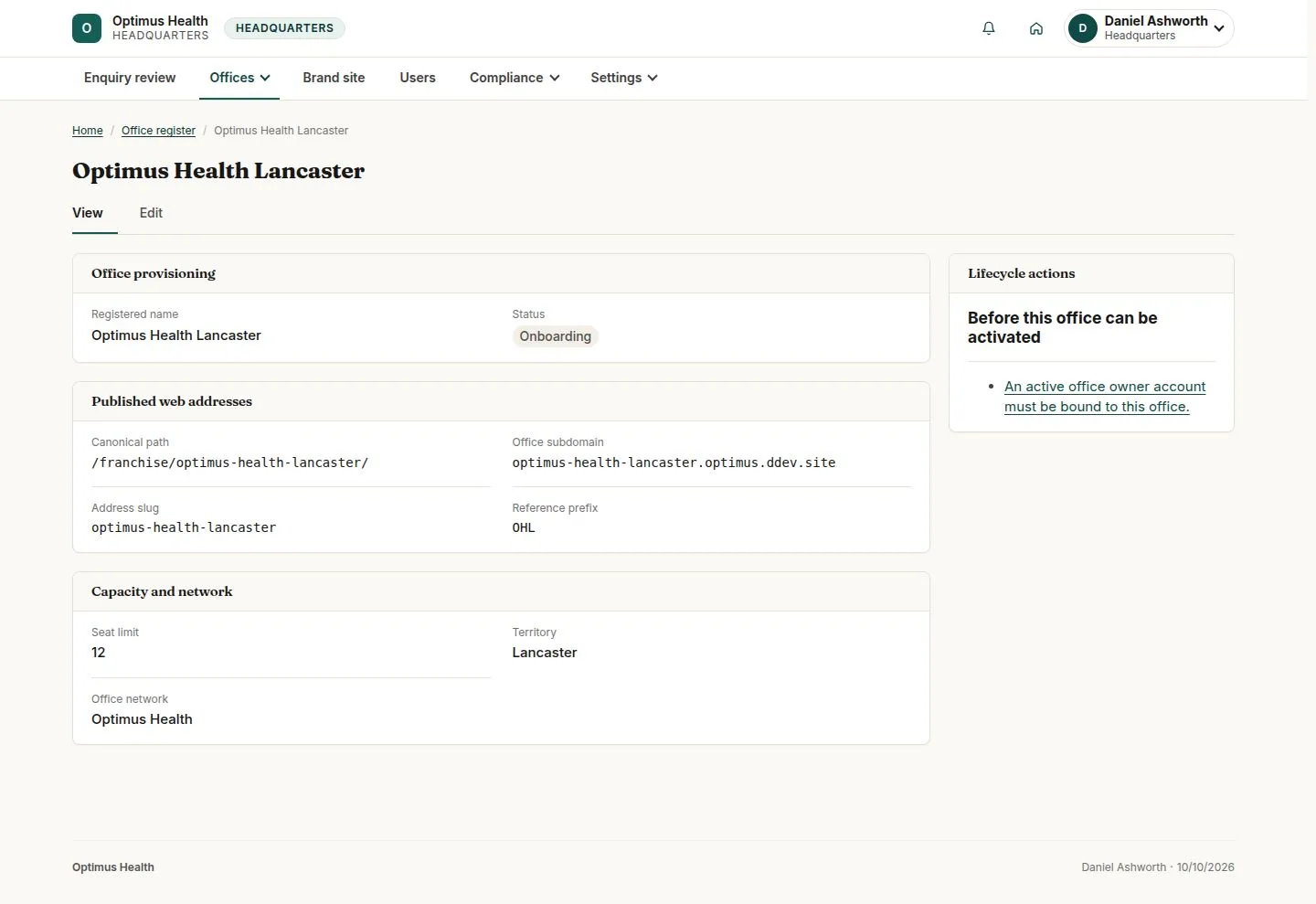
3Step 3 of 6
What to doOpen the saved office and read Lifecycle actions and any missing requirements.
An office without its owner cannot be activated; the page explains the requirements for its next lifecycle action.
Create the office-owner account
Headquarters
Swipe across the preview to see more. Tap to enlarge.
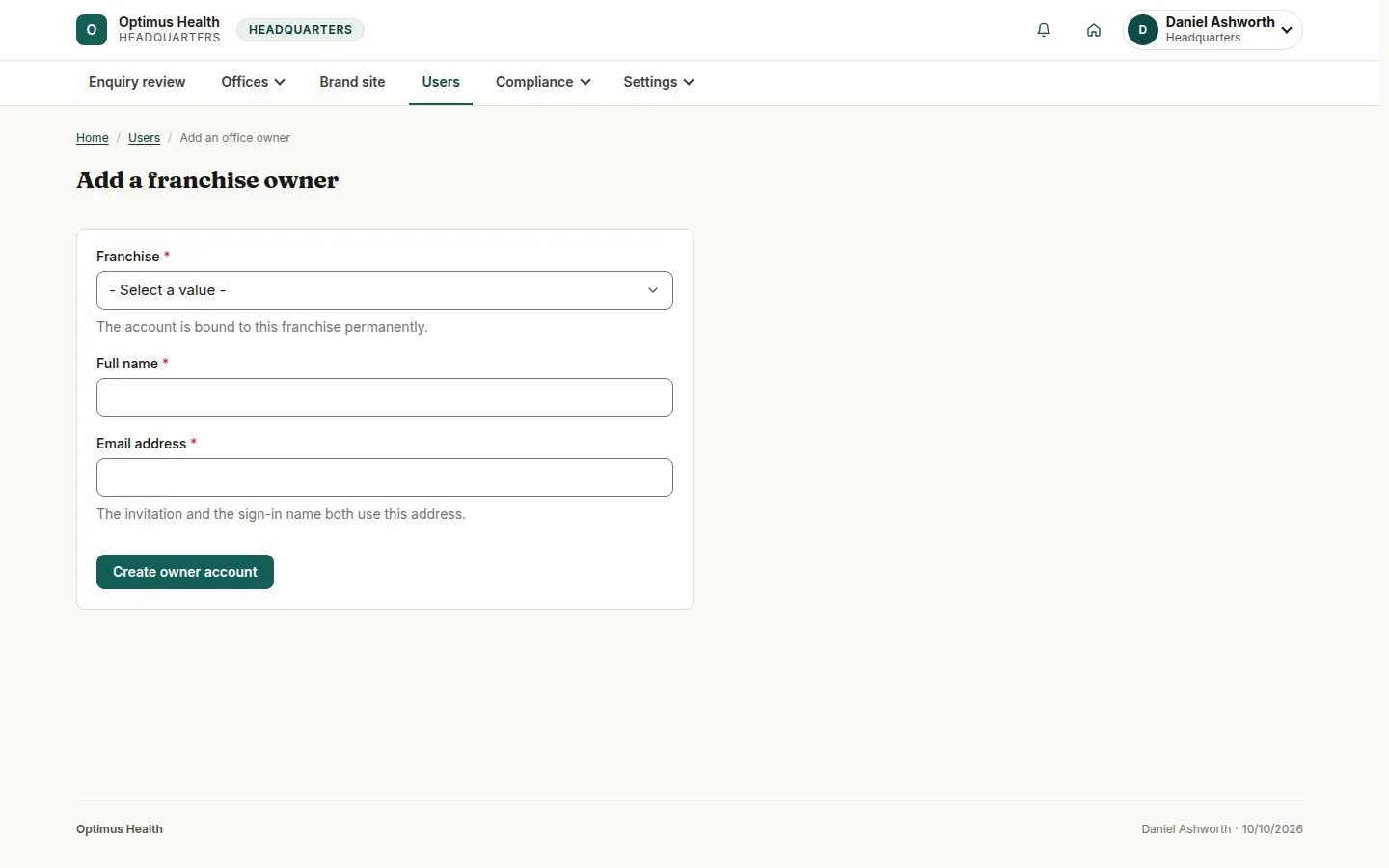
4Step 4 of 6
What to doOpen Users and choose Add an office owner. Select the intended office and enter the owner's name and email, then review before submitting.
If the account is created successfully, the owner is invited. You do not set another person's password in this form.
Activate only when ready
Headquarters
Swipe across the preview to see more. Tap to enlarge.
5Step 5 of 6
What to doReturn to the Onboarding office and read its prerequisites. Bind an active owner account to that office first. When Activate becomes available, review its confirmation before proceeding.
The illustrated office is still blocked until its owner exists. If activation later succeeds, the office becomes Active and its owner can manage the team within the seat limit.
Review any later suspension or closure
Headquarters
Swipe across the preview to see more. Tap to enlarge.
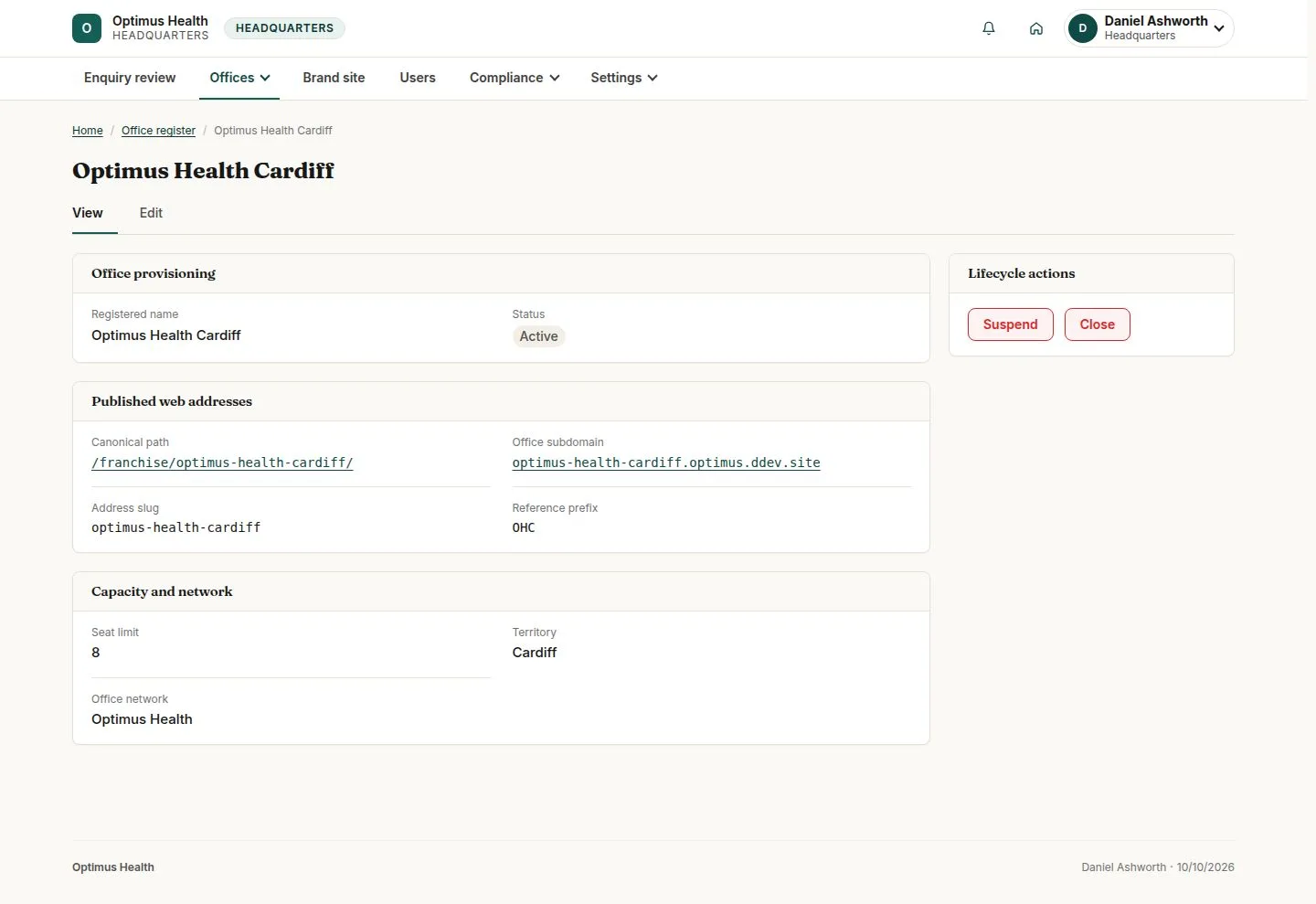
6Step 6 of 6
What to doOn an active office, read what the offered Suspend or Close action stops. Enter the required reason and confirm only the intended lifecycle change.
A successful lifecycle change records its reason and preserves the office records; the affected public and business access follows the new state.