






Guide › Care Worker › Read My Day and start an assigned visit
Care Worker
Read My Day and start an assigned visit
Check the correct care location and office brief before recording the start of work.
Before you start: Sign in as a Care Worker. The office has assigned a care visit to you.
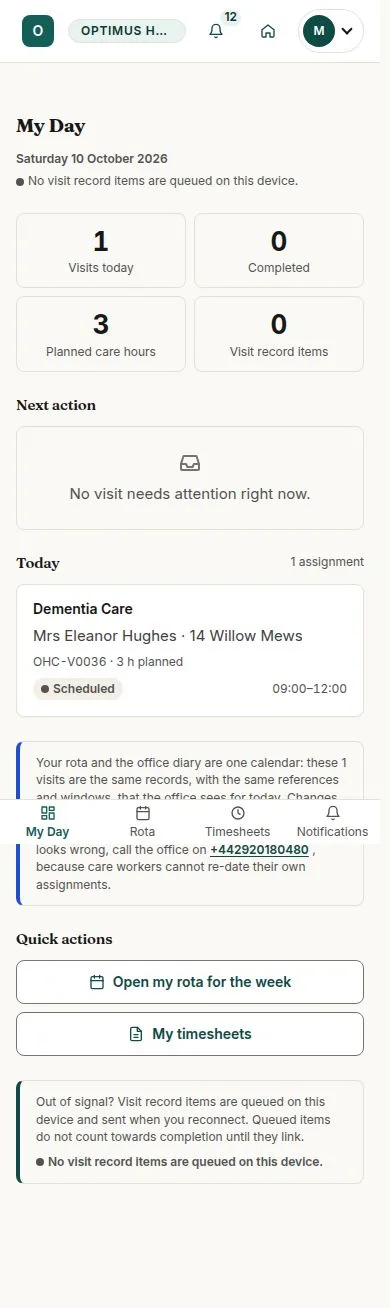
Check today in My Day
Care Worker
Swipe across the preview to see more. Tap to enlarge.
1Step 1 of 4
What to doOpen My Day and read the visits due today and their next available action.
Only today's visits are listed. An empty day is shown as empty; it does not mean the rota has no future assignments.
Look ahead in My rota
Care Worker
Swipe across the preview to see more. Tap to enlarge.

2Step 2 of 4
What to doOpen My rota and review the days, visit times and locations for your assigned week.
You can see your assignments and free days. The office manages assignment changes.
Read the visit brief
Care Worker
Swipe across the preview to see more. Tap to enlarge.

3Step 3 of 4
What to doOpen the assigned visit. Read the care plan summary, access instructions and risks before starting; scroll through the whole brief. Use the contact controls when you need the office or on-site contact.
The detail page gives the office's instructions for that visit and shows the actions permitted by its current status.
Start work when the action is available
Care Worker
Swipe across the preview to see more. Tap to enlarge.
4Step 4 of 4
What to doOn the scheduled visit, use Start work when you begin and review its confirmation before proceeding.
If the start is accepted, the visit becomes In progress and the start time is recorded. A visit already in another state may not offer this action.