





Guide › Care Coordinator › Maintain care-worker capability and availability
Care Coordinator
Maintain care-worker capability and availability
Keep the care-worker profile and declared working hours ready for assignment, and follow up future visits when the worker becomes inactive.
Before you start: Use the Care Coordinator account in the worker’s office. Use confirmed skills, qualifications and working hours; the Office Owner creates or invites the worker’s login account in Team accounts. Restricted pay, identity and emergency-contact fields are maintained by the Office Owner; ask the Owner to keep these details current.
Find or create the capability profile
Care Coordinator
Swipe across the preview to see more. Tap to enlarge.
1Step 1 of 4
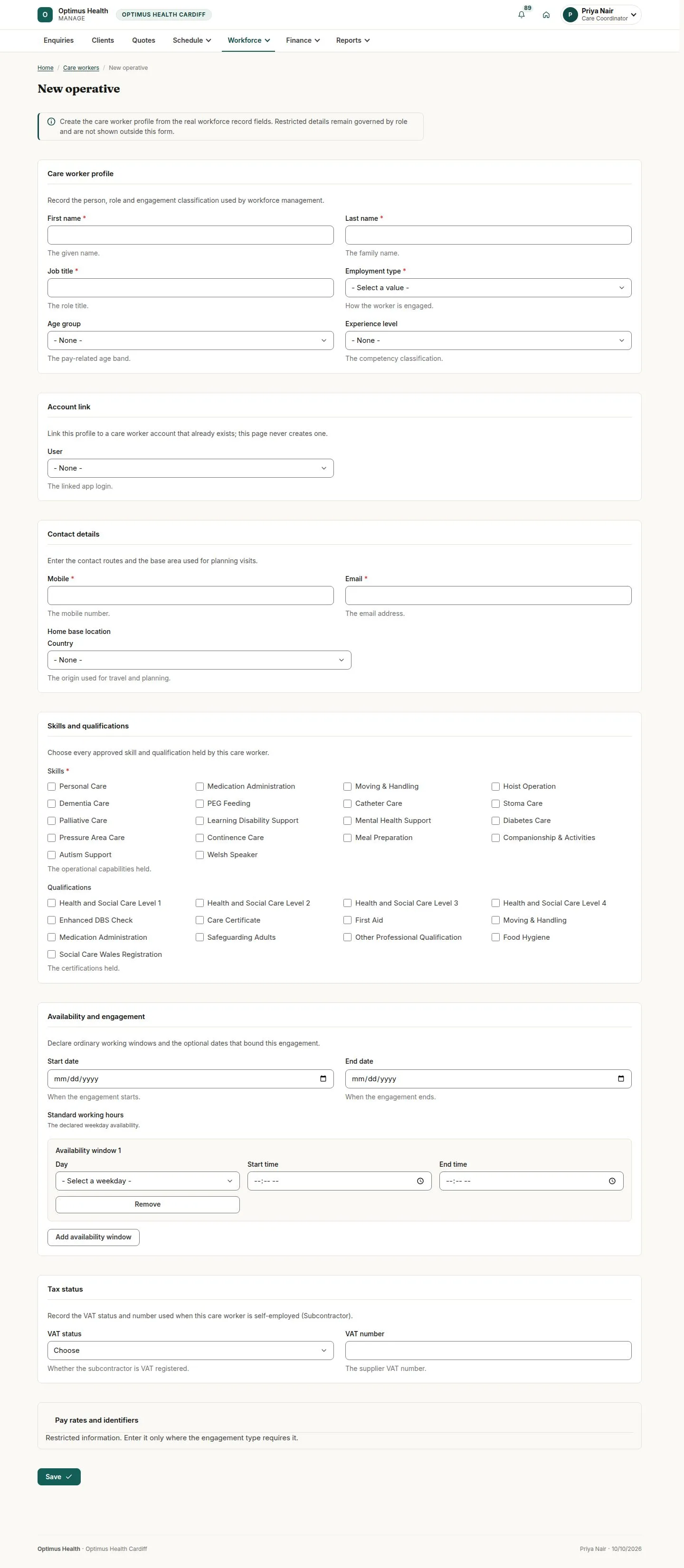
What to doOpen Workforce → Care workers and use the name, skills, qualifications, base-area or status filters. Open New operative for a new care-worker profile and complete First name, Last name, Job title, Employment type, Mobile, Email and Home base location.
New operative opens the care-worker capability profile form. The worker’s sign-in account is managed separately by the Office Owner in Team accounts.
Add capability and working hours
Care Coordinator
Swipe across the preview to see more. Tap to enlarge.
2Step 2 of 4
What to doSelect confirmed Skills and Qualifications, with one Health and Social Care level. Under Standard working hours, set Day, Start time and End time; use Add availability window as needed. Select the existing account under User, then choose Save.
If accepted, capability and working hours support assignment checks. User links the Care Worker login created by the Office Owner.
Save profile facts before a lifecycle action
Care Coordinator
Swipe across the preview to see more. Tap to enlarge.
3Step 3 of 4
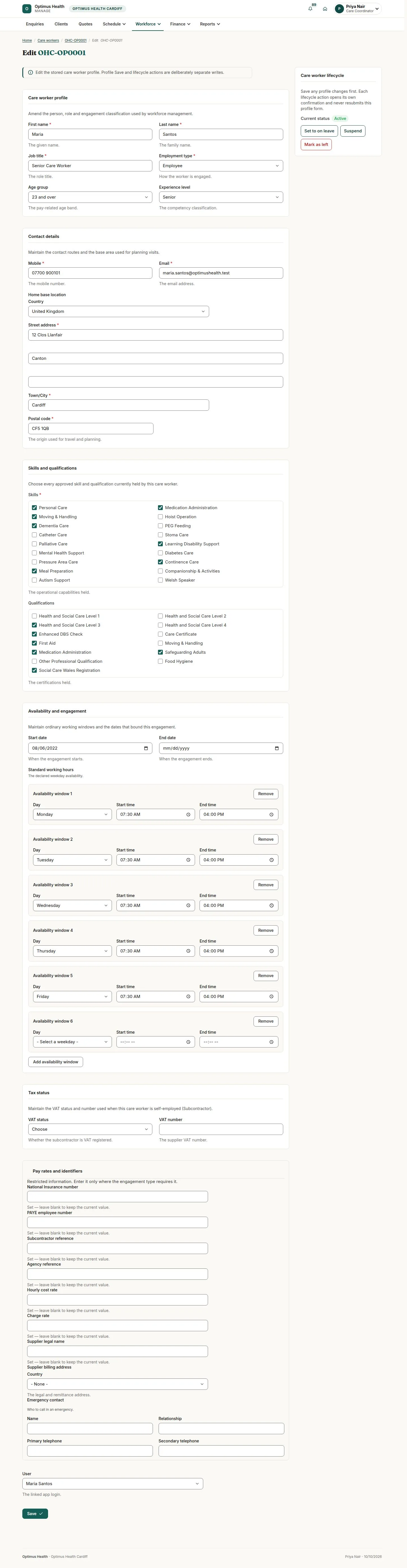
What to doOpen the existing profile’s Edit profile form and save any intended capability or availability changes first. For leave, suspension or departure, use Set to on leave, Suspend or Mark as left only after checking the person and then review that action’s own confirmation.
Profile Save and lifecycle changes are separate actions. A lifecycle link does not save unsaved profile changes. Refer restricted HR changes to the Office Owner.
Confirm leave and follow up future assignments
Care Coordinator
Swipe across the preview to see more. Tap to enlarge.
4Step 4 of 4
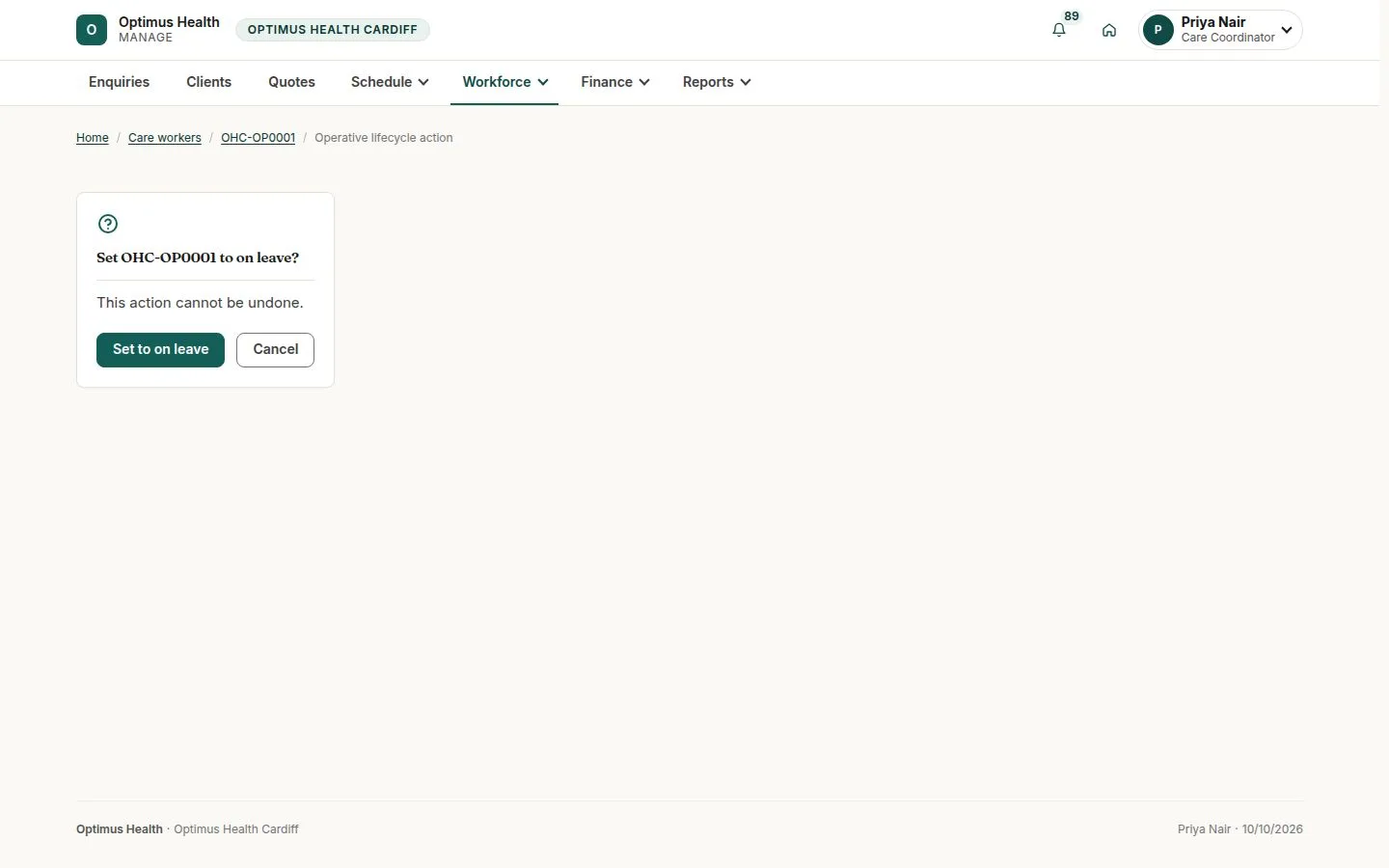
What to doVerify the worker’s identity in the leave confirmation, then choose Set to on leave after reviewing it. Check future visits and Operations exceptions; withdraw and replace assignments through each visit’s permitted workflow.
If accepted, the profile becomes On leave. Future assignments remain until the office handles them. For a leaver, the Owner deactivates the login to free its seat.