






Guide › Administrator › Review your own account and security
Administrator
Review your own account and security
Keep your account details current and check the security options offered to your account.
Before you start: Sign in as the Administrator.
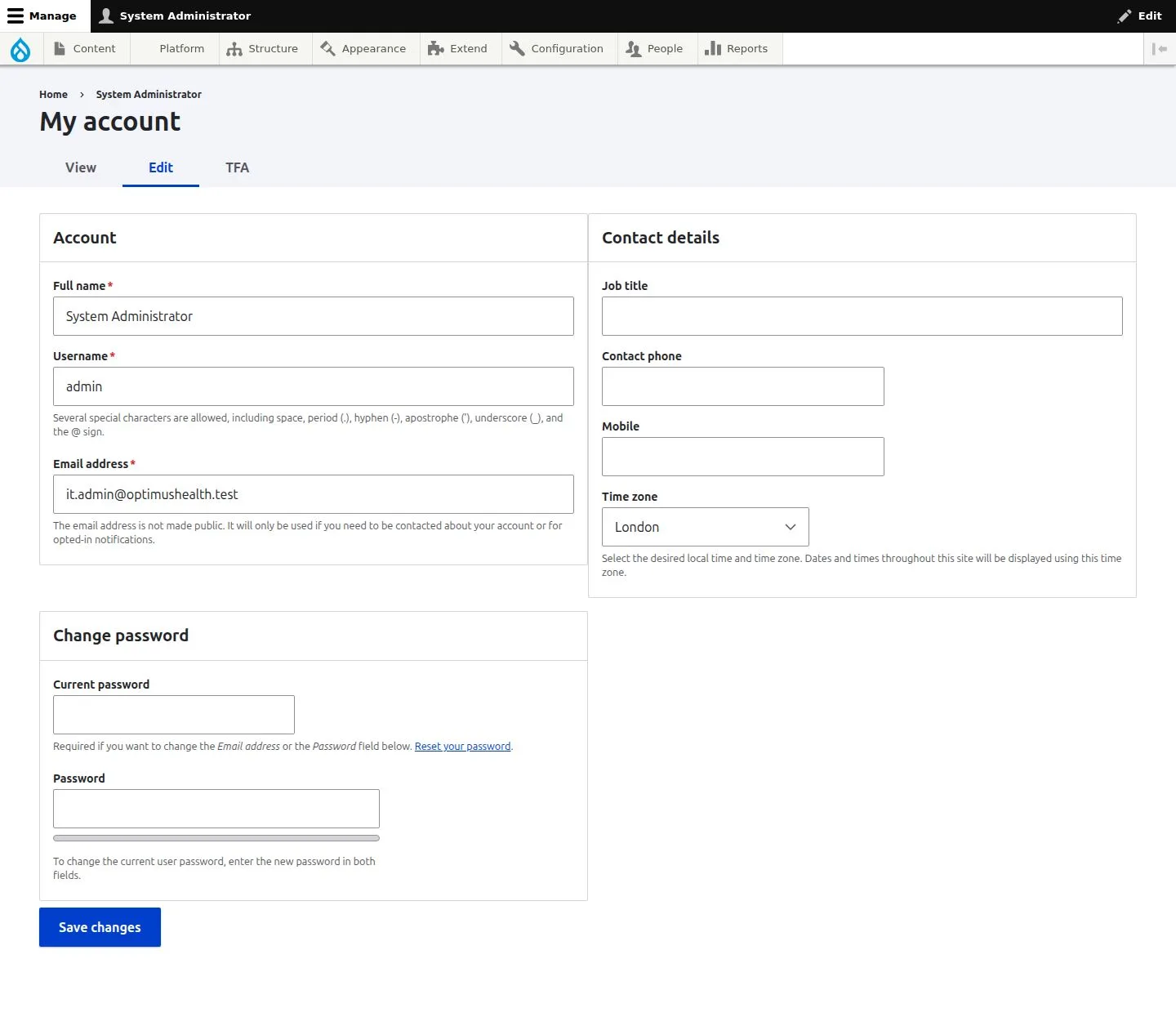
Review your own account
Administrator
Swipe across the preview to see more. Tap to enlarge.
1Step 1 of 3
What to doOpen My account and check the Account and Contact details sections. Use Save changes only after reviewing any edits.
A successful save updates your own permitted account fields; this guide does not edit another person's account.
Check My security
Administrator
Swipe across the preview to see more. Tap to enlarge.
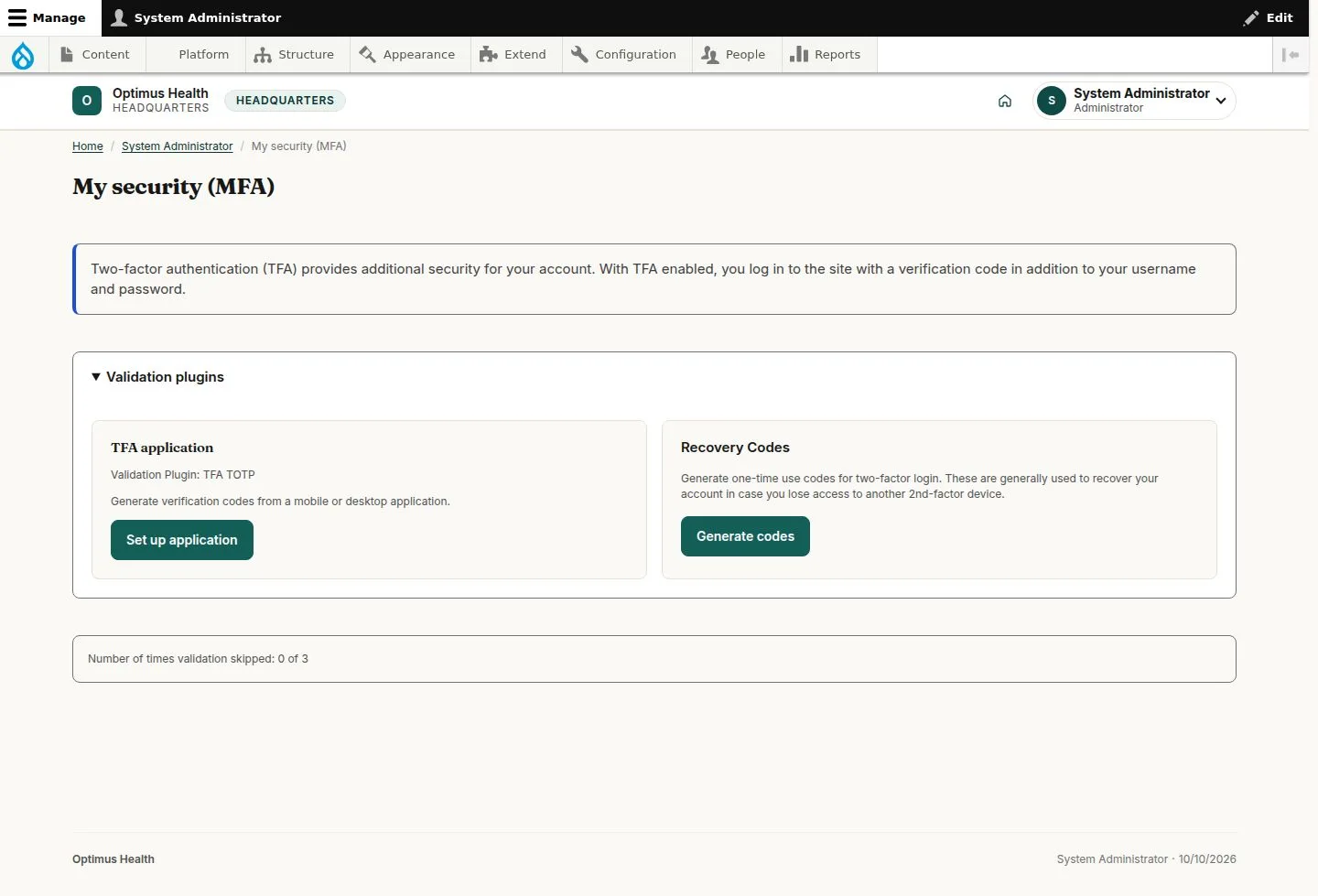
2Step 2 of 3
What to doOpen My security and read your own MFA enrolment status and the setup or management options shown. Follow only the options offered for your account.
The overview reports your account's current security state; opening it does not enable or disable MFA.
Check the account context
Administrator
Swipe across the preview to see more. Tap to enlarge.
3Step 3 of 3
What to doReturn to My account and verify the account you are signed in as before saving another change. Use the account menu to return to the own-security screen when needed.
The profile and security screens apply to the account you are currently signed in as.