





Guide › Care Coordinator › Create a care visit and maintain its brief
Care Coordinator
Create a care visit and maintain its brief
Create a visit from one commercial source, review changes before work starts and archive only when the workflow permits it.
Before you start: Use an active client and matching care location in your office. Have the accepted care quote or care-package source and the agreed visit window and instructions.
Choose exactly one visit source
Care Coordinator
Swipe across the preview to see more. Tap to enlarge.
1Step 1 of 4
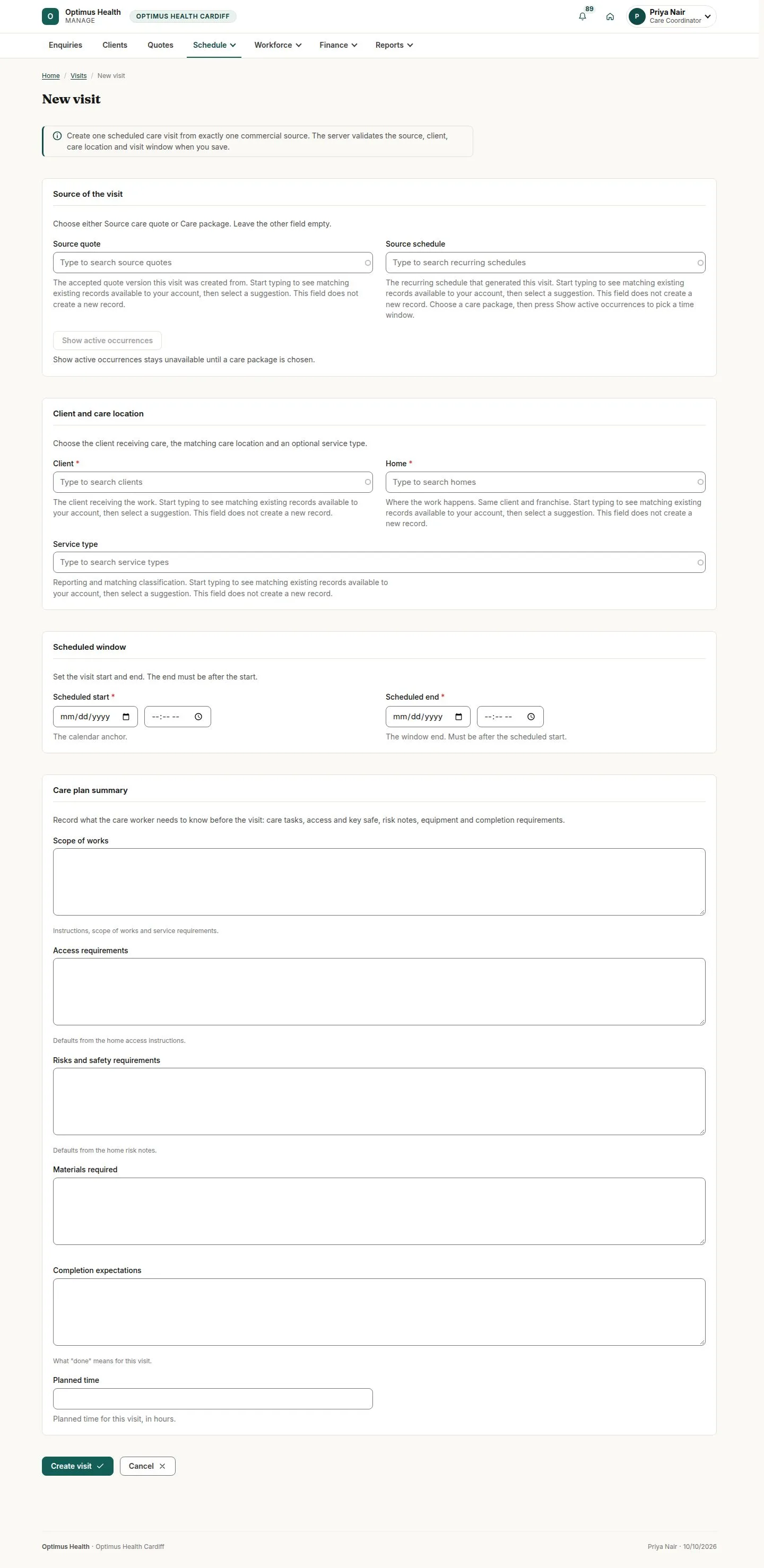
What to doChoose New visit. Select an offered record in either Source quote or Source schedule, leaving the other empty. For a care package, choose Show active occurrences and review the occurrence.
The form requires one accepted quote or care-package source. If neither is available, return to that workflow first. Showing occurrences does not create a visit.
Review the visit and create it
Care Coordinator
Swipe across the preview to see more. Tap to enlarge.
2Step 2 of 4
What to doSelect the Client and the matching Home. Check Scheduled start and Scheduled end. Review Scope of works, Access requirements, Risks and safety requirements and Completion expectations, then choose Create visit.
If accepted, the visit uses the selected source and window; the end must follow the start. Open the new visit before assigning a care worker.
Edit the visit before work starts
Care Coordinator
Swipe across the preview to see more. Tap to enlarge.
3Step 3 of 4
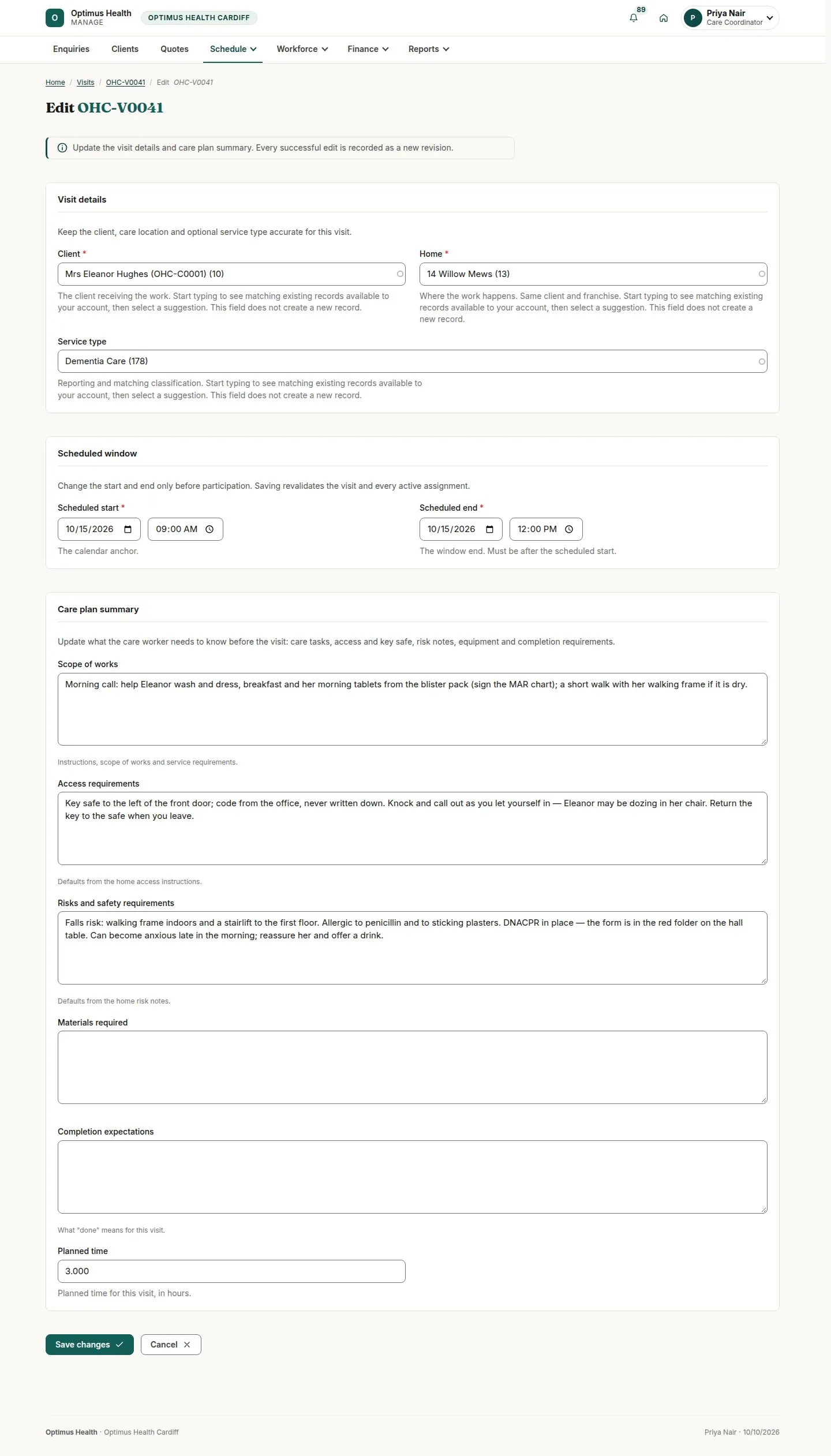
What to doUse Edit visit when offered. Review the Care plan summary and Scheduled window, then choose Save changes after checking the timing and current assignments.
If accepted, a new revision is saved after assignment checks. A started visit or one with visit records or timesheets cannot move. Read refusals; reload if someone has changed the record.
Archive only after the invoice is closed
Care Coordinator
Swipe across the preview to see more. Tap to enlarge.
4Step 4 of 4
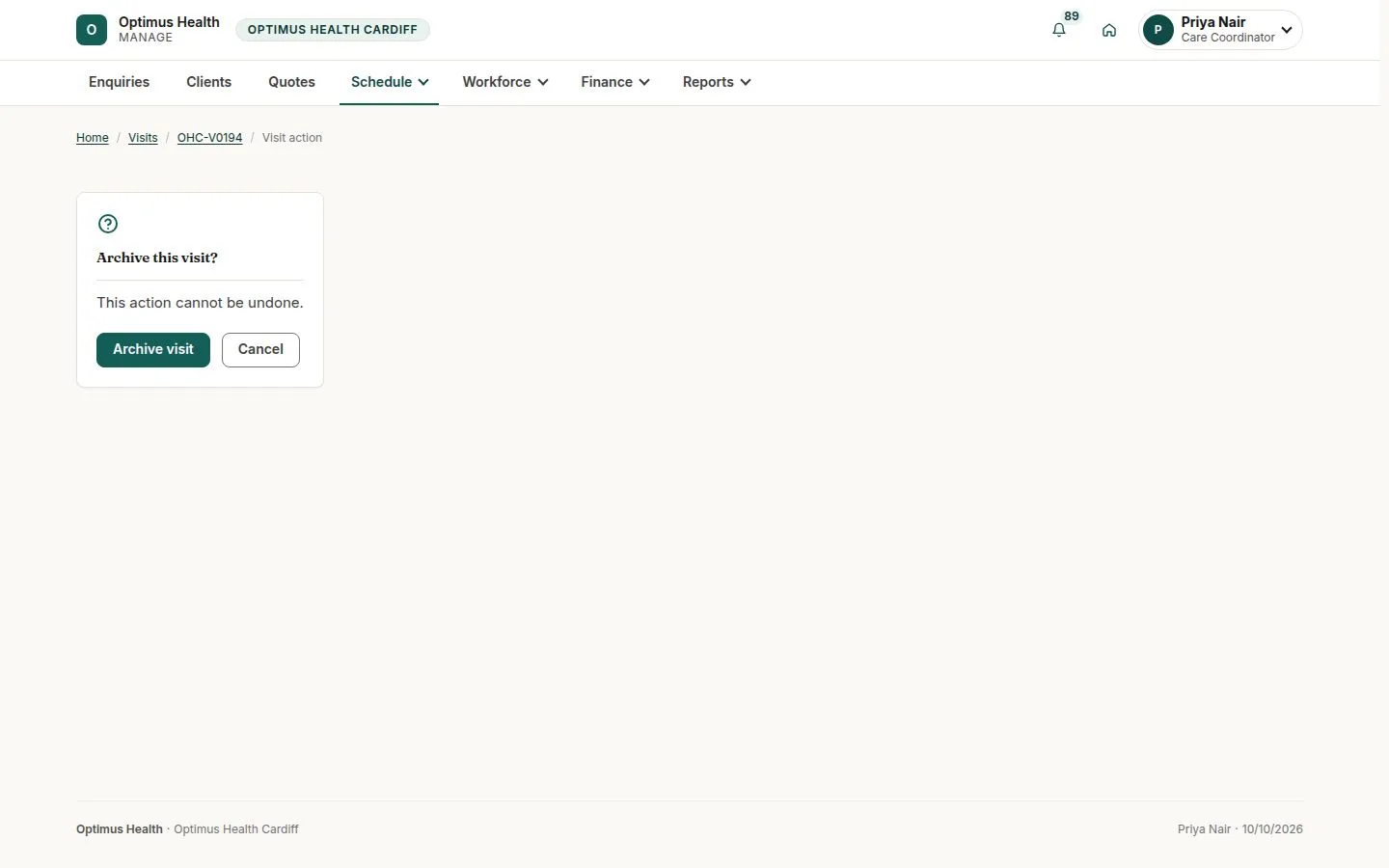
What to doOn an Approved visit whose invoice is Paid, Credited or Cancelled, use Archive visit when offered. Review the irreversible-action warning; choose Cancel to return or Archive visit to confirm.
If accepted, the visit becomes Archived. The confirmation’s Cancel link returns to the visit; it does not cancel it. Failed and Cancelled visits cannot return to Scheduled.