






Guide › Care Coordinator › Assign care workers and review completed visits
Care Coordinator
Assign care workers and review completed visits
Use the assignment checks before a visit and review the submitted outcome, records and hours afterwards.
Before you start: A care visit exists in your office. Use a visit state that offers the action you need.
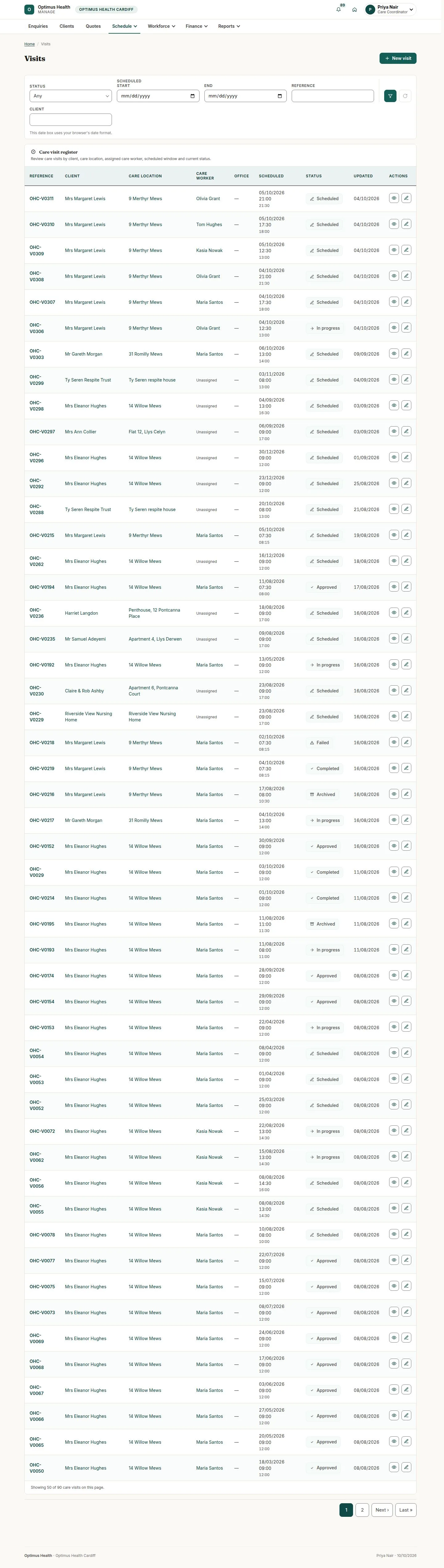
Find the visit in Visits or Calendar
Care Coordinator
Swipe across the preview to see more. Tap to enlarge.
1Step 1 of 5
What to doOpen Visits or Calendar and find the date and care location. Open the visit and check its state and current assignments.
The visit detail identifies who is assigned and which actions are available.
Review assignment candidates
Care Coordinator
Swipe across the preview to see more. Tap to enlarge.
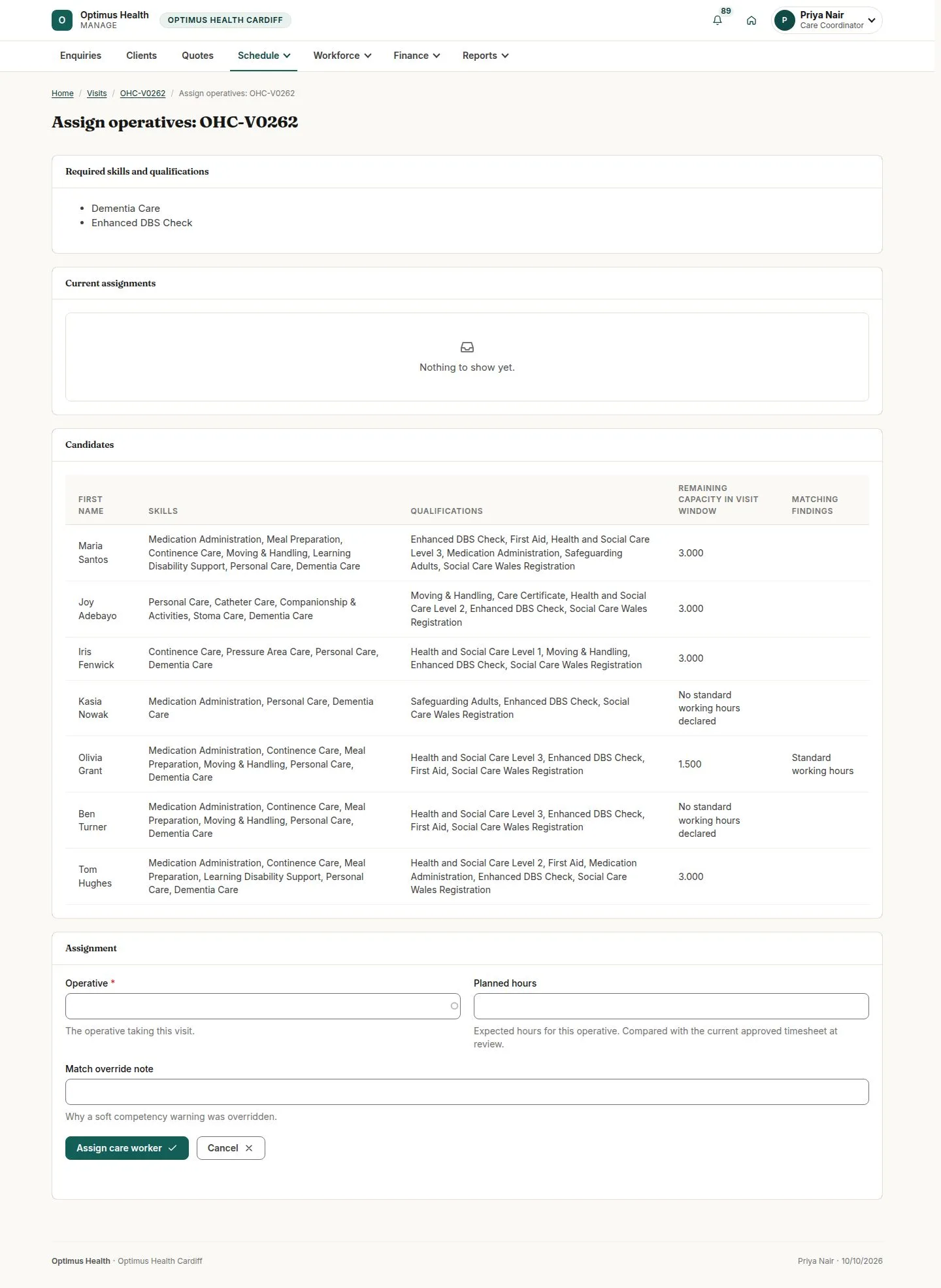
2Step 2 of 5
What to doChoose Assign care workers. Compare the visit requirements with each candidate's skills, available hours and any warnings.
The assignment screen shows suitability and availability for that visit window.
Assign the intended hours
Care Coordinator
Swipe across the preview to see more. Tap to enlarge.
3Step 3 of 5
What to doChoose the intended Care Worker under Operative and enter Planned hours. Give a Match override note only where a soft skill warning permits it. Check the selection, then choose Assign care worker.
If accepted, the assignment appears on the worker's rota. Overlapping work or hours outside availability are refused; assignments do not require worker acceptance.
Read a completed visit
Care Coordinator
Swipe across the preview to see more. Tap to enlarge.
4Step 4 of 5
What to doIn Visits, choose Completed in the status filter and open the intended record. Review its outcome, narrative, photos, documents and hours. The illustration shows the starting register; the review controls belong to the selected Completed visit.
Completed means the work has been submitted for office review; it does not yet imply office approval.
Approve or return with a reason
Care Coordinator
Swipe across the preview to see more. Tap to enlarge.
5Step 5 of 5
What to doOpen the selected Completed visit from the register. Choose Approve the completion if correct, or Return for rework with the required reason. Check that record and the confirmation before submitting the decision.
If the decision succeeds, the visit records the new state. A returned completion tells the Care Worker why further work is required.