






Guide › Headquarters › Review settings, audit and operational requests
Headquarters
Review settings, audit and operational requests
Check product settings and operational history, and follow data requests through their metadata and progress.
Before you start: Sign in as Headquarters. Use the office and request scope appropriate to the task you are authorised to perform.
Review Product settings
Headquarters
Swipe across the preview to see more. Tap to enlarge.
1Step 1 of 6
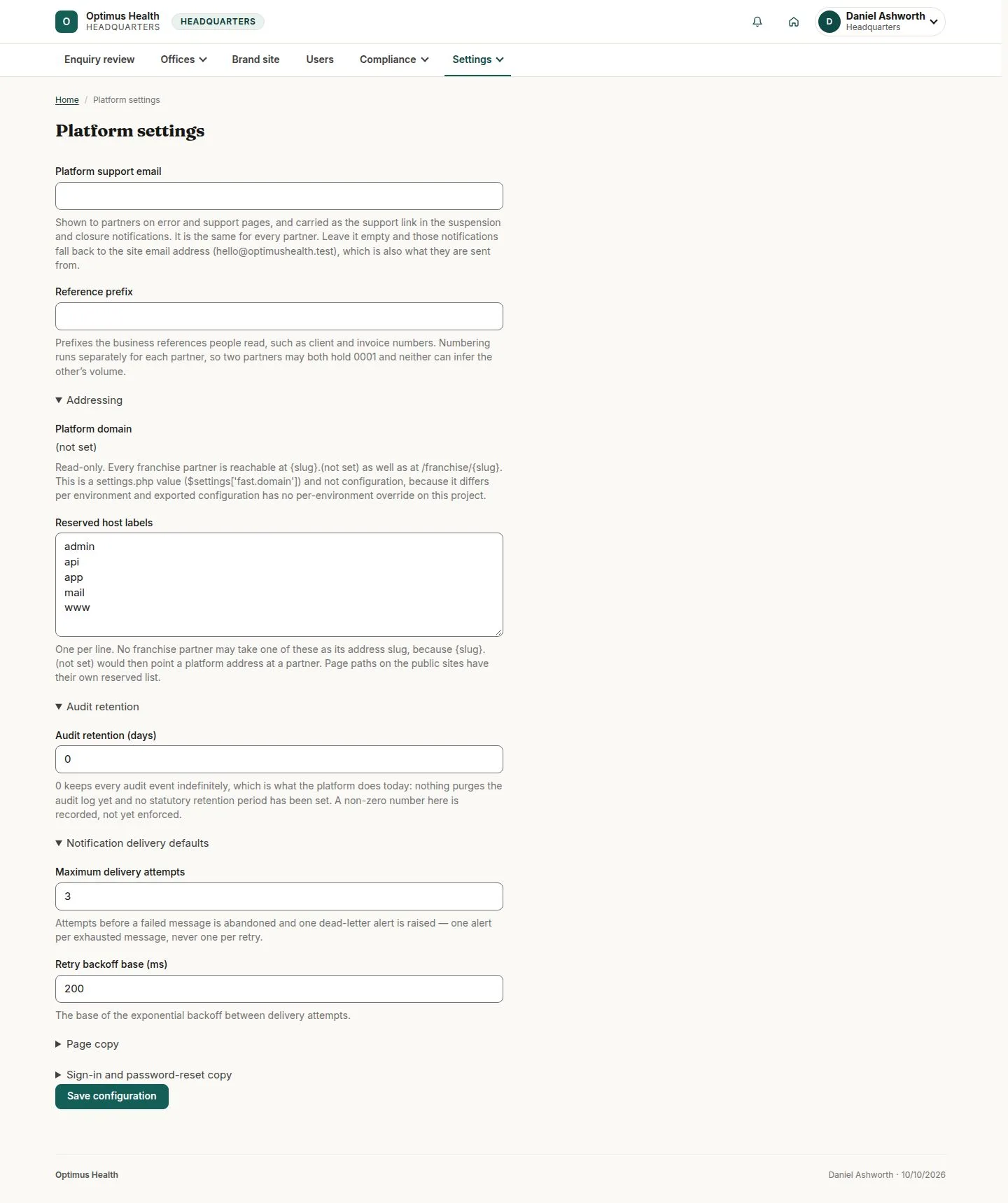
What to doOpen Product settings and read the settings and controls offered to your account. Check the intended effect before saving a change.
A successful save applies the offered product setting.
Review users and invitations
Headquarters
Swipe across the preview to see more. Tap to enlarge.
2Step 2 of 6
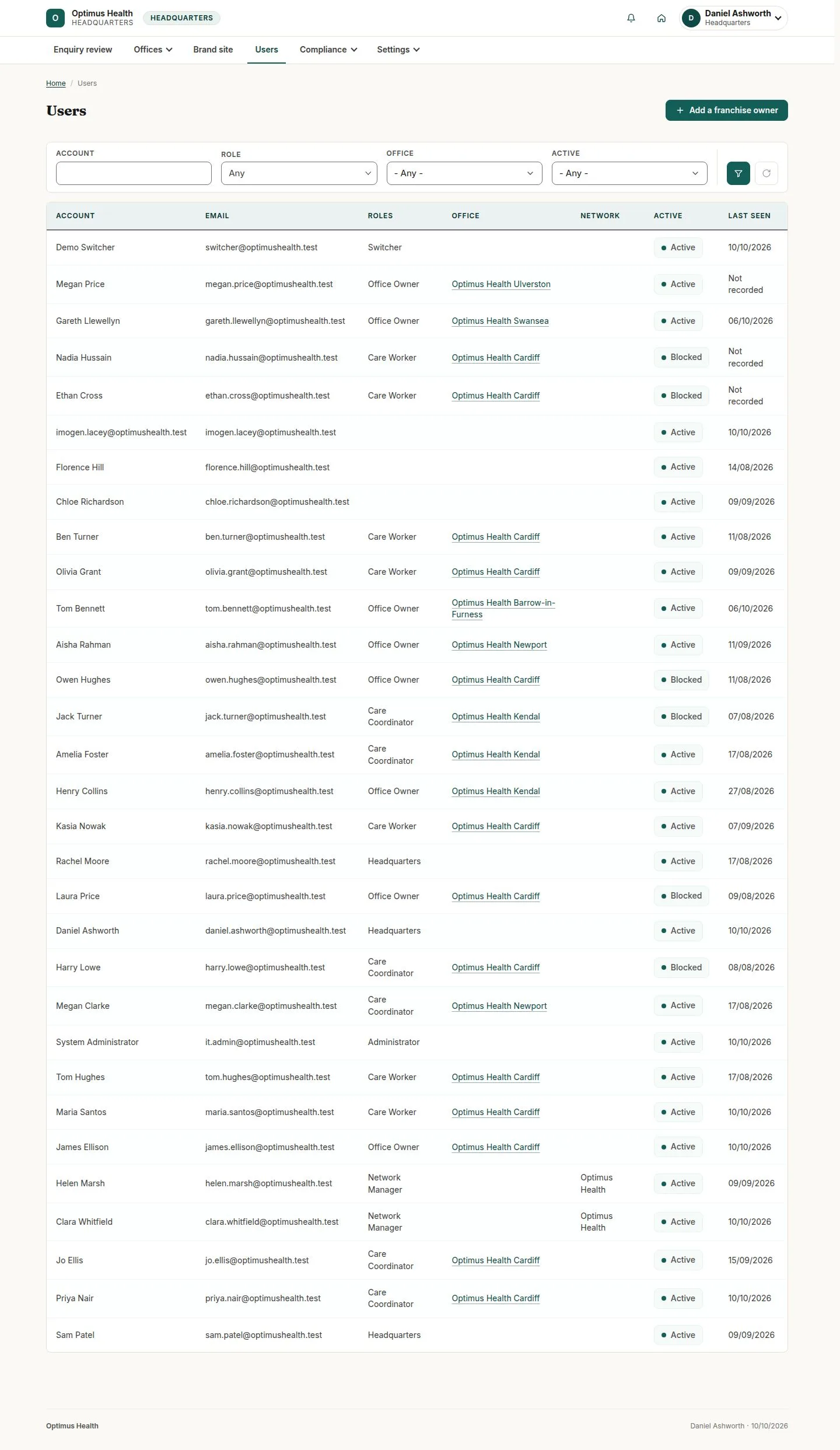
What to doOpen Users, find the account belonging to the intended office and read its role and status before using an available account action.
The register helps you check product-managed office-owner accounts without assuming all accounts have the same role or access.
Read the product audit
Headquarters
Swipe across the preview to see more. Tap to enlarge.
3Step 3 of 6
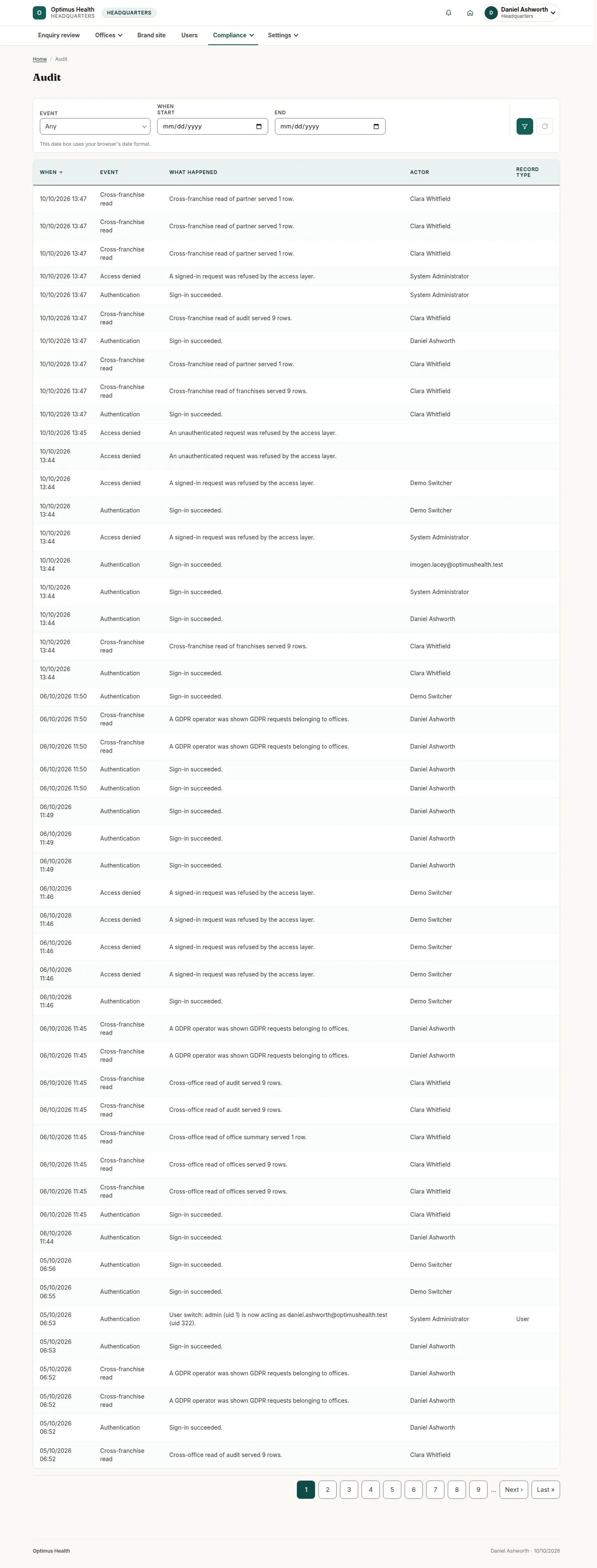
What to doOpen Compliance → Audit and apply the filters needed for the office, event or period. Read the available audit metadata.
The report records the permitted operational history in the selected scope; it does not replace the underlying business workflow.
Inspect the data-request queue
Headquarters
Swipe across the preview to see more. Tap to enlarge.
4Step 4 of 6
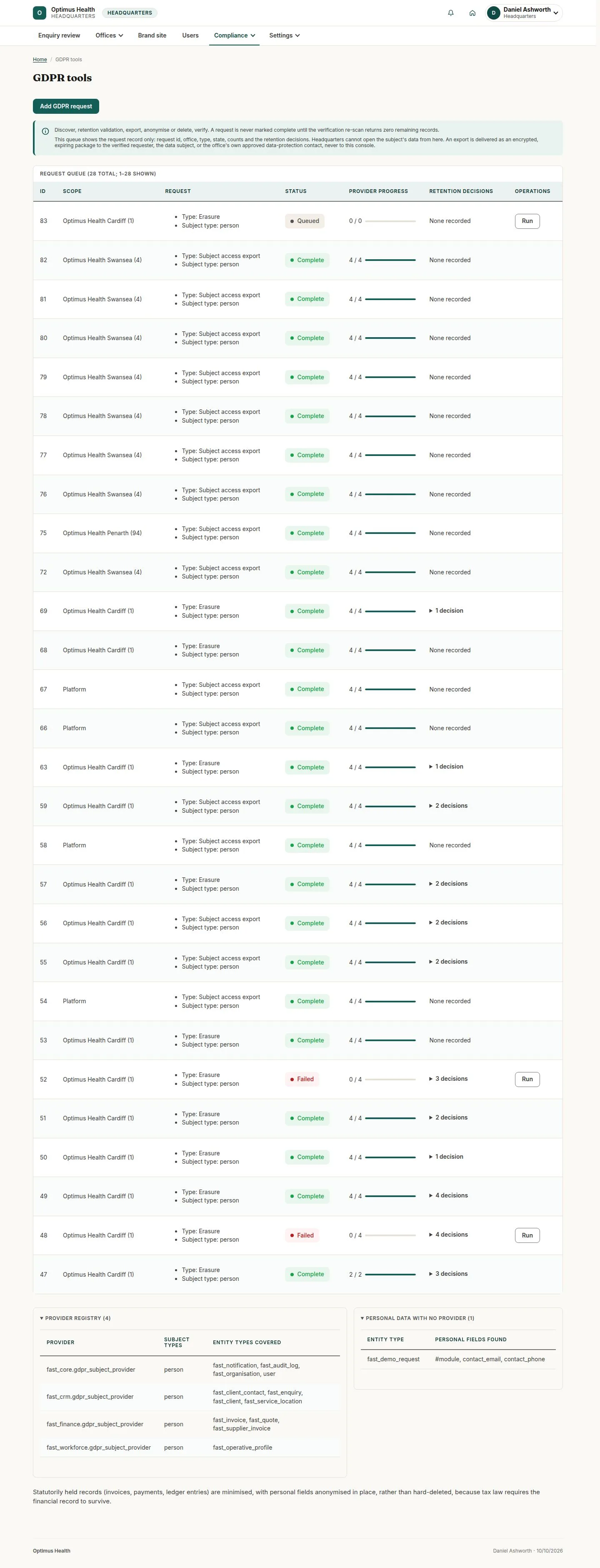
What to doOpen GDPR tools and read the office, request kind, status and provider progress.
The queue shows request metadata and progress. Headquarters sees the request without seeing the client's subject data.
Check request availability before proceeding
Headquarters
Swipe across the preview to see more. Tap to enlarge.
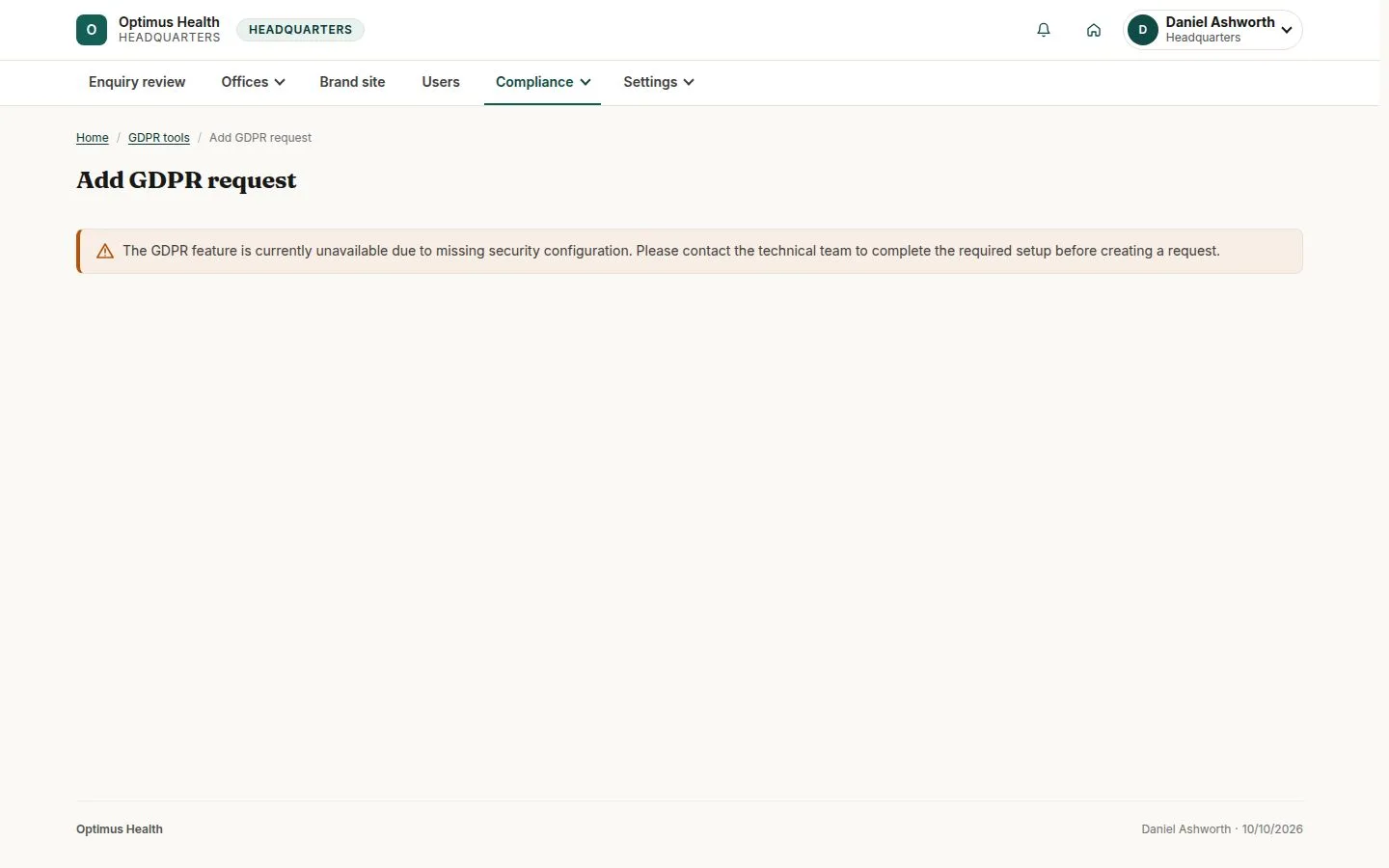
5Step 5 of 6
What to doChoose Add GDPR request and read any availability message first. If security configuration is missing, ask the technical team to complete setup. When the form is available, follow the authorised request and verification workflow.
The illustrated environment blocks new requests until security setup is complete. Opening this page creates no request; a queued or completed row elsewhere does not prove a new request can be submitted.
Follow a completed or failed request
Headquarters
Swipe across the preview to see more. Tap to enlarge.
6Step 6 of 6
What to doReturn to the request queue and read provider progress and Complete or Failed status. If a failed request offers Run, review verification again before retrying.
A successful retry resumes eligible remaining work without repeating work already completed; the queue remains the source of current status.