





Guide › Care Coordinator › Create and manage a care package schedule
Care Coordinator
Create and manage a care package schedule
Prepare recurring care visits and review what the active schedule has already generated.
Before you start: Use an active client and care location. Have the agreed recurrence, time window, hours and charges.
Review Care packages
Care Coordinator
Swipe across the preview to see more. Tap to enlarge.
1Step 1 of 5
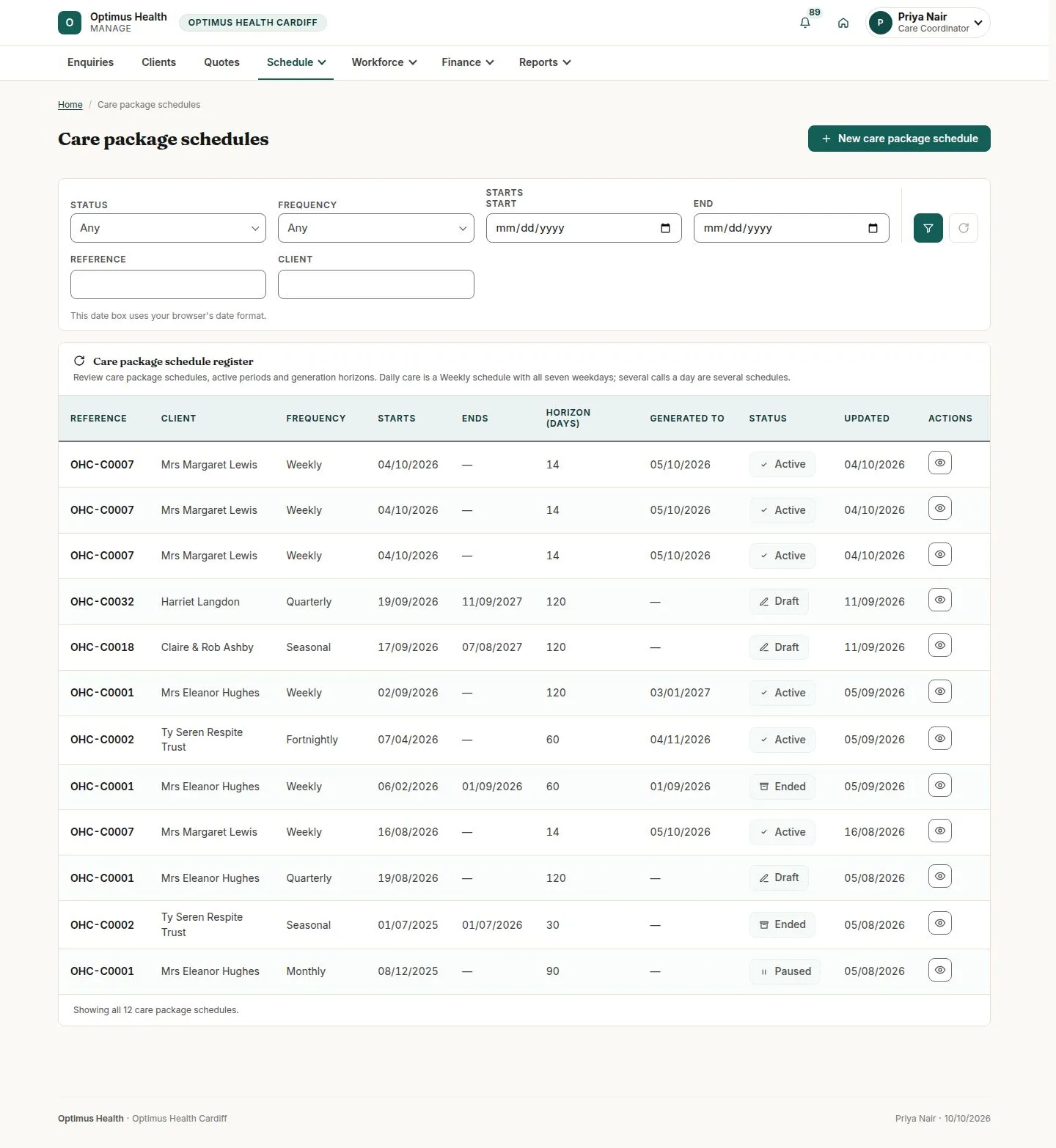
What to doOpen Care packages and check schedule status, recurrence, dates and Generated to.
The list identifies active, draft, paused or ended schedules and how far visits have been generated.
Prepare the recurring visits
Care Coordinator
Swipe across the preview to see more. Tap to enlarge.
2Step 2 of 5
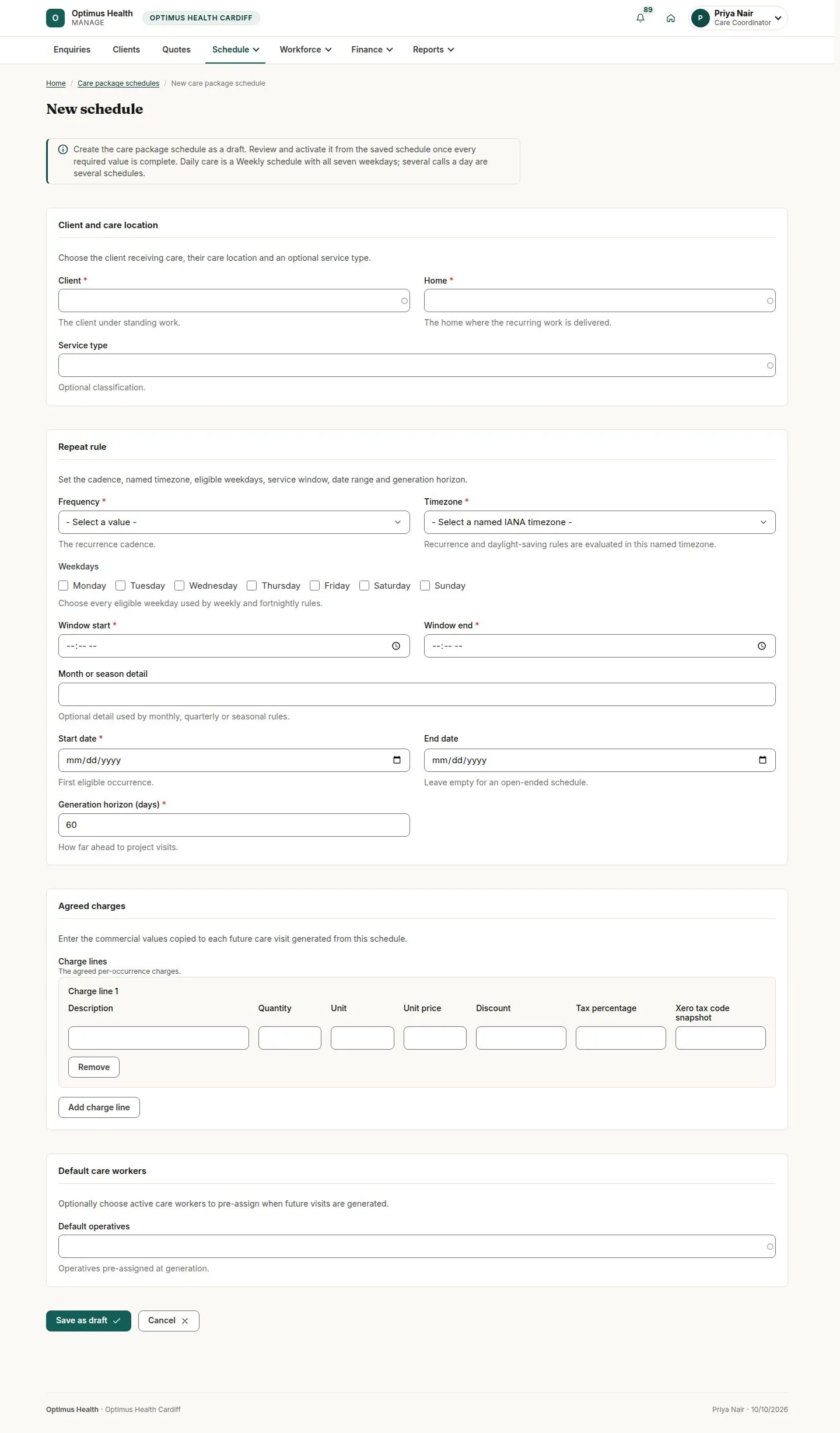
What to doChoose New care package schedule. Select the client and care location, choose the offered Weekly or Fortnightly recurrence, and enter the time window, start date and optional end date.
The form describes when care should recur; it has not generated visits merely by being opened.
Add hours, charges and the usual worker
Care Coordinator
Swipe across the preview to see more. Tap to enlarge.
3Step 3 of 5
What to doEnter the agreed hours and office-approved charge and tax details. Select the usual Care Worker if applicable, then use Save as draft after reviewing the form.
A successful draft save creates the schedule without creating visits yet.
Review the draft before activation
Care Coordinator
Swipe across the preview to see more. Tap to enlarge.
4Step 4 of 5
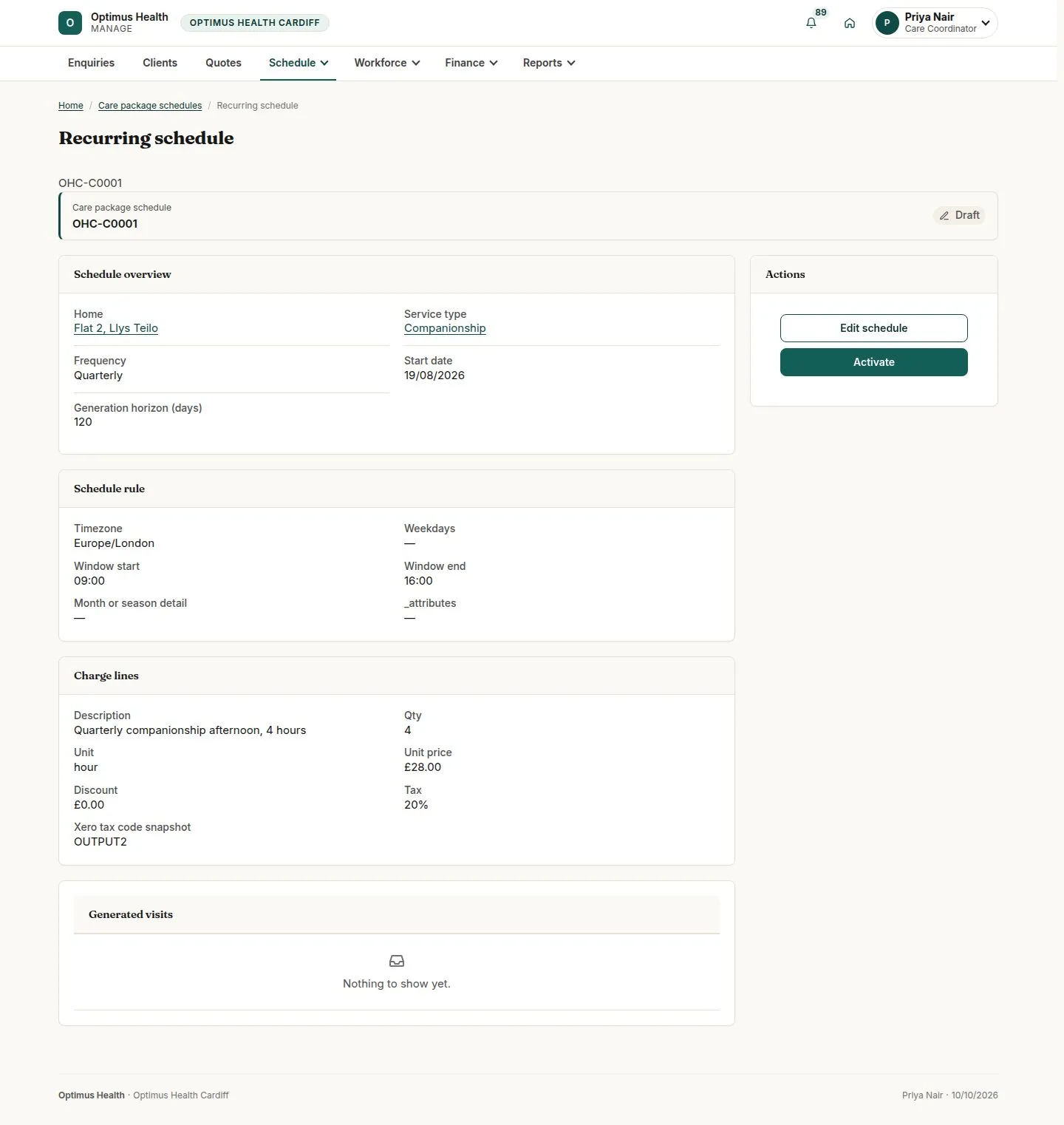
What to doOpen the saved draft and check the client, location, charges and repeat rule. Correct any unsupported recurrence before using Activate; review its confirmation and missing prerequisites.
If activation succeeds, the schedule can generate visits. The illustrated older draft uses Quarterly and needs correction: supported generation uses Weekly or Fortnightly.
Pause, resume or end the schedule deliberately
Care Coordinator
Swipe across the preview to see more. Tap to enlarge.
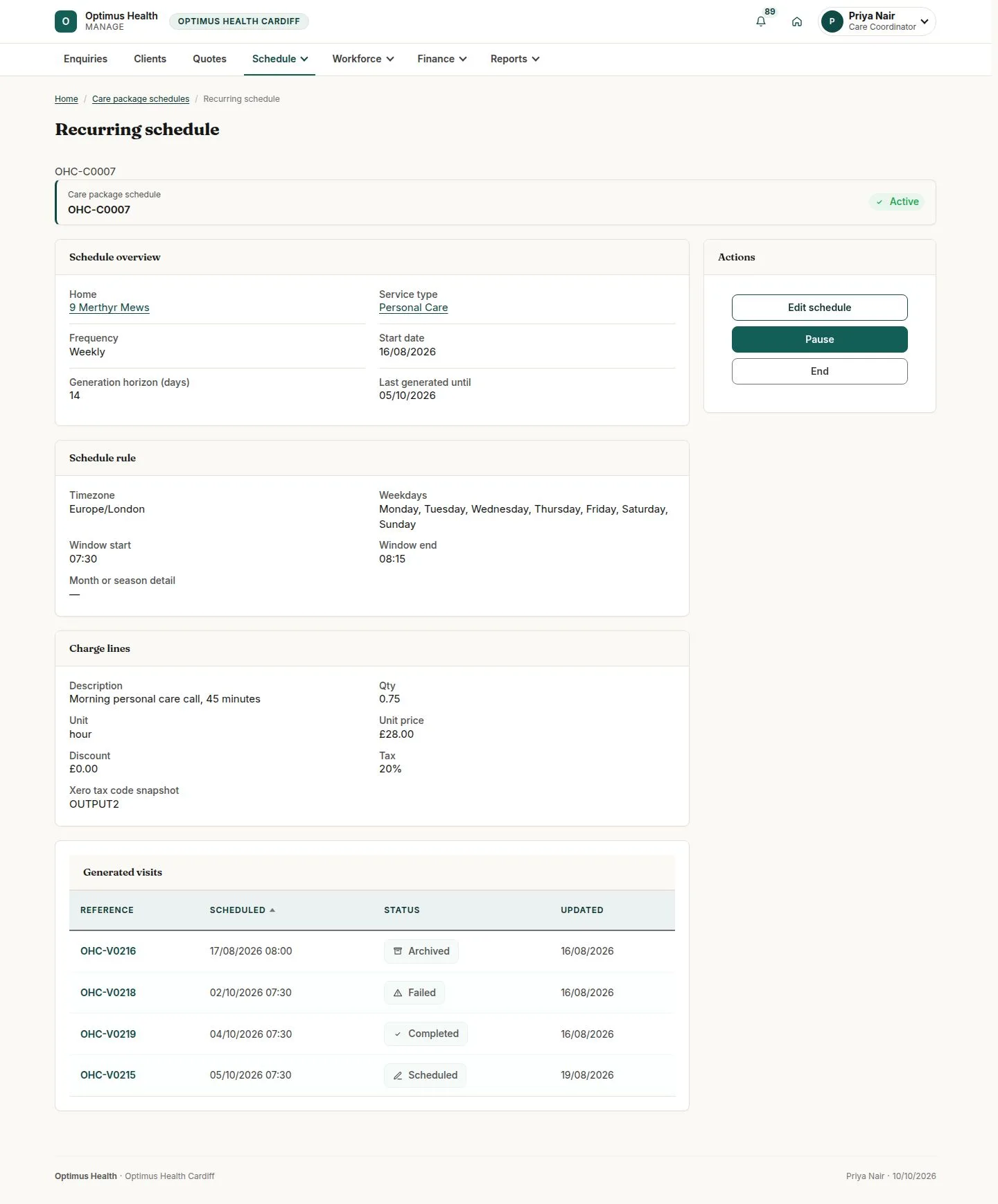
5Step 5 of 5
What to doReview the generated visits and use Pause, Resume or End only for the required change, following the offered confirmation.
A successful pause or end stops future generation as described by the action; already-created visits remain on the calendar and keep their copied charges.