






Guide › Network Manager › Review network offices and export aggregate figures
Network Manager
Review network offices and export aggregate figures
Compare office status and activity without opening or changing the records behind the totals.
Before you start: Sign in as the Network Manager for the network you intend to review.
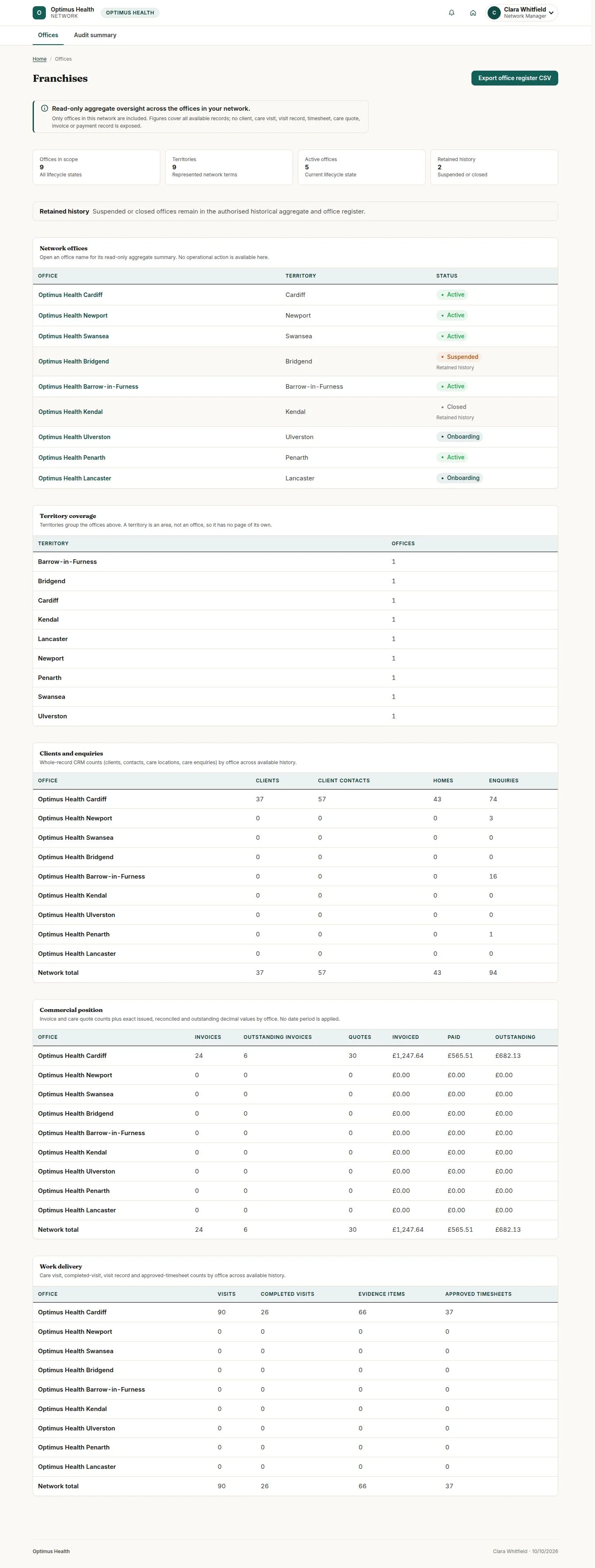
Read the Offices overview
Network Manager
Swipe across the preview to see more. Tap to enlarge.
1Step 1 of 4
What to doOpen Offices and review the status and aggregate columns for the offices in your network.
The overview shows network offices and their totals; it does not provide the client or visit records behind those totals.
Open one office summary
Network Manager
Swipe across the preview to see more. Tap to enlarge.
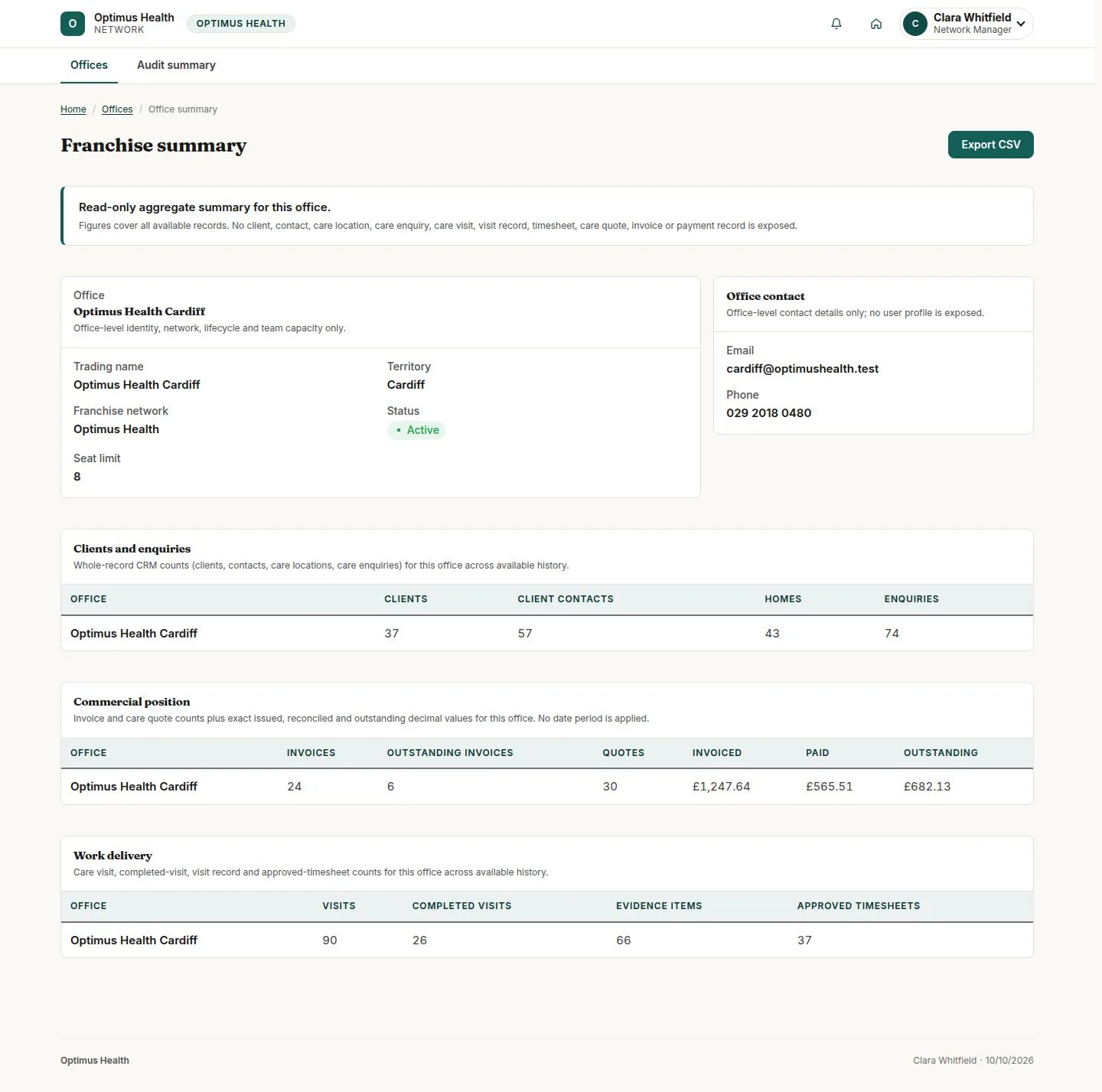
2Step 2 of 4
What to doChoose an office and read its territory, status, seat limit, contact details and aggregate activity.
The office summary is read-only and limited to the office information and figures available to your network.
Read the network audit summary
Network Manager
Swipe across the preview to see more. Tap to enlarge.
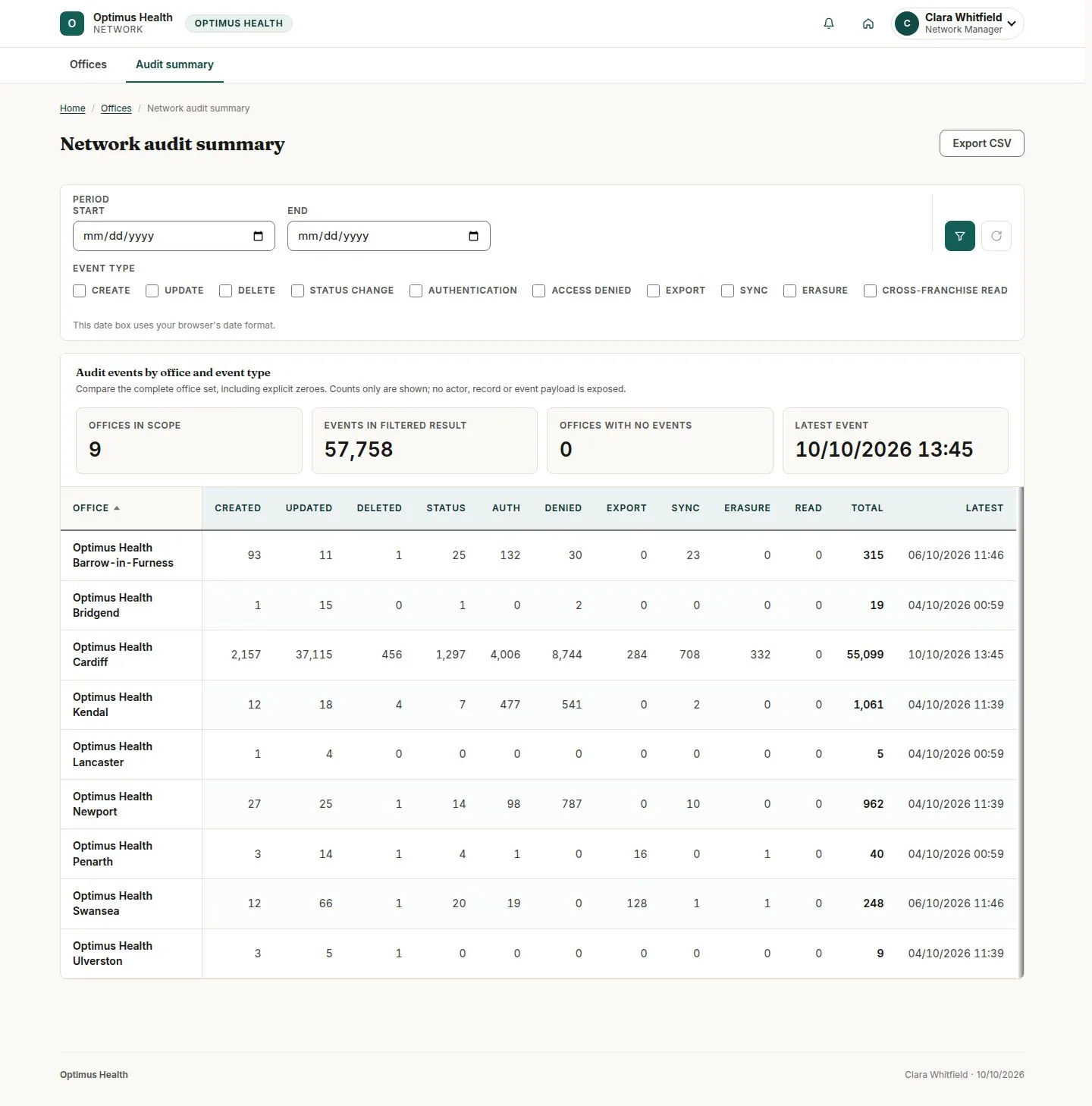
3Step 3 of 4
What to doOpen the network audit page and compare event counts by office and kind.
The report shows aggregate counts rather than names, subjects or individual audit records.
Export the visible summary
Network Manager
Swipe across the preview to see more. Tap to enlarge.
4Step 4 of 4
What to doUse Export CSV on the overview, office summary or audit page you intend to download.
The downloaded file contains the permitted aggregate scope shown by that report.