





Guide › Office Owner › Follow the care workflow from enquiry to payment
Office Owner
Follow the care workflow from enquiry to payment
Use the office screens to see where work is waiting and what the Care Coordinator needs to do next.
Before you start: Sign in as the Office Owner. Use an existing record in the stage you need to review.
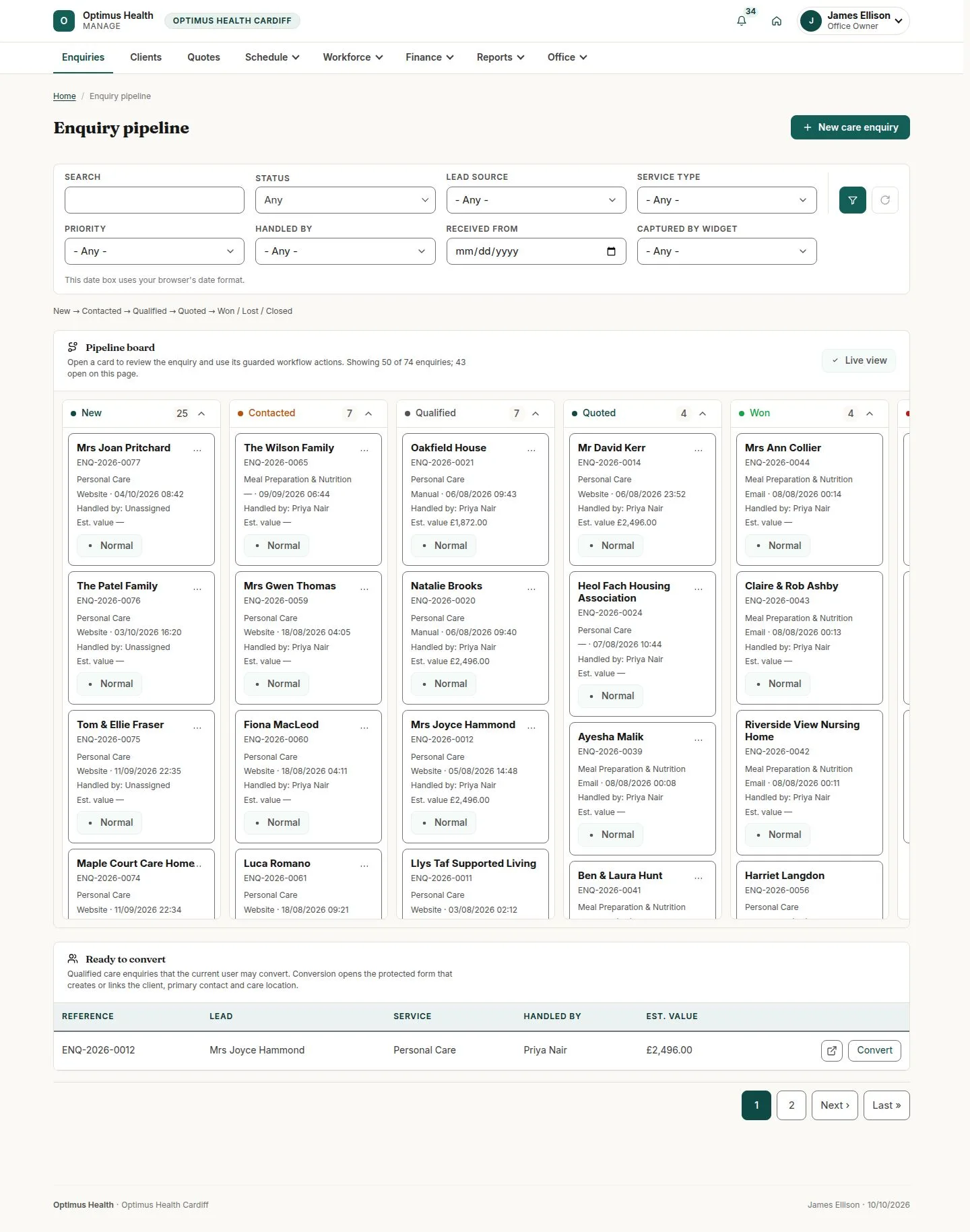
Start in Enquiries
Office Owner
Swipe across the preview to see more. Tap to enlarge.
1Step 1 of 6
What to doOpen the Enquiry pipeline and review the stage and handler on the relevant enquiry. Use Reassign handler only when another colleague should take responsibility and supply its reason.
The enquiry stage shows the next permitted move; a successful reassignment records the new handler and reason.
Check the quote
Office Owner
Swipe across the preview to see more. Tap to enlarge.
2Step 2 of 6
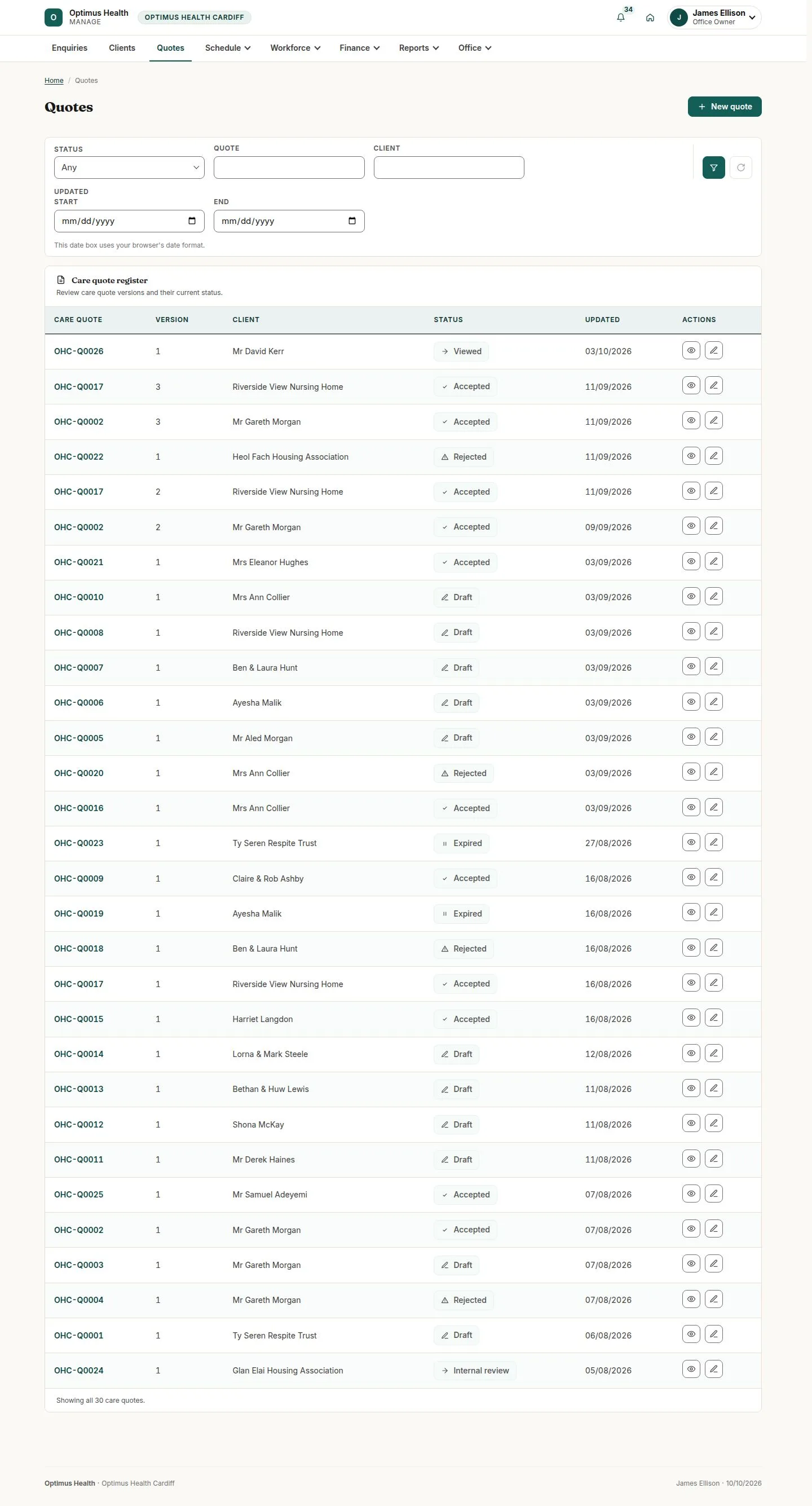
What to doOpen Quotes and the relevant care quote. Read its status, version and available actions before asking for review or delivery.
You can tell whether the offer is Draft, Internal review, Sent, Viewed or decided; a sent version is preserved.
Check schedules and generated visits
Office Owner
Swipe across the preview to see more. Tap to enlarge.
3Step 3 of 6
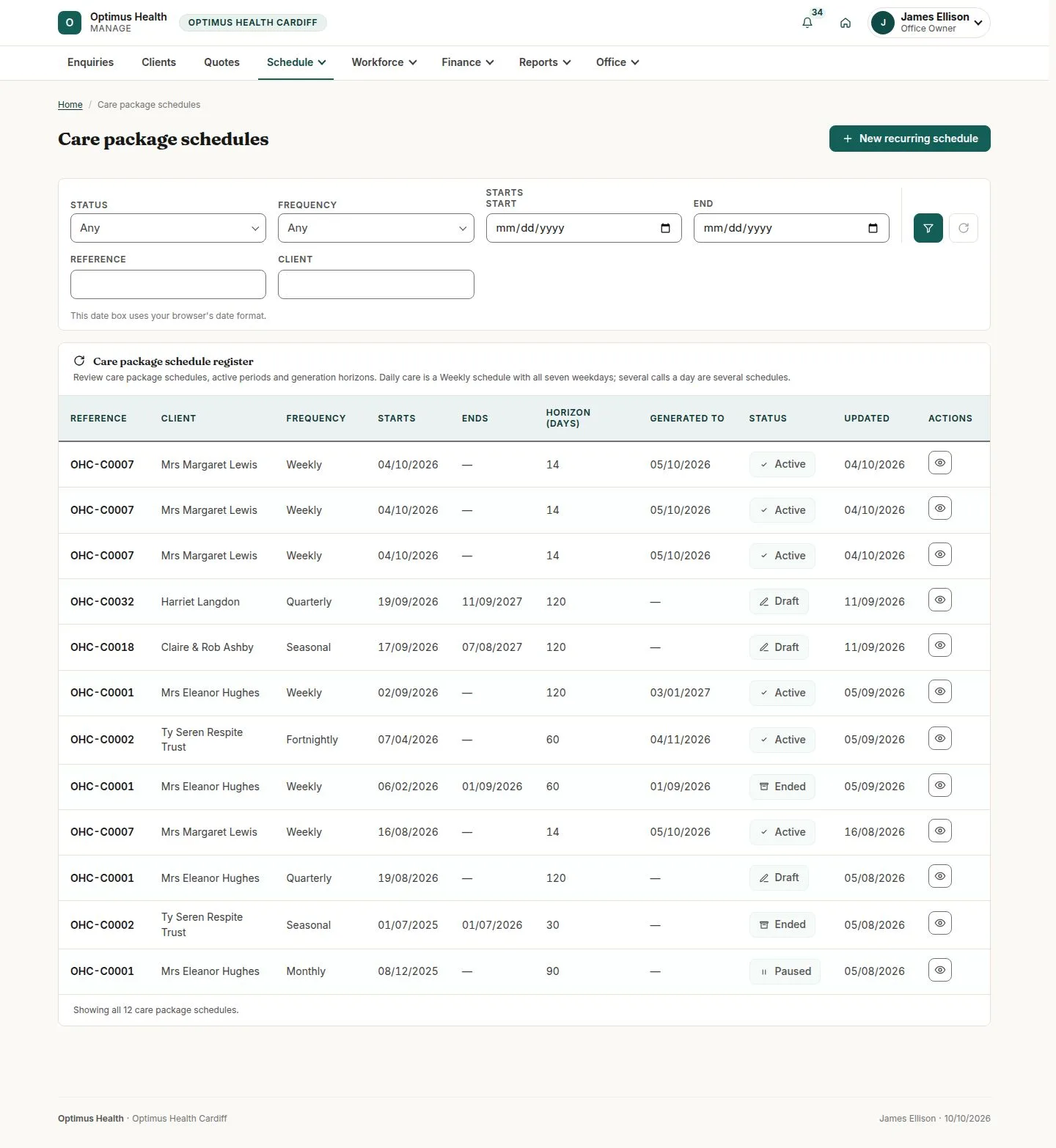
What to doOpen Care packages and review the schedule status, recurrence and Generated to date.
The schedule shows whether it is producing visits and how far generation has reached; already-created visits keep their copied charges.
Review delivery of care
Office Owner
Swipe across the preview to see more. Tap to enlarge.
4Step 4 of 6
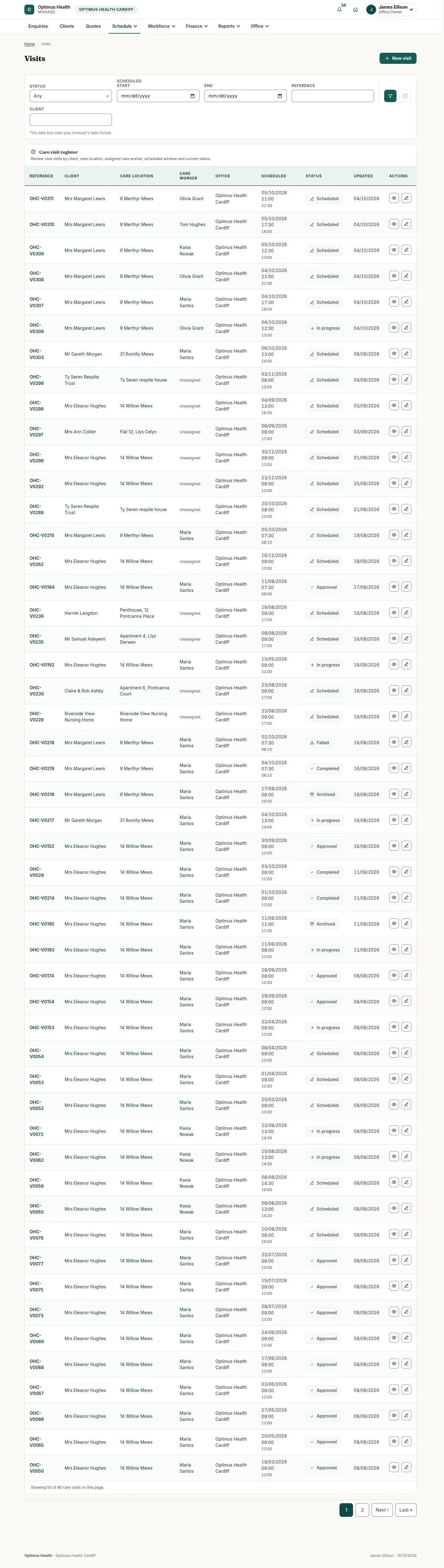
What to doOpen Visits or Calendar. Check assignment, outcome and completion status on the care visit that needs attention.
A completed visit can be reviewed by the office; approval or return is available only in the appropriate state.
Review the hours awaiting approval
Office Owner
Swipe across the preview to see more. Tap to enlarge.
5Step 5 of 6
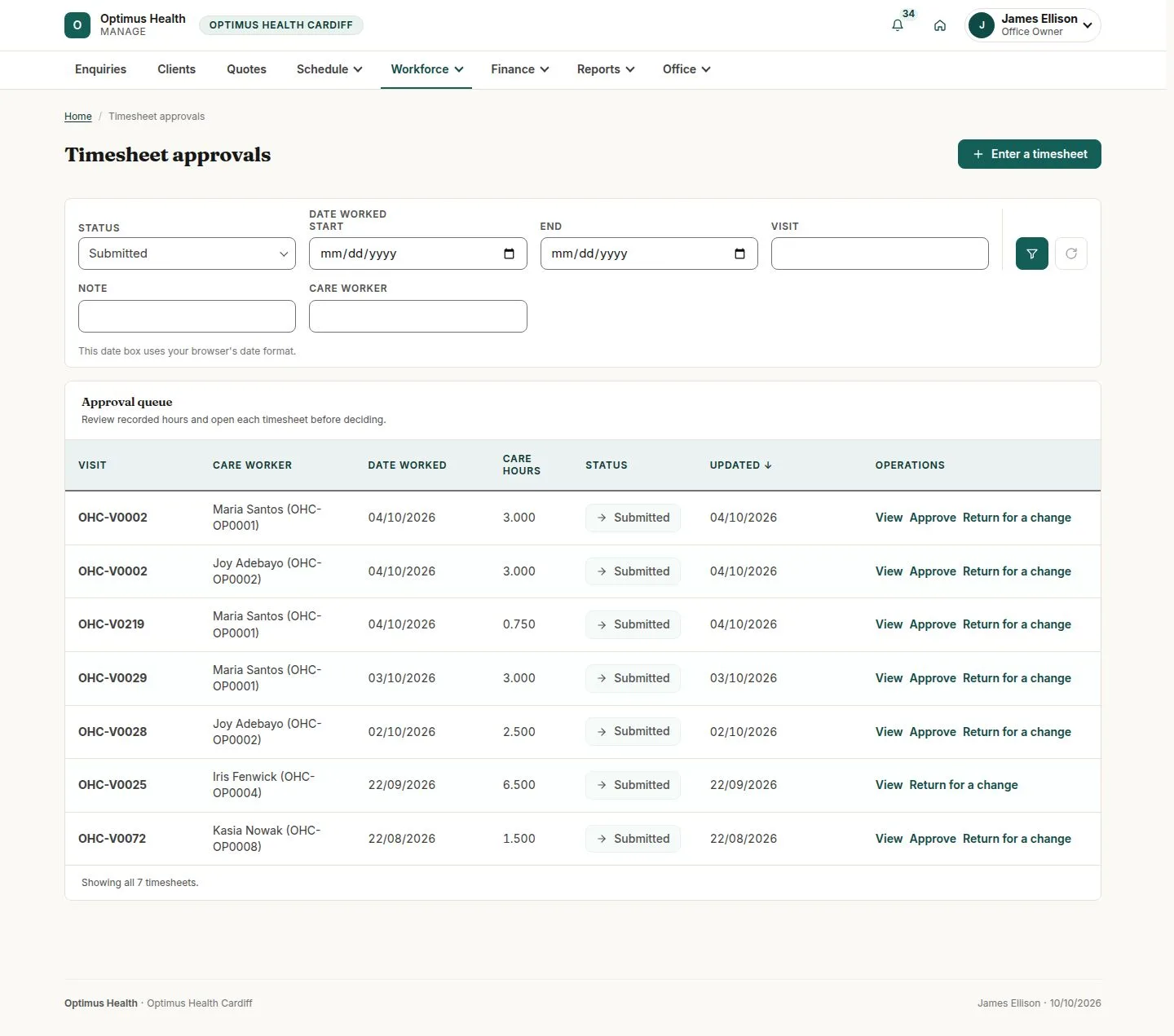
What to doOpen Timesheet approvals and compare waiting claims with the care visit before approving or returning them.
Approved hours and costs are locked; returned claims go back to the Care Worker with the office's reason.
Follow the invoice and payment
Office Owner
Swipe across the preview to see more. Tap to enlarge.
6Step 6 of 6
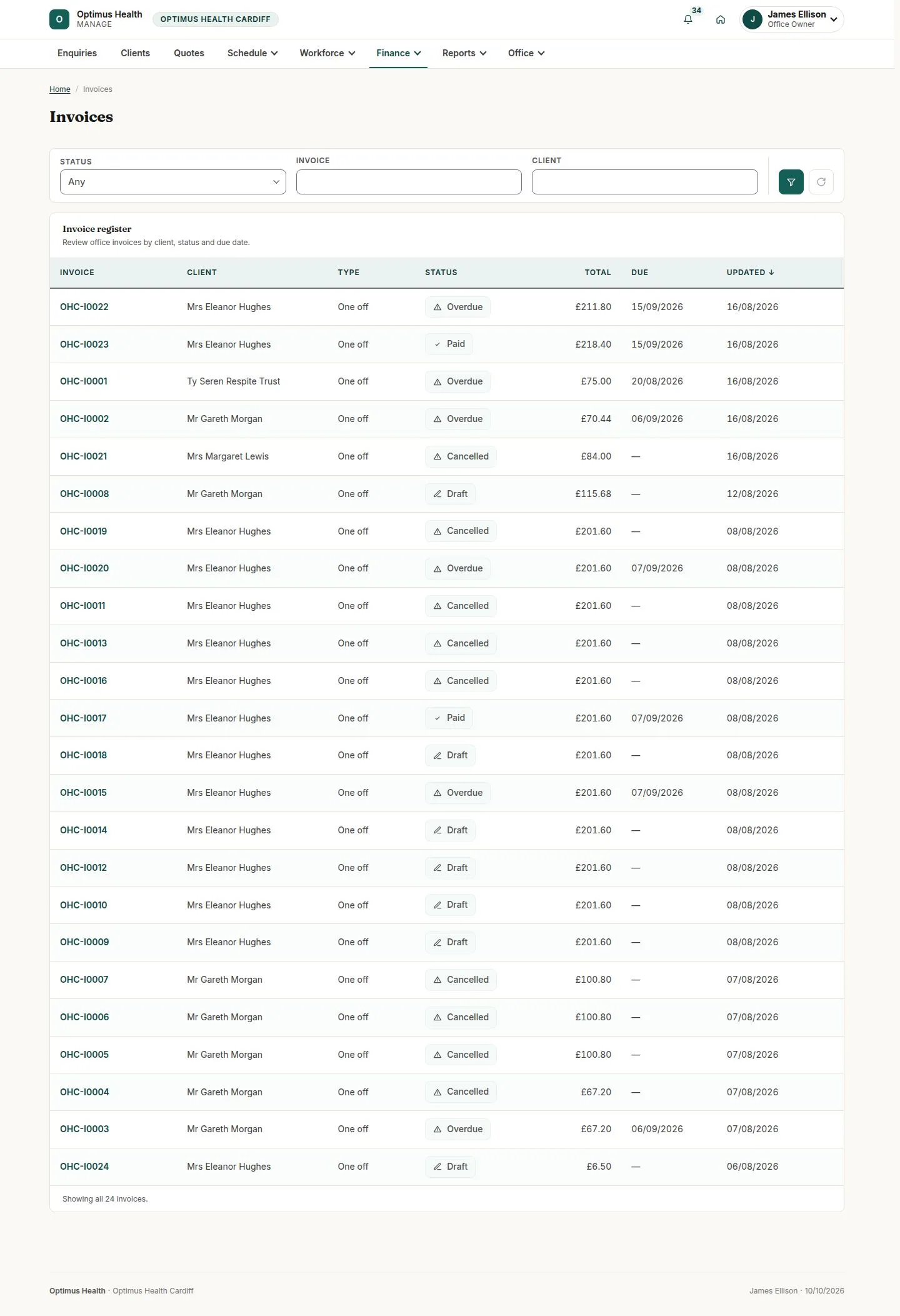
What to doOpen Invoices and review its status, delivery and outstanding amount. Use Payments to investigate money that has not matched automatically.
You can see whether the work has reached invoicing and whether payment remains outstanding; successful payment updates arrive through the finance workflow.