






Guide › Office Owner › Maintain your office and team accounts
Office Owner
Maintain your office and team accounts
Keep the office contact details current and give the right colleagues access within the office seat limit.
Before you start: Sign in as the Office Owner for the office you need to maintain.
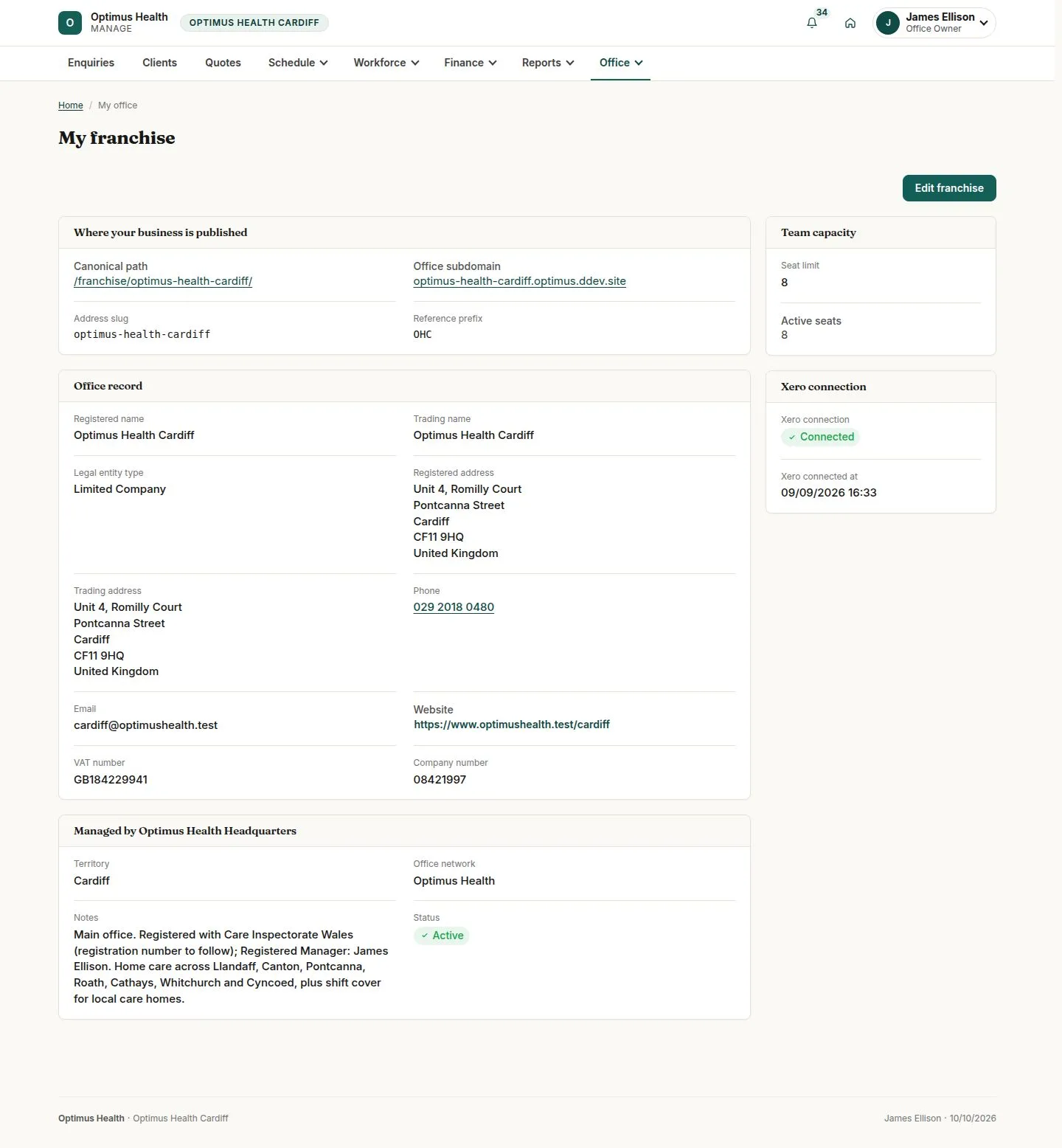
Check My office
Office Owner
Swipe across the preview to see more. Tap to enlarge.
1Step 1 of 6
What to doOpen Office → My office and read the public address, contact details, territory and office status.
You can see the office information and the details Headquarters controls, including territory, network, status and seat limit.
Edit office contact details
Office Owner
Swipe across the preview to see more. Tap to enlarge.
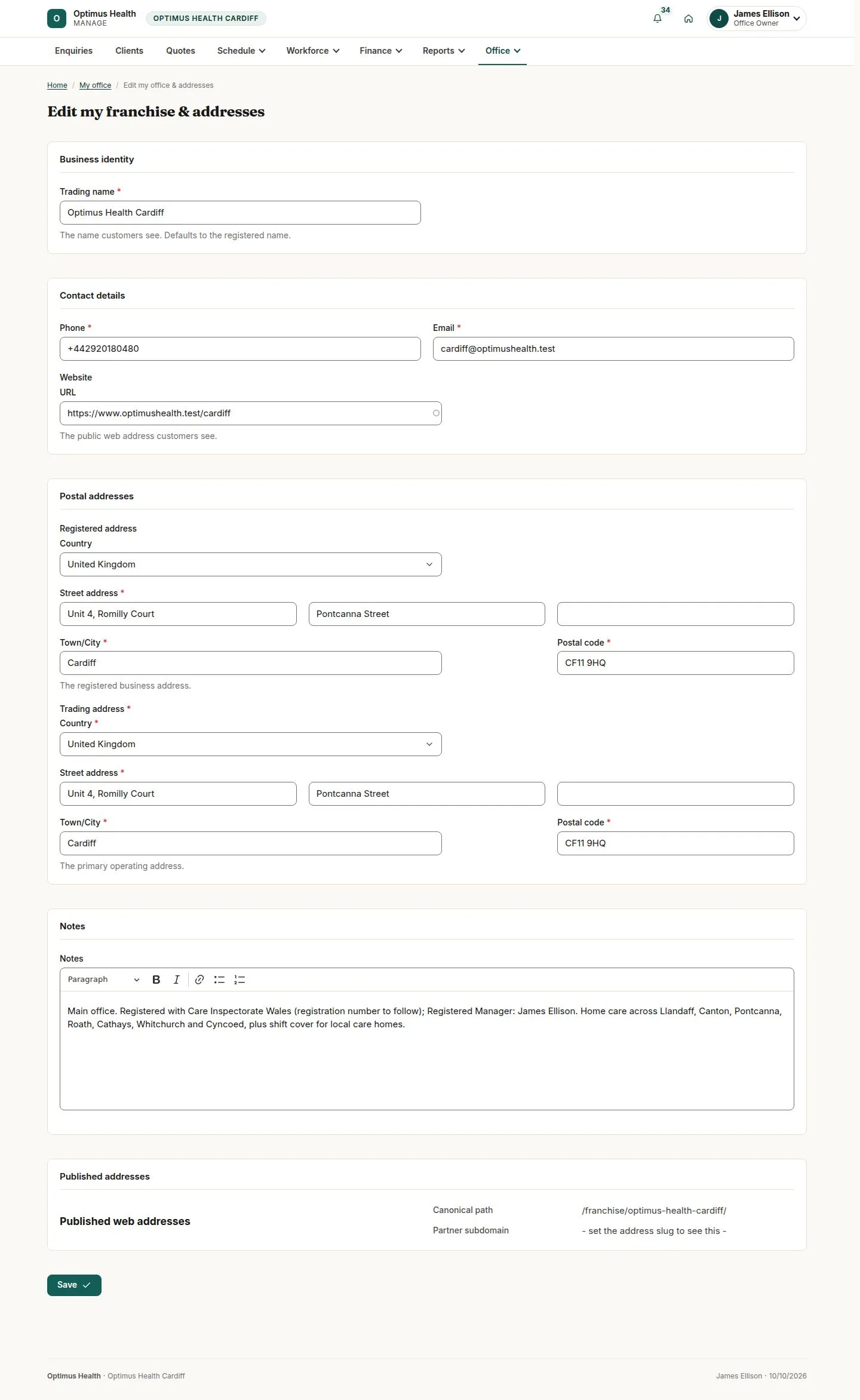
2Step 2 of 6
What to doChoose Edit office. Update the offered trading and contact details and addresses, then save when they are correct.
After a successful save, the updated editable details appear on the office. Headquarters-controlled fields remain outside this form.
Review Team accounts
Office Owner
Swipe across the preview to see more. Tap to enlarge.
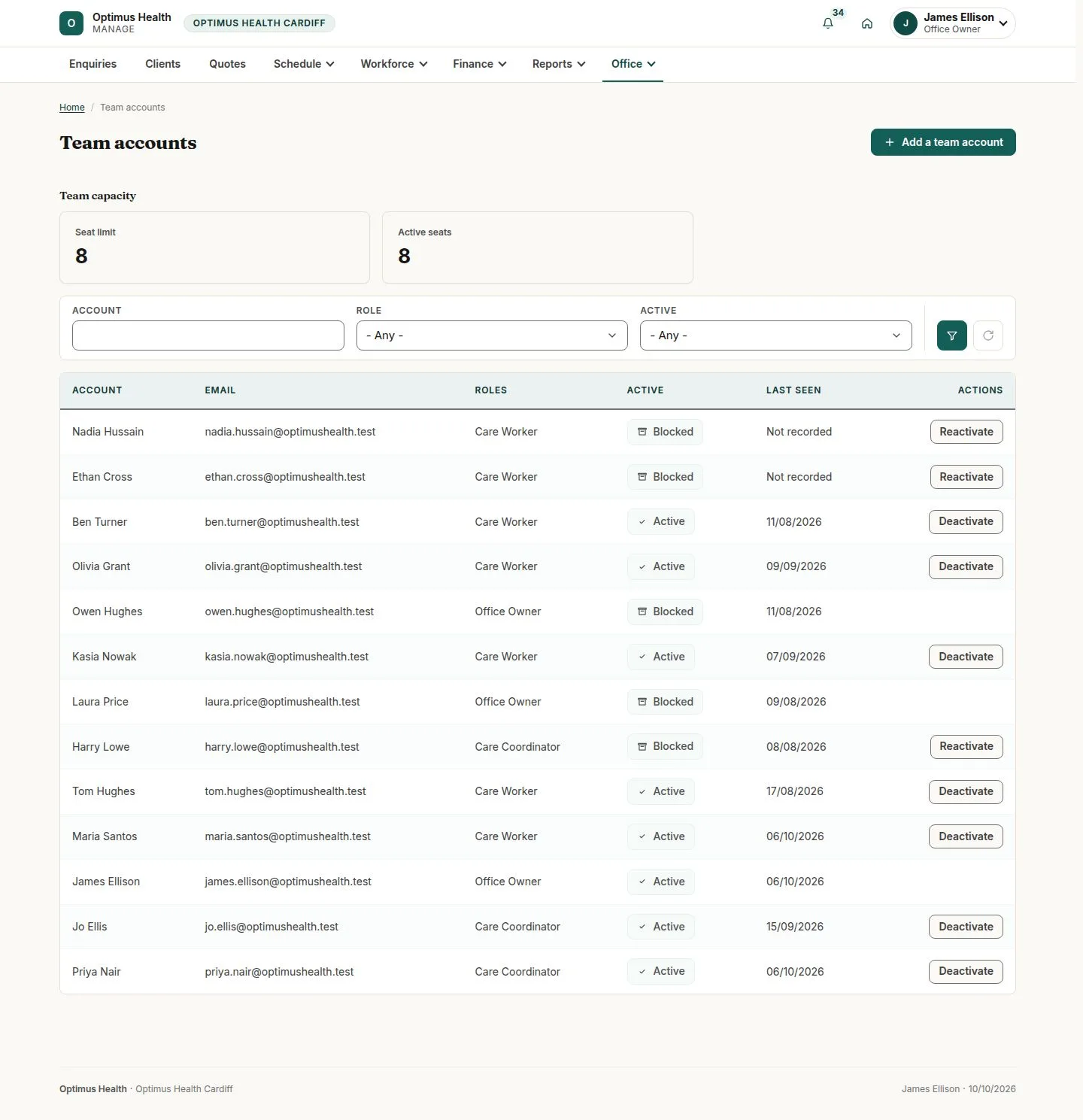
3Step 3 of 6
What to doOpen Team accounts and check each account's role, status and the seats in use.
The list shows the team accounts for your office and the available seat capacity.
Invite a colleague
Office Owner
Swipe across the preview to see more. Tap to enlarge.
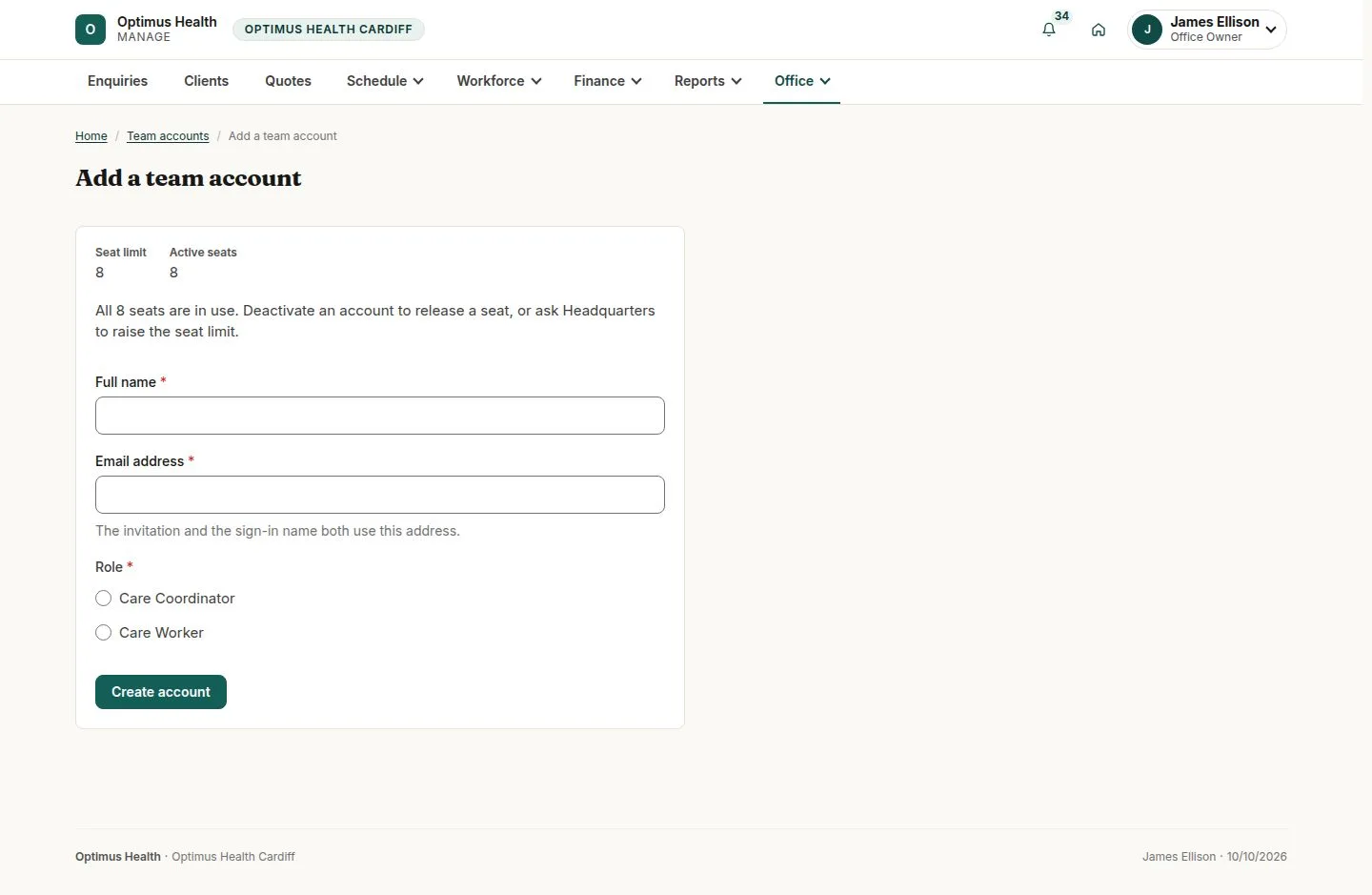
4Step 4 of 6
What to doChoose Add a team account. Enter the colleague's details and choose Care Coordinator or Care Worker. Submit only when the account and role are correct.
If there is seat capacity and validation succeeds, the new colleague receives an invitation. If the seat limit is reached, the form explains that the account cannot be added.
Deactivate an account when someone leaves
Office Owner
Swipe across the preview to see more. Tap to enlarge.
5Step 5 of 6
What to doOn Team accounts, choose Deactivate for the departing colleague, review the confirmation and give the required reason before confirming.
A successful deactivation blocks that account's sign-in and frees its seat while preserving its record history.
Review access before reactivation
Office Owner
Swipe across the preview to see more. Tap to enlarge.
6Step 6 of 6
What to doUse Reactivate only for the colleague you intend to restore. Check the role and seat capacity and complete the offered confirmation.
If reactivation succeeds, the colleague can sign in again; the team list reflects the new status.