






Guide › Office Owner › Put an enquiry widget on another website
Office Owner
Put an enquiry widget on another website
Prepare an office enquiry form for an approved external website and keep its enquiries in the normal office pipeline.
Before you start: Sign in as the Office Owner. Know the website origins allowed to embed the form.
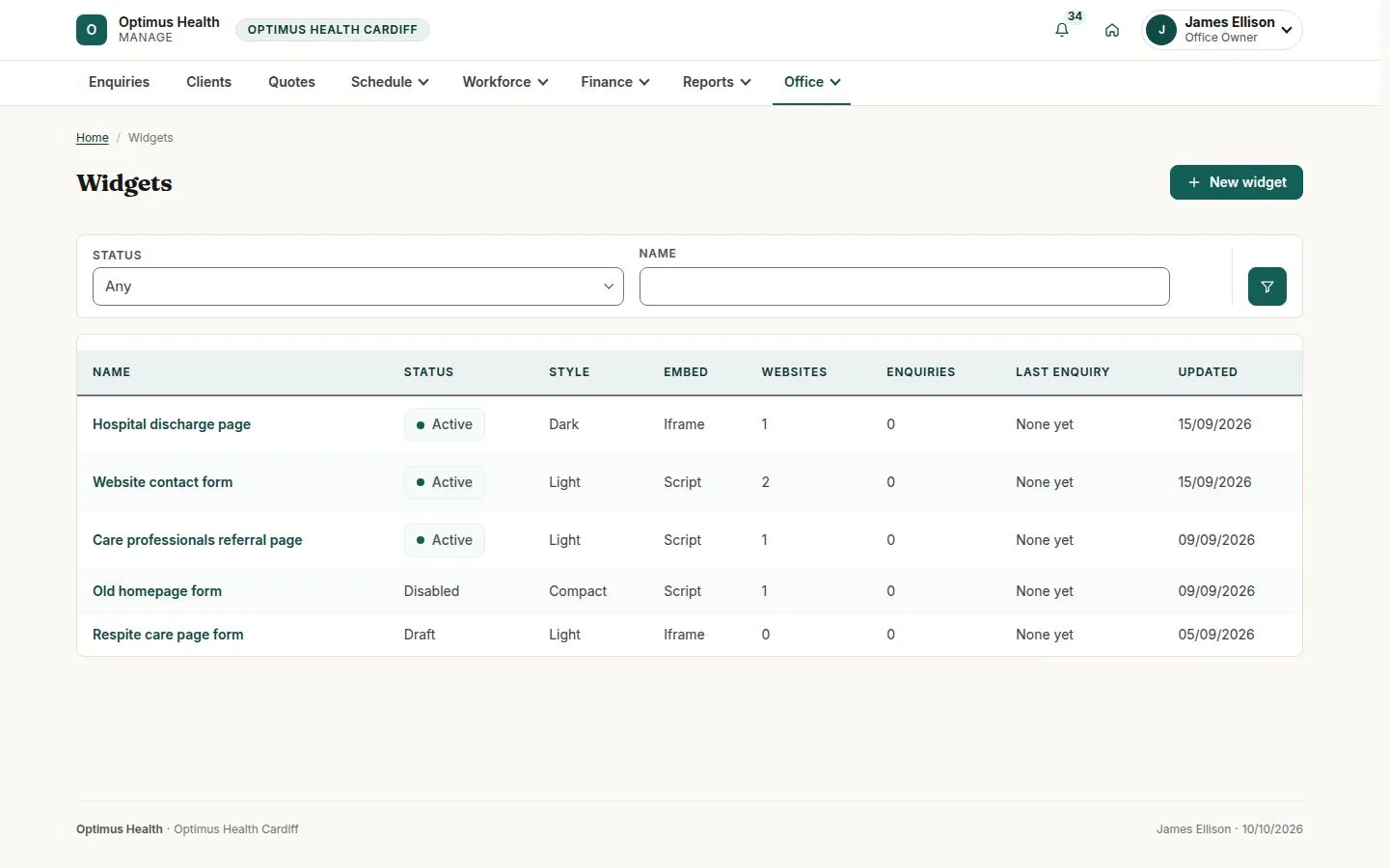
Review the Widgets list
Office Owner
Swipe across the preview to see more. Tap to enlarge.
1Step 1 of 4
What to doOpen Office → Widgets. Check the widget status, enquiry count and most recent enquiry for the placement you need.
Each widget represents a placement; its status tells you whether it is available to visitors.
Prepare a new widget
Office Owner
Swipe across the preview to see more. Tap to enlarge.
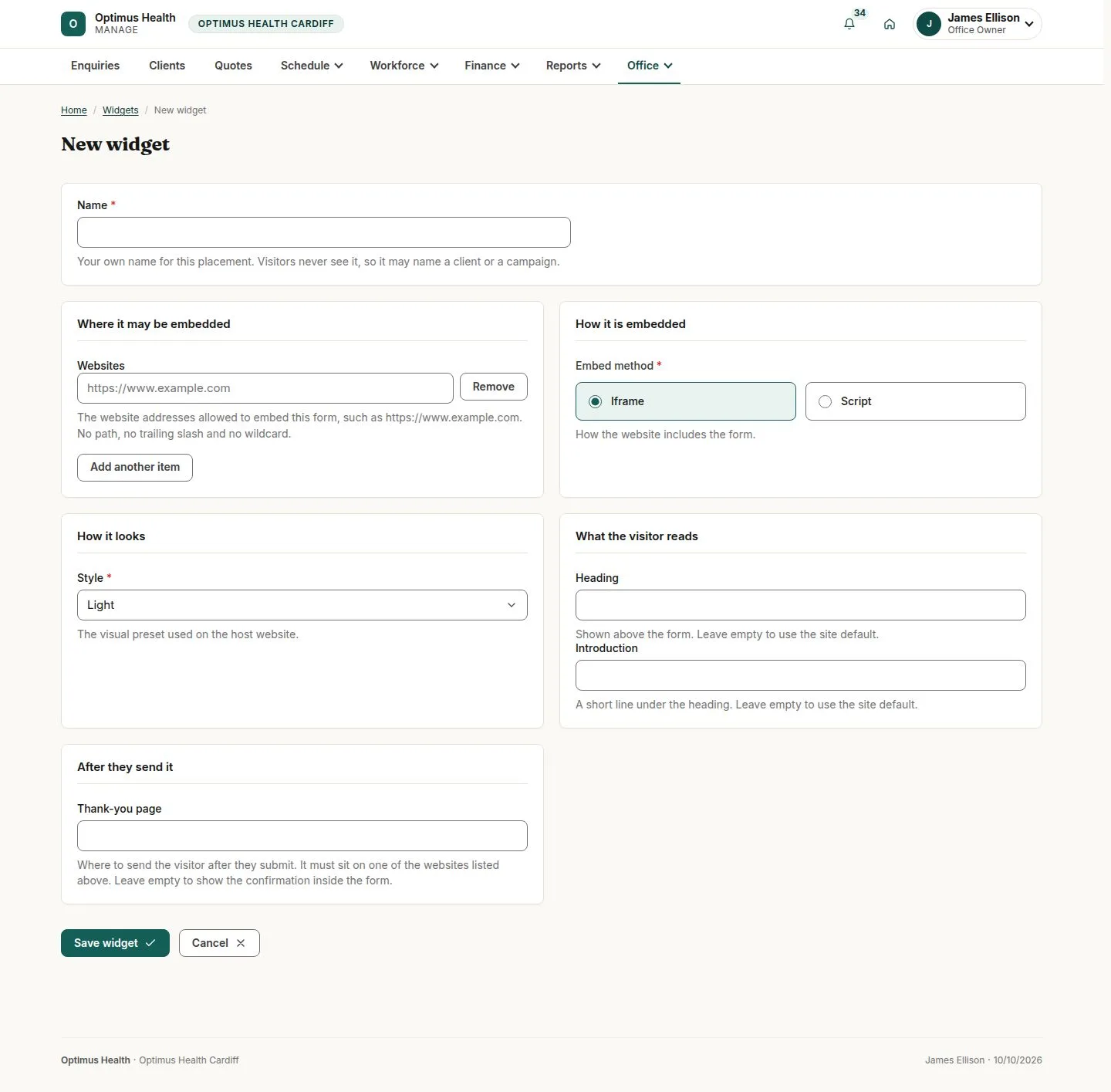
2Step 2 of 4
What to doChoose New widget. Give it an internal name, list the allowed website origins, and choose its embed mode, appearance and heading.
The form is ready to save as a draft. A draft does not display a live enquiry form.
Check the embed code and preview
Office Owner
Swipe across the preview to see more. Tap to enlarge.
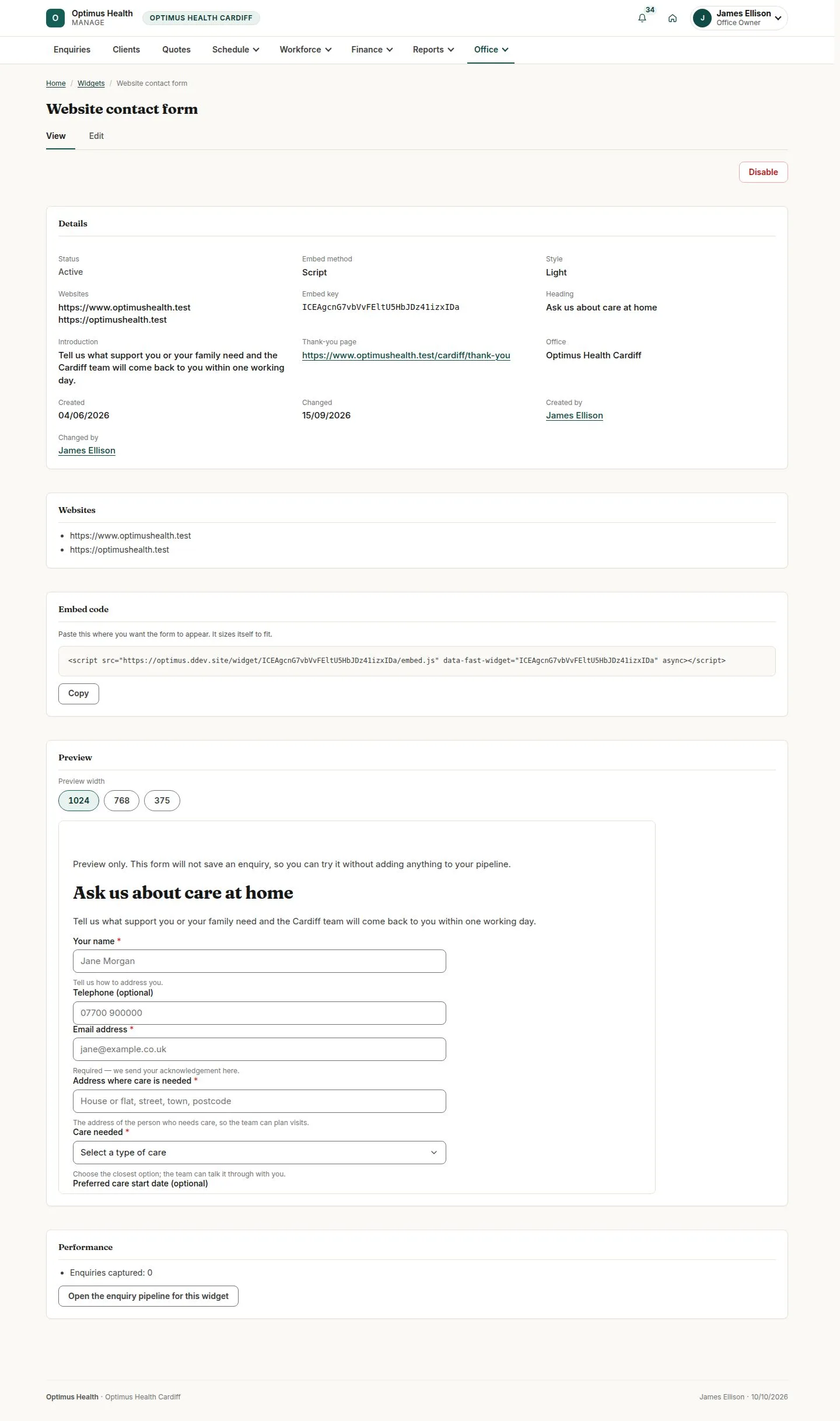
3Step 3 of 4
What to doOpen the saved widget. Copy its generated embed snippet for the intended website and review the form preview. Use the activation action only after checking the allowed origins.
When activation succeeds, the generated key identifies this office's widget. Activation requires at least one allowed website origin.
Find enquiries from that placement
Office Owner
Swipe across the preview to see more. Tap to enlarge.
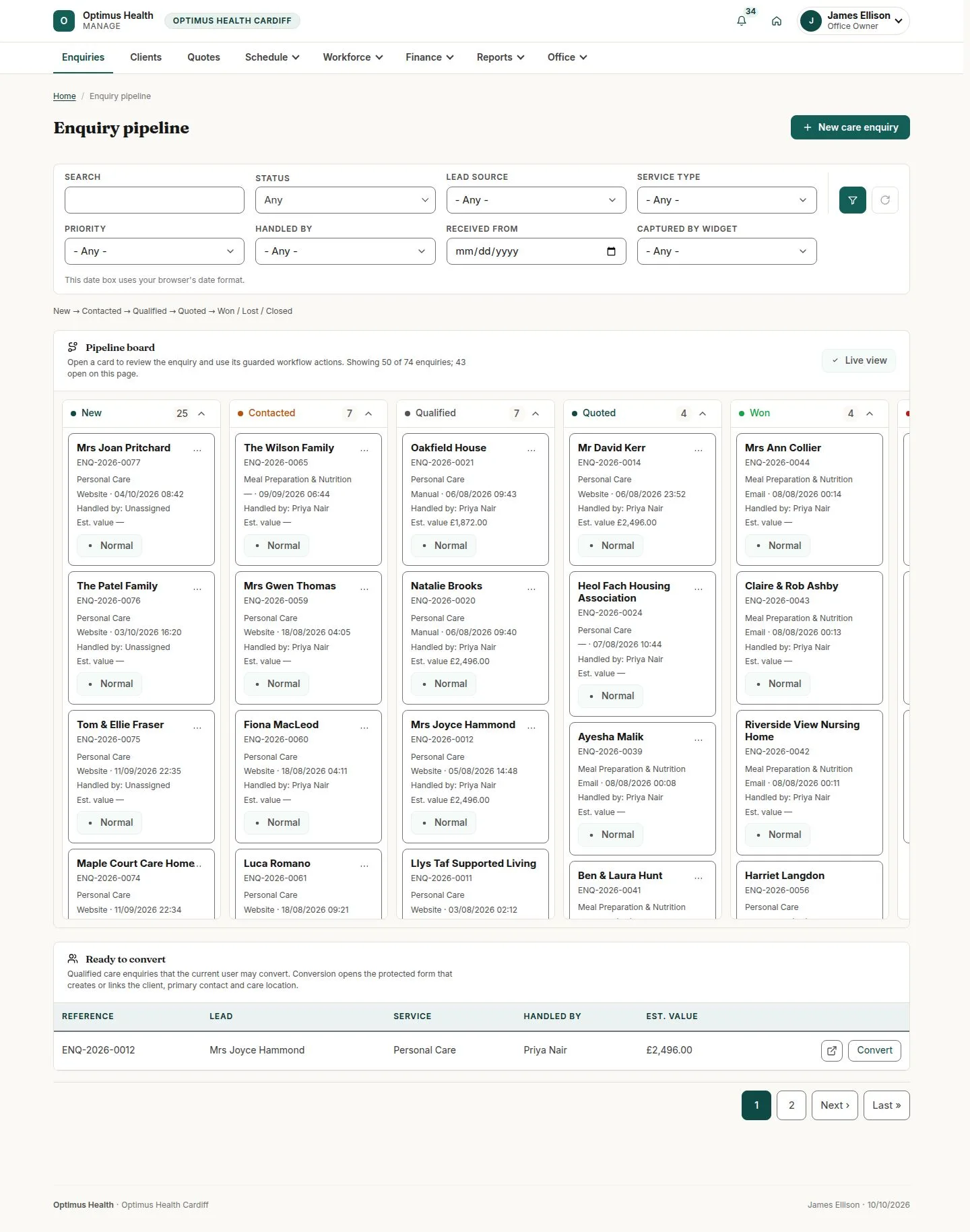
4Step 4 of 4
What to doOpen Enquiries and choose the widget under Captured by widget, then apply the filter.
The pipeline shows enquiries captured by that widget in the same office enquiry workflow.