





Guide › Care Coordinator › Follow client invoices and worker self-bills
Care Coordinator
Follow client invoices and worker self-bills
Check the source records and prerequisites before issuing billing documents, then follow their finance status.
Before you start: Use approved visits and approved timesheets where the generation action requires them. Check the active billing contact and worker subcontractor details as appropriate.
Generate a client invoice from an approved visit
Care Coordinator
Swipe across the preview to see more. Tap to enlarge.
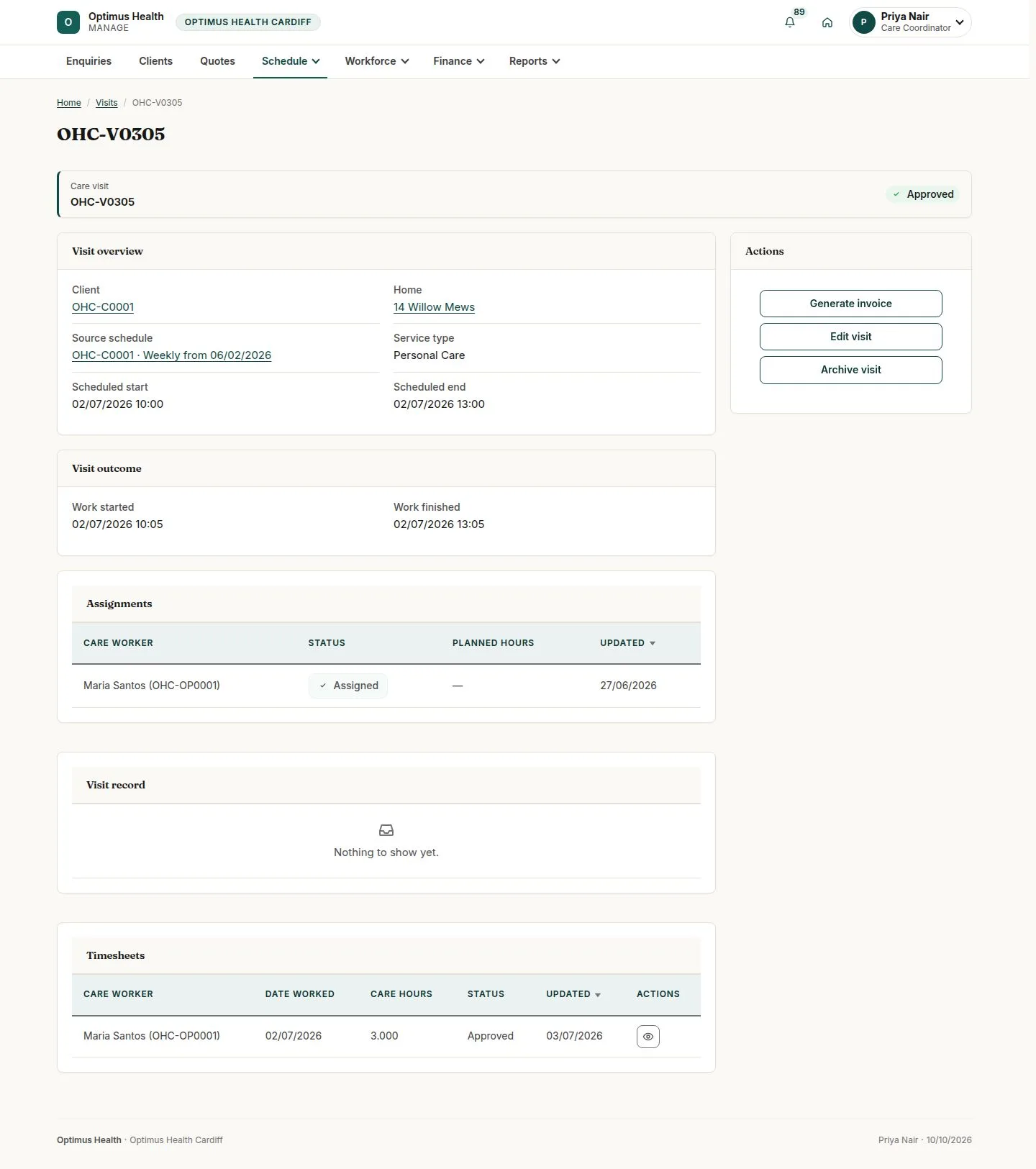
1Step 1 of 6
What to doOn the approved visit, use Generate invoice when it is available. Read the confirmation and any unapproved-timesheet warning before proceeding.
If generation succeeds, the visit has its invoice. An unapproved claim can block generation; repeated successful generation does not create duplicate visit invoices.
Review the draft invoice
Care Coordinator
Swipe across the preview to see more. Tap to enlarge.
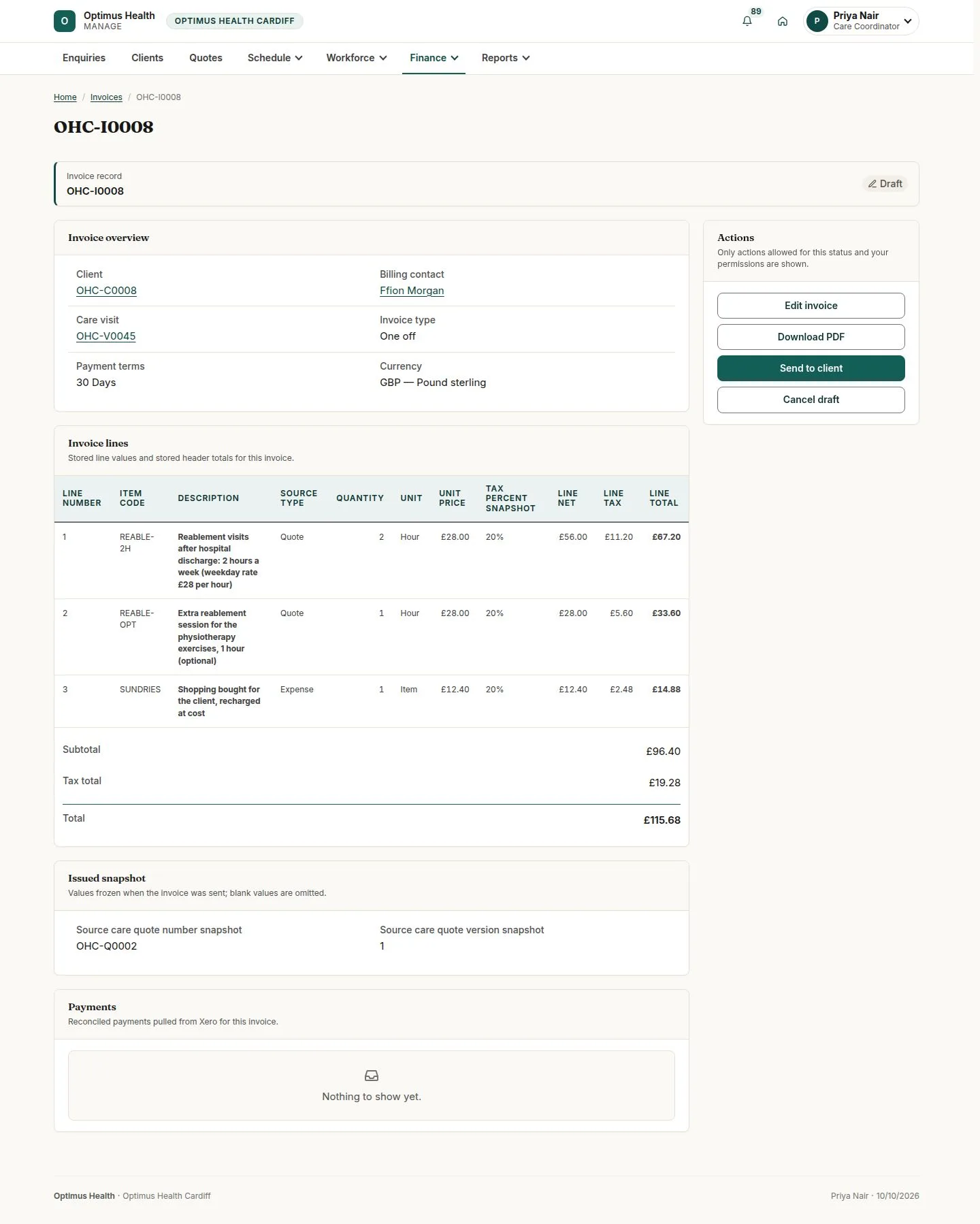
2Step 2 of 6
What to doOpen the draft in Invoices and check line origins, amounts and due date. Use Edit invoice only for the changes it offers; additional costs require their reason.
The invoice preserves lines originating from the visit. A successful edit can add permitted separate costs and update offered fields.
Send and follow the client invoice
Care Coordinator
Swipe across the preview to see more. Tap to enlarge.
3Step 3 of 6
What to doUse Send to client only when offered and after checking the billing contact and due date. Return to Invoices to review delivery, overdue status and remaining amount.
If delivery succeeds, the invoice follows its issued workflow. The form refuses to send without the required active billing contact and due date.
Prepare a self-bill
Care Coordinator
Swipe across the preview to see more. Tap to enlarge.
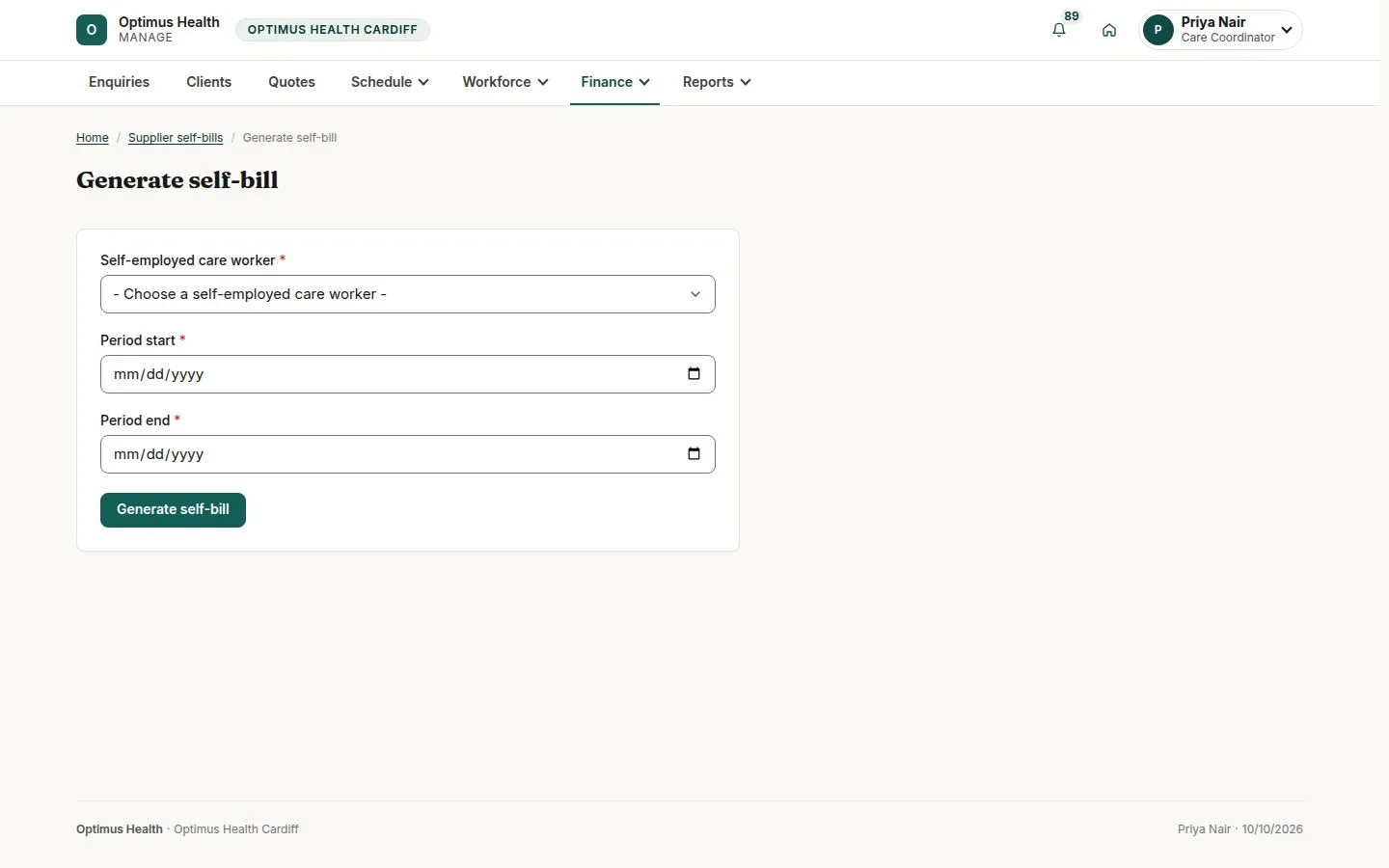
4Step 4 of 6
What to doOpen Finance → Supplier invoices, then Generate self-bill. Select the subcontractor and the period containing the approved claims.
If generation succeeds, a draft self-bill contains the eligible approved timesheets for that worker and period.
Check the self-bill sources
Care Coordinator
Swipe across the preview to see more. Tap to enlarge.
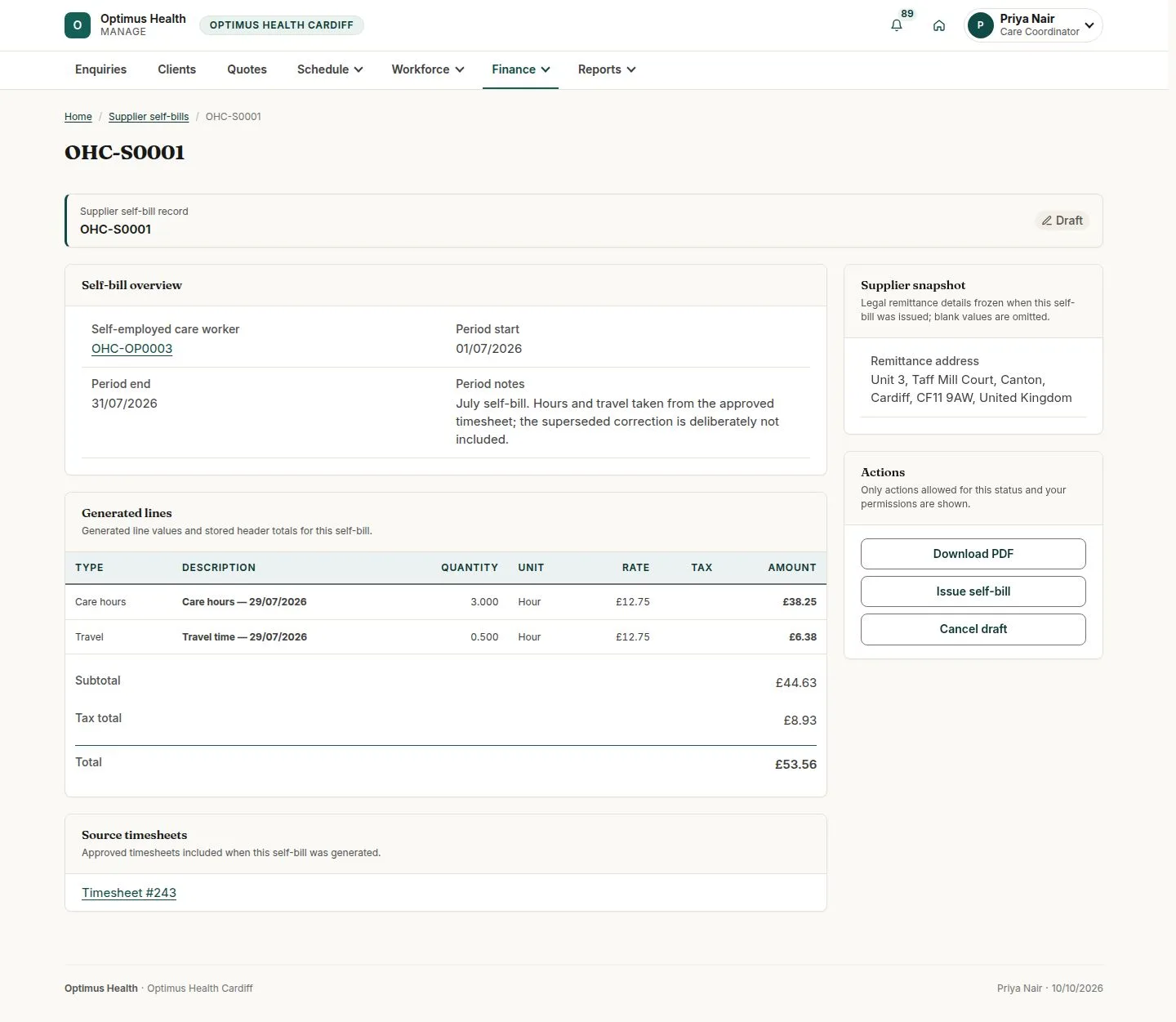
5Step 5 of 6
What to doOpen the draft self-bill and compare its lines with the listed approved timesheets. If the source hours are wrong, use the draft-cancellation and timesheet-correction workflow before regenerating.
The generated money cannot be edited directly; correcting the approved source records is the route to a corrected draft.
Issue and follow the self-bill status
Care Coordinator
Swipe across the preview to see more. Tap to enlarge.
6Step 6 of 6
What to doUse Issue self-bill only when offered and after checking the subcontractor reference, hourly rate and VAT status. Follow the resulting status in Supplier invoices.
If issue succeeds, the bill can be processed through Xero. Paid status is received from Xero after payment; it is not entered manually here.