






Guide › Office Owner › Maintain your office website
Office Owner
Maintain your office website
Keep published office pages, navigation and contact messages aligned with the care service offered by your office.
Before you start: Sign in as the Office Owner. Have the approved text and images for the page you intend to change.
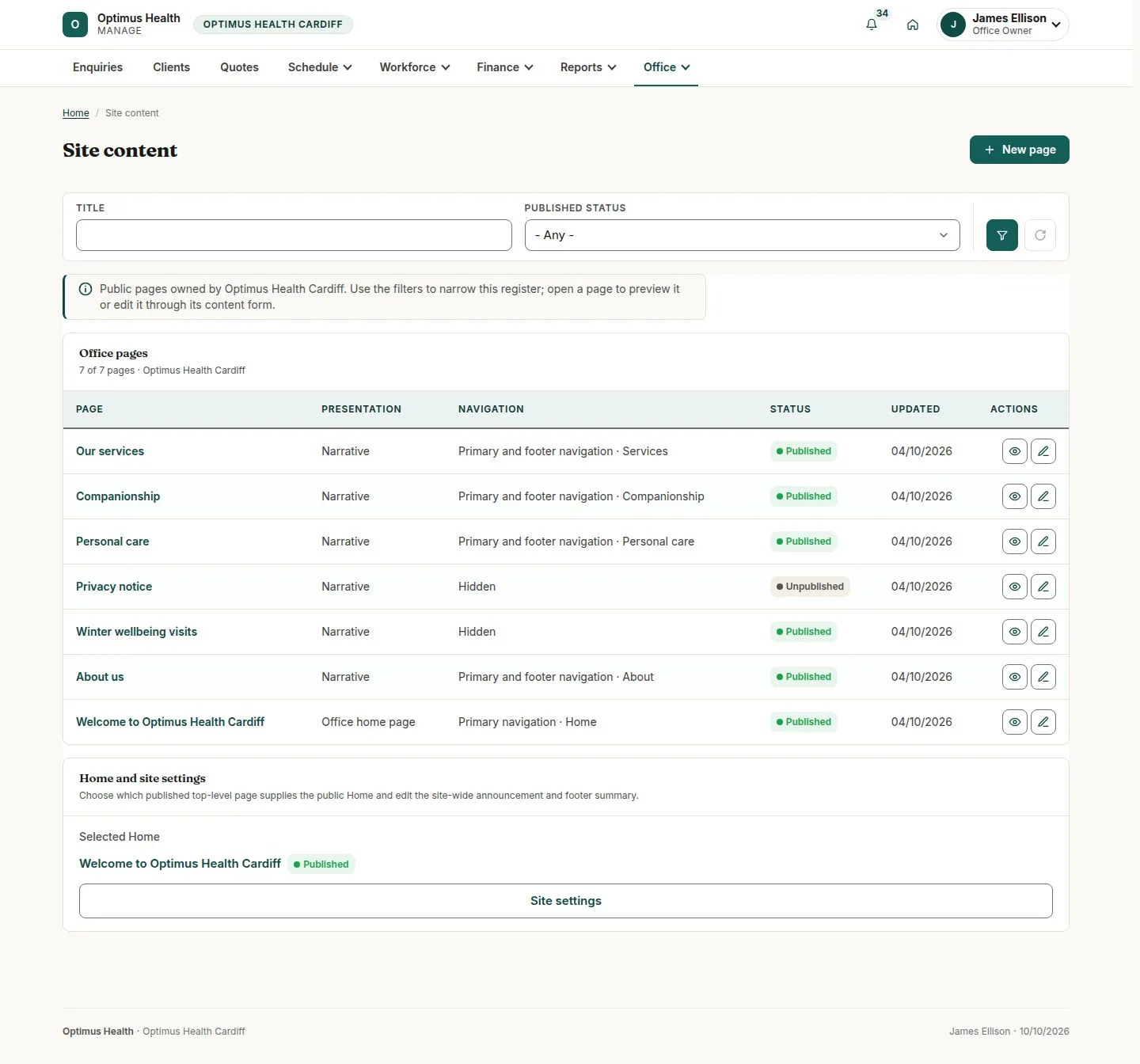
Find the page in Website
Office Owner
Swipe across the preview to see more. Tap to enlarge.
1Step 1 of 4
What to doOpen Office → Website. Find the page you need and check its published status and navigation placement.
Site content lists the pages belonging to your office; the edit control opens the selected page.
Edit the page sections
Office Owner
Swipe across the preview to see more. Tap to enlarge.

2Step 2 of 4
What to doOpen the page's edit form. Use Collapse all to review the section order, then open the section to change its words, image or call to action.
The form lets you edit the page as a sequence of sections. Keep the enquiry call to action pointed at your office's enquiry form.
Preview and save deliberately
Office Owner
Swipe across the preview to see more. Tap to enlarge.
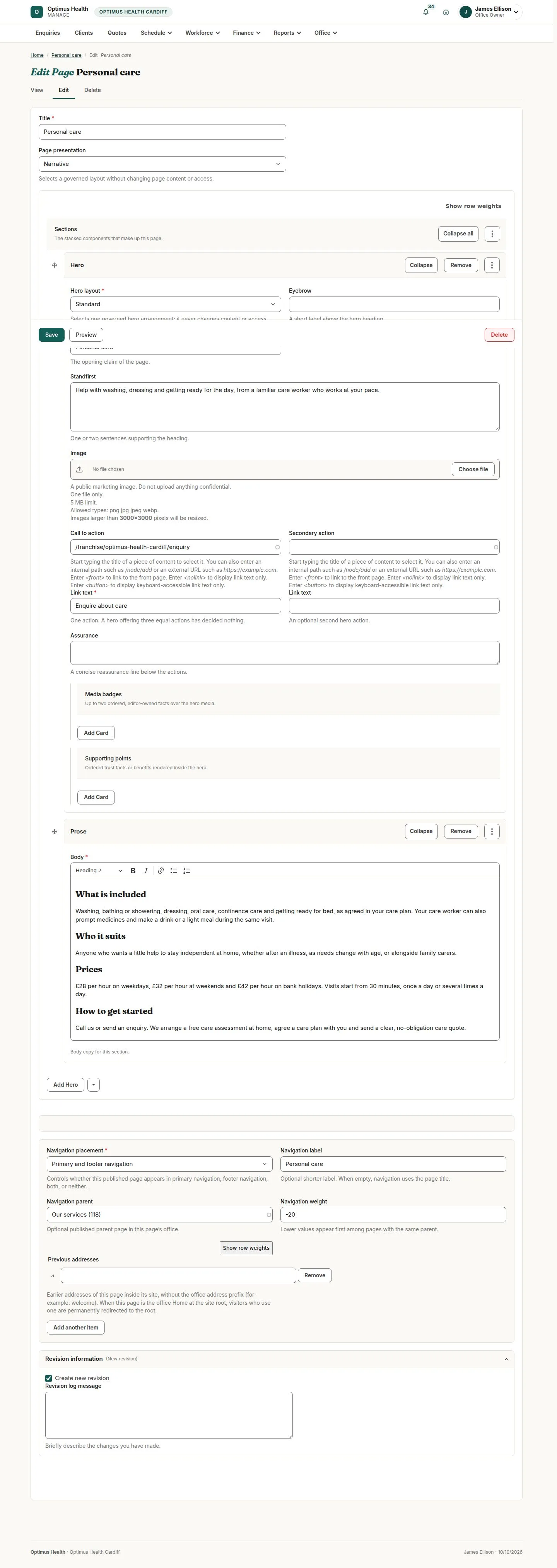
3Step 3 of 4
What to doCheck Navigation placement and publication settings, add a revision note, and use Preview to review the page. Save after checking the changes.
If the save succeeds, the page uses the saved sections and selected navigation placement. A page omitted from menus can still be reached from its published link.
Review Site settings
Office Owner
Swipe across the preview to see more. Tap to enlarge.
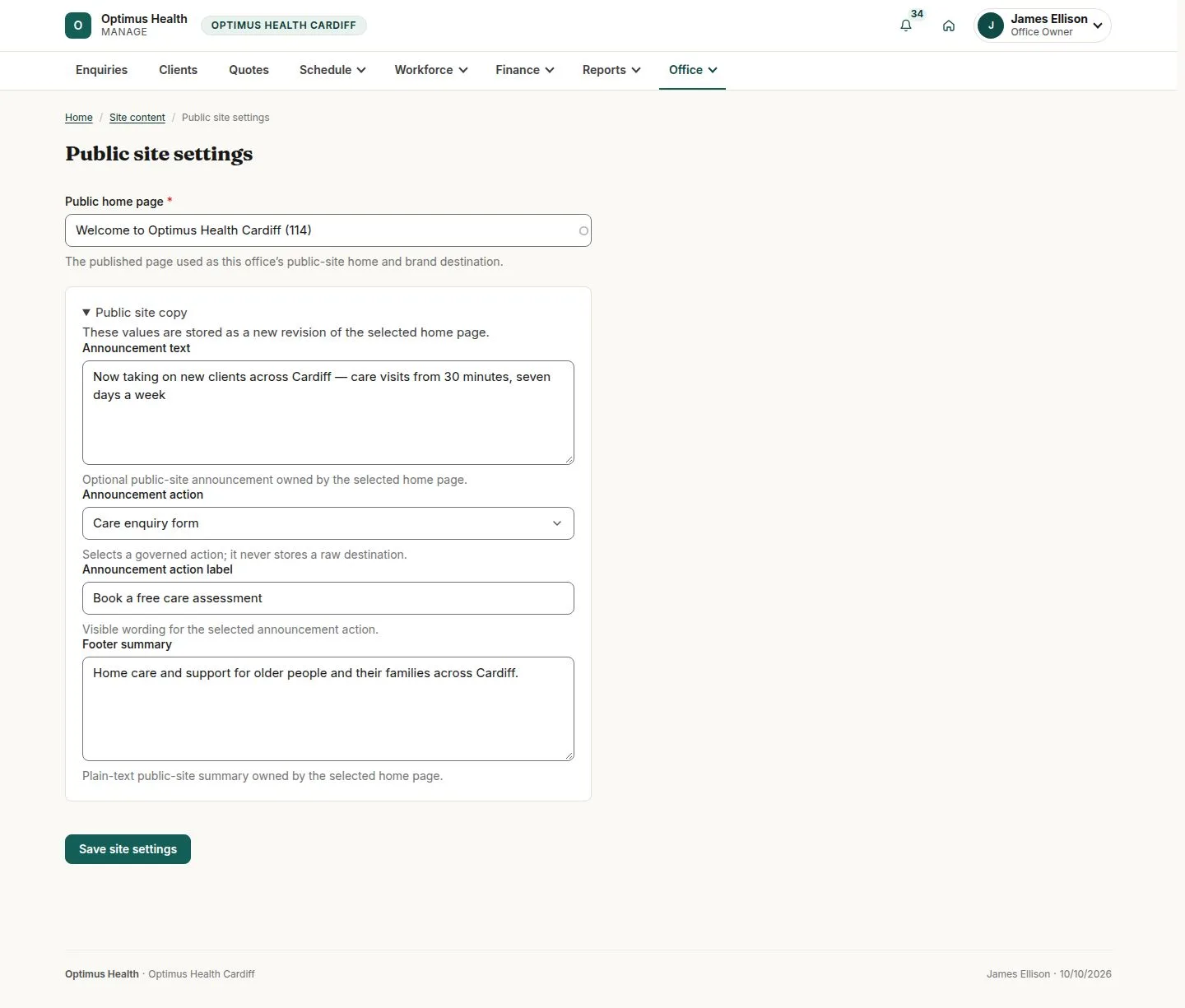
4Step 4 of 4
What to doOpen Site settings from Site content. Check the selected home page, announcement and footer summary before saving any change.
The saved settings determine the shared office-site messages and home page; check the public website after publishing.