





Guide › Care Coordinator › Match a payment and check the invoice balance
Care Coordinator
Match a payment and check the invoice balance
Resolve money that has not matched automatically without allocating it to the wrong office invoice.
Before you start: Use Payments in your own office. Have the payment reference and the invoice information needed to identify the correct match.
Find the payment needing a match
Care Coordinator
Swipe across the preview to see more. Tap to enlarge.
1Step 1 of 4
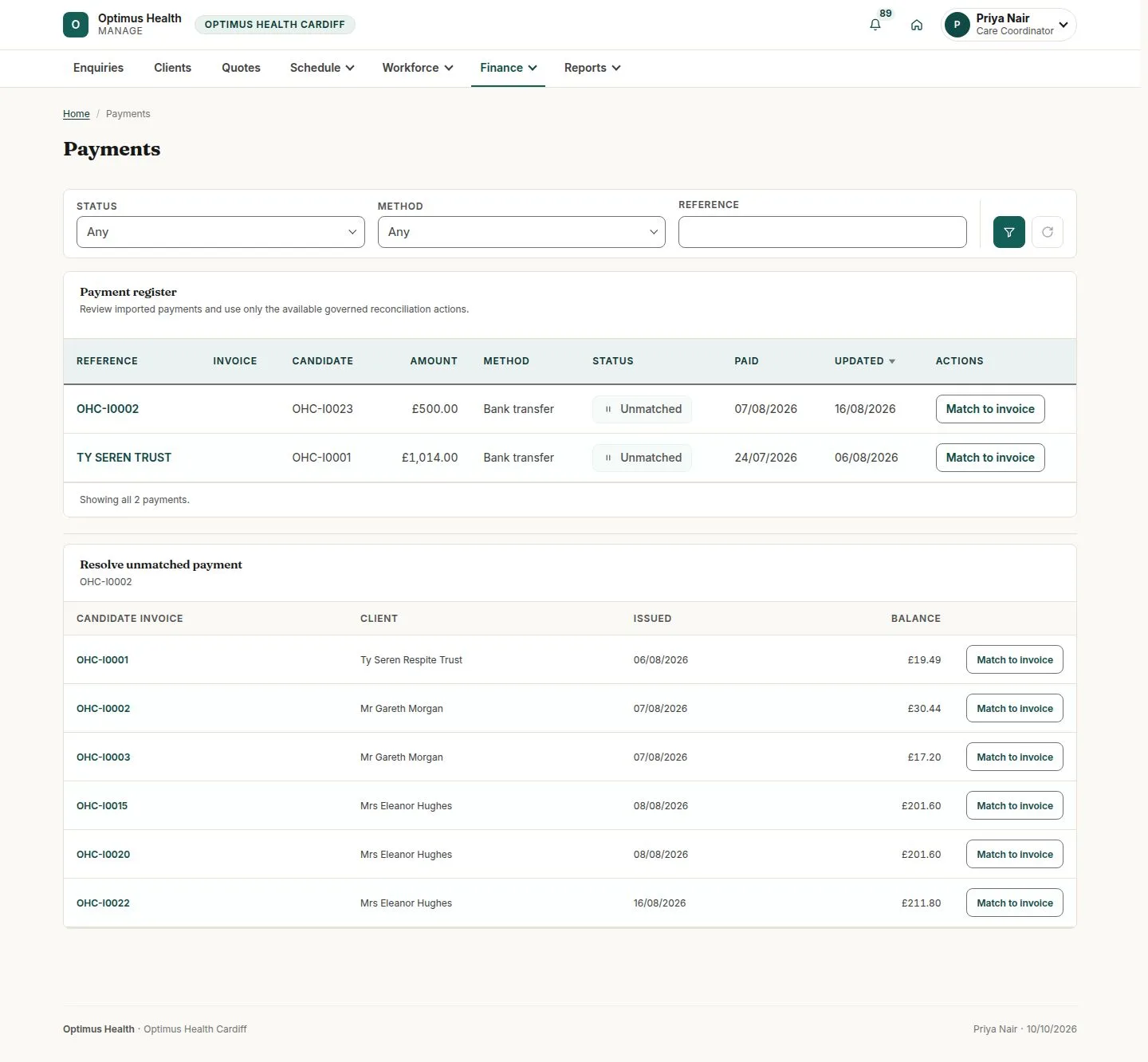
What to doOpen Finance → Payments and find the unmatched payment. Open its detail and check the amount and match state before selecting an invoice.
Payments already reconciled and money still awaiting a match are distinct records. A missing automatic match does not mean the money should be assigned to the first candidate.
Review the payment and offered action
Care Coordinator
Swipe across the preview to see more. Tap to enlarge.
2Step 2 of 4
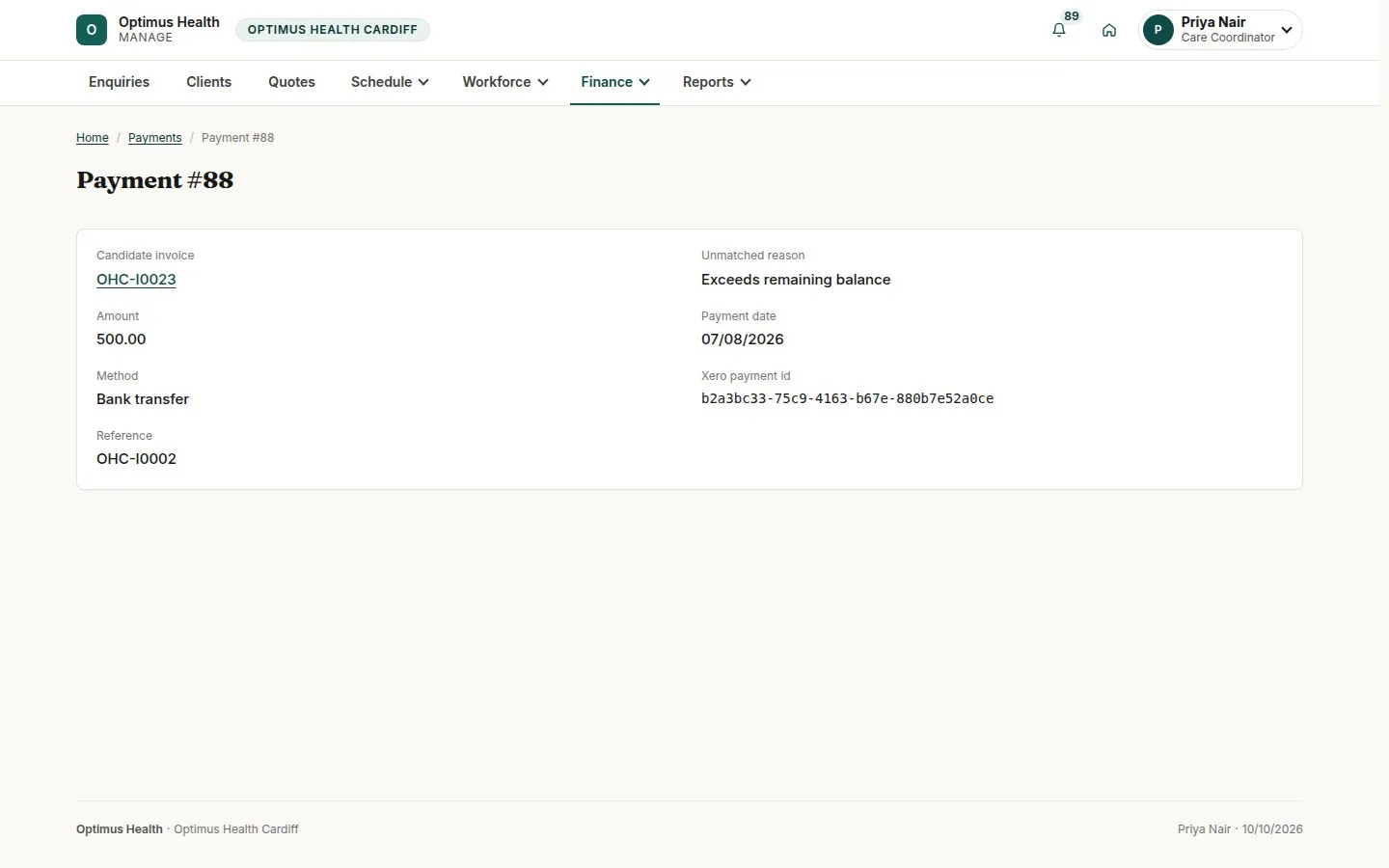
What to doOpen the intended unmatched payment and review its candidate invoice, unmatched reason, amount and reference. Return to Payments and use that payment’s Match to invoice control only after checking the amount against the intended client invoice.
The match form is for the selected payment. Opening it does not apply money or change an invoice balance.
Choose the correct candidate invoice
Care Coordinator
Swipe across the preview to see more. Tap to enlarge.
3Step 3 of 4
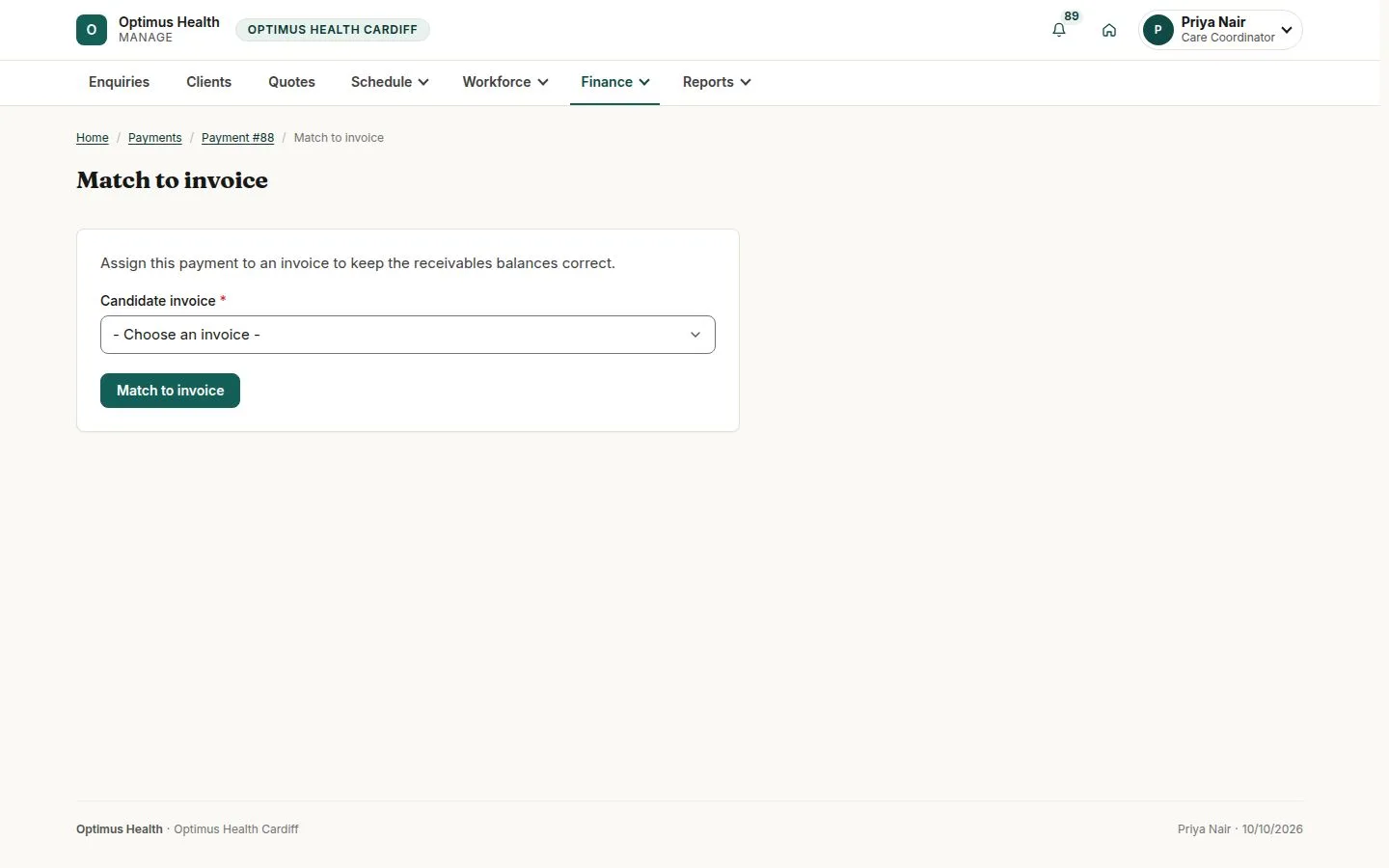
What to doOn Match to invoice, choose the intended Candidate invoice. Check that the whole payment fits within that invoice’s outstanding balance, then choose Match to invoice when the choice is correct.
If the match succeeds, the whole payment is applied to the selected office invoice. A payment above its outstanding balance is refused; it cannot be split or partly allocated here.
Follow the resulting finance status
Care Coordinator
Swipe across the preview to see more. Tap to enlarge.
4Step 4 of 4
What to doReturn to Payments and the linked invoice to read the match and remaining balance. If the payment is still unmatched or the accounting state is unresolved, refer it to the Office Owner for the Xero sync-log and accounting follow-up.
Paid and Part paid reflect reconciled payments. You cannot mark an invoice paid manually here. If the payment remains unmatched or the balance looks wrong, review the displayed reason and ask the Office Owner to investigate.