

MineCourt features
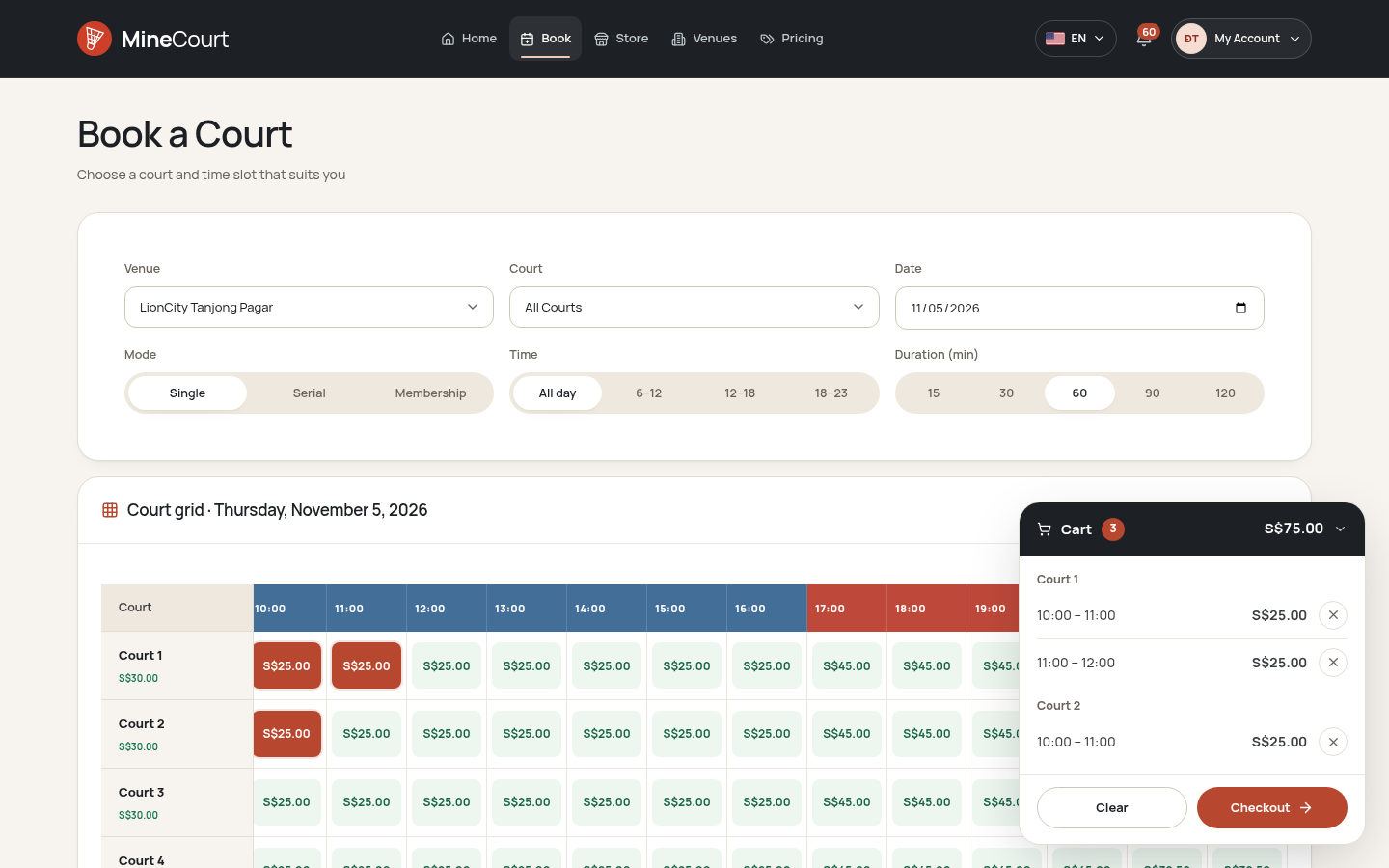
Every court on one grid
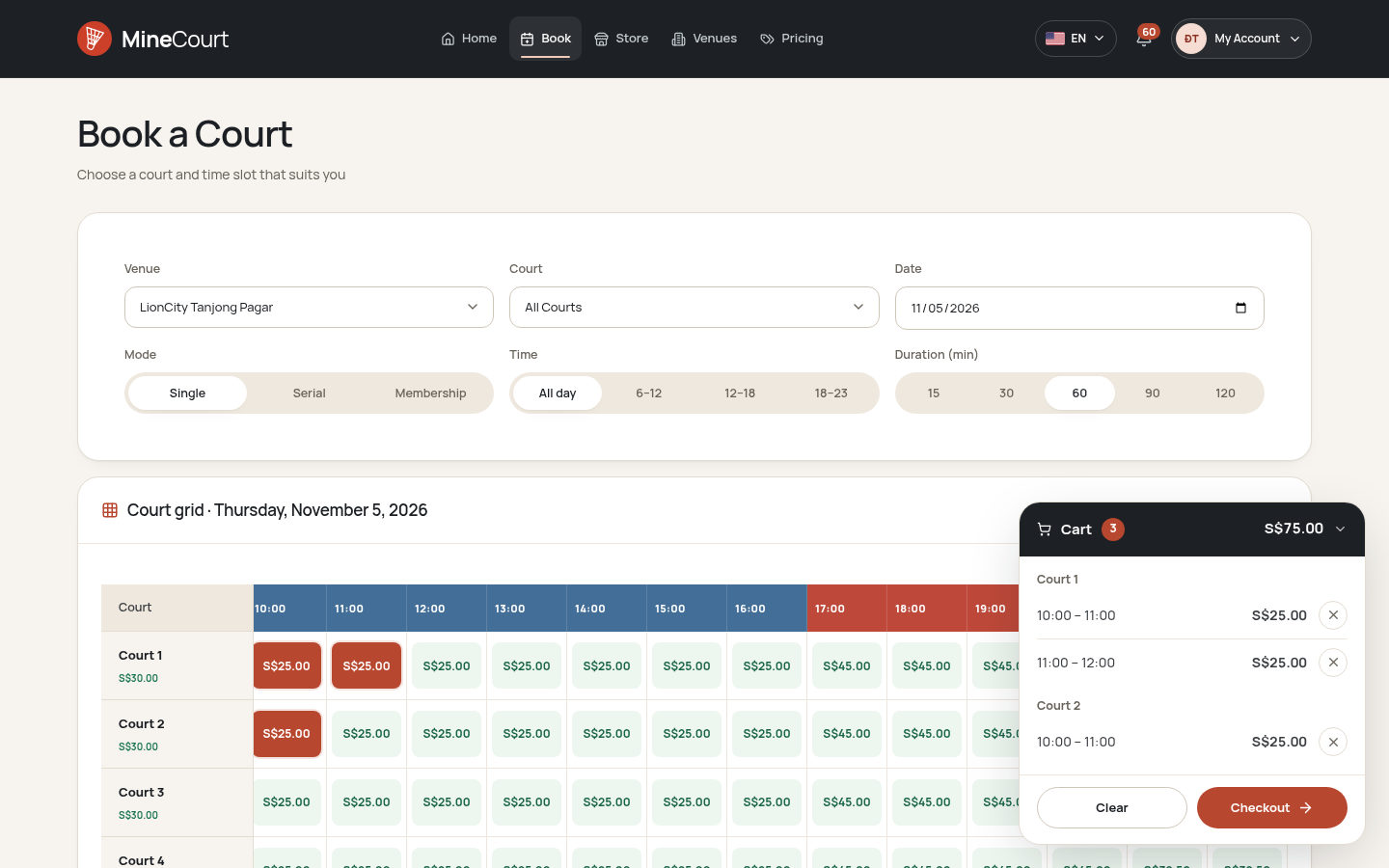
Players see each free slot with its price, choose slots on several courts and confirm them in one checkout.
Payment the way players pay
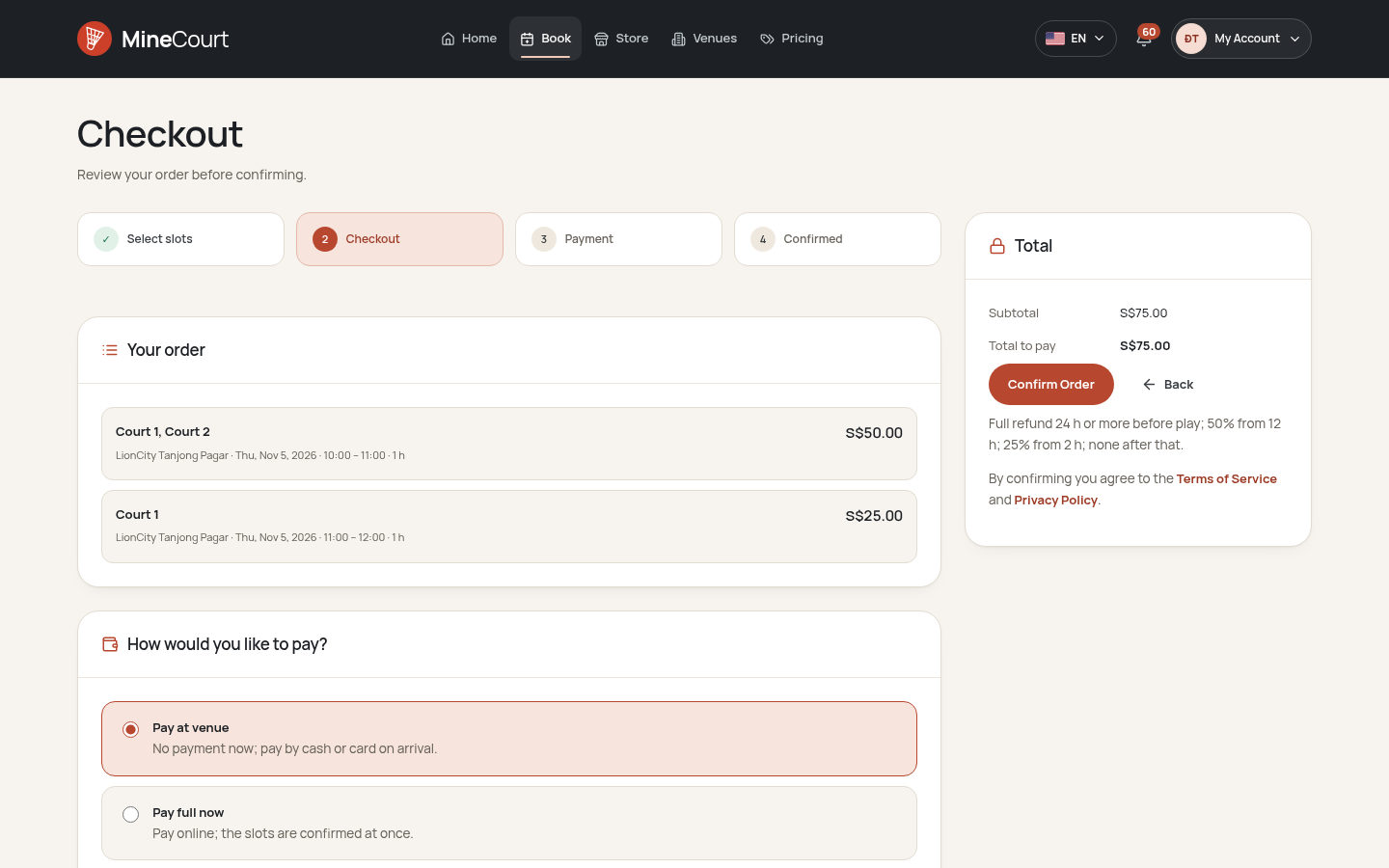
Pay at the venue, pay in full or a 30% deposit online, or transfer to the venue account and upload the receipt.
One system from counter to company
Staff booking, check-in, the POS and stock sit beside prices, membership plans and finance reports.

Court booking and venue management in one place
MineCourt brings online booking, counter work and venue management together. Players book courts, pay, join games and buy from the store; staff run the counter and the POS; managers and owners set prices, plans and stock and follow the reports.
The product screens show the badminton venues, players and orders of a demonstration site. They illustrate the existing interface with sample data.
 View full size
The tools for every court and counter
Bookings, payments and venue work share one system for players, staff and owners.
- CourtsBooking in 15-minute slotsA court grid with a price for every slot and demand colours.
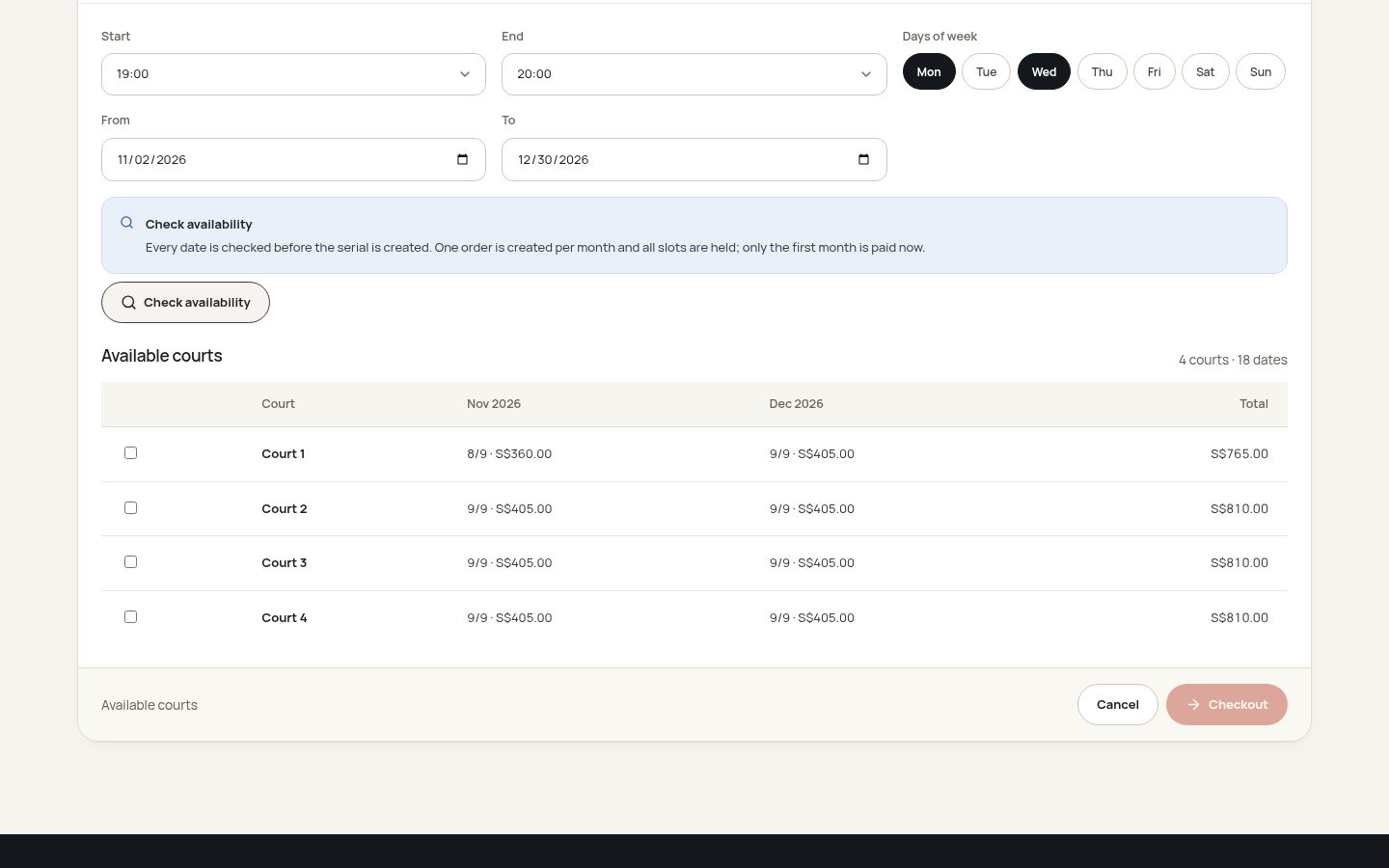
- SerialWeekly bookingsOne weekly pattern, checked date by date and ordered month by month.
- PaymentsAt the venue or onlinePay later, pay now, a 30% deposit or a bank transfer.
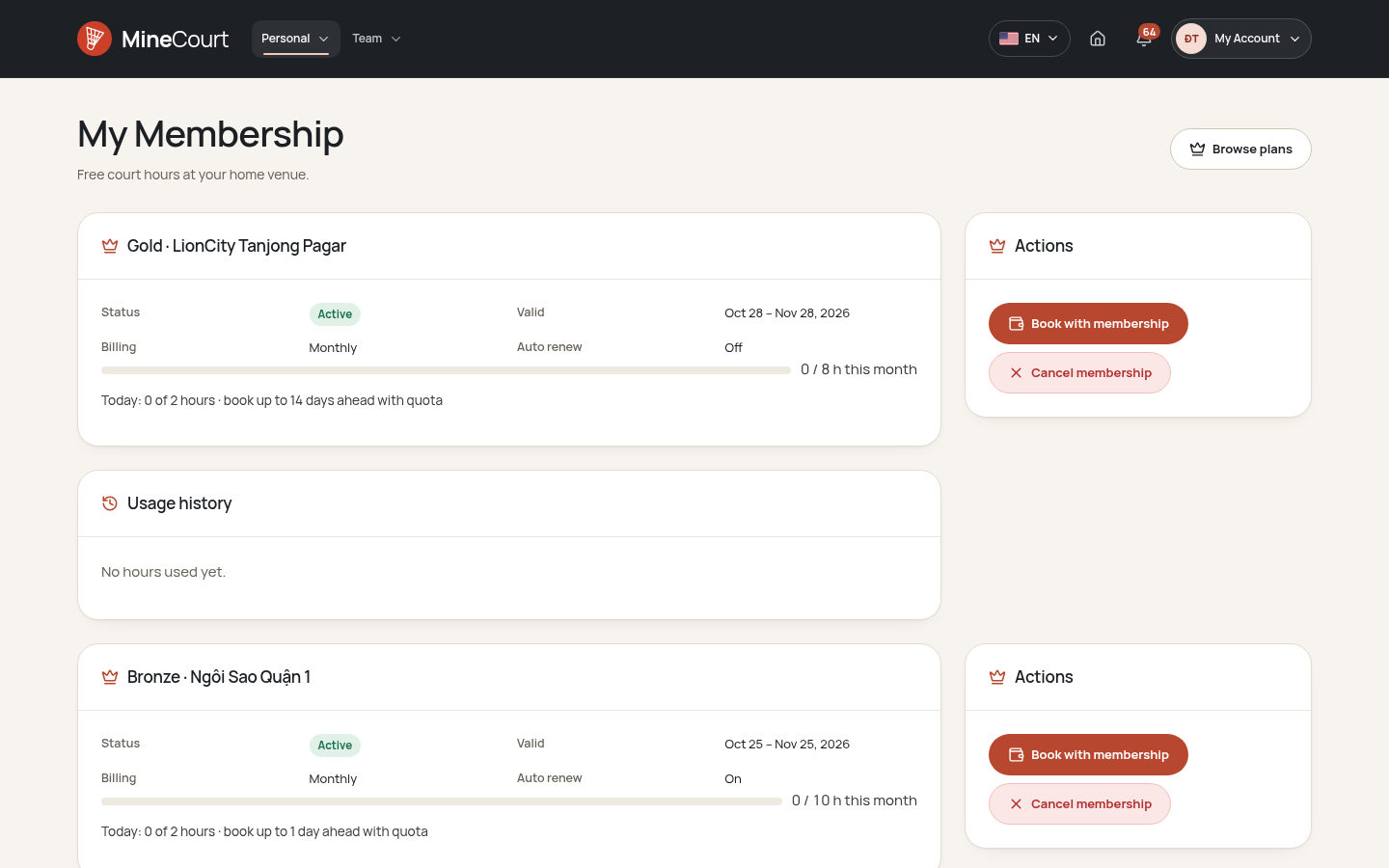
- MembersMonthly hoursPlans with hour quotas and a booking window.
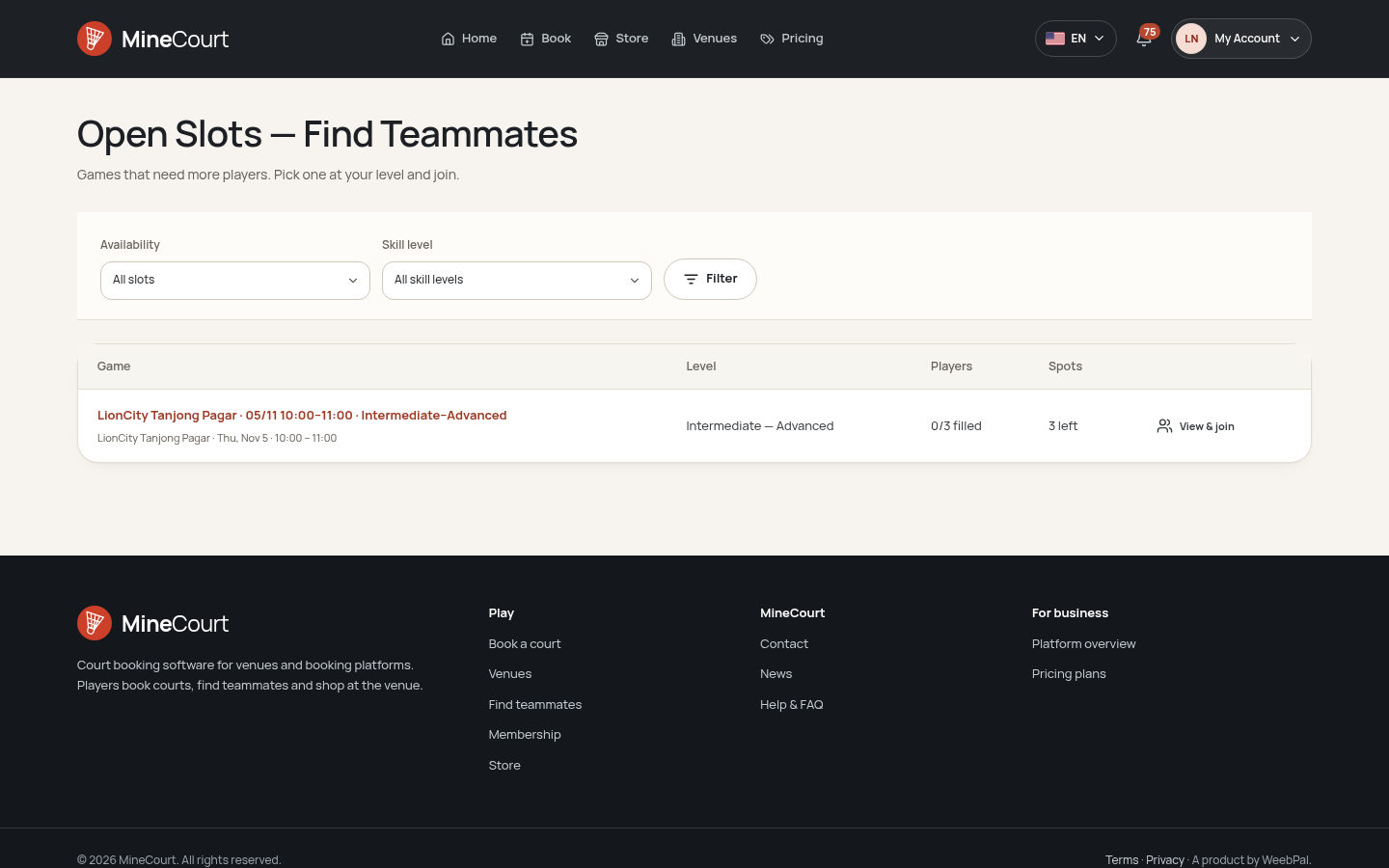
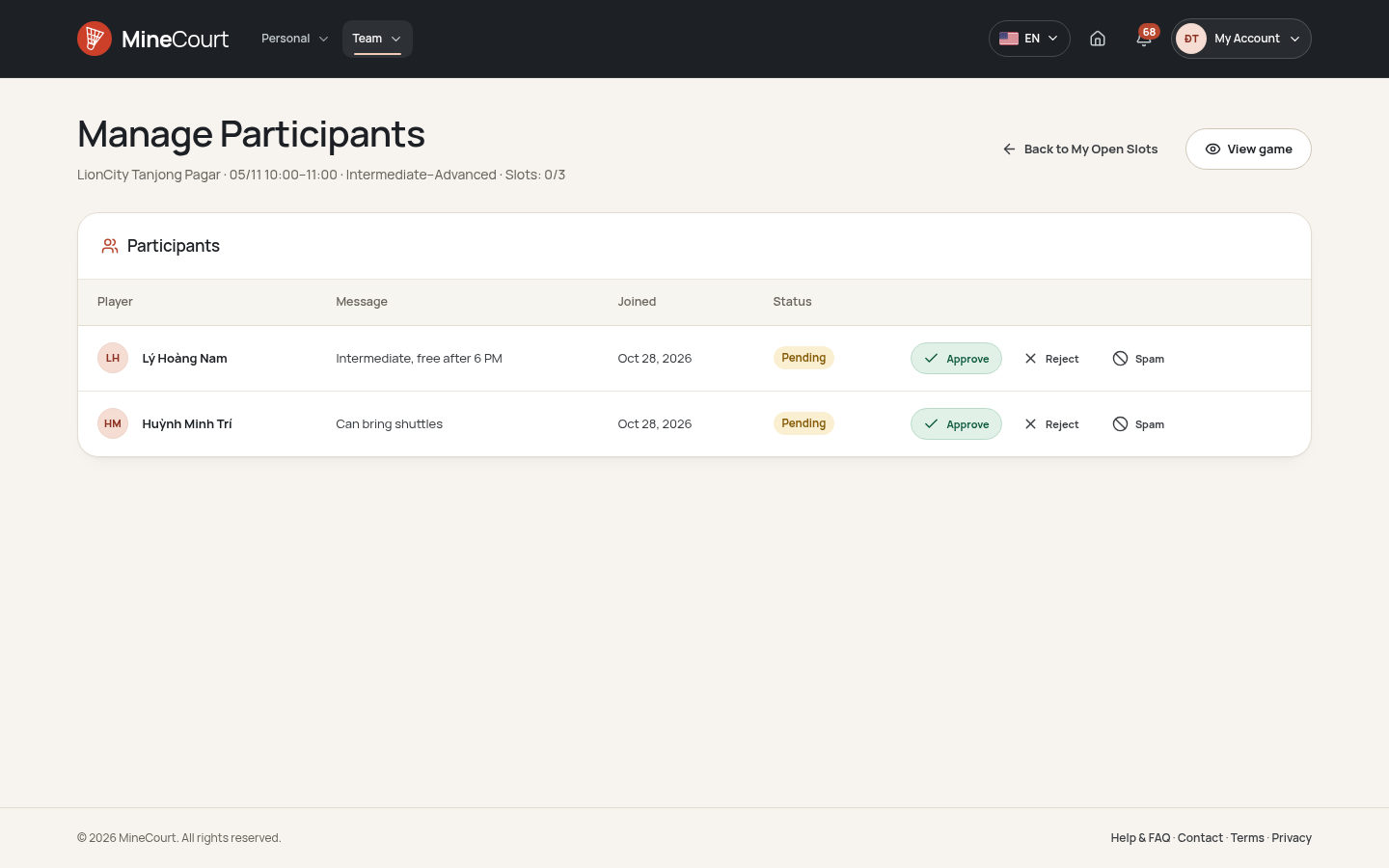
- TeamsOpen slotsShare a booked court and approve the players who join.
- StoreDrinks and gearStock per venue, with pick-up or delivery to a court.
- CounterStaff and POSWalk-in customers, check-in, cash shifts and receipts.
- ReportsVenue and financeOrders, revenue, unpaid orders and shift totals.
For the people who play, run and own the venues
Each account opens the workspaces of its role: Personal and Team for players, Venue and Store for staff, Company and Finance for owners.
Players booking and playing
Explore bookingFind a venue, book the slots you want, pay your way and find teammates for an open game.
Venue staff at the counter
Explore the counterBook for registered and walk-in customers, check players in, take payments and sell in the POS.
Managers setting prices and stock
Explore venue managementSet opening hours, demand hours and prices, and keep the courts, products and stock of your venues current.
Owners following the business
Explore company toolsKeep the company, venues, staff and membership plans in order and follow revenue in the finance reports.
A clear path from booking to the game
An order keeps the courts, the payment, the players and the check-in together.
Find a venue
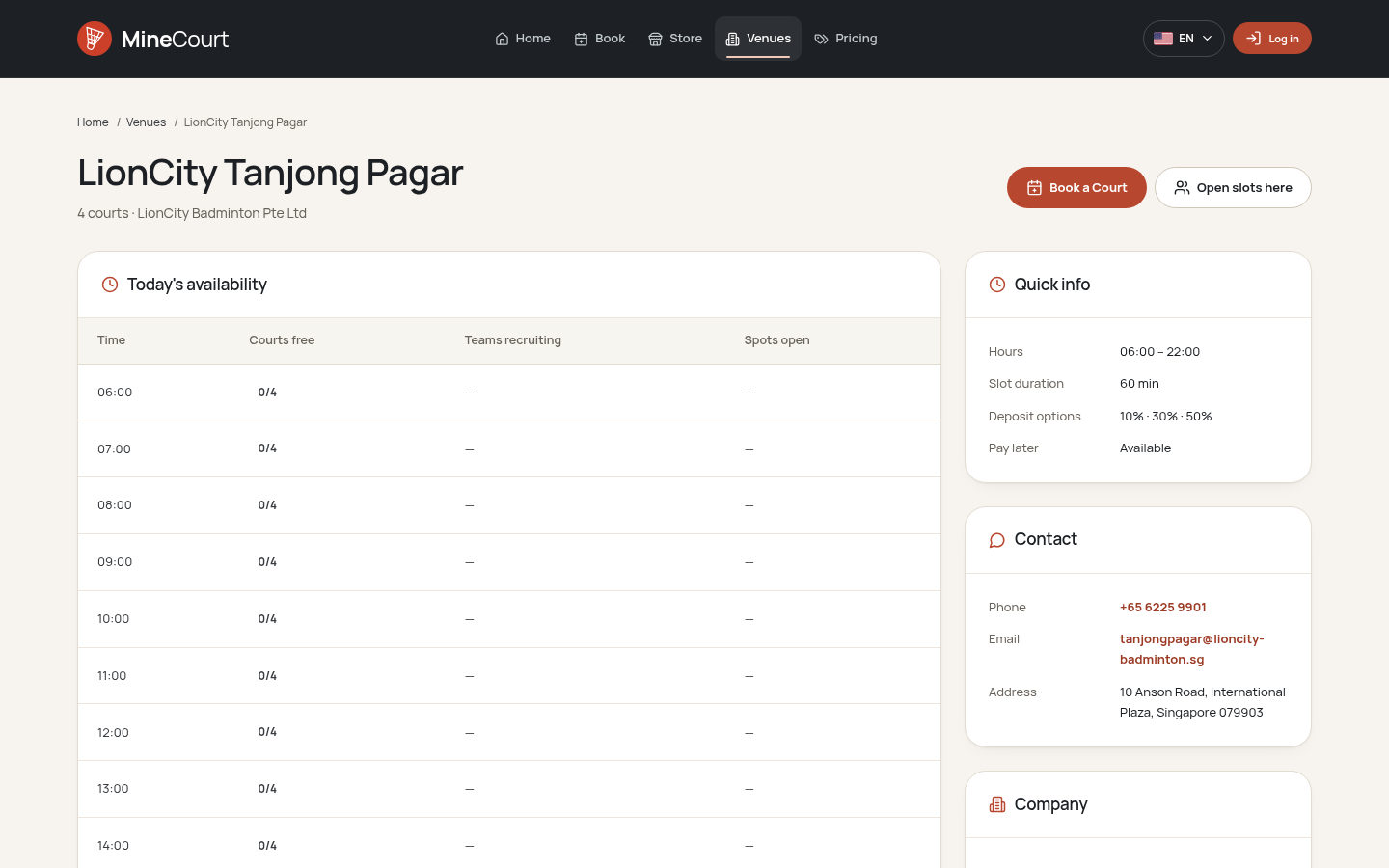
Compare venues, their courts and today’s availability.
Pick the slots
Select free slots on one or several courts of the court grid.
Choose how to pay
Pay at the venue, pay in full or a 30% deposit online, or transfer.
Get the confirmation
The order and its sessions appear in My Orders, with a notification.
Invite teammates
Turn the booking into an open slot and approve who joins.
Use your membership
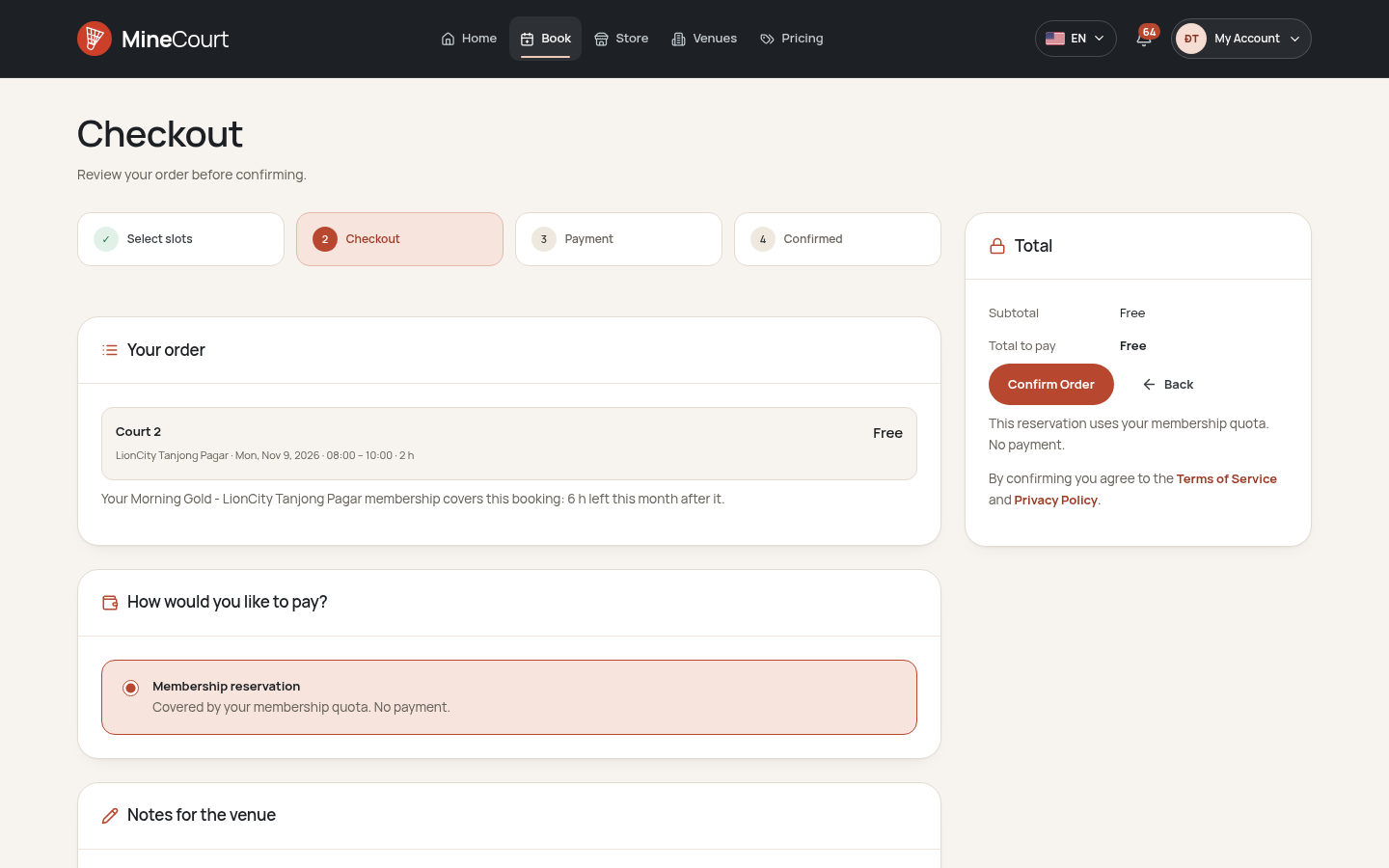
Covered slots are booked against the hours of your plan.
Check in
Staff record your arrival on the order of the day.
Buy at the store
Order drinks or gear for pick-up or delivery to your court.
Change of plans
Cancel before play; the refund follows the venue’s rule.
Run the counter from one screen
Staff book for registered and walk-in customers on the same court grid, then take the payment or leave it for the visit.
- Customer search by name, email or phone, or a new walk-in customer
- Pay later, pay in full or a 30% deposit at the counter
- Check-in and no-show on the order of the day
- Bank transfers approved after checking the receipt
- POS shifts with an opening float and a cash count
 View full size
Prices that follow demand
Venue managers mark the demand level of every hour for each type of day and set a price for each level; every slot takes its price from them.
- Demand hours with Low, Normal, High and Peak levels
- An hourly price for each demand level
- Pricing rules with a multiplier or a fixed amount
- Opening hours, closures and maintenance exceptions
- Courts with a sport type, a surface and a base price
 View full size
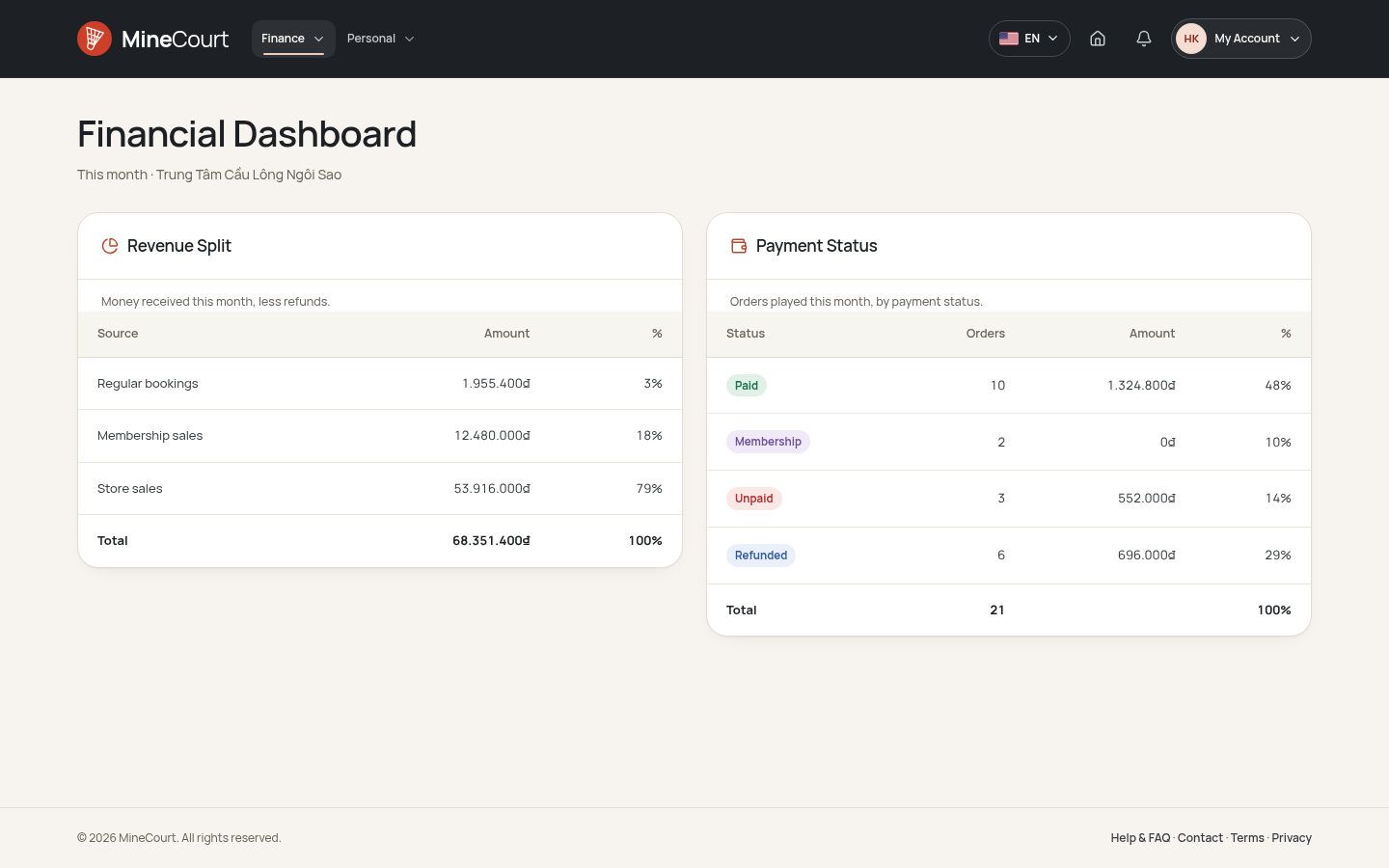
Follow the company and its money
Owners and managers keep venues, staff and plans in order; accountants follow revenue and payment status across the company.
- Revenue split between bookings, memberships and store sales
- Orders by status, payment and venue
- Monthly, venue and payment-method reports with CSV export
- An audit log of who changed what
- Membership plans with hour quotas and prices
 View full size


Live demo
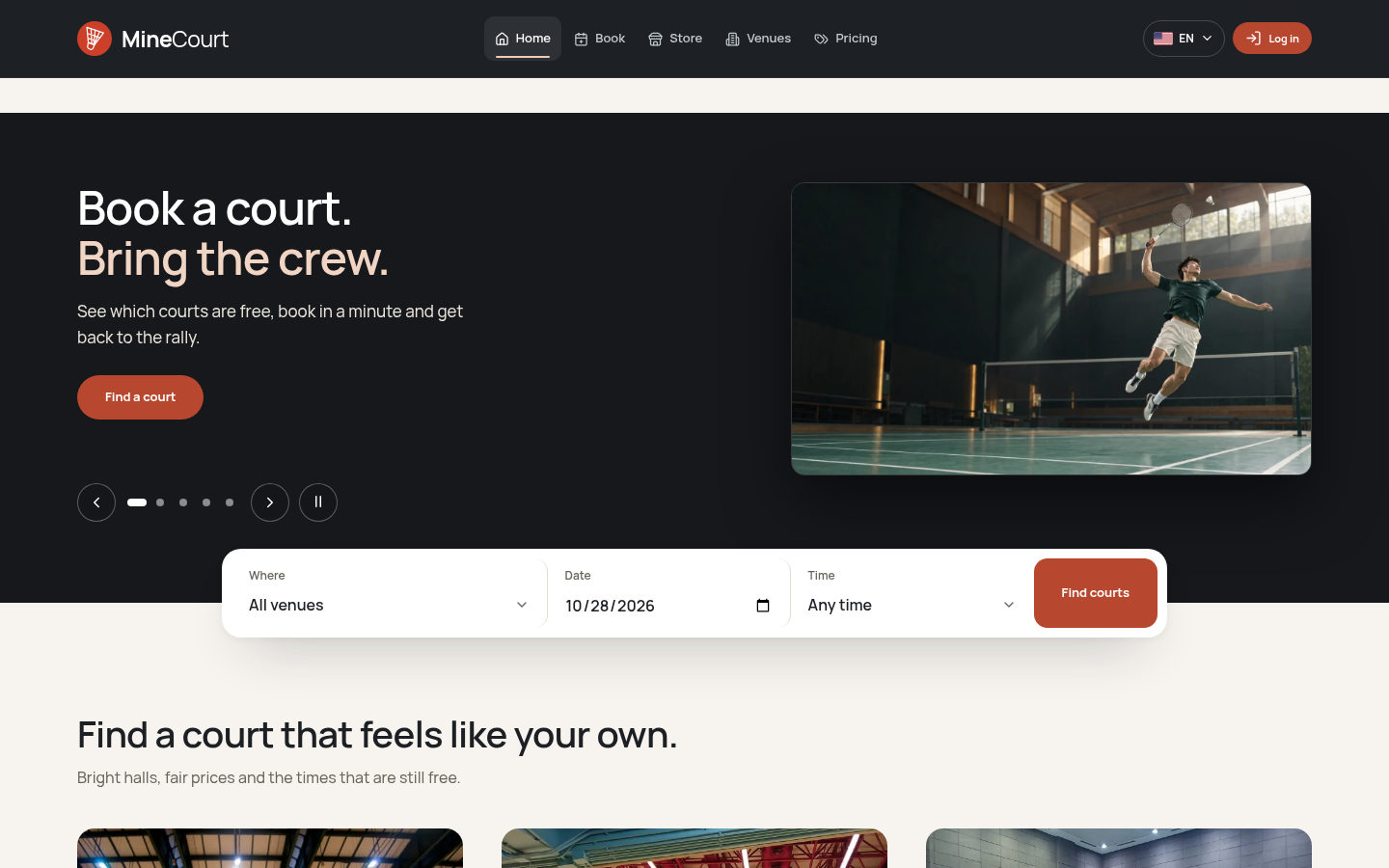
Each demo is a working copy of MineCourt with sample data, open for you to try.
MineCourt for venues or for SaaS providers
Both packages include the full software; a SaaS provider runs many venue businesses on one installation.
| For venues | For SaaS providers | |
|---|---|---|
| Who it is for | A company with one venue or a chain of venues | A company offering court booking to many venue businesses |
| Companies | Your company and its venues | Many companies on one installation, each with its own venues, staff and data |
| Brand and domain | Your booking site on your domain and brand | Your platform brand, domain and plans for venues |
| Team | Company owner, managers, accountant and venue staff | A platform team that manages every company, the settings and the content |
| Set-up | Courts, hours, prices and plans for each venue | Tools that set up a new company with its venues, courts and prices |
| Package | The full software, paid once | A fixed price or a revenue share |
Bring your venue into MineCourt
Your courts, hours, prices, plans and products drive the existing booking, payment and reporting functions.
MineCourt Your venue data and the functions that use it
Players and staff The public site and the Personal, Team, Venue, Store and Company workspaces on any screen size
Book, pay and work with the venue data
Your venue data Courts, opening hours, exceptions, demand hours, prices, membership plans, products and stock
Uses existing platform functions
MineCourt functions Booking, payments, memberships, open slots, store, POS, notifications and reports
Product capabilities
- Court grid booking with 15-minute slots and serial bookings
- Pay later, pay now, 30% deposit and bank transfer
- Memberships with hour quotas and a booking window
- Open slots to find teammates
- Staff booking, check-in, POS and a store with stock per venue
- Company, venue and finance reports in ten languages
Your venue set-up
- Courts with their sport type, surface and base price
- Opening hours, holidays and maintenance closures
- Demand hours and the price of each level
- Membership plans with quotas and prices
- Products, variants and the stock of each venue
- Staff accounts with roles and assigned venues
Set up a venue for its first booking
The company, venue and court forms bring hours, prices and staff together.
From a new company to the first booking
- Add the company Set the brand, bank details, opening hours and booking policy. A company ready for venues
- Add venues and courts Give each court its sport type, surface and base price. Courts open for booking
- Set hours and closures Enter opening hours by day and the holidays or maintenance closures. Only open hours sold
- Set demand and prices Mark the demand level of every hour and price each level. A price for every slot
- Add staff and plans Create staff accounts for their venues and the membership plans. Counter and members ready
- Open bookings Players book online while staff book and sell at the counter. The first orders arrive
Rules that keep every booking clear
Holds, booking policies, refunds and quotas follow each venue’s own settings.
- Slots are held while paying An unpaid slot returns to sale when the venue’s hold time ends.
- The venue’s booking policy applies How far ahead, how close to play and how many slots or hours an order may take follow the venue settings.
- Refunds follow the time left Cancelling earlier refunds more, by the venue’s refund rule.
- No-shows are recorded Staff mark a no-show after the start time; the venue’s no-show fee applies.
- Memberships carry hour quotas Covered bookings use the plan’s hours for the month and the day.
- Hosts choose their players An open game accepts players at once or after the host approves them.
Everyday situations the product supports
A player books two evening slots on the court grid, pays a 30% deposit online and pays the rest at the counter on arrival.
Online bookingEvening gamesCourt grid, deposit and check-in A counter staff member books a walk-in customer, sells drinks in the POS shift and checks the group in before their game.
Counter workBusy weekendsStaff booking, POS and check-in An owner raises peak-hour prices, adds a membership plan and compares the venues in the company report at the end of the month.
Venue managementPrices and plansDemand hours, plans and reports
Questions about MineCourt
How do players book a court?
On Book a Court they choose a venue, a date and a duration, select free slots on the court grid and confirm at checkout. One order can hold slots on several courts.
Which payment options can players use?
Pay at the venue, pay in full or a 30% deposit online, or a bank transfer with a receipt that staff approve. Payment gateways are plug-ins, so a venue can add or replace one without changing its bookings.
Can a player book the same time every week?
Yes. A serial booking checks every date of a weekly pattern, creates one order a month and takes the first month at checkout; later months are paid at the venue.
How do memberships work?
A plan sets a monthly or annual price, hours per month and per day, and how far ahead members book. Covered slots are booked as a membership reservation and the hours return when the booking is cancelled.
What can venue staff do?
Book for registered and walk-in customers, block slots, check players in or mark no-shows, mark payments, approve transfers, sell in POS shifts and hand over store orders.
How are court prices set?
Venue managers mark Low, Normal, High and Peak hours for each type of day and set a price for each level; every slot of the court grid takes the price of its level. Pricing rules (a multiplier or a fixed amount for chosen court types, days and hours) are listed with the prices and can be turned off or deleted.
Can one installation serve many companies?
Yes, in the package for SaaS providers. Each company keeps its own venues, staff and data, and a platform team manages the companies, the global settings and the content.
Which languages and currencies are supported?
The interface and notifications come in ten languages, and each company and venue sets its own currency. Dates follow the language of the page.
A guide for every role
Find the guide for your role, with task steps and screenshots of the existing interface.


